Free Practice Workbook
Instead of memorizing all of these useful Excel keyboard shortcuts, we have compiled a list for you so you can apply to your Excel worksheet straight away.
Below we have created a FREE downloadable PDF cheat sheet and a full searchable list of the 333 Excel Shortcuts for both in Windows and Mac for you!
Download it, print it and post it to your wall so that you can get a quick reminder of the best Excel keyboard shortcuts out there. Share it with your friends and colleagues as well and they will thank you for it!
Inside the Ribbon Shortcuts
Cell Navigation Shortcuts
Formatting Cell Shortcuts
Making Selection Shortcuts
Working with Formula Shortcuts
Ribbon Tab Shortcuts
Power Pivot Shortcuts
Function Key Shortcuts
Drag and Drop Shortcuts
Macros and VBA Shortcuts
Pivot Table Shortcuts
Power BI Shortcuts
Other Shortcuts
Download Our Excel Shortcuts PDF Cheat Sheet for Windows and Mac below…for FREE!
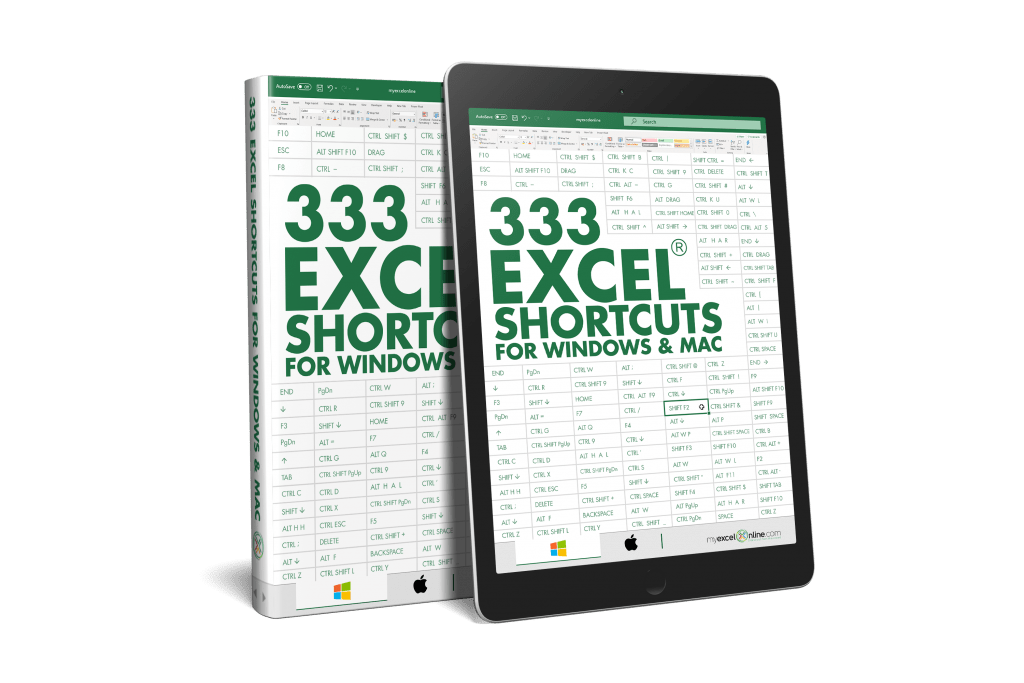
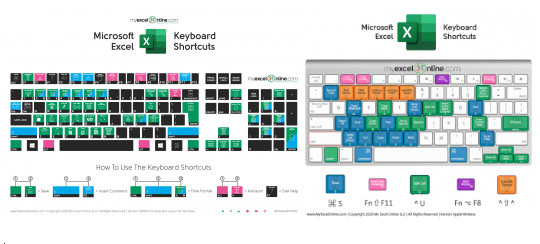
DOWNLOAD THE 333 EXCEL SHORTCUTS PDF CHEAT SHEET
Watch it on YouTube and give it a thumbs-up!
Full List of the 333 Excel Keyboard Shortcuts for Windows and Mac!
Here is the list of the Microsoft Excel Keyboard Shortcuts for Windows and Mac.
Windows keyboard shortcuts are on the left side, while the Mac keyboard shortcuts are on the right.
Or try to filter them out...
Frequent Shortcuts
| Add borders | ||
| Add or remove filter | ||
| Bold | ||
| Center align cell contents | ||
| Choose a fill color | ||
| Close workbook | ||
| Copy | ||
| Cut | ||
| Delete column | ||
| Display find and replace (find) | ||
| Display find and replace (replace) | ||
| Find next match | ||
| Find previous match | ||
| Hide selected columns | ||
| Hide selected rows | ||
| Left align cell contents | ||
| New workbook | ||
| Open context menu | ||
| Open workbook | ||
| Paste | ||
| Remove cell contents | ||
| Right align cell contents | ||
| Save workbook | ||
| Undo | ||
| Unhide columns | ||
| Unhide rows | ||
| Zoom in | ||
| Zoom out |
Inside the Ribbon
| Activate selected button | ||
| Expand / collapse the ribbon | ||
| Move to left command | ||
| Move to right command | ||
| Move to submenu when a main menu is open | ||
| Move to the next command in open menu | ||
| Open a context menu | ||
| Open the list for selected command | ||
| Open the menu for selected button | ||
| Select active tab and activate access keys | ||
| Select active tab and activate access keys |
Cell Navigation
| Cycle through text boxes / images | ||
| Enter the End mode | ||
| Exit navigation of text boxes / images | ||
| Extend selection of cells to last used cell | ||
| Move one cell down | ||
| Move one cell left | ||
| Move one cell right | ||
| Move one cell up | ||
| Move one screen down in worksheet | ||
| Move one screen left in worksheet | ||
| Move one screen right in worksheet | ||
| Move one screen up in a worksheet | ||
| Move to beginning of a worksheet | ||
| Move to bottom edge of data region | ||
| Move to cell in the upper left corner | ||
| Move to last cell on a worksheet | ||
| Move to left edge of data region | ||
| Move to next cell to the right | ||
| Move to next sheet in workbook | ||
| Move to previous sheet in workbook | ||
| Move to right edge of data region | ||
| Move to the previous cell | ||
| Move to top edge of data region | ||
| Open list of choices on a cell | ||
| Show Go To Dialog |
Formatting Cells
| Apply Currency format | ||
| Apply Date format | ||
| Apply General format | ||
| Apply Number format | ||
| Apply or remove bold formatting | ||
| Apply or remove italic formatting | ||
| Apply or remove strikethrough formatting | ||
| Apply or remove underline | ||
| Apply outline border to cells | ||
| Apply Percentage format | ||
| Apply Scientific format | ||
| Apply Time format | ||
| Check spelling | ||
| Copy formula from above cell | ||
| Copy selected cells | ||
| Cut selected cells | ||
| Display the Quick Analysis options | ||
| Edit active cell | ||
| Enter current date | ||
| Enter current time | ||
| Fill down from cell above | ||
| Fill right from cell left | ||
| Format fonts in Format Cells dialog | ||
| Insert a note | ||
| Insert Table | ||
| Insert threaded comment | ||
| Open and edit a note | ||
| Open and reply to threaded comment | ||
| Open Delete dialog to delete cells | ||
| Open Format Cells dialog | ||
| Open Insert dialog to insert cells | ||
| Open Paste Special dialog | ||
| Open the Insert hyperlink dialog | ||
| Paste selected cells | ||
| Remove outline border to selected cells | ||
| Show or hide objects | ||
| Show or hide outline symbols | ||
| Toggle formulas on and off |
Making Selections
| Complete cell entry and select above cell | ||
| Extend cell selection downwards | ||
| Extend cell selection to the left | ||
| Extend cell selection to the right | ||
| Extend cell selection to top | ||
| Extend cell selection upwards | ||
| Extend selection to last bottom cell | ||
| Extend selection to last left cell | ||
| Extend selection to last right cell | ||
| Extend selection to last top cell | ||
| Fill selected cell range with the current entry | ||
| Repeat last action | ||
| Select all objects when an object is selected | ||
| Select current and next worksheet | ||
| Select current and previous worksheet | ||
| Select current array | ||
| Select current region around the cell | ||
| Select differences in column | ||
| Select differences in row | ||
| Select entire column | ||
| Select entire row | ||
| Select entire worksheet | ||
| Select first command on menu | ||
| Select only visible cells | ||
| Start a new line | ||
| Toggle add to selection mode | ||
| Toggle extend mode | ||
| Undo last action |
Working with Formulas
| Autosum selection of cells | ||
| Calculate active worksheet | ||
| Calculate all worksheets | ||
| Cancel entry in formula bar | ||
| Check your formula | ||
| Complete entry in formula bar | ||
| Copy the value from the cell above | ||
| Create chart in a new sheet | ||
| Create embedded chart | ||
| Define name for references | ||
| Display function arguments dialog | ||
| Display message for error checking button | ||
| Edit active cell | ||
| Expand or collapse formula bar | ||
| Force Calculate all worksheets | ||
| Input array formula | ||
| Insert a function | ||
| Insert function arguments | ||
| Invoke Flash Fill | ||
| Move to end of text when in the formula bar | ||
| Move to next record of data form | ||
| Open macro dialog | ||
| Open Visual Basic For Applications (VBA) Editor | ||
| Paste a name | ||
| Select text in formula bar to end | ||
| Toggle absolute or relative references |
Ribbon Tabs
| Go to Search field | ||
| Open Data tab | ||
| Open File page | ||
| Open Formulas tab | ||
| Open Home tab | ||
| Open Insert tab | ||
| Open Page Layout tab | ||
| Open Review tab | ||
| Open View tab |
Power Pivot
| Cancel process or close dialog | ||
| Copy selected data | ||
| Delete table | ||
| Move table | ||
| Move to first cell in table | ||
| Move to first cell of row | ||
| Move to last cell in table | ||
| Move to last cell of row | ||
| Move to next table | ||
| Move to previous table | ||
| Move to the first cell of column | ||
| Move to the last cell of column | ||
| Open AutoFilter Menu dialog | ||
| Open Go To dialog | ||
| Recalculate all formulas | ||
| Redo last action | ||
| Rename table | ||
| Save file | ||
| Select cells to first column cell | ||
| Select cells to first row cell | ||
| Select cells to last column cell | ||
| Select cells to last row cell | ||
| Select current column | ||
| Select current row | ||
| Select entire table | ||
| Undo last action |
Function Keys
| Add non-adjacent cell to a selection | ||
| Add or update cell note | ||
| Calculate all worksheets | ||
| Calculates active worksheet | ||
| Close Excel | ||
| Close workbook window | ||
| Create chart of the selected range | ||
| Display message for error checking button | ||
| Display shortcut menu | ||
| Edit the active cell | ||
| Force calculate all worksheets | ||
| Insert new worksheet | ||
| Insert new worksheet | ||
| Maximize workbook | ||
| Minimize workbook | ||
| Open Excel Help | ||
| Open Go To dialog | ||
| Open Insert Function dialog | ||
| Open Macro dialog | ||
| Open Paste Name dialog | ||
| Open print preview | ||
| Open Save As dialog | ||
| Open Spelling dialog | ||
| Open Thesaurus | ||
| Open VBA Editor | ||
| Perform moving of window | ||
| Perform resizing of window | ||
| Repeat last action | ||
| Restore window size of workbook | ||
| Show or hide ribbon | ||
| Switch panes | ||
| Switch panes in reverse | ||
| Switch to next workbook | ||
| Toggle extend mode | ||
| Toggle key tips |
Drag and Drop
| Drag and copy | ||
| Drag and cut | ||
| Drag and insert | ||
| Drag and insert copy | ||
| Drag selection to worksheet | ||
| Drag to duplicate the worksheet |
Macros and VBA
| Autocomplete code | ||
| Delete line of code | ||
| Open Intellisense Dropdown | ||
| Open Visual Basic For Applications (VBA) Editor | ||
| Redo last action | ||
| Show quick info | ||
| Step through code |
Pivot Table
| Group selected items | ||
| Hide selected item or field | ||
| Open Calculated Field dialog | ||
| Open field list for cell | ||
| Open old PivotTable Wizard | ||
| Refresh Pivot Table | ||
| Refresh Pivot Table | ||
| Select entire table | ||
| Select first item in Field List | ||
| Select last item in Field List | ||
| Select next item in Field List | ||
| Select or clear a check box | ||
| Select previous item in Field List | ||
| Ungroup selected items |
Power BI
| Activate Selection pane | ||
| Collapse a table | ||
| Comment lines in DAX | ||
| Comment multiple lines in DAX | ||
| Copy | ||
| Copy line down in DAX | ||
| Copy line up in DAX | ||
| Create line break with auto-indent | ||
| Delete a word in DAX | ||
| Delete multiple lines in DAX | ||
| Enter lines of code in DAX | ||
| Enter lines of code in DAX | ||
| Expand a table | ||
| Find the highlighted word | ||
| Go to line number in DAX | ||
| Indent line in DAX | ||
| Insert cursor in DAX | ||
| Insert line above in DAX | ||
| Insert line below in DAX | ||
| Interact with a Slicer | ||
| Jump to matching bracket in DAX | ||
| Move an object down in layering | ||
| Move an object up in layering | ||
| Move focus backward in section | ||
| Move focus between sections | ||
| Move focus forward in section | ||
| Move focus to Visual menu | ||
| Move line down in DAX | ||
| Move line up in DAX | ||
| Multi-select | ||
| Multi-select objects | ||
| New line in DAX | ||
| Open context menu | ||
| Outdent line in DAX | ||
| Paste | ||
| Restart Intellisense | ||
| Select all occurrences of current selection | ||
| Select all occurrences of current word | ||
| Select an object | ||
| Select current line in DAX | ||
| Select nearest word in DAX | ||
| Select object | ||
| Show data | ||
| Show keyboard shortcuts | ||
| Toggle commenting of code | ||
| Toggle commenting of lines that has a word | ||
| Toggle object visibility | ||
| Uncomment lines in DAX | ||
| Uncomment multiple lines in DAX |
Others
| Add border bottom in Format Cells | ||
| Add border downard diagonal in Format Cells | ||
| Add border horizontal interior in Format Cells | ||
| Add border left in Format Cells | ||
| Add border right in Format Cells | ||
| Add border top in Format Cells | ||
| Add border upward diagonal in Format Cells | ||
| Add border vertical interior in Format Cells | ||
| Clear cell content | ||
| Clear cell content while keeping cell format | ||
| Clear slicer filter | ||
| Close an open menu or dialog | ||
| Delete one character to the left | ||
| Delete one character to the right | ||
| Delete to the end of line | ||
| Display control menu for Excel window | ||
| In End Mode, move to bottom cell in column | ||
| In End Mode, move to left cell in row | ||
| In End Mode, move to right cell in row | ||
| In End Mode, move to top cell in column | ||
| Insert new line in cell | ||
| Move to start of row | ||
| Move to unlocked cells in protected worksheet | ||
| Open dropdown list | ||
| Select or clear a check box | ||
| Selects the entire worksheet | ||
| Switch to next tab in dialog | ||
| Switch to Normal view | ||
| Switch to Page Break Preview view | ||
| Switch to Page Layout view | ||
| Switch to previous tab in dialog | ||
| Toggle End mode | ||
| Toggle full screen | ||
| Toggle total row of table |
Download Our Excel Shortcuts PDF Cheat Sheet for Windows and Mac below…for FREE!

Bryan
Bryan is a best-selling book author of the 101 Excel Series paperback books.

 30 Days - Full Access