Free Practice Workbook
I have a couple of methods for you on how to refresh external data source in the Pivot Table:
Let’s look at each method one by one!
Before you proceed, don’t forget to download this workbook and follow along:
Let us check out our Pivot Table if it does really have an External Data Source.
Go to PivotTable Analyze > Data > Change Data Source
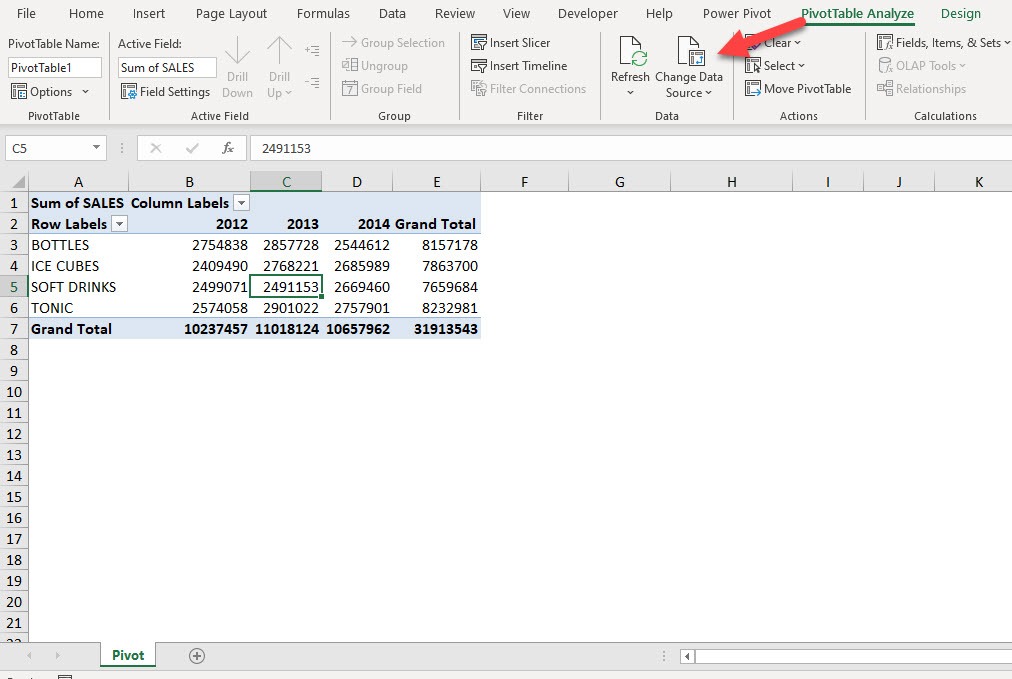
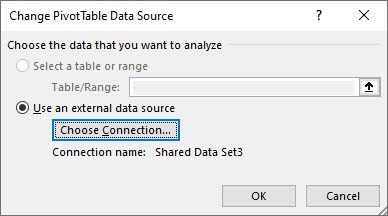
You can see that it is using an external data source. Click OK.
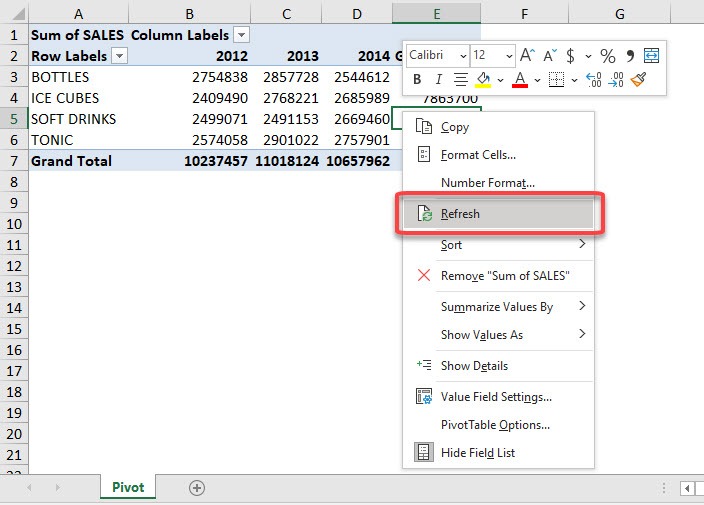
To update this the good old fashioned manual way, right-click on the Pivot Table and select Refresh
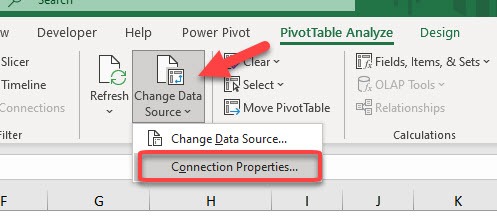
There is another way to ensure your Pivot Table is updated.
STEP 1: Go to PivotTable Analyze > Data > Change Data Source > Connection Properties
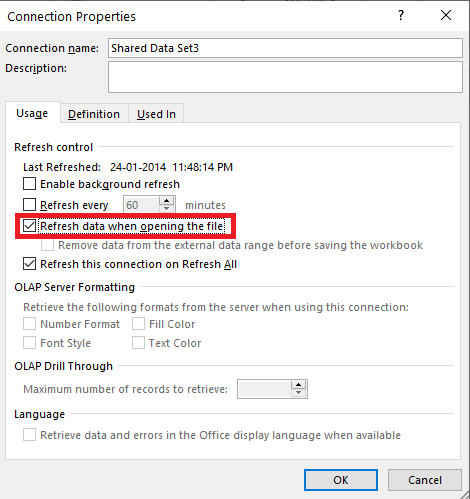
STEP 2: Select the checkbox – Refresh data when opening the file.
This triggers a pivot table update whenever you open the Excel file. This is a good option if you prefer this to happen only once when you open the file.
STEP 1: Go to PivotTable Analyze > Data > Change Data Source > Connection Properties
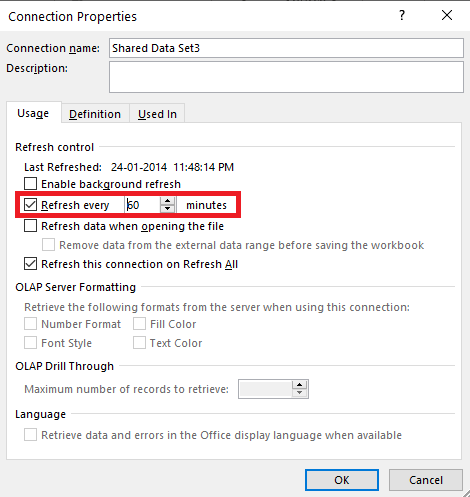
STEP 2: Select the checkbox – Refresh every X minutes.
This will refresh your pivot table automatically after the number of minutes has passed.
Try out these options and have fun keeping your Pivot Table up-to-date!

Bryan
Bryan is a best-selling book author of the 101 Excel Series paperback books.

 30 Days - Full Access