 Free Practice Workbook
One of the recurring challenges is dealing with removing text wrap. Instead of manually turning off Wrap Text for multiple cells, rows, or entire worksheets, you can use VBA macros to remove Wrap Text quickly. In this article, you will learn how to remove text wrap using macros in Excel.
Key Takeaways:
- Wrap Text displays long cell content on multiple lines within the same cell.
- Macros allow you to remove text wrap from cells.
- You can customize the macro to work on selected cells or the entire worksheet.
- Save the macro in .xlsm format to preserve the VBA code.
- Keep backups to prevent accidental data loss or overwriting.

Download excel workbookHow-to-Remove-Text-Wrap.xlsm
Table of Contents
Understand Wrap Text in Excel
Wrap text in Excel is a formatting feature that allows you to display long cell content on multiple lines in the same cell. When text wrap is enabled, Excel automatically adjusts the row height to accommodate all the lines. This can cause your rows to become uneven and harder to navigate.
There may be certain situations where you may want to remove wrap text:
- Standardize worksheet formatting.
- Improve worksheet readability.
- Reduce row height.
- Prepare data for printing or exporting.
- Remove unwanted text wrapping from imported data.
How to Wrap Text using Macros in Excel
Enable the Developer Tab
STEP 1: Open Excel and click on the File menu.

STEP 2: Select Options at the bottom of the menu.

STEP 3: In the Excel Options window, choose Customize Ribbon from the left pane. On the right side, find the list of main tabs, then check the box for Developer. Click OK.
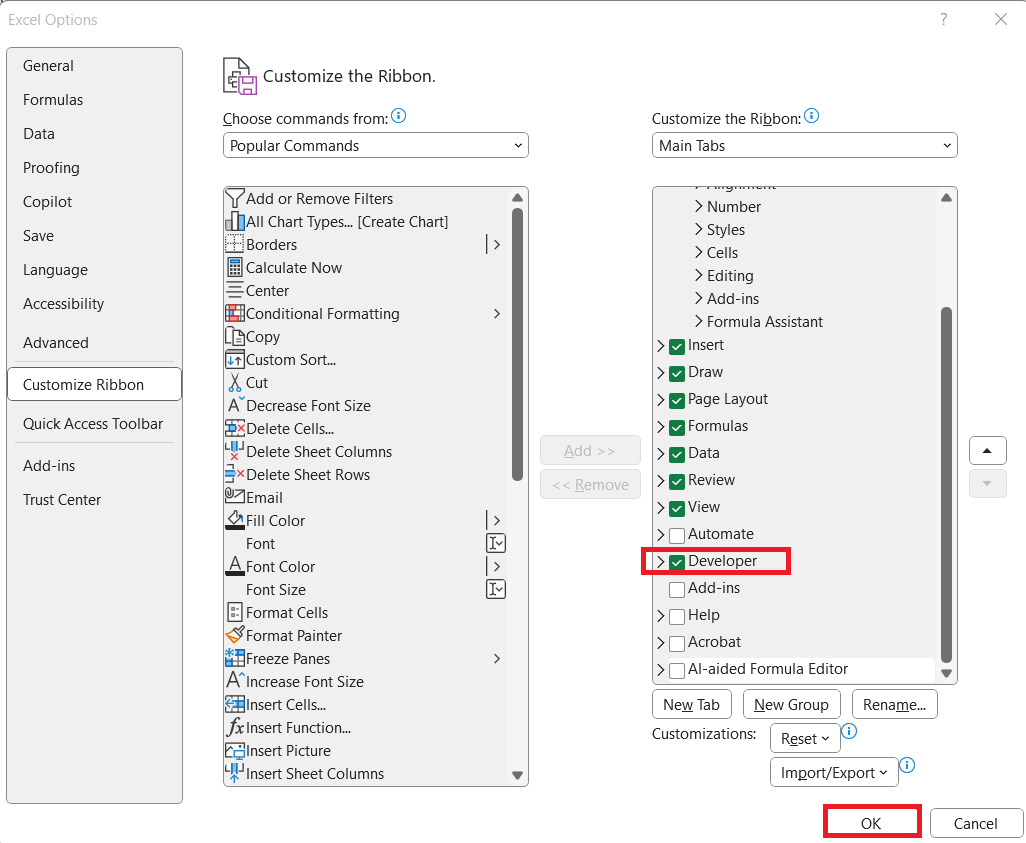
The Developer tab should now appear in your Excel ribbon.

Use a VBA Code to Remove Text Wrap
STEP 1: Go to Developer > Code > Visual Basic

STEP 2: Paste in your code and Select Save. Close the window afterwards.
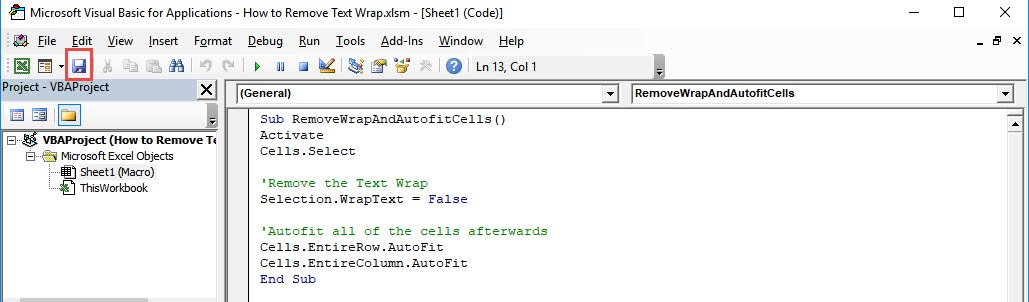
STEP 3: Let us test it out!
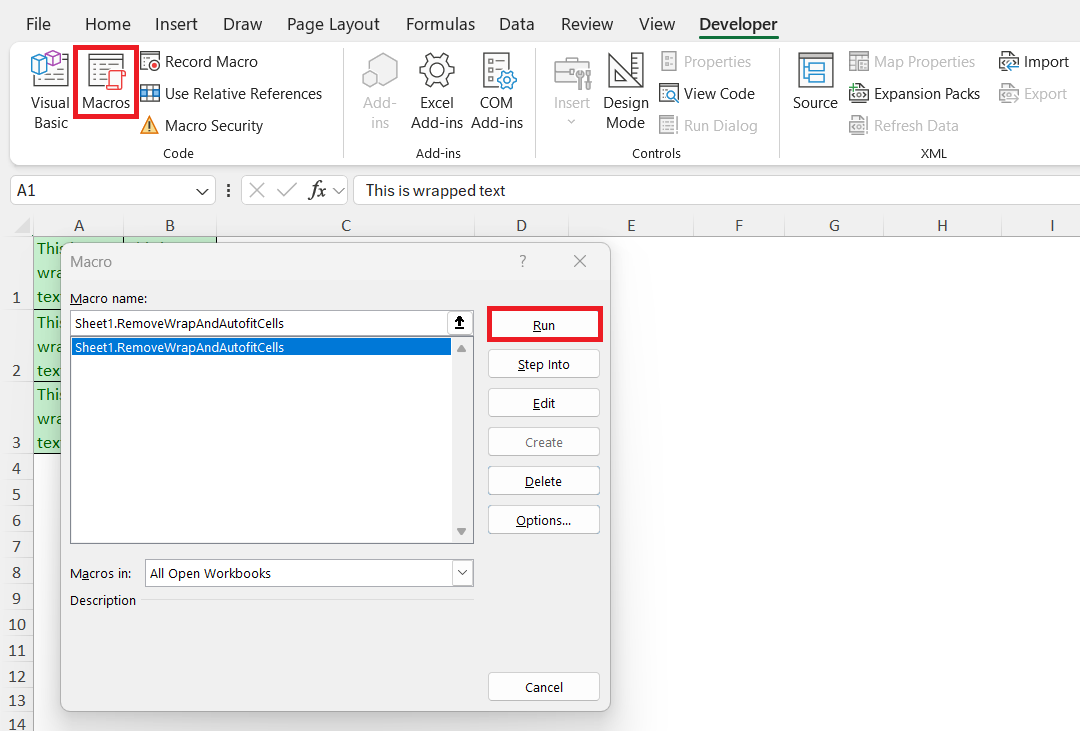
Open the sheet containing the data. Go to Developer > Code > Macros
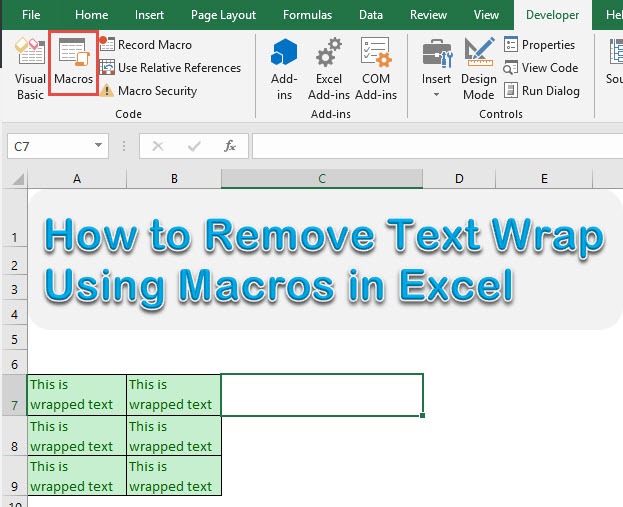
Make sure your macro is selected. Click Run.
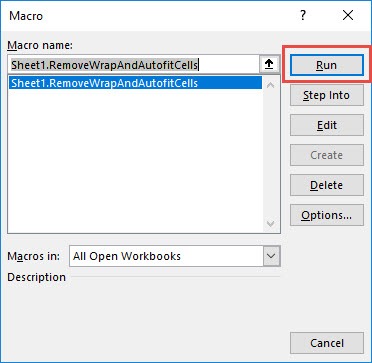
With just one click, all of the cells now have text wrap removed!
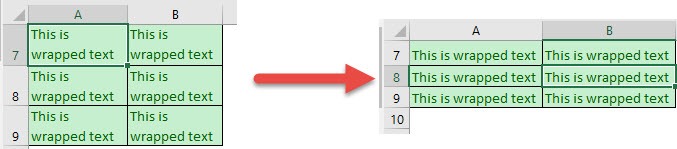
Save and Run My Macro
Save the Macro-Enabled Workbook
After writing or editing my macro, I always save my file as a macro-enabled workbook (.xlsm).

This ensures my VBA code is preserved and ready for future use. Saving it in the right format is important – regular .xlsx files will remove all your VBA work. I also name the file clearly so I can easily distinguish it from other versions.
Run the Macro
- Open the Developer tab, and click Macros
- I pick the macro I want
- Press Run
Tips & Tricks
- Save a backup copy of your workbook before running any macro.
- Test the macro on a small sample of data before applying it to large worksheets.
- Save your workbook in the .xlsm format to preserve the VBA code.
- Verify that the correct worksheet or range is selected before running the macro.
- Assign the macro to a button or keyboard shortcut if you use it frequently.
- Keep your VBA code organized and add comments for easier maintenance.
- Avoid downloading macros from untrusted sources to protect your files and data.
FAQs
What is Wrap Text in Excel?
Wrap text is a formatting feature in Excel that allows you to fit long text in multiple lines in the same cell.
What is the format in which Excel files with macros are saved?
Microsoft Excel files containing VBA macros are saved in .XLSM format.
Does removing text wrap delete any data?
No, when you remove wrap text in Excel, it does not delete any data.
How to remove text wrap from selected cells?
You can modify the VBA code to work only on the cells you select.
Can I undo a macro after running it?
Usually, Excel does not allow you to use the Undo feature after a macro runs. It is recommended to save a backup copy of your workbook before executing a macro.

Bryan
Bryan Hong is an IT Software Developer for more than 10 years and has the following certifications: Microsoft Certified Professional Developer (MCPD): Web Developer, Microsoft Certified Technology Specialist (MCTS): Windows Applications, Microsoft Certified Systems Engineer (MCSE) and Microsoft Certified Systems Administrator (MCSA).
He is also an Amazon #1 bestselling author of 4 Microsoft Excel books and a teacher of Microsoft Excel & Office at the MyExecelOnline Academy Online Course.

 30 Days - Full Access









