 Free Practice Workbook
Pivot tables are great tools that can be used to summarize and analyse data. It can turn raw data into useful information with a few clicks. But it needs to be refreshed every time you update the source data. In this article, I’ll explain how to refresh all pivot tables using macros.
Key Takeaways:
- Macros are recorded steps that can be used to automate task.
- It can be used to refresh all pivot tables at once.
- This saves time and avoids manual work.
- You can run a macro with one click.
- Always save a backup before using macros.

Table of Contents
Understanding Macros in Excel
What are Macros?
Macros are a feature in Excel that can be used to automate tasks. I can record a multi-step action and, using macros, implement it with just a click. I can use macros to format reports, refresh pivot tables, sort data, apply filters, or copy information between sheets.
Macros help refresh all pivot tables at once. They are useful for dashboards, monthly reports, and files with many pivot tables. Instead of refreshing each table manually, one macro updates everything quickly.
Why Refresh Pivot Tables?
Pivot tables do not always update automatically when the source data changes. If I make changes to the existing data, the pivot table may still show the old results. This can create confusion while checking the data. Refreshing a pivot table updates it with the latest source data.
If there are many pivot tables in one workbook, refreshing each one manually can take time. This is where macros become useful. A macro can refresh all pivot tables together with one click. It helps keep the report accurate and saves time. It also reduces the chance of forgetting to refresh one table.
How to Refresh all Pivot Tables using Macros
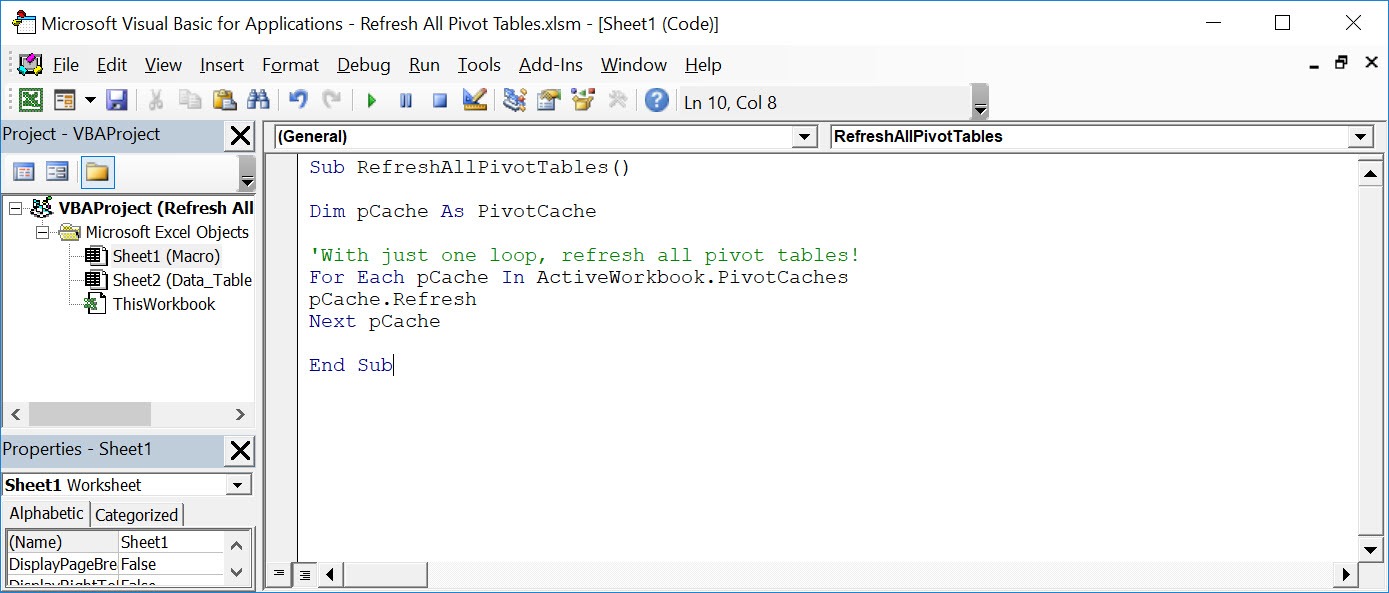
STEP 1: Go to Developer > Code > Visual Basic

STEP 2: Paste in your code and Select Save. Close the window afterwards.
STEP 3: Let us test it out!
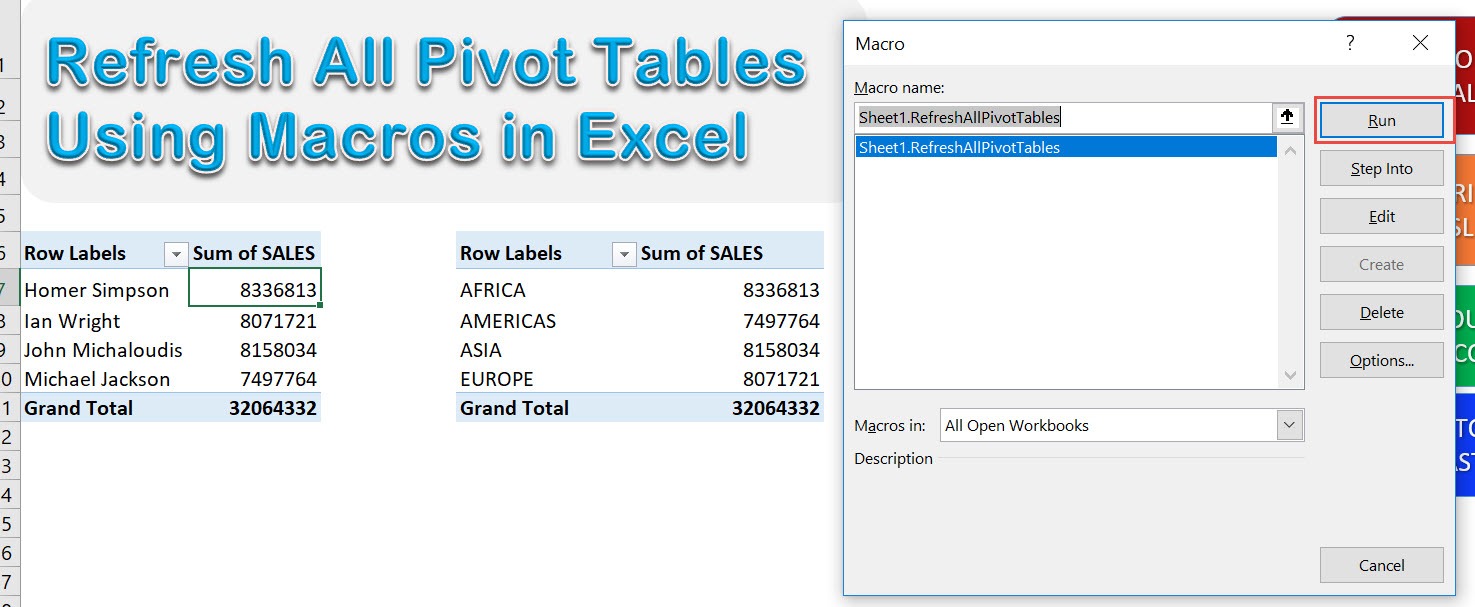
Open the sheet containing the data. Go to Developer > Code > Macros

Make sure your macro is selected. Click Run.
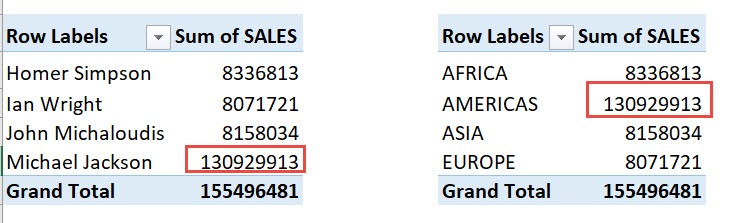
With just one click, all of your pivot tables are now refreshed!
Tips & Tricks
- Before running any macro, I always save a backup copy. This precaution has saved me more than once from accidental data loss or unexpected results.
- Naming my macros clearly (e.g., “RefreshAllPivots”) helps me identify and manage them, especially if I create multiple macros for different tasks.
- I prefer testing my macros on a duplicate set of data to ensure they work as expected before applying them to crucial reports.
- Adding comments in VBA (using the apostrophe ‘) helps me and others, understand what each part of the code does, making future edits easier.
- Since macros can contain code from external sources, I make sure to enable macros only from trusted files and regularly scan for potential risks.
FAQs
What are Macros?
Macros are a feature in Excel that can be used to automate tasks.
Will this macro refresh all pivot tables across hidden sheets too?
Yes. If the macro refreshes all pivot caches, it can update pivot tables even on hidden sheets.
Can I automate the macro to run when the workbook opens?
You can place the macro inside the Workbook_Open() event within the ThisWorkbook object in the VBA editor. This way, every time someone opens the file, the pivot tables refresh automatically.
What happens if a pivot table has a broken data connection?
The macro may show an error. Add error handling so the macro skips the issue and continues.
How to refresh a pivot table?
To refresh a single Pivot Table,
- Click anywhere inside the Pivot Table.
- Go to the PivotTable Analyze tab.
- Click Refresh.

Bryan
Bryan Hong is an IT Software Developer for more than 10 years and has the following certifications: Microsoft Certified Professional Developer (MCPD): Web Developer, Microsoft Certified Technology Specialist (MCTS): Windows Applications, Microsoft Certified Systems Engineer (MCSE) and Microsoft Certified Systems Administrator (MCSA).
He is also an Amazon #1 bestselling author of 4 Microsoft Excel books and a teacher of Microsoft Excel & Office at the MyExecelOnline Academy Online Course.

 30 Days - Full Access









