 Free Practice Workbook
When handling financial data in Excel, it is important to know how to make it look professional. Accounting Number Format is used to display numbers in a clean and consistent format. In this article, you will learn what the Accounting Number Format is and how to apply it in Excel.
Key Takeaways:
- Accounting format makes numbers look clean and professional.
- It aligns currency symbols and the decimal points.
- It shows zero values as dashes.
- Negative numbers appear in parentheses instead of minus signs.
- You can apply it from the Ribbon or Format Cells.
Table of Contents
Understand Accounting Number Format
The Accounting Number Format is a number format used to display financial values in Excel. In this format, currency symbols and decimal points are vertically aligned in a column. It is useful for maintaining clarity and consistency in financial data. In this format:
- Negative values are enclosed in parentheses.
- Zero value is shown as a dash.
- Value is displayed at the far left of the cell.
How to Apply Accounting Number Format
Using Format Cells
STEP 1: Select the cell you wish to format.
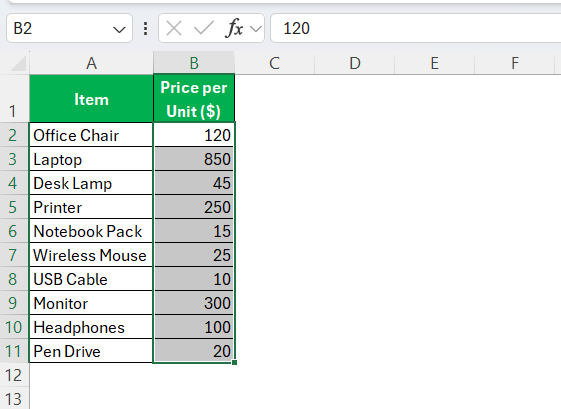
STEP 2: Right-click on the cell and choose ‘Format Cells’. You can also use the keyboard shortcut Ctrl+1 to open the format cell dialog box.
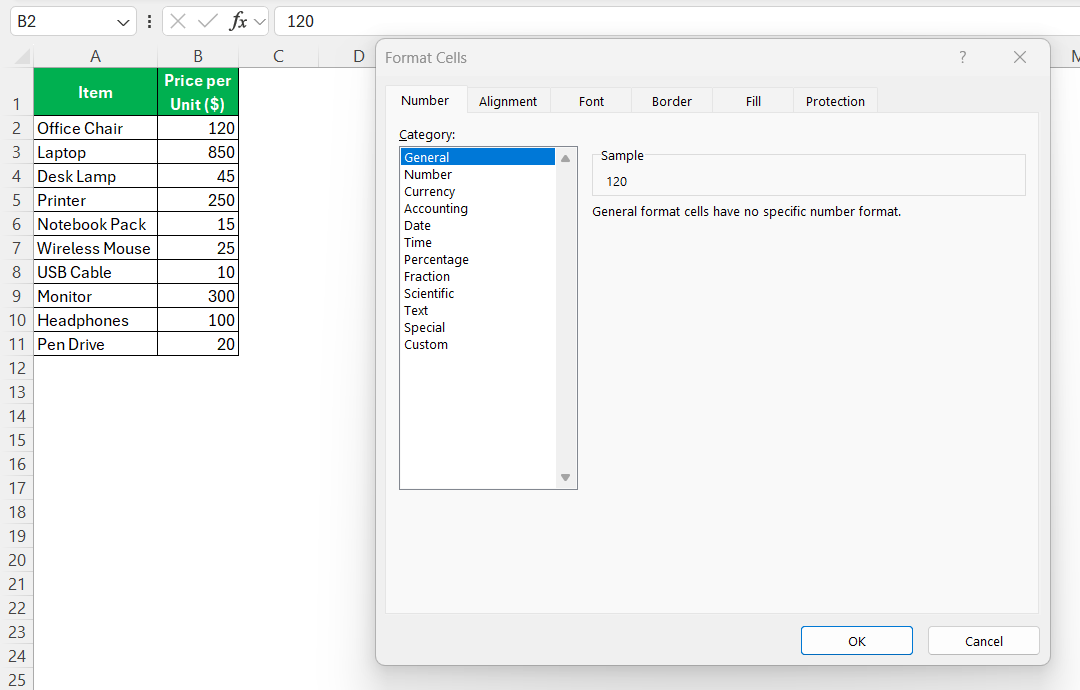
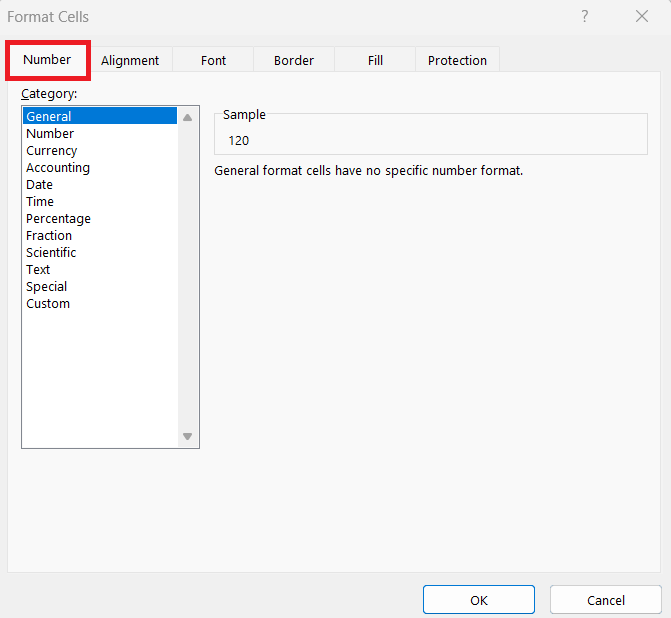
STEP 3: In the dialogue box, go to the Number tab.
STEP 4: Select ‘Accounting.’
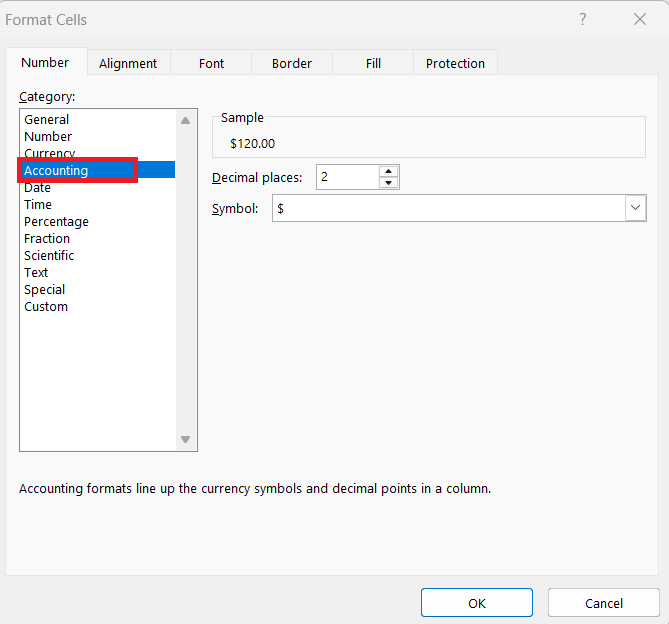
STEP 5: Click ‘OK’.
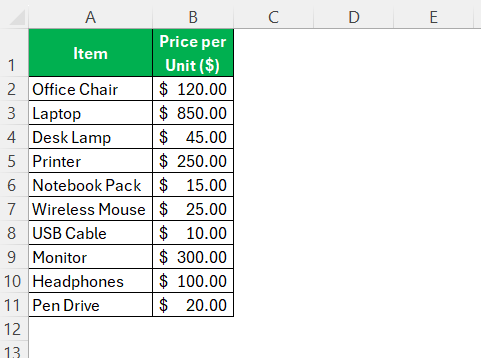
Using Ribbon
STEP 1: Start by selecting the range of cells you want to format.
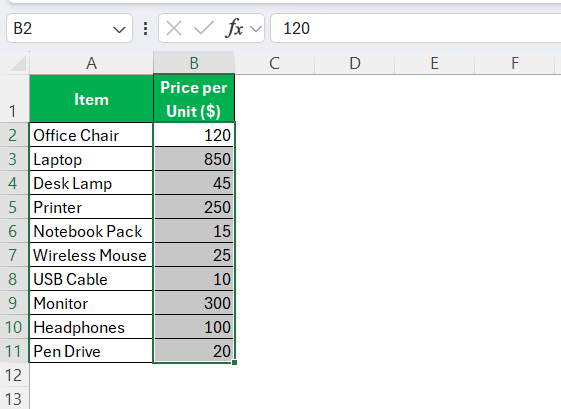
STEP 2: Click on the ‘Home’ tab.

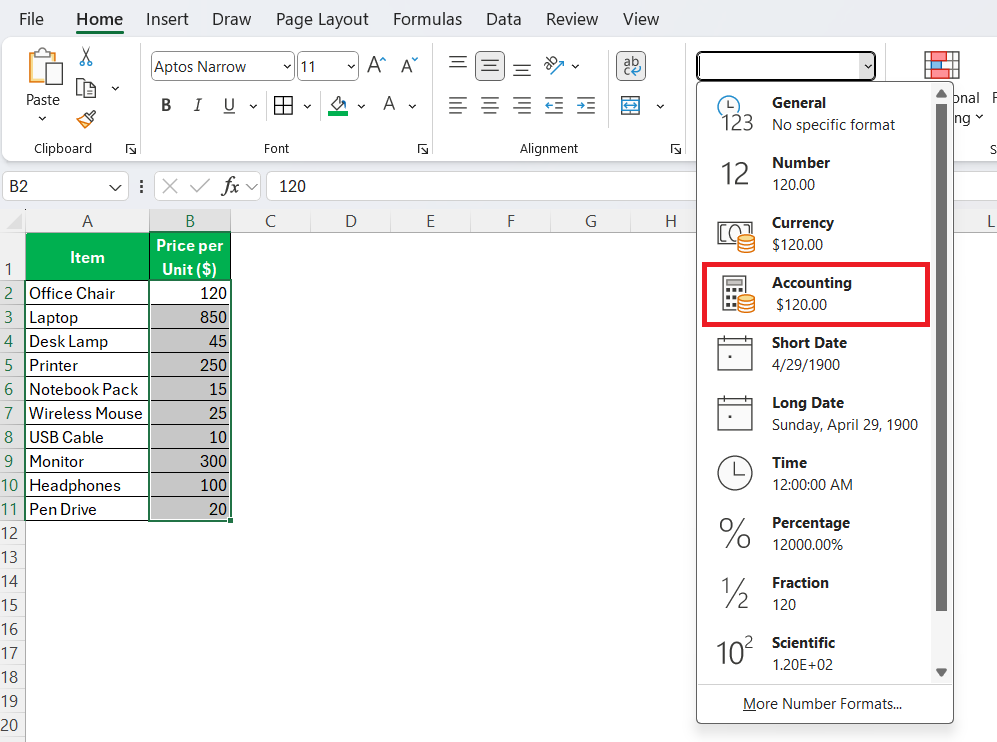
STEP 3: Click on the dropdown menu under the Number group.

STEP 4: Choose ‘Accounting.’
This will automatically apply the default accounting style to your selected cells.
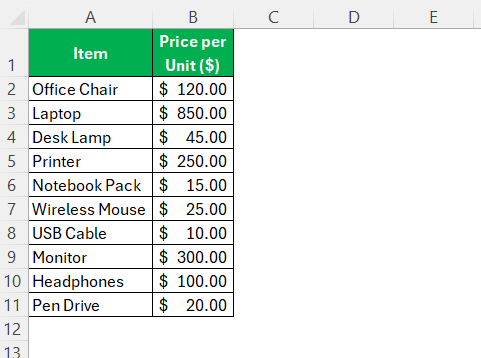
You can also select the Accounting format directly from its dedicated button. It is symbolized by a dollar sign ($) on the Ribbon.

Customize the Accounting Format
Adjust Default Settings
STEP 1: Select the cells you want to adjust. Right-click on it and choose ‘Format Cells’.
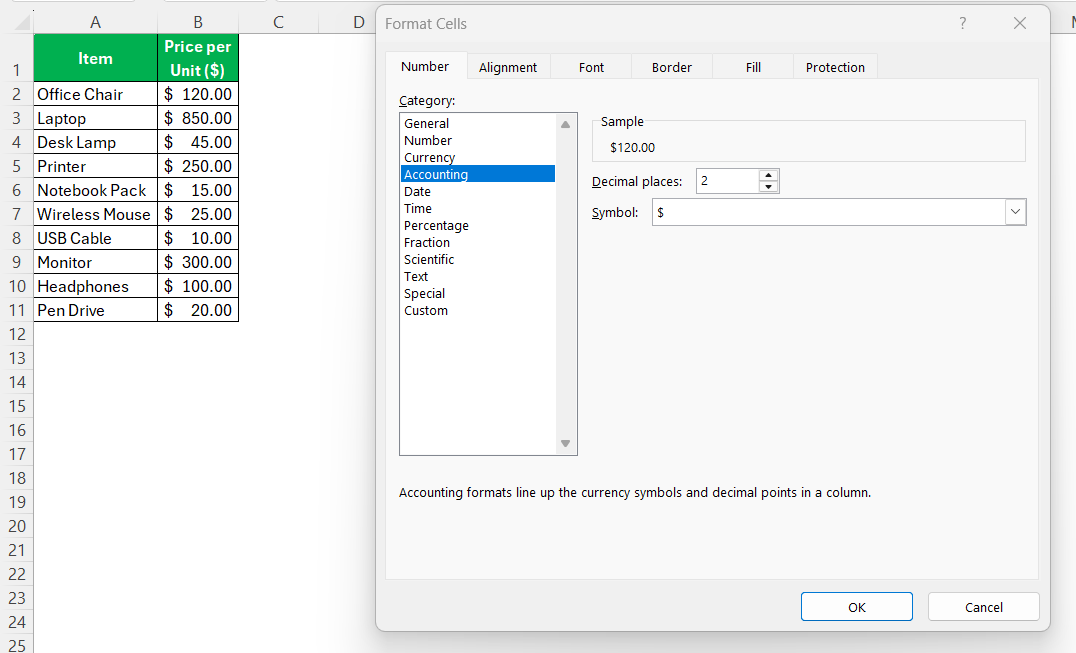
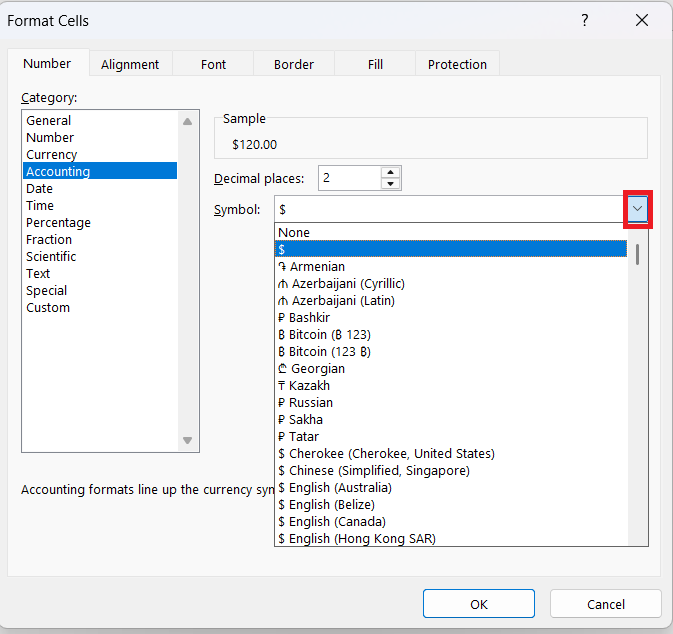
STEP 2: In the Format Cells dialogue box, go to the ‘Number’ tab. Within the Accounting format options, select a currency symbol.
STEP 3: Type the number of decimal places.
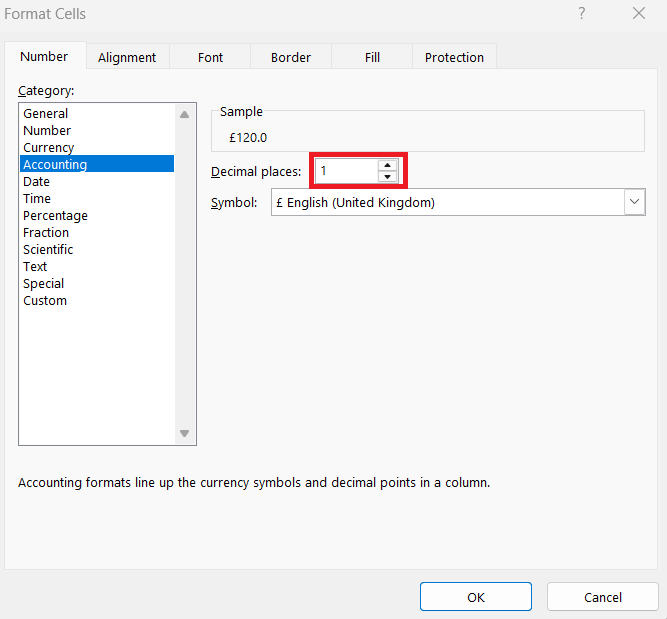
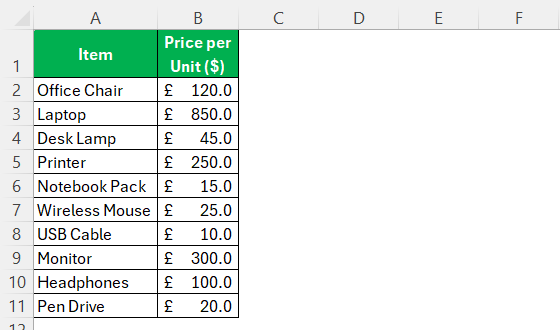
STEP 4: The dialogue box provides a preview window to see how your changes will affect the cells.
Click ‘OK’.
Tips & Tricks
Accounting vs. Currency Formats
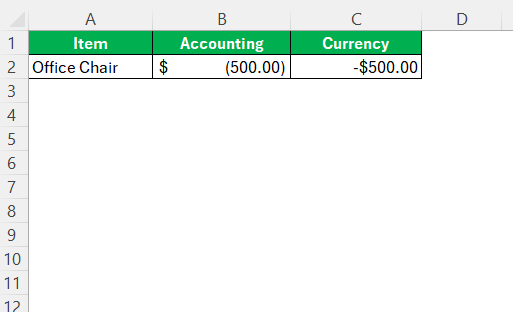
- Negative Value: In the Accounting format, negative numbers are shown within parentheses. The Currency format displays negative numbers with a minus sign.
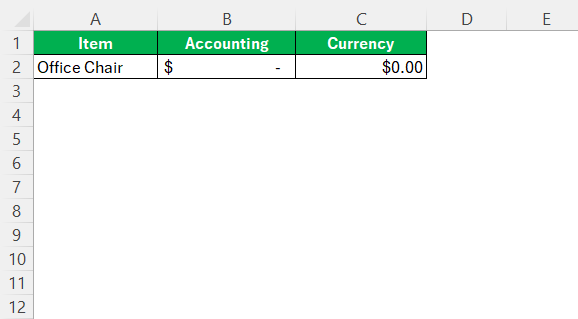
- Zero Value: The Accounting format displays zeros as a dash, while the Currency format shows zeros as the number 0.
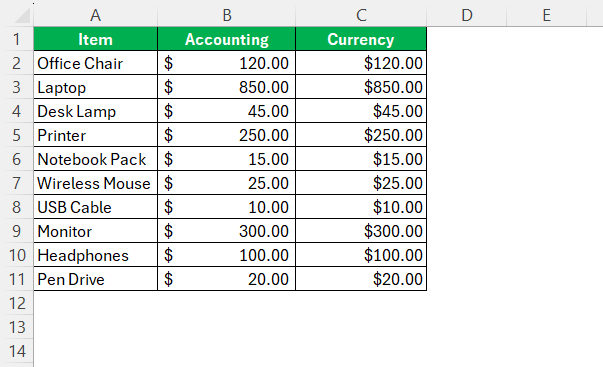
- Currency Symbol Placement: The Accounting format places the currency symbol at the far left of the cell. In contrast, the Currency format positions the symbol directly next to the number.
- Intended Use Case: The Accounting format is ideal for financial statements and formal reports. The Currency format is more flexible and suited for everyday monetary transactions.
FAQs
What is Accounting Number Format in Excel?
It is a format that displays numbers in a neat and structured financial style
How to quickly apply the number format?
You can use Ctrl+Shift+! to apply the number format instantly across your selected cells.
Can I customize the currency symbol in Excel?
You can customize the default currency symbol by following the steps below:
- Right-click on the cell
- Select Format Cell
- Go to the Number tab
- Go to the Accounting section
- Select your preferred currency symbol from the dropdown menu.
How to apply accounting number format in Excel?
Follow the steps below to apply the accounting number format:
- Select your cells
- Right-click on it
- Choose ‘Format Cells’.
- In the dialogue box, select the ‘Accounting’ category.
What is an Excel number format?
An Excel number format is a set of predefined rules that decides how numerical data is displayed in a cell. It changes the cell’s appearance without changing its underlying value.

John Michaloudis is a former accountant and finance analyst at General Electric, a Microsoft MVP since 2020, an Amazon #1 bestselling author of 4 Microsoft Excel books and teacher of Microsoft Excel & Office over at his flagship MyExcelOnline Academy Online Course.

 30 Days - Full Access









