 Free Practice Workbook
Key Takeaways:
- ActiveX controls are interactive tools that are used to automate tasks.
- Form controls are simple and easy to use.
- Common ActiveX controls are Command Buttons, Text Boxes, Combo Boxes, Check Boxes, and List Boxes.
- ActiveX controls need the Developer tab and macros enabled.
- Use ActiveX controls only from trusted sources.
Table of Contents
What are ActiveX Controls?
ActiveX controls are interactive tools that can be used to add features like buttons and input boxes. They work with VBA codes and make spreadsheets dynamic and user-friendly. They are useful for advanced automation and tricky logic. But for it to work, we will need to enable the Developer tab and macros.
You can easily input data in Excel using these interactive elements. They include predefined tools like dropdown lists, buttons, check boxes, etc. They are easy to use and control, and can be used in different Excel versions with ease. They are useful for simple data entry tasks, and you do not require any programming knowledge to use them.
alicious ActiveX controls are downloaded, they can be major security risks, including possible vulnerability to hacking or unauthorized data access. Being aware of these risks and understanding how to manage them is important when using ActiveX controls in Excel.
Exploring ActiveX Control in Excel
How to Enable the Developer Tab in Excel
Since ActiveX controls are found in the Developer tab, I always make sure to enable it first:
STEP 1: Click on File > Options.

STEP 2: Select Customize Ribbon.
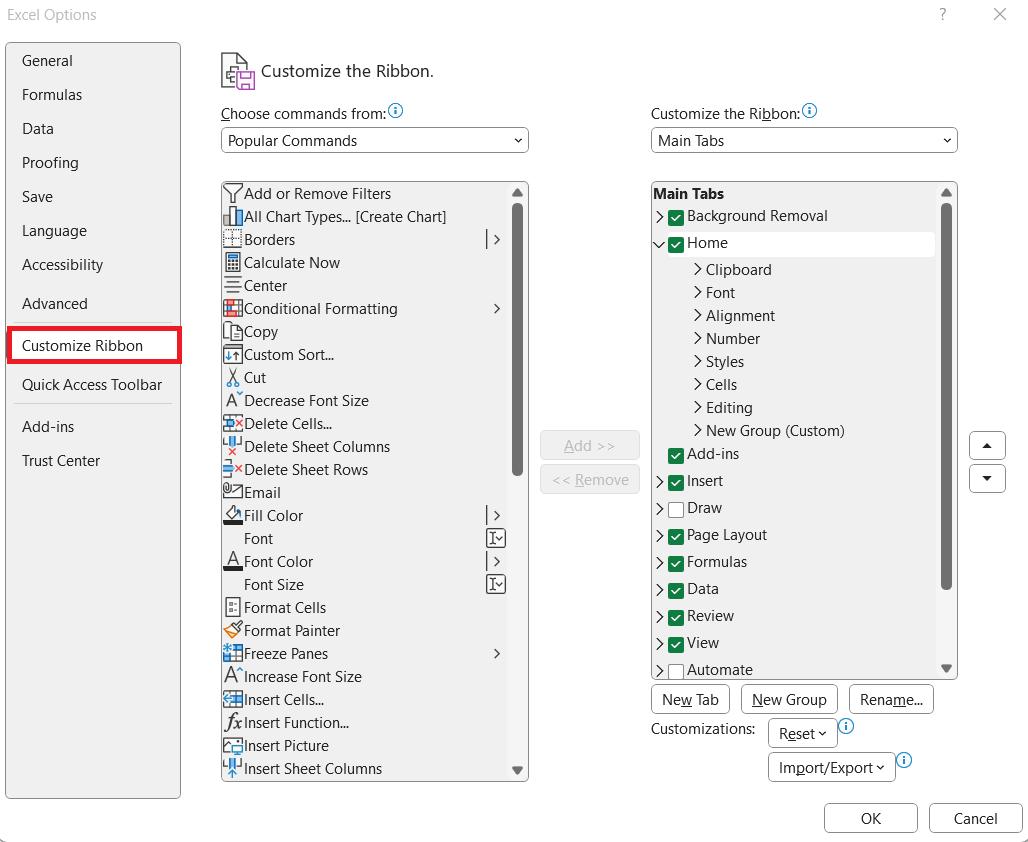
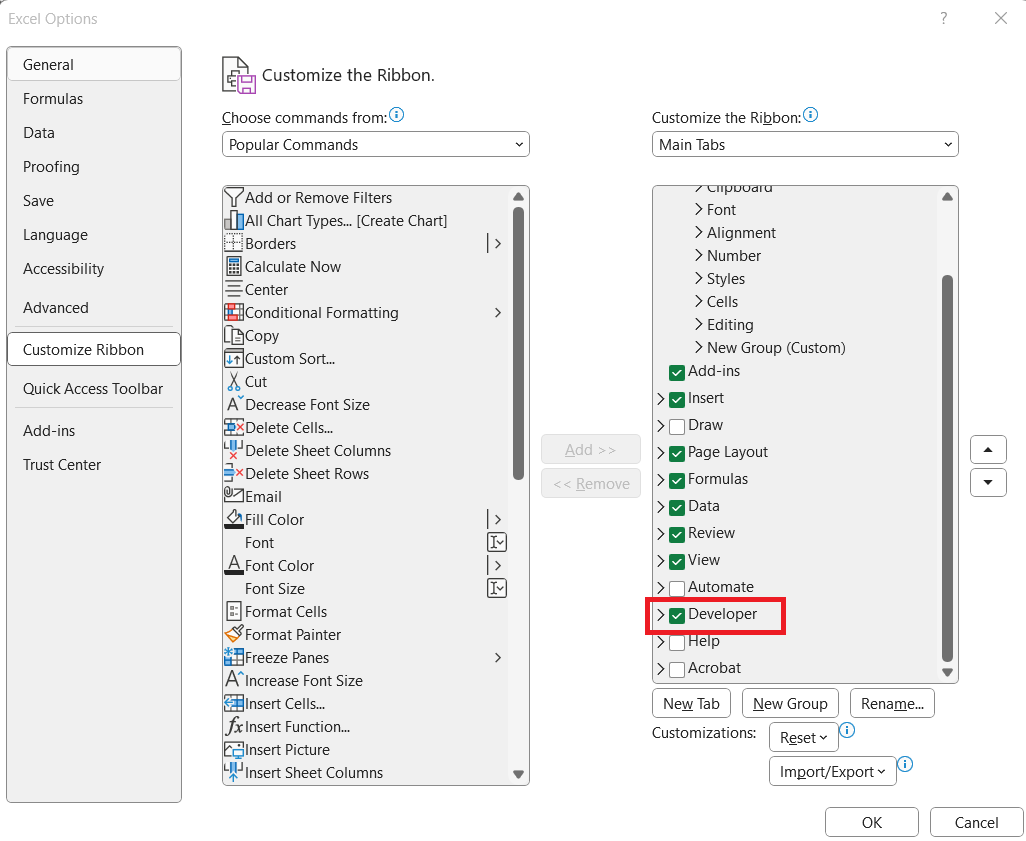
STEP 3: Check Developer and click OK.
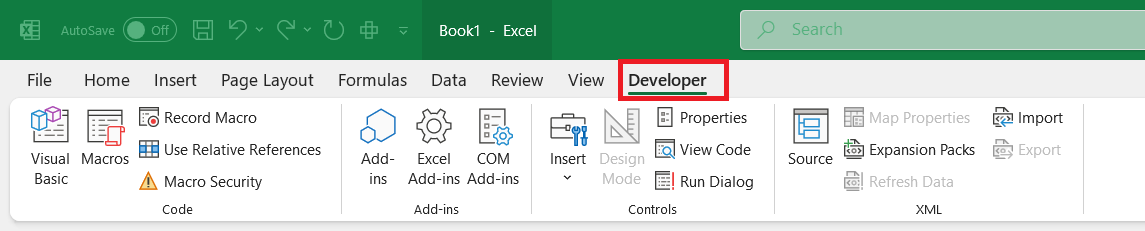
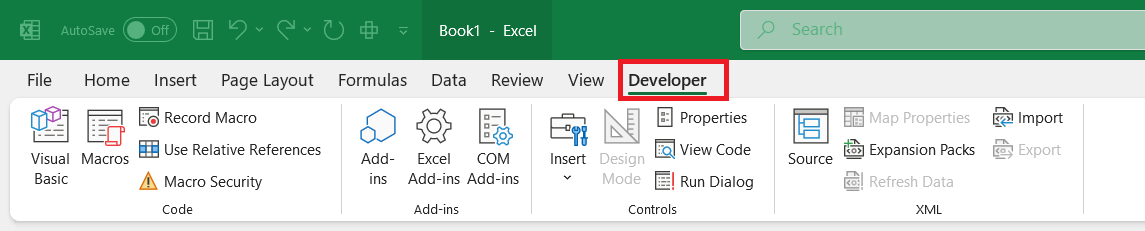
Now, the Developer tab appears in my ribbon, giving me access to ActiveX controls.
Adding an ActiveX Control in Excel
To insert an ActiveX control, I follow these steps:
STEP 1: Go to the Developer tab.
STEP 2: Click Insert. Under ActiveX Controls, choose a control. It can be anything like a Command Button, a TextBox, a ComboBox, a Dropdown, etc.
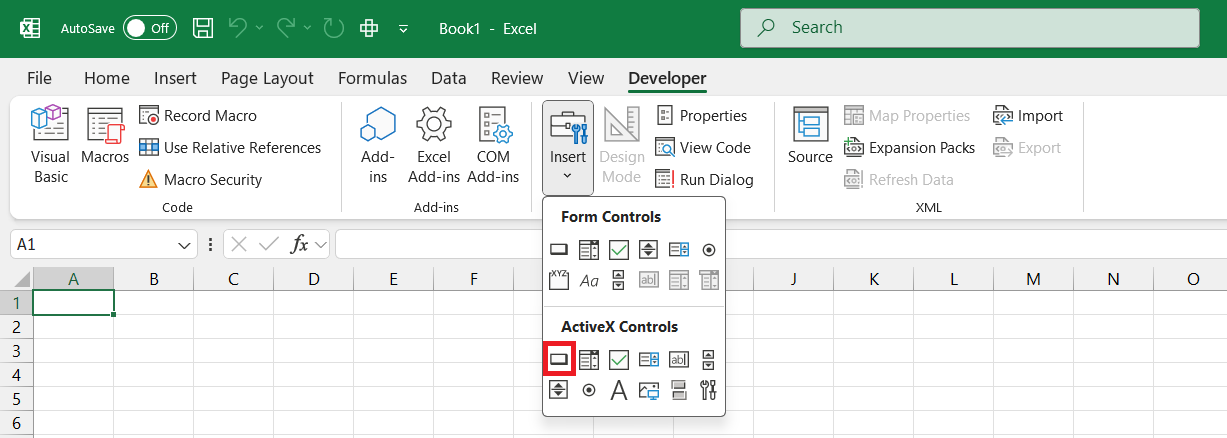
STEP 3: Click anywhere to place the control.
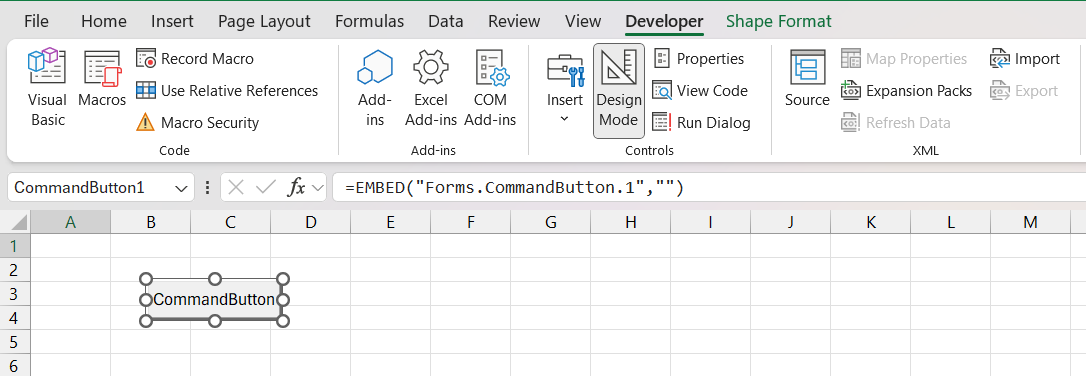
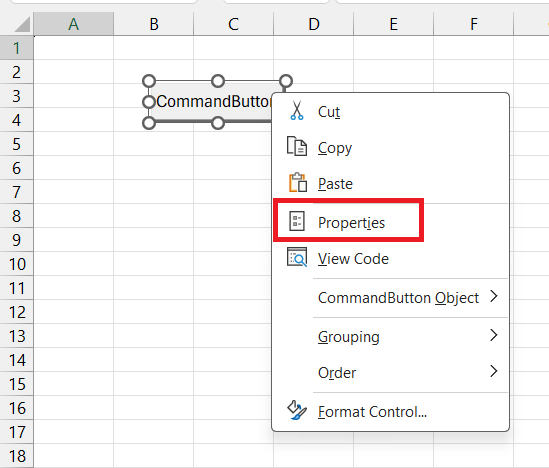
STEP 4: Right-click the control and select Properties.
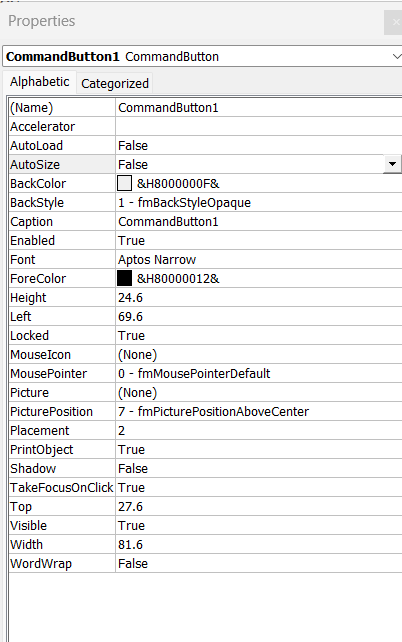
The properties dialog box can be used to modify various settings like size, color, text, and other attributes.
Using VBA with ActiveX Controls
With ActiveX controls, you can easily use VBA code to add any functionality. Follow the steps below to know how:
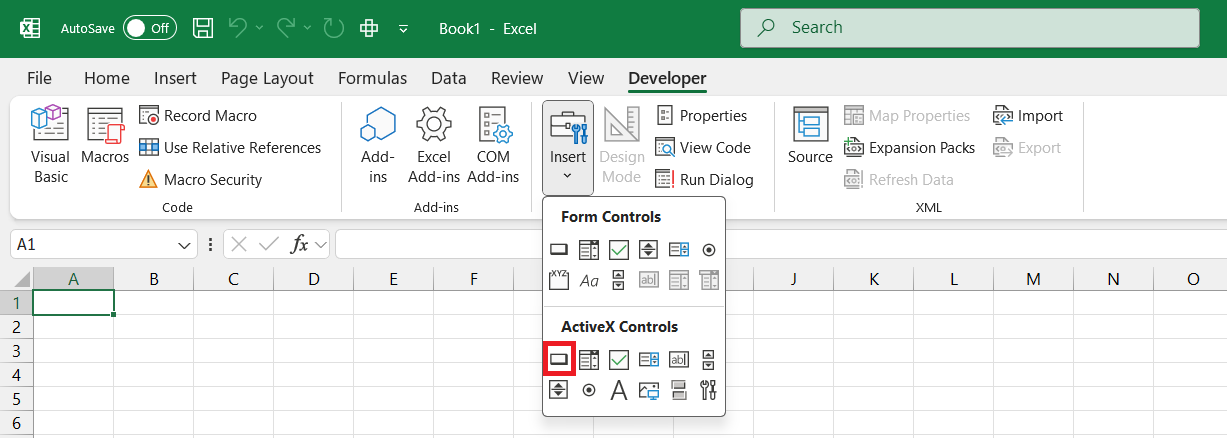
STEP 1: Go to the Developer tab > Insert > ActiveX Controls > Button.
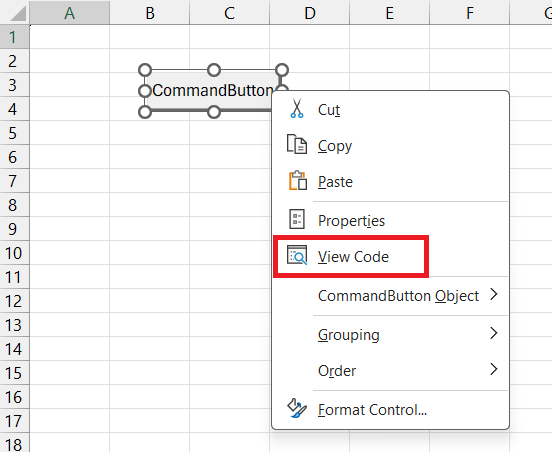
STEP 2: Right-click on the button and select View Code.
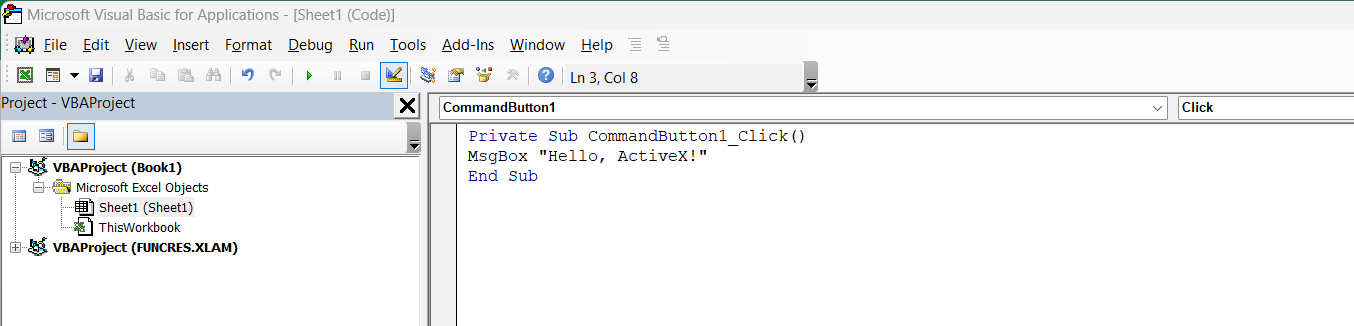
STEP 3: Enter the VBA code.
STEP 4: Close the VBA editor.
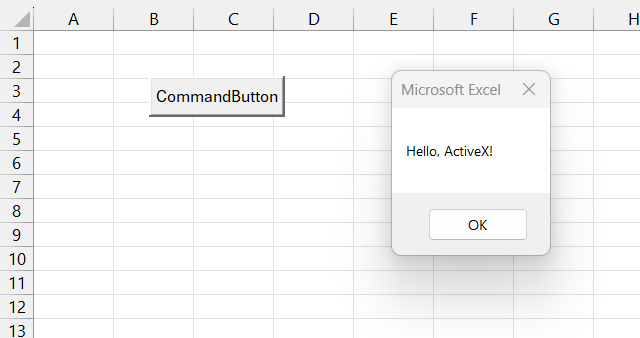
STEP 5: Click the button, and the message will be displayed.
Common Tips & Tricks
- Use Design Mode for Editing: Before making changes to an ActiveX control, I always make sure that the Design Mode is enabled from the Developer tab.

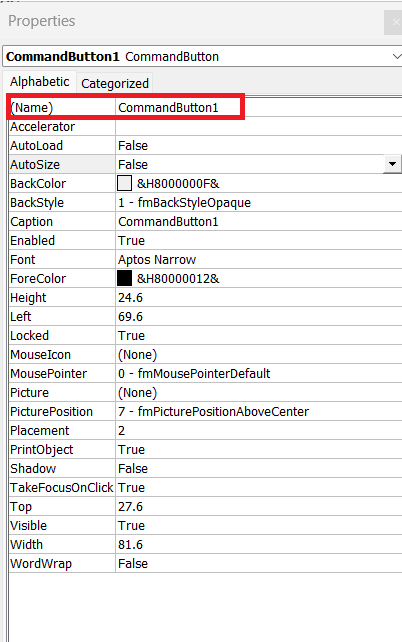
- Adjust size, font, and colors in the Properties window to match it with the spreadsheet.
- Rename each control in the properties window. This will keep things organized and avoid unnecessary confusion.
- Avoid Overuse of ActiveX: Too many ActiveX controls can slow down performance, so I only use them where necessary.
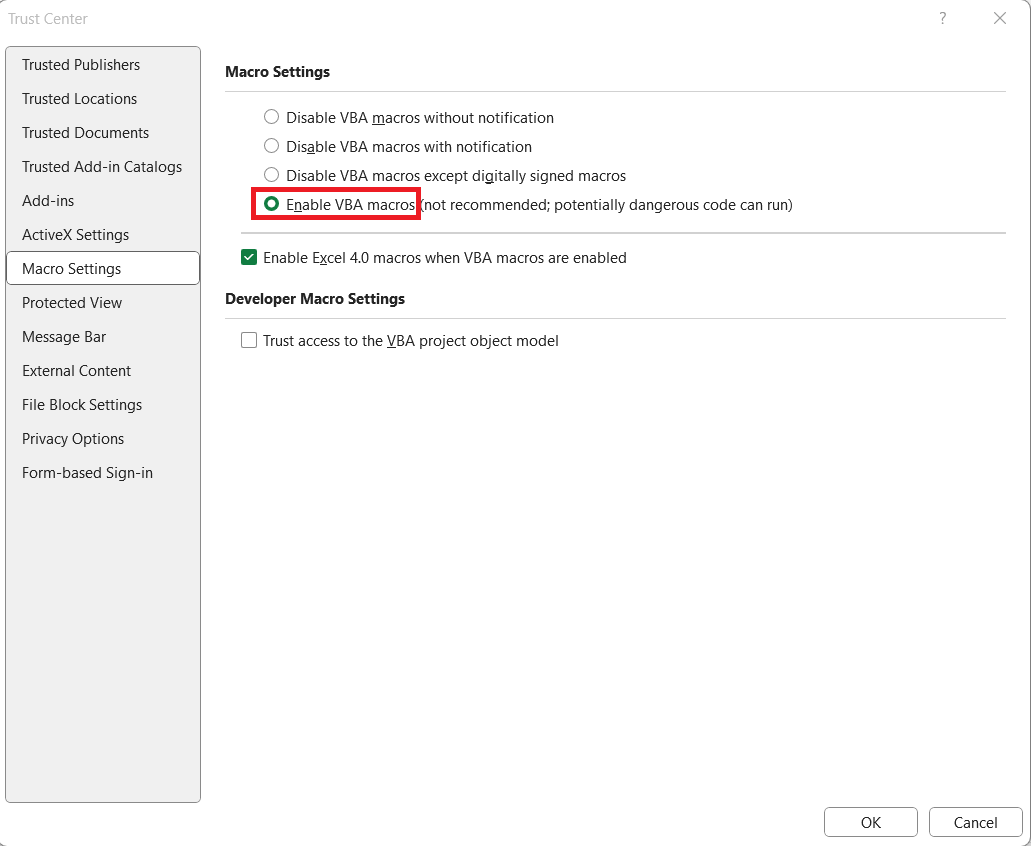
- Make sure that Macros Are Enabled: ActiveX controls often require VBA, so I enable macros under File > Options > Trust Center > Trust Center Settings > Macro Settings.
- Check for Compatibility Issues: Some ActiveX controls may not function properly in different Excel versions or on Mac.
FAQ Section
What is the difference between ActiveX controls and Form controls in Excel?
Form controls are a simple tool that are easy to insert and are compatible across Excel versions. They are perfect to insert basic user input like buttons, check box and drop-downs. ActiveX control works with VBA, making them more advanced and customizable than form controls. They allow their controls to change size, font, or color, providing more flexibility. But, ActiveX controls can impose a security risk and may not work on Mac or old Excel versions.
Why do some ActiveX controls not work properly in Excel?
ActiveX Controls may not work because of Excel verison issue, security settings, or when a macro is disabled. Using too many macros can also slow down Excel. Also, ActiveX controls are not supported on Mac.
Why are ActiveX controls considered risky?
ActiveX controls can run VBA codes and also access the system files. This makes them a risky tool, especially if they are coming from an untrusted source. It is advised to enable macros for trusted files only and avoid unknown ActiveX controls.

John Michaloudis is a former accountant and finance analyst at General Electric, a Microsoft MVP since 2020, an Amazon #1 bestselling author of 4 Microsoft Excel books and teacher of Microsoft Excel & Office over at his flagship MyExcelOnline Academy Online Course.

 30 Days - Full Access









