Understanding Dates in Excel
Dates are displayed in calendar format, but are stored as numbers in Excel. Each date is assigned a unique serial number. The counting starts from January 1, 1990, and is stored as 1.
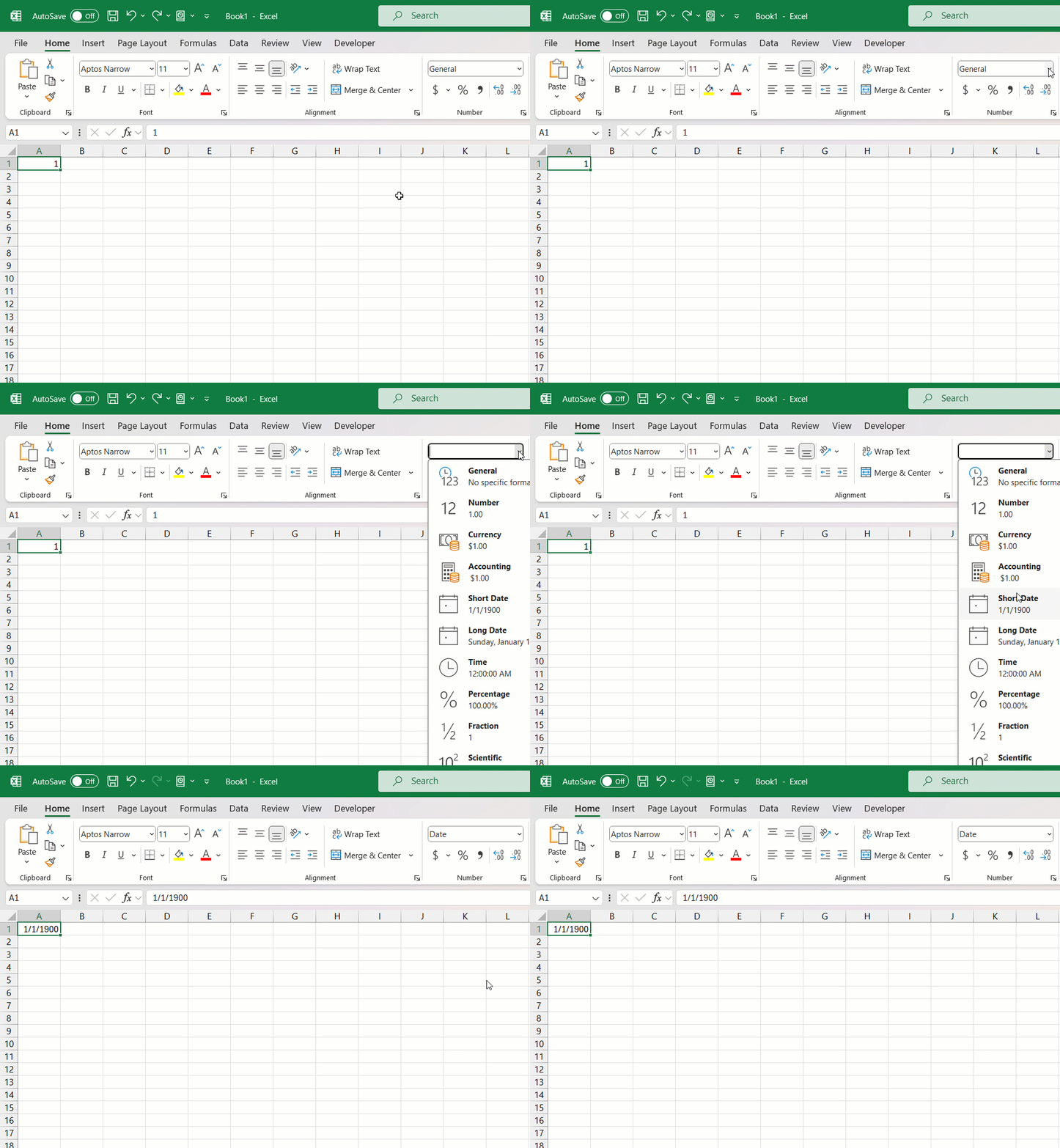
- Simplifies Calculations: By treating dates as numbers, Excel allows arithmetic operations to be easily performed on dates.
- Universal Counts: This system avoids confusion across different calendar formats and is consistent in Excel’s environment.
Embrace the serial number system, and suddenly adding or subtracting days (or even weeks) becomes as easy as dealing with basic arithmetic in Excel.
Table of Contents
How to Add 8 Weeks from Today
TODAY Function
The TODAY function is used to extract the current date. Its value automatically updates every time you open the worksheet. Unlike other functions, TODAY() asks for nothing—it’s a parentheses-only affair.
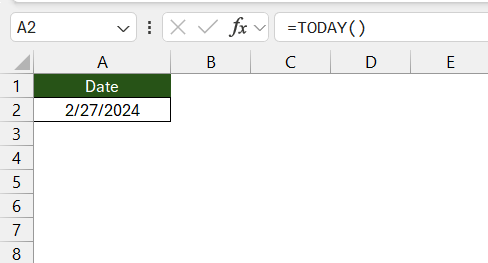
This function can be used when you want to base your calculation on the current date. These can be tasks like forecasting, tracking, or scheduling.
Add Weeks to the Current Date
You can pair the TODAY function with an arithmetic operator to easily add 8 weeks to the current date.
8 weeks = 8 * 7 days
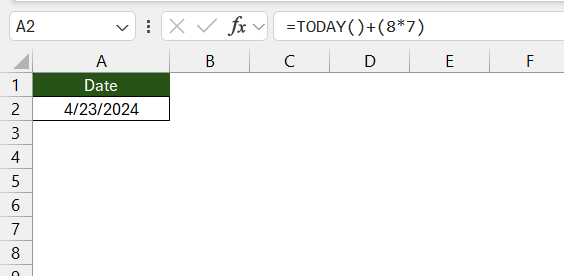
- TODAY() Function: It will provide you with the current date.
- Arithmetic Operation: This will add 8*7 i.e. 56 days to the date
Once you hit enter after typing this formula into a cell, voilà! Excel displays the date 8 weeks from today.
Remember, this method is versatile—change the number ‘8’ to however many weeks in the future (or past, using a negative number) you need.
Tips & Tricks
There are a few tricks that can speed up your work in Excel:
- Use the small square at the bottom right of the cell to drag the formula down.
- Add functions like fill series or today function to the quick access toolbar for one-click access.
These shortcuts will save time and streamline the process of adding weeks.
Remember, mastering Excel is about finding the right blend of functions, formulas, and shortcuts. Utilize these tips, and watch your date calculations fly!
Excel Functions that Can Help with Adding Weeks
Several Excel functions exist to make date arithmetic a walk in the park. Besides the basic TODAY() function, consider using:
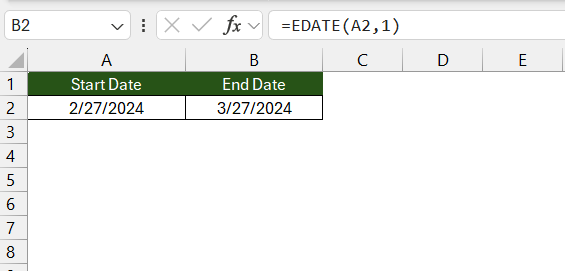
- EDATE: It is used to add a specific number of months to a date.
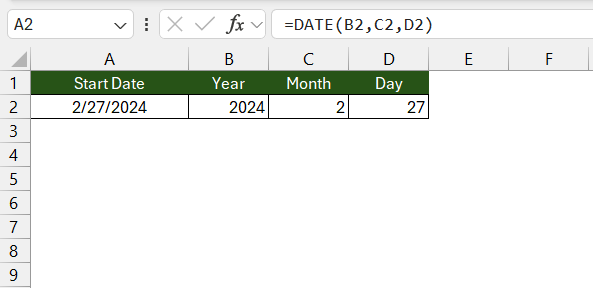
- DATE: It allows you to create a date from individual year, month, and day components.
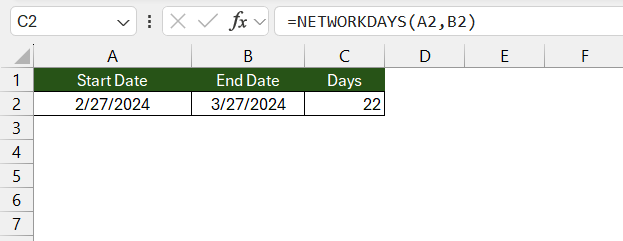
- NETWORKDAYS: It is used when you want to add only workdays. This function ignores weekends and holidays.
Each of these functions can be combined with simple arithmetic to effectively manage dates, including adding weeks as needed.
Don’t forget to check if cell references in your formula are correct – a common source of mistakes in Excel calculations.
Correct Date Format Settings
Follow the steps below to format the dates correctly:
- Region Settings: Check that your system’s locale matches your date format preference (e.g., MM/DD/YYYY vs DD/MM/YYYY).
- Format Cells: Right-click your date cells, select ‘Format Cells,’
- Choose the appropriate date format under the ‘Number’ tab to prevent misunderstandings.
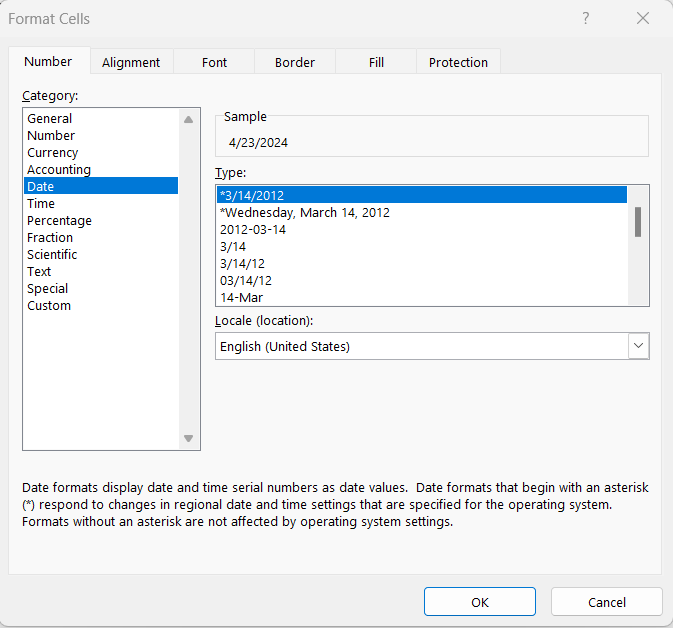
Matching your Excel environment’s date format with your local system settings is key for accurate date arithmetic and avoids pesky errors that could throw off your calculations.
Remember to also check for any cells formatted as text, as this can disrupt date recognition—converting them to date format as needed.
FAQs
How to Ensure That Excel Recognizes My Dates Correctly?
To ensure Excel recognizes your dates correctly:
- Format cells as Date. Right-click the cell, select Format Cells, then choose Date.
- Check the system’s regional settings to match your date format preferences.
Quick, yet important, to avoid those pesky #VALUE! errors!
Can I Add Non-consecutive Weeks to a Date in Excel?
Yes, you can add non-consecutive weeks to a date in Excel. Create a pattern of dates, then use the ‘Fill Series’ to extend it as needed. Handy for custom schedules!
How to add 8 weeks from today in Excel?
You can use the TODAY function to get the current date. To this date, you can add 8 weeks, i.e., 8*7 days.
=TODAY() + (8*7)
How to add two weeks to a date in Excel?
You can add 2 weeks by adding the number of days to the date using the simple addition operator.
=A1 + (2*7)

John Michaloudis is a former accountant and finance analyst at General Electric, a Microsoft MVP since 2020, an Amazon #1 bestselling author of 4 Microsoft Excel books and teacher of Microsoft Excel & Office over at his flagship MyExcelOnline Academy Online Course.

 30 Days - Full Access









