The Quick Access Toolbar (QAT) in Excel gives me quick access to my most-used commands, saving me time and boosting my efficiency. But what if this tool suddenly goes missing? If you can’t find Quick Access Toolbar, you’re not alone. In this article, I’ll walk you through how I locate and restore the Quick Access Toolbar in Excel, so I can get back to working seamlessly.
Key Takeaways:
- The Quick Access Toolbar (QAT) provides one-click access to frequently used commands in Excel.
- It is usually located above the Ribbon but can be moved below for convenience.
- If the QAT is missing, check if it’s hidden or customize it through the Ribbon.
- You can reset the QAT to its default settings without affecting other Excel customizations.
- Additional commands, even those not on the Ribbon, can be added to the QAT for easier access.
Can’t Find Quick Access Toolbar?
Check If It’s Hidden: Sometimes, the Quick Access Toolbar might be hidden. Perform the following steps to bring it back.
STEP 1: Click on the small downward arrow or a small triangle near the bottom right of the Ribbon.

STEP 2: Click on “Show Quick Access Toolbar” and Voila!
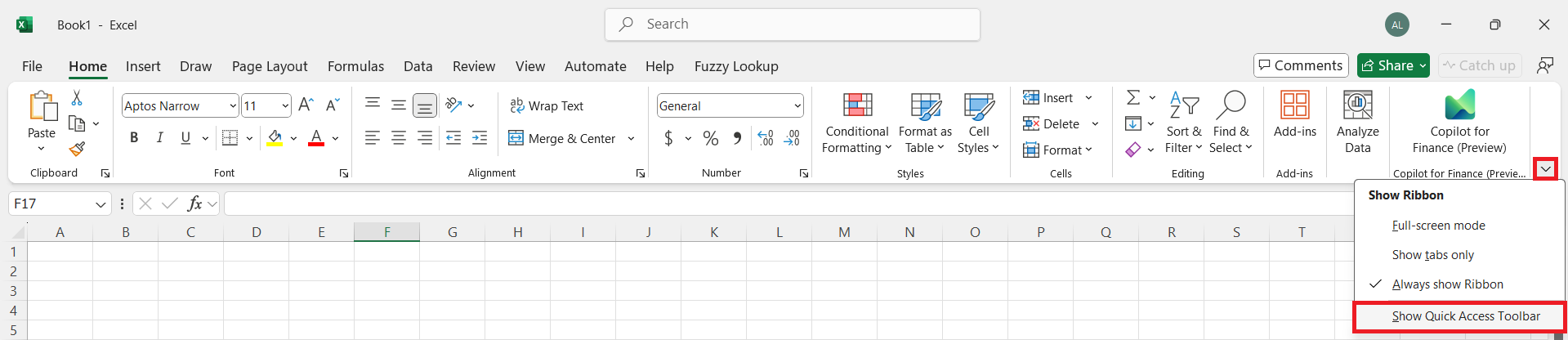
Use the Ribbon: If you can’t see the Quick Access Toolbar, you might be able to customize it from the Ribbon.
STEP 1: Go to the “File” tab, then select “Options.”
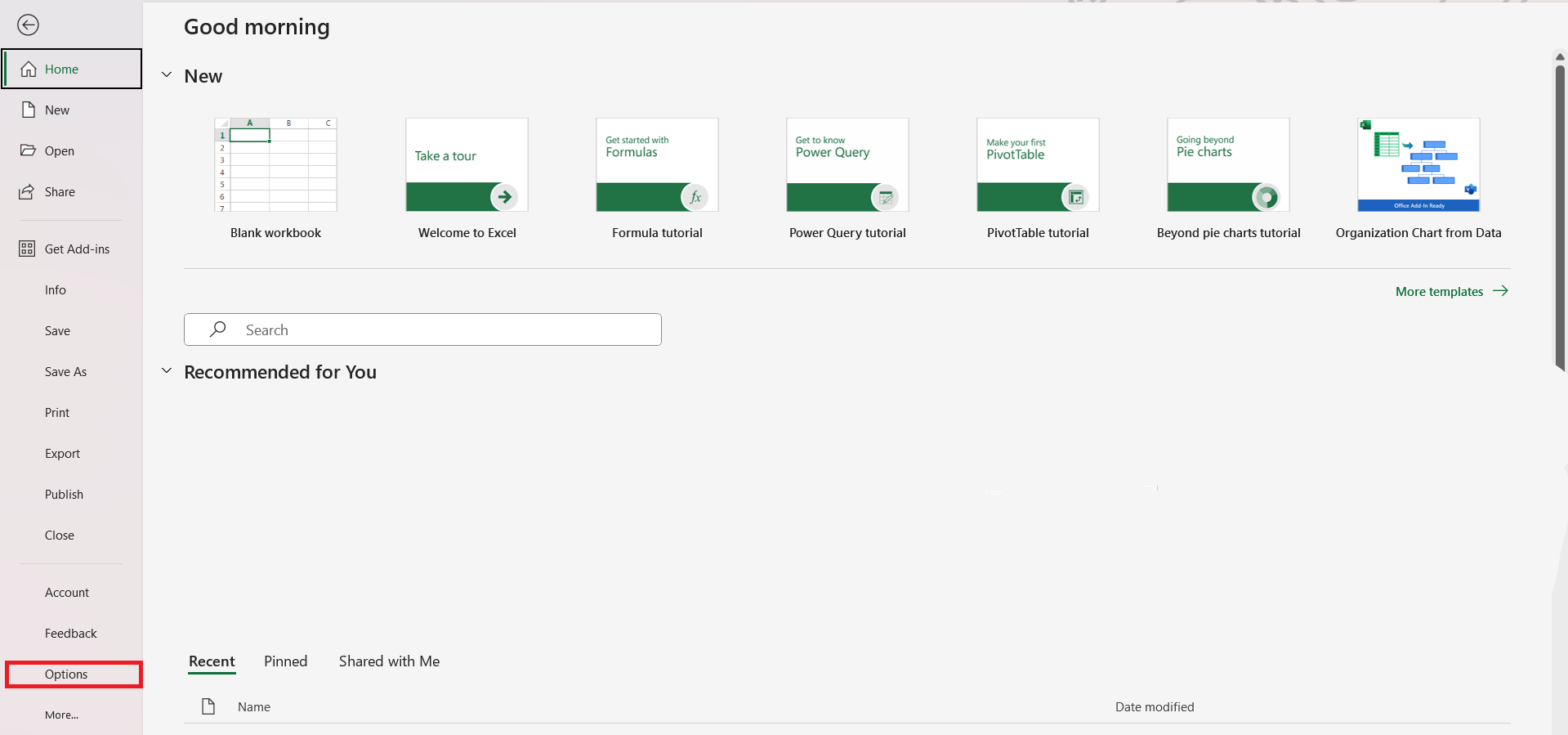
STEP 2: In the Excel Options dialog, choose “Quick Access Toolbar” from the list on the left.
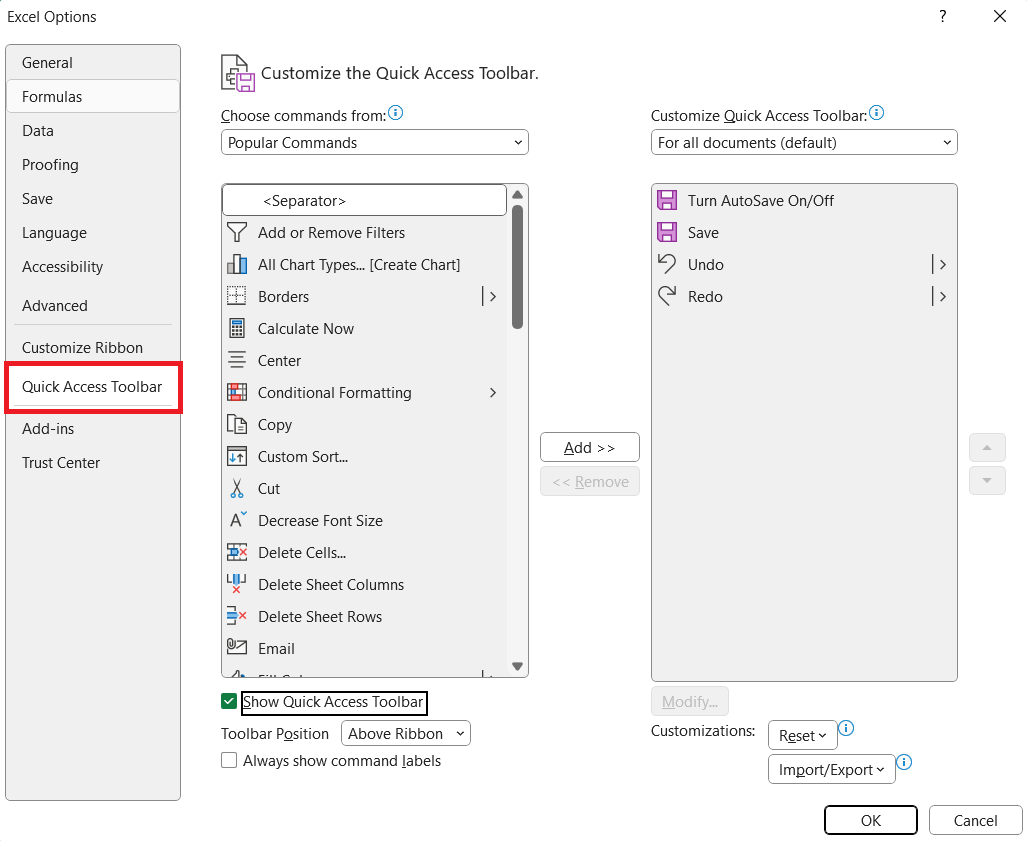
STEP 3: Check the box “Show Quick Access Toolbar” and click on “OK” to find your Quick Access Toolbar to be back.
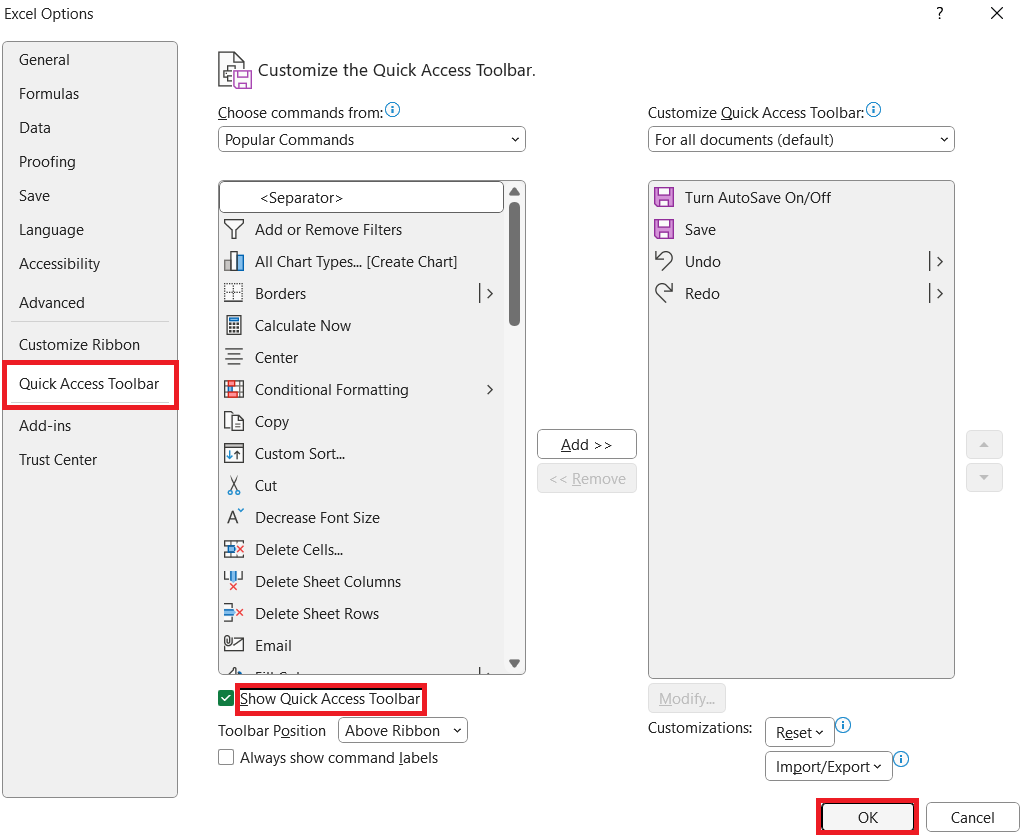
If it’s still not visible, you might need to customize your Ribbon
STEP 1: Right-click any empty space on the Ribbon.

STEP 2: Click on the “Show Quick Access Toolbar”.

FAQs
Why can’t I see the Quick Access Toolbar in Excel?
If you can’t see the Quick Access Toolbar in Excel, it might have been accidentally hidden or displaced due to an update or an incorrect display setting. Ensuring Excel is updated and checking the Excel options to see if the toolbar is enabled but not visible on your screen could provide a quick solution to this hiccup.
How do I restore my Quick Access Toolbar to default settings?
To restore my Quick Access Toolbar to default settings, I swing into the Excel options and hit the ‘Customize Quick Access Toolbar’ section. From there, a simple click on the ‘Reset’ button followed by ‘Reset only Quick Access Toolbar’ reinstates the original set of commands, breathing simplicity back into my workspace.
Can I add commands to the Quick Access Toolbar that are not on the ribbon?
Yes, indeed! You can add commands to the Quick Access Toolbar that aren’t present on the Excel Ribbon. Dive into the ‘More Commands’ option, select ‘Commands Not in the Ribbon’, choose your desired command, and add it to the Toolbar to make your workflow even smoother.

John Michaloudis is a former accountant and finance analyst at General Electric, a Microsoft MVP since 2020, an Amazon #1 bestselling author of 4 Microsoft Excel books and teacher of Microsoft Excel & Office over at his flagship MyExcelOnline Academy Online Course.

 30 Days - Full Access









