 Free Practice Workbook
Sometimes, you may face a situation where you need to add a line break within a cell. This is called a carriage return, and it is used to improve readability. In this article, you will learn how to add a carriage return in Excel.
Key Takeaways:
- Carriage returns are line breaks that are added within a cell.
- It is used to improve text readability.
- Use Alt+Enter to add a carriage return quickly.
- The CHAR(10) function allows you to insert line breaks in formulas.
- Tools like Find & Replace and VBA macros can add carriage returns for large datasets.
Table of Contents
Introduction to Carriage Returns
Carriage returns in Excel is a formatting technique that can change the way I present textual information. It allows you to break text into readable lines without increasing the cell size across length. It is important as it improves the clarity of the data. It also makes the text more interpretable at a glance.
It smoothens the process of organizing and formatting large datasets. It is important in fields where data presentation is key.
How to Add Carriage Returns within Cells
Keyboard Shortcuts
Keyboard shortcuts are the fastest way to neaten up data with carriage returns in Excel. Simply place my cursor where I want the line to break, and press Alt+Enter.
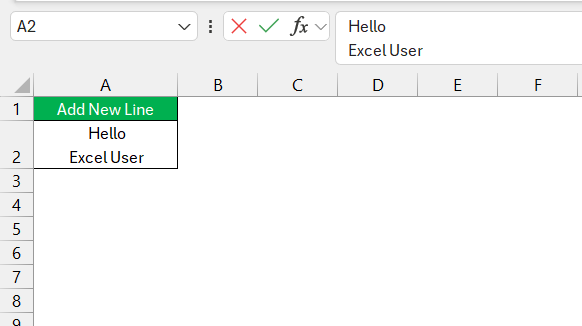
This method allows you to add a line break while staying in the flow of work. You are not interrupted by going through the menu or creating functions to add a line break.
CHAR Function
Formulas offer a more sophisticated method for inserting carriage returns. It is especially useful when dealing with data automation. The CHAR function can be used to insert line break within a cell.
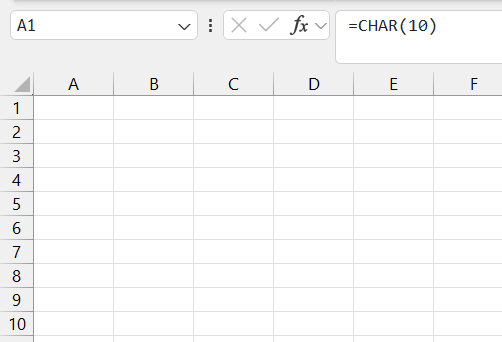
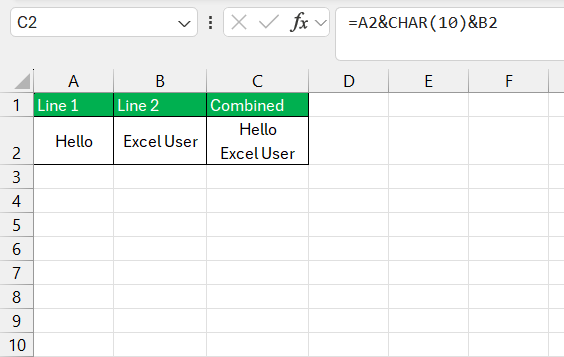
This method is used when you want to combine information from different cells with line breaks.
Find and Replace
I can use the Find and Replace feature to insert carriage returns swiftly. Here are the steps:
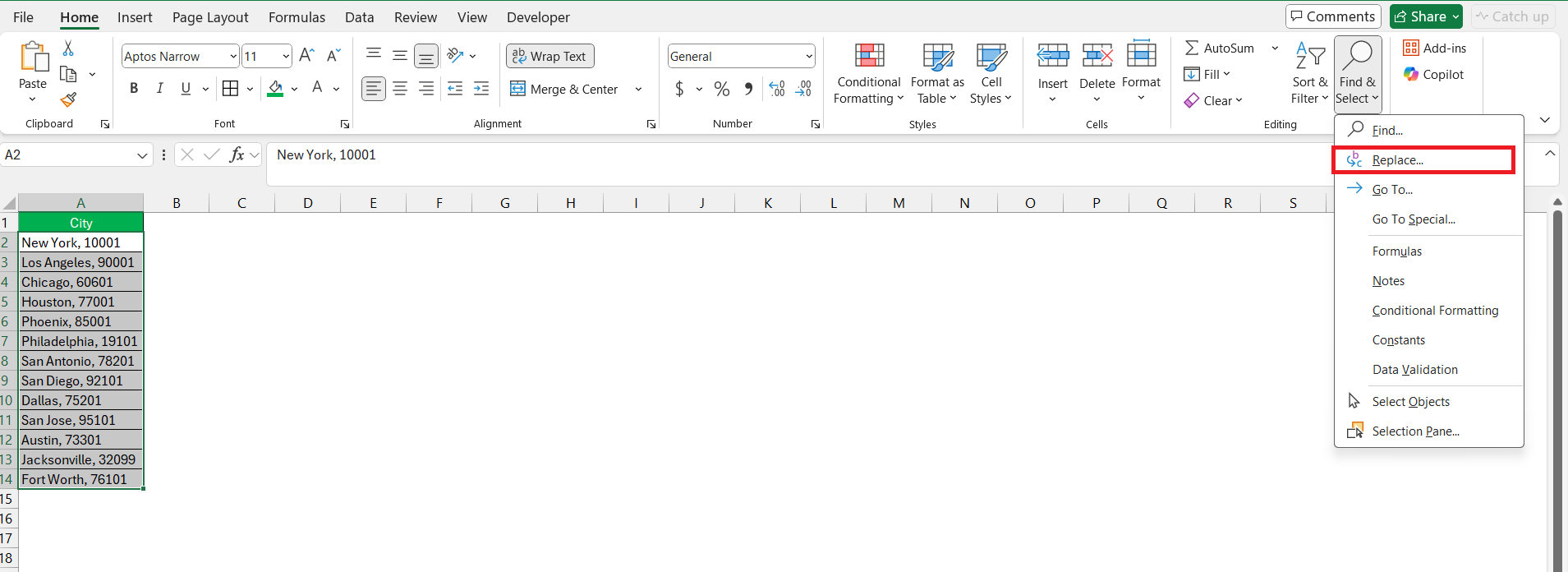
STEP 1: Select the entire column.
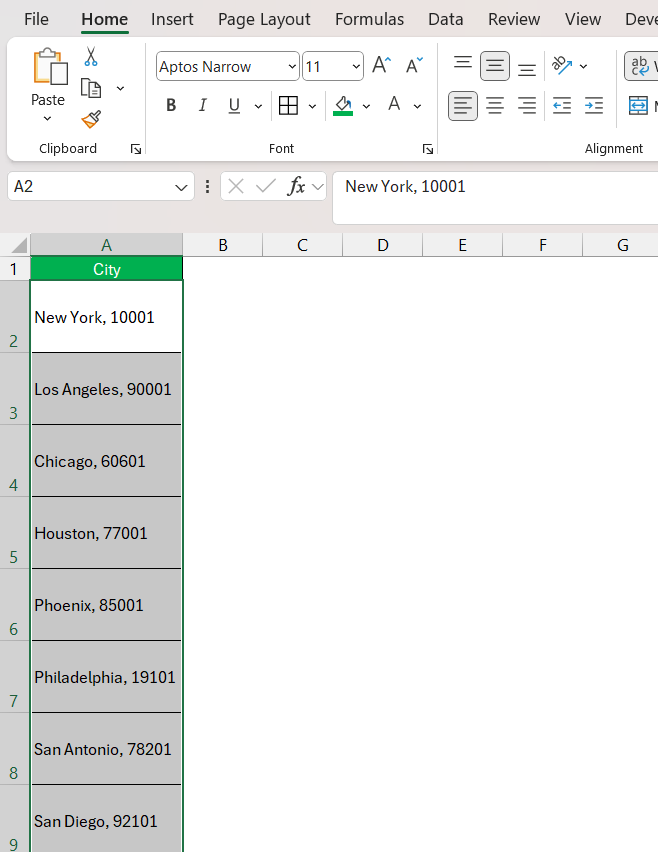
STEP 2: Go to the Home tab, click on Find & Select, and choose Replace.
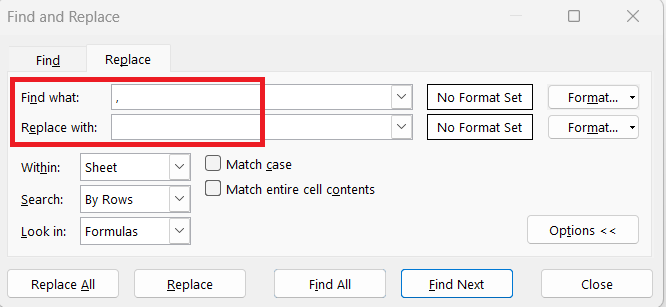
STEP 3: Input the character that I want to replace in the Find What field. In the Replace with field, I press Ctrl + J for a carriage return.
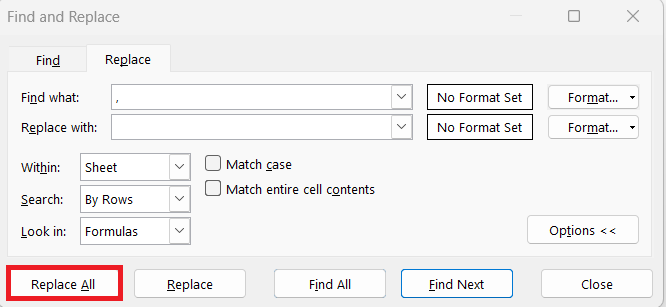
STEP 4: I click on the Replace All button.
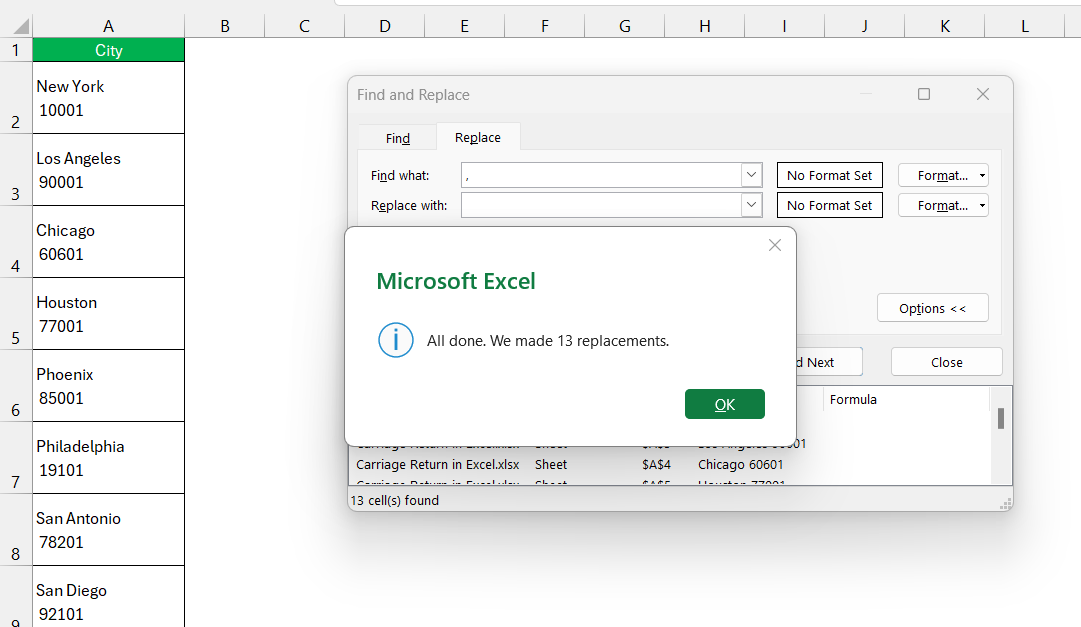
This method will replace all the commas with a carriage return.
VBA Code
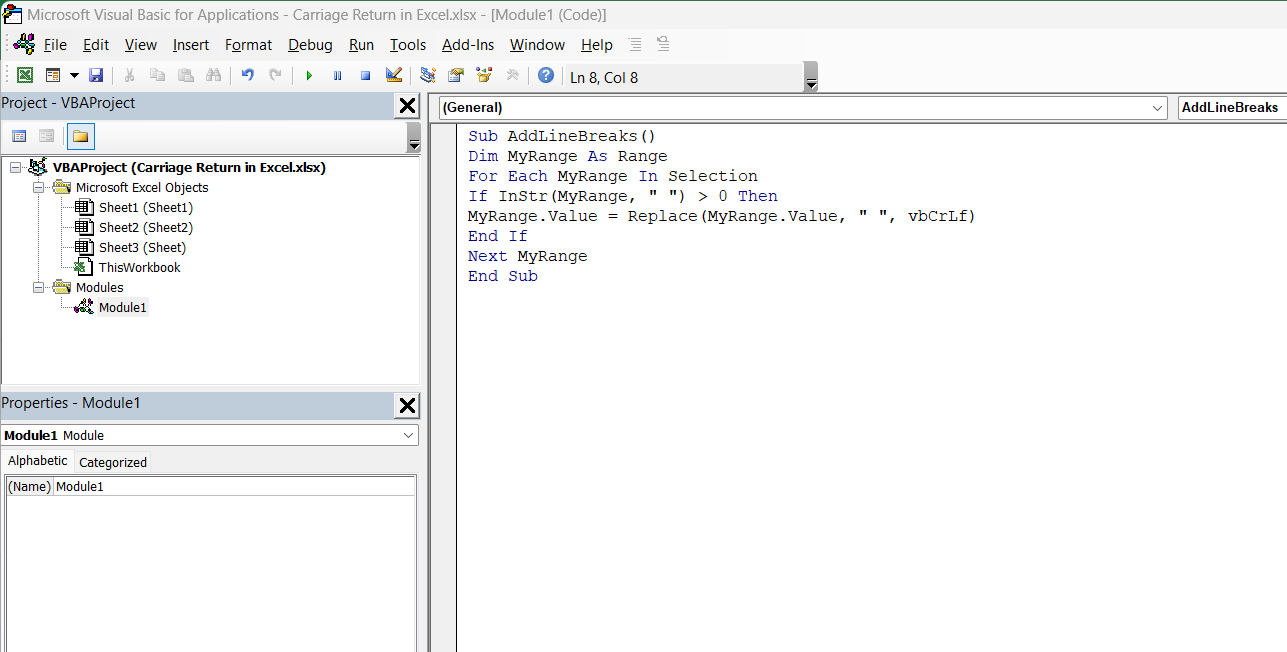
Automating with VBA Code takes my efficiency to a new level in Excel. For instance, if I need to insert line breaks across countless cells, I write a VBA macro to perform this task with a few clicks. Opening the VBA editor by pressing Alt + F11, I can insert a code similar to this:
I will go to the Developer tab and select Macros. This will open the macro dialog box, where I can select the macro and press Run.
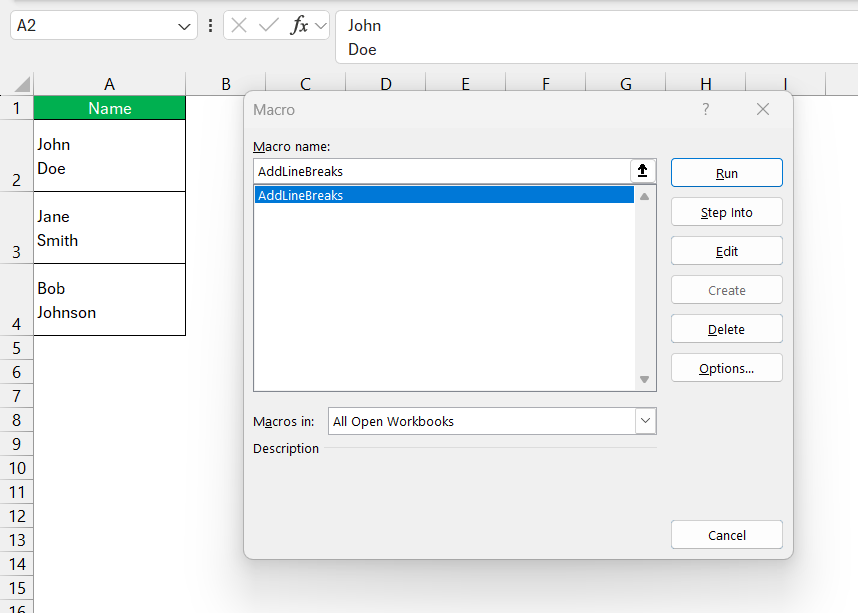
This macro will go through the selected cells and replace a space with a line break.
Tips and Tricks
Wrap Text
Wrap text allows you to fit a long text inside a cell. After adding a line break in Excel, I have to use this feature to make the text split into different lines. Follow the steps below to apply the wrap text feature:
STEP 1: Select the cell that I’ve inserted carriage returns into, or that contains lengthy text.
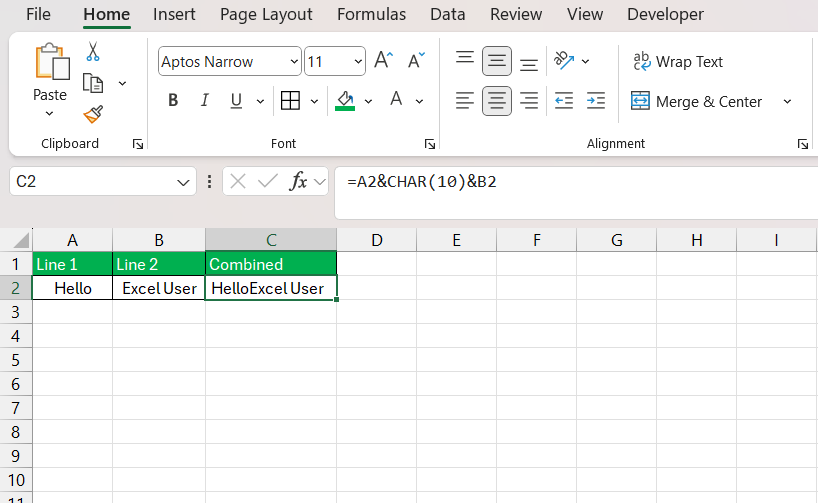
STEP 2: On the Home tab in the Alignment group, I click on the Wrap Text button, and the text within the cells wraps to fit the column width.

To adjust the appearance, I may also resize the row height manually where necessary to ensure that all the text is visible.
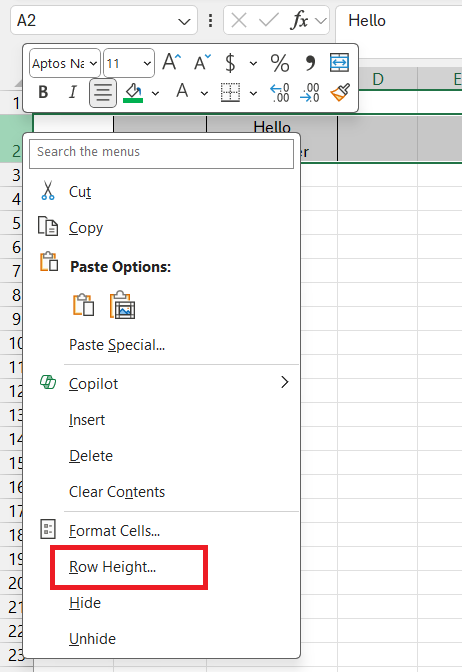
This feature complements the use of carriage returns and ensures that all the content is visible without needing to adjust column width or row height individually.
FAQs
What is a carriage return in the Excel formula?
A carriage return in an Excel formula is a character that creates a line break within a cell’s text content. It allows data to display on a new line without the need for a separate cell. To incorporate this in a formula, I use the CHAR function with the number 10 – CHAR(10) – which corresponds to the line break character in Excel’s language.
How to Enter a New Line Inside an Excel Cell?
To enter a new line inside an Excel cell, follow the steps below:
- Double-click on the cell where you want to add a line break.
- Place the cursor at the point where the new line should begin.
- Press Alt + Enter to insert line break.
What is the Shortcut to insert line break?
The shortcut for a carriage return in Excel is:
- On Windows, press Alt + Enter to create a line break.
- On a Mac, press Control + Option + Return.
What is the reason to use carriage returns in Excel?
Carriage returns in Excel are used to improve the readabilityof the text. They allow you to interpret long text by breaking them into different lines.

John Michaloudis is a former accountant and finance analyst at General Electric, a Microsoft MVP since 2020, an Amazon #1 bestselling author of 4 Microsoft Excel books and teacher of Microsoft Excel & Office over at his flagship MyExcelOnline Academy Online Course.

 30 Days - Full Access









