 Free Practice Workbook
An Excel chart is a visual representation of raw data. They help us understand trends and patterns. Excel has different chart types that can be used for different purposes. In this guide, you will learn about the various chart types in Excel.
Key Takeaways:
- Excel charts are a graphical representation of data.
- They can transform complex data into simple visuals.
- They help spot trends, patterns, and make comparisons easy.
- Line charts show trends over time.
- Bar and column charts compare values.
Table of Contents
Introduction to Excel Graphs
Graphs are a visual representation of the data. They can be used to visualize information. Instead of going through rows and columns filled with numbers, you can present data in the form of bars, line or pie slices. They are easy to understand and useful in spotting patterns and trends.
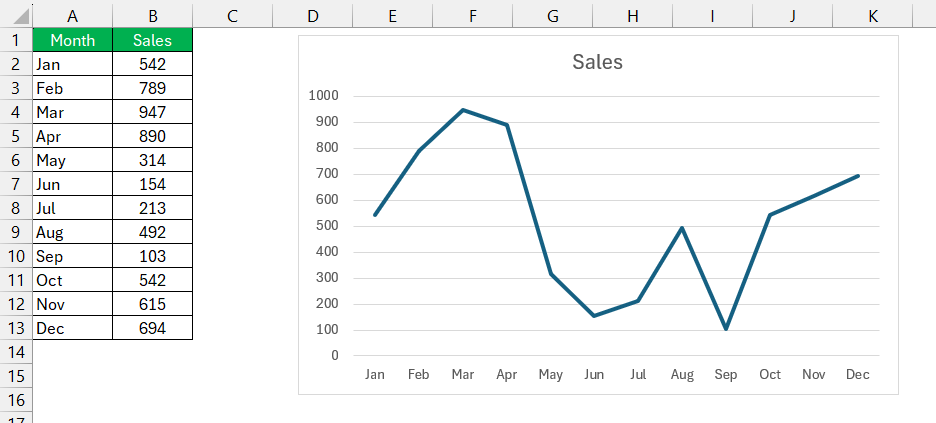
For example, a line graph can show the rise and fall of yearly sales. This can let you know which months performed better than others.
Top Excel Chart Types
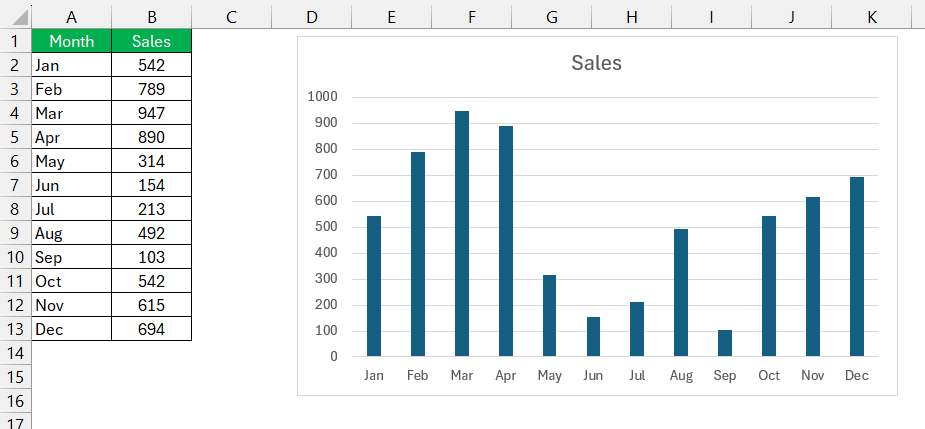
1. Column Chart
Column charts are used to compare values across categories. It is useful for comparing sales performance across different months.
2. Bar Chart
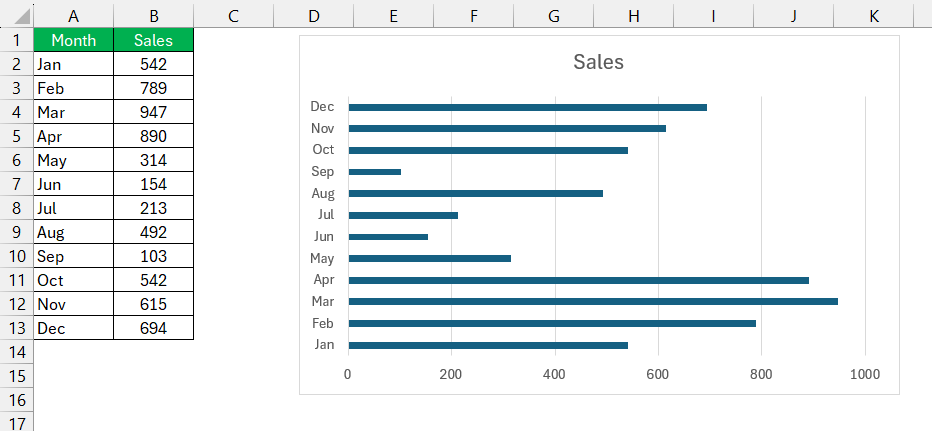
A bar chart is similar to a column chart, but it uses horizontal bars.
3. Line Chart
A line chart can be used to show trends over time. It is used for tracking stock prices, sales trends, or temperature changes.
4. Pie Chart
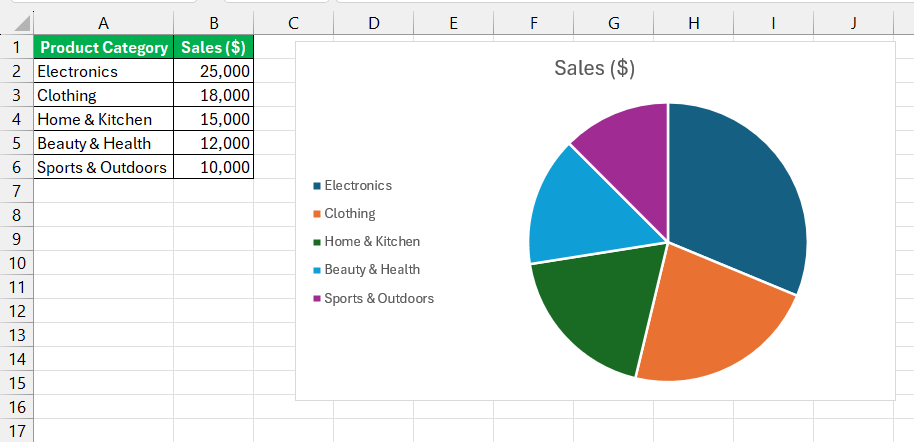
Pie charts can be used to display proportions or percentages. This chart type divides a whole into slices, each slice representing a category’s contribution
5. Doughnut Chart
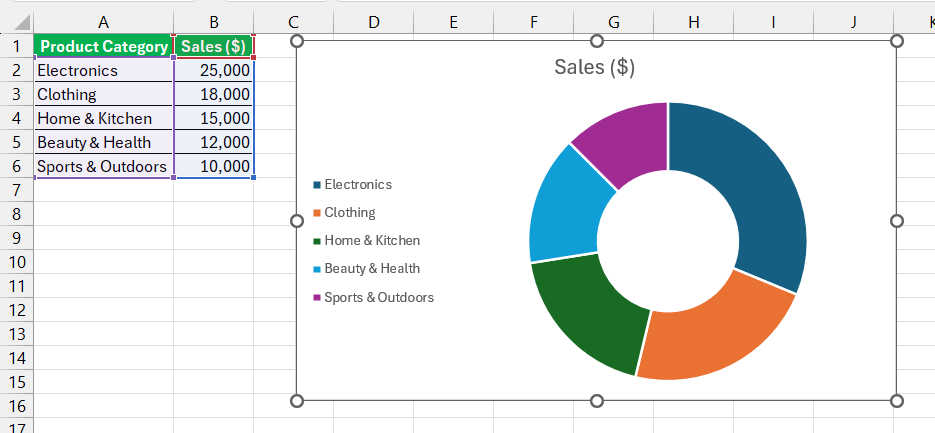
A doughnut chart is like a pie chart but with a hole in the center. I use it when I need to compare multiple data sets.
6. Area Chart
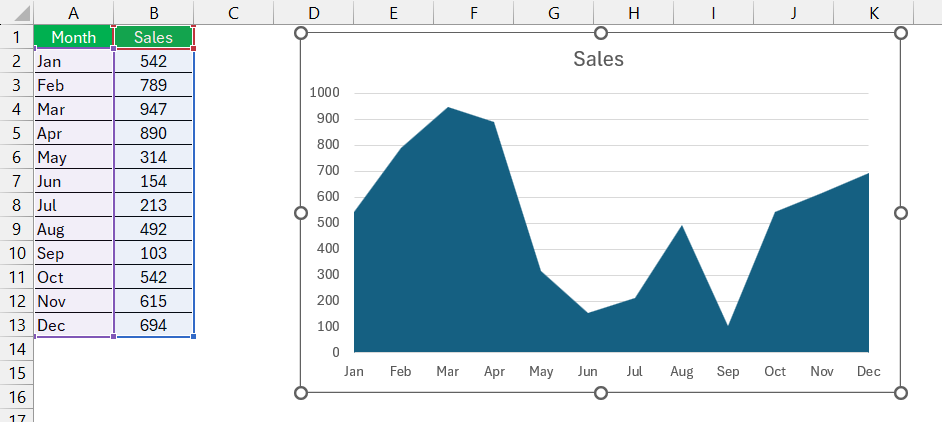
I turn to area charts when I need to show the magnitude of a trend over time while also focusing on volume. This chart is similar to a line chart, but with the area below the line filled in.
7. Scatter Chart
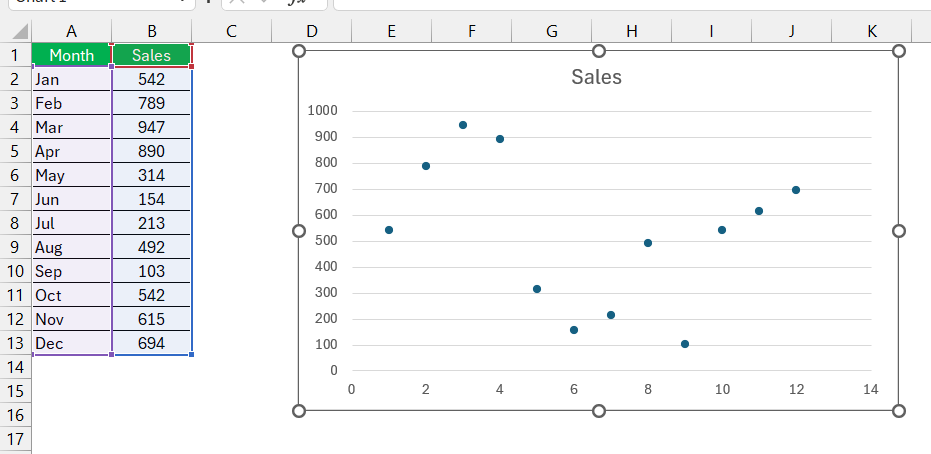
Scatter chart show relationships between two numerical variables.
8. Bubble Chart
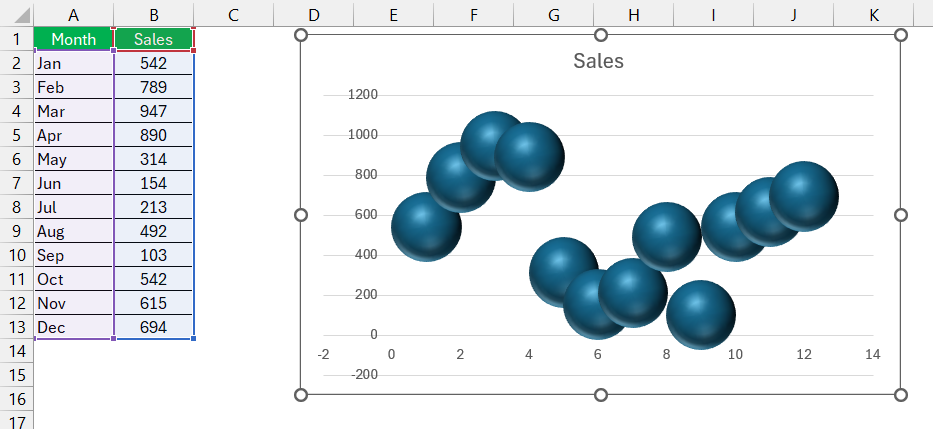
A bubble chart is an extension of a scatter chart, where data points are represented by circles of varying sizes. I use this when I need to add an extra dimension of data, such as sales volume by region.
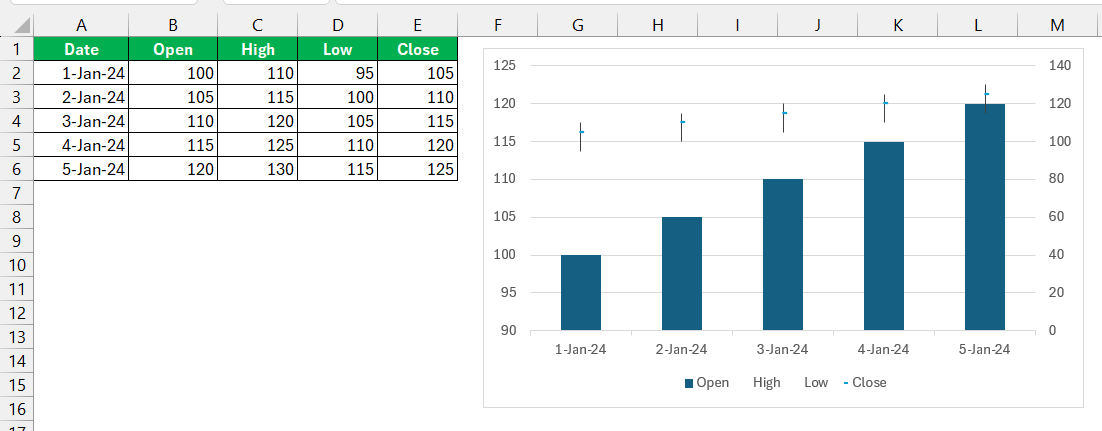
9. Stock Chart
For financial data, I use stock charts. These charts are designed to display stock market trends, including opening and closing prices, as well as highs and lows.
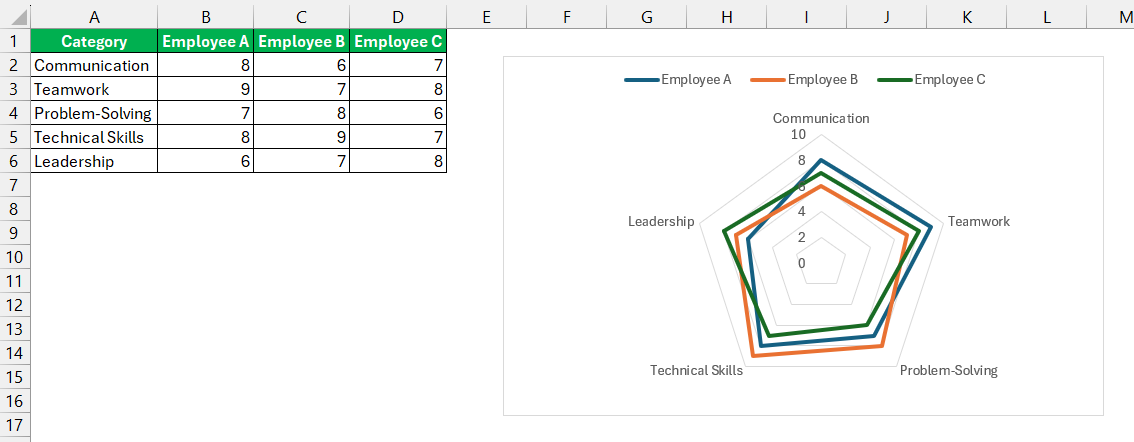
10. Radar Chart
A radar chart is used to compare multiple variables at once. It can be used to compare different variables like employee skills or product features.
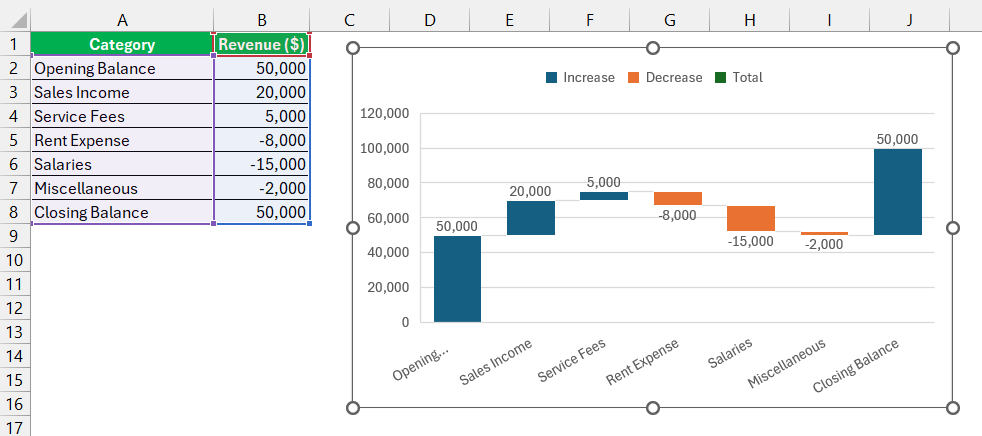
11. Waterfall Chart
Waterfall charts can show how a value changes over time due to positive and negative contributions. It is useful when you need to track profits and losses.
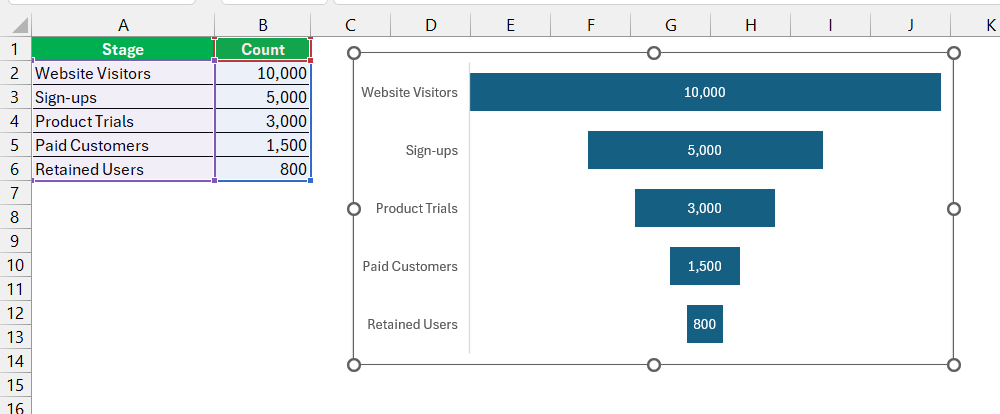
12. Funnel Chart
A funnel chart shows how data moves through stages and where values decrease.
13. Combo Chart
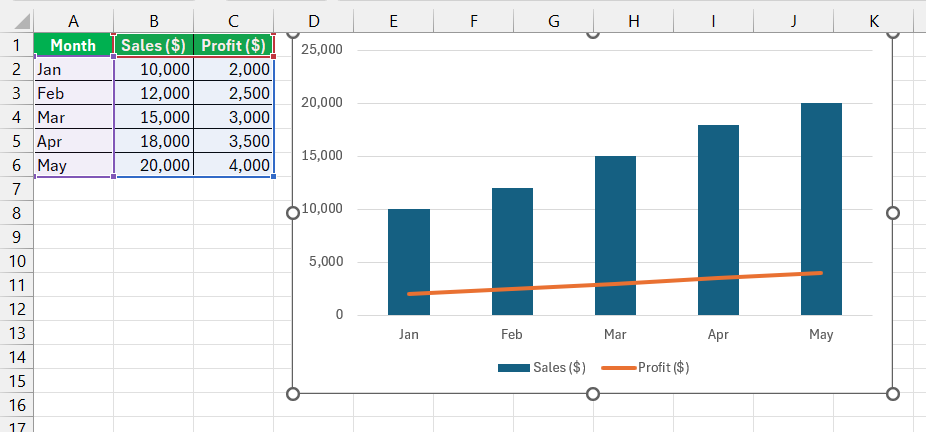
A combo chart is used to display multiple data series using different chart styles, like combining a column and a line chart.
FAQs
What is the purpose of using charts in Excel?
Charts are used to present data visually. They can help us spot trends and patterns.
What are the Most Effective Excel Chart Types?
- Bar Chart compares categories
- Line Charts shows trends over time
- Pie Charts shows proportions in a data set.
Which chart is best for showing trends over time?
A line chart is the best option for displaying trends over time. It can show increases or decreases across a timeline.
When to use a pie chart?
A pie chart should be used when you want to show the proportion or percentage contribution of different categories to a whole.

John Michaloudis is a former accountant and finance analyst at General Electric, a Microsoft MVP since 2020, an Amazon #1 bestselling author of 4 Microsoft Excel books and teacher of Microsoft Excel & Office over at his flagship MyExcelOnline Academy Online Course.

 30 Days - Full Access









