How to Find Circular References in Excel – Step by Step Guide

John Michaloudis
 Free Practice Workbook
A circular reference in Microsoft Excel occurs when a formula refers back to its own cell, creating a loop that prevents proper calculations and leads to performance issues and incorrect data.
Managing circular references is crucial for maintaining accurate and efficient spreadsheets, especially in complex models.This article explores the causes, implications, and solutions for handling circular references in Excel. Key Takeaways:
Table of Contents
Unraveling the Circular Reference Conundrum in Excel
Deciphering the Concept of Circular References
When working with Excel, you’ve likely encountered the term “circular reference,” but what exactly is it? Think of circular references as a snake biting its own tail – a situation where a formula refers back to its own cell, either directly or through a chain of references.
The Implications of Ignoring Circular Loops
Ignoring circular references can lead to a whirlwind of headaches. Not only can they cause Excel to work harder and slower, dragging down performance, but they also risk the integrity of your data. Incorrect calculations are just the start. If left unchecked, these looping references can prevent Excel from completing its calculations, translating into error messages or, worse, misleading results slipping through unnoticed. This is particularly hazardous in financial or data-dependent scenarios where precision is paramount.
Step-by-Step Guide to Detecting Excel Circular References
Harnessing Excel’s Built-in Detection Tools
Excel is equipped with built-in tools designed to help you sniff out circular references with ease. Whenever a circular reference is created, Excel typically alerts you with a warning message. To hunt them down:
- Error Messages: When you enter a formula that creates a circular reference, Excel immediately alerts you with a message.
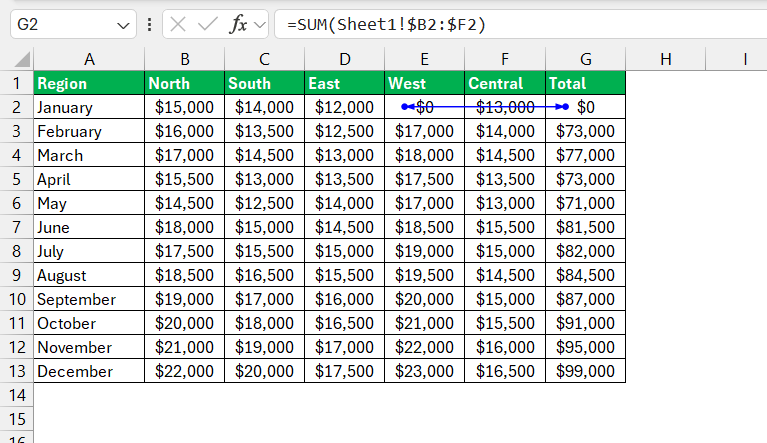
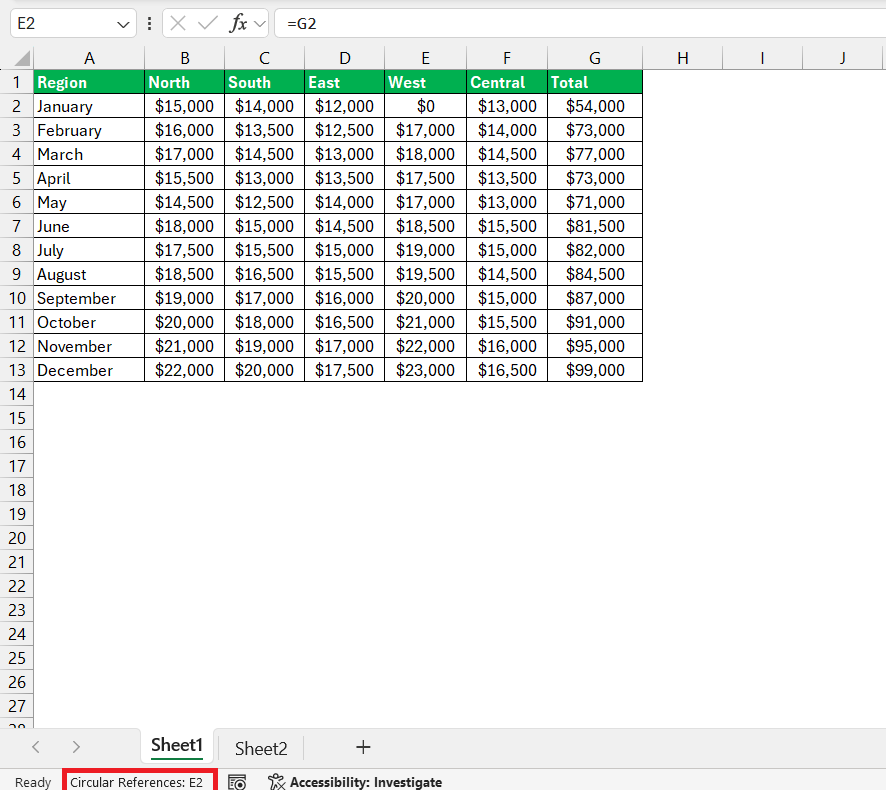
- Status Bar Notification: Look at the status bar at the bottom of your Excel window immediately after the warning pops up; it often tells you the location of the last circular reference detected.
- Error Checking Tools: Use the ‘Formulas’ tab on the Ribbon, click on ‘Error Checking,’ and then ‘Circular References.’ A list of cells with circular references will appear – a direct route to the troublemakers.
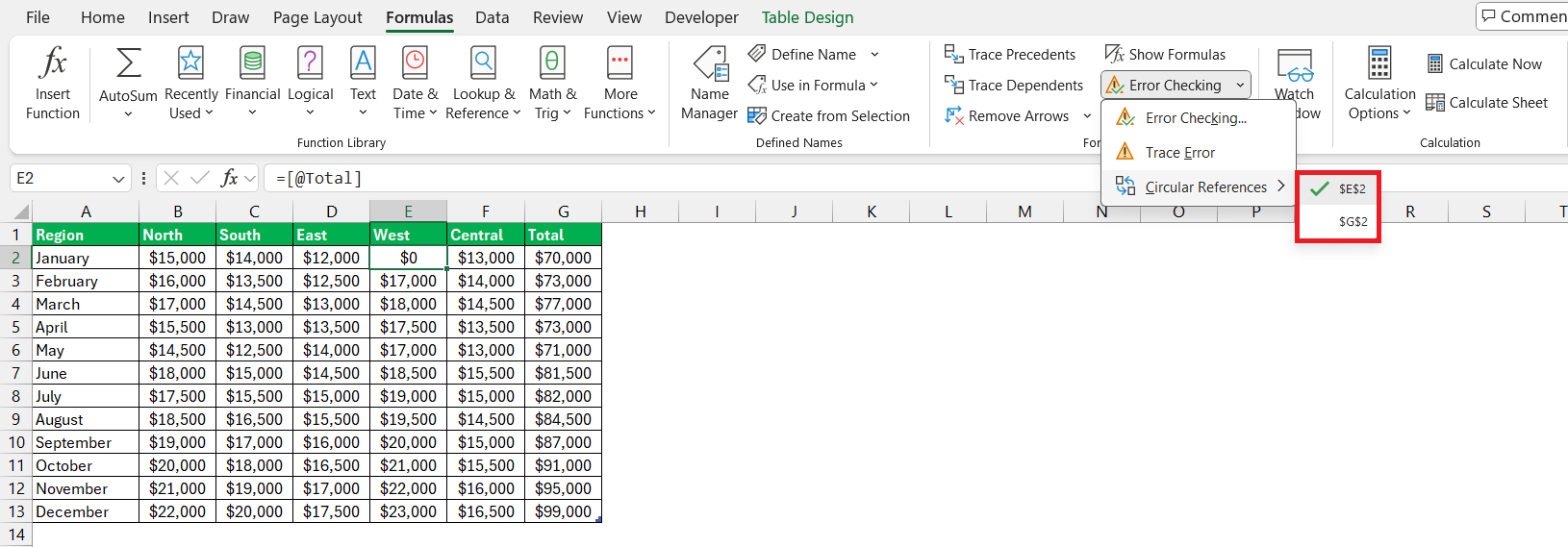
And remember, staying alert to these warnings is the first step in keeping your Excel sheets error-free.
Fixing Existing Circular References with Precision
To resolve circular references, follow these steps:
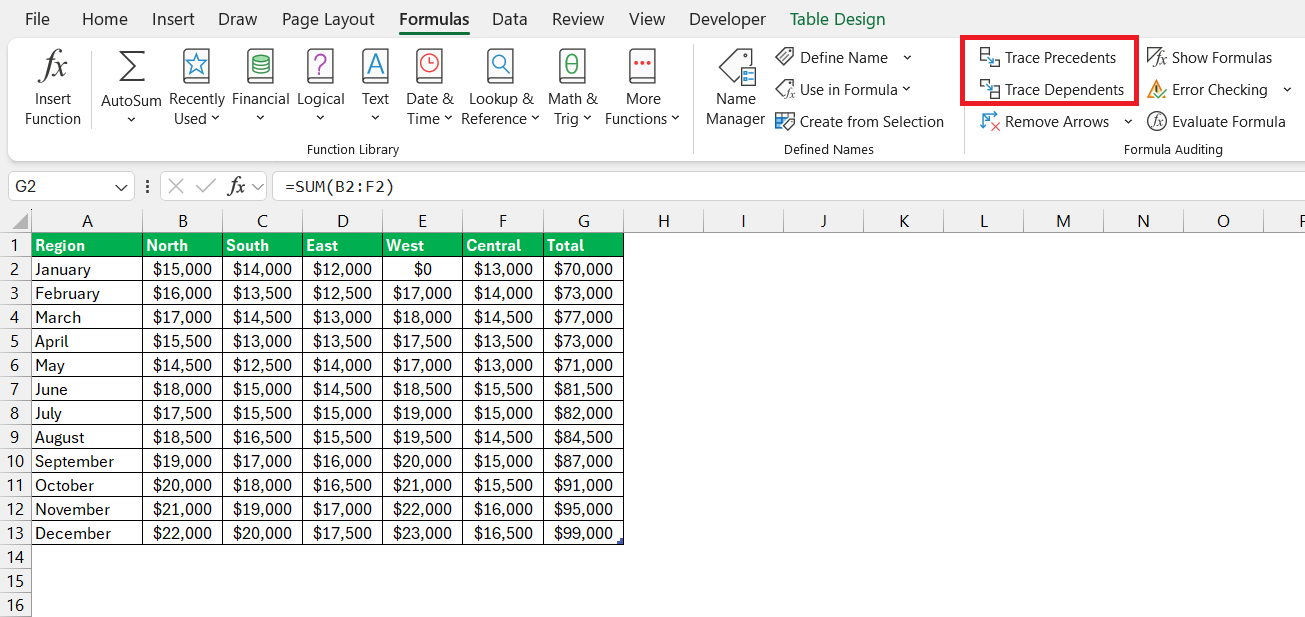
- Trace Dependents and Precedents: Use the
Trace DependentsandTrace Precedentsfeatures under theFormulastab to understand the relationships between cells.
- Revise Formulas: Adjust your formulas to eliminate direct or indirect references to the cell containing the formula.
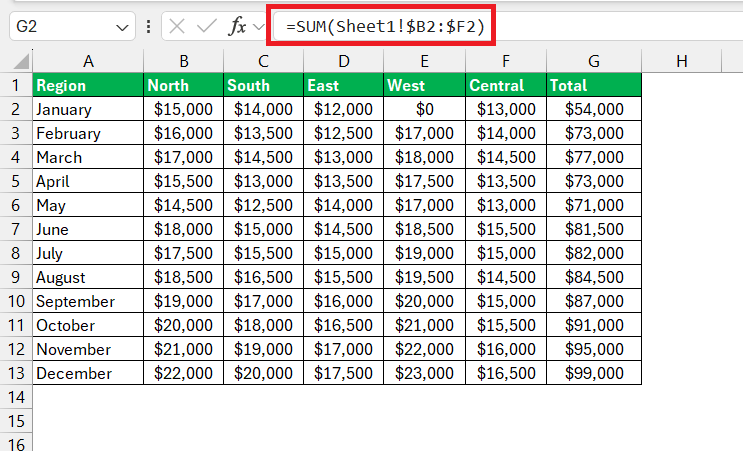
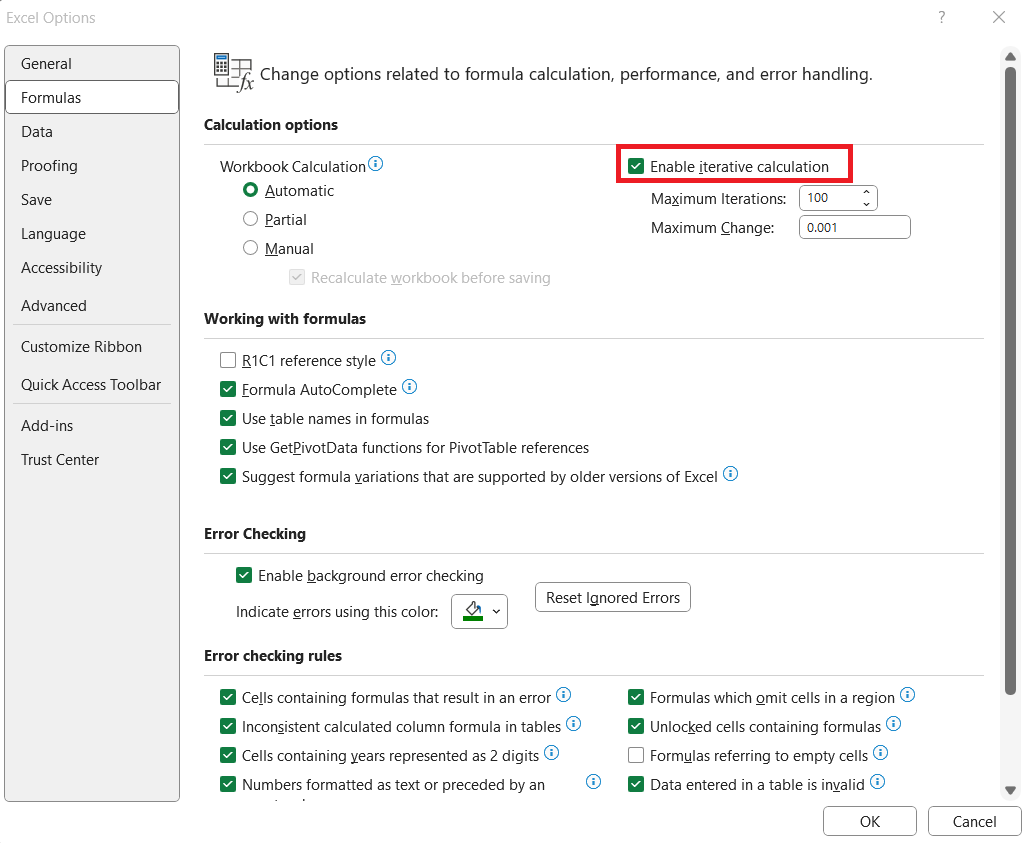
- Use Iterative Calculations: If circular references are intentional, enable iterative calculations by going to
File>Options>Formulasand checkingEnable iterative calculation. Set theMaximum IterationsandMaximum Changevalues to control the precision and performance of calculations.
FAQ: Finding and Fixing Circular References in Excel
What is a circular reference in Excel?
A circular reference in Excel is when a cell in a formula refers to itself, either directly or through a chain of other cells, creating an endless loop that prevents Excel from calculating a definitive result.
How to get rid of circular references in Excel?
To banish circular references in Excel, track them down using the ‘Circular Reference’ warning or via ‘Error Checking’ under the ‘Formulas’ tab, then change the formula that’s causing the loop to eliminate self-reference.
How can I quickly find circular references in my worksheet?
Quickly locate circular references in your worksheet by observing Excel’s status bar for alerts or by navigating to the ‘Formulas’ tab and selecting ‘Error Checking’, then ‘Circular References’ to see a list of cells involved.
Is there a way to allow circular references in Excel without error messages?
Yes, by enabling ‘iterative calculation’ in Excel’s formula settings, you can allow circular references to a certain extent without triggering error messages, but use this feature judiciously to avoid inaccurate results.
How to break a circular reference using a macro?
To break a circular reference using a macro, you can write VBA code that automates the detection and amendment of circular references, which is especially useful for complex models with numerous dependencies.
John Michaloudis is a former accountant and finance analyst at General Electric, a Microsoft MVP since 2020, an Amazon #1 bestselling author of 4 Microsoft Excel books and teacher of Microsoft Excel & Office over at his flagship MyExcelOnline Academy Online Course.

 30 Days - Full Access









