Table of Contents
How to Crop Your Picture to a Circle
Method 1: Using Crop to Shape Feature
STEP 1: Select the image you wish to edit within your PowerPoint slide.
STEP 2: Go to the Picture Tools, which becomes visible upon image selection.
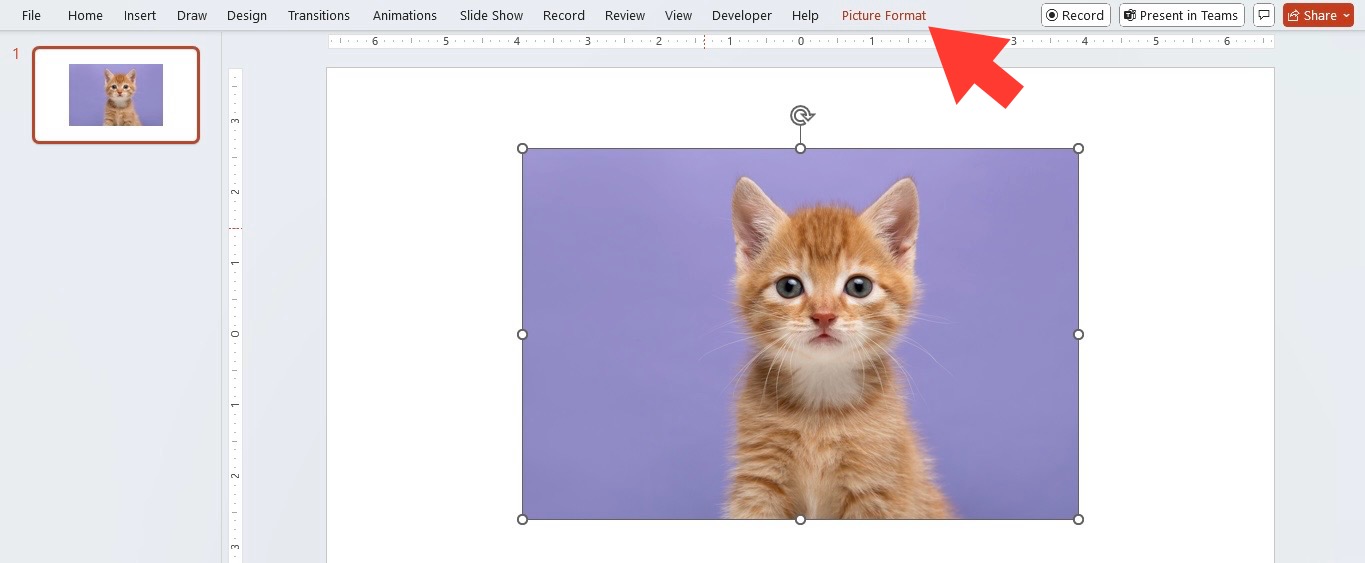
STEP 3: Go to the “Crop” button located in the “Size” group.
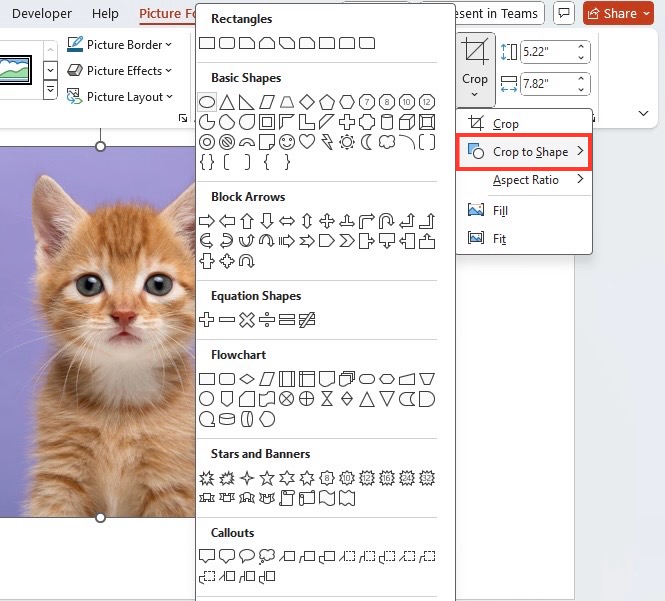
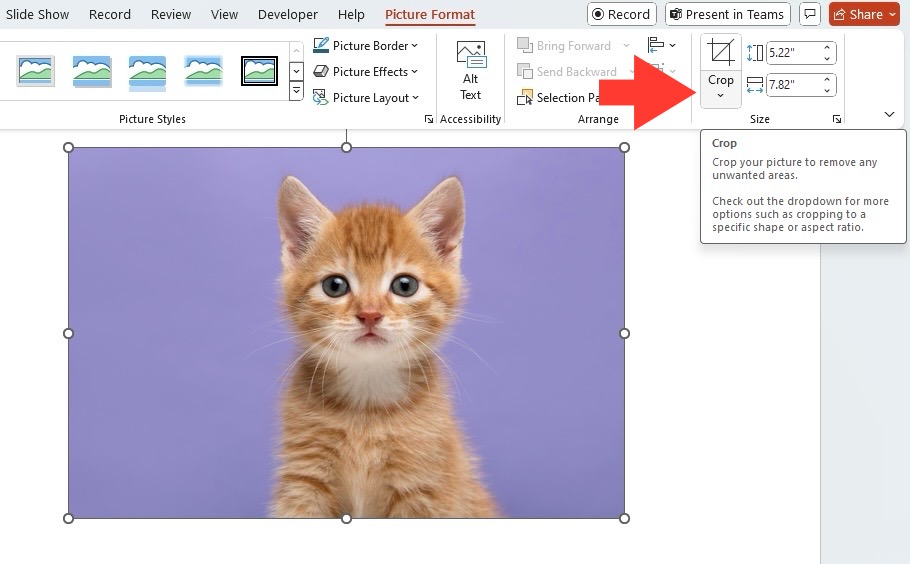 STEP 4: Click on the small arrow under “Crop”, then choose “Crop to Shape” from the dropdown menu.
STEP 5: From the range of shapes provided, select the oval or circle option.
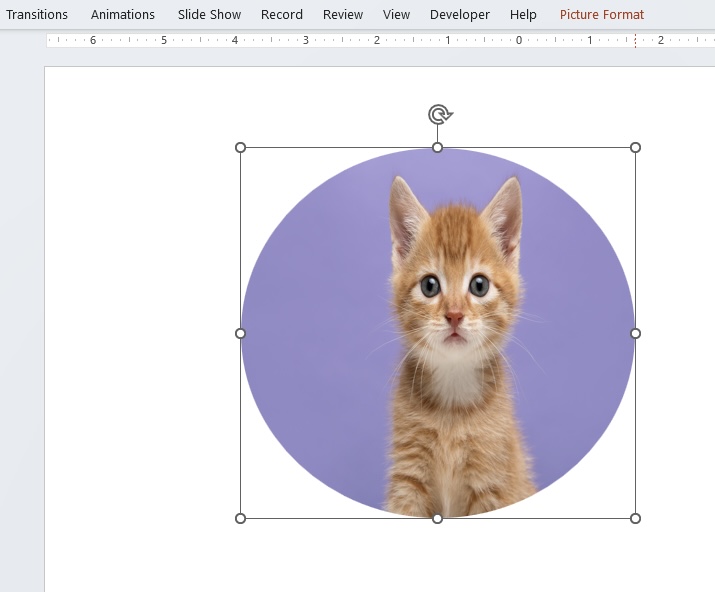
STEP 6: Click on the Picture Format tab, the Crop dropdown, then Fill.
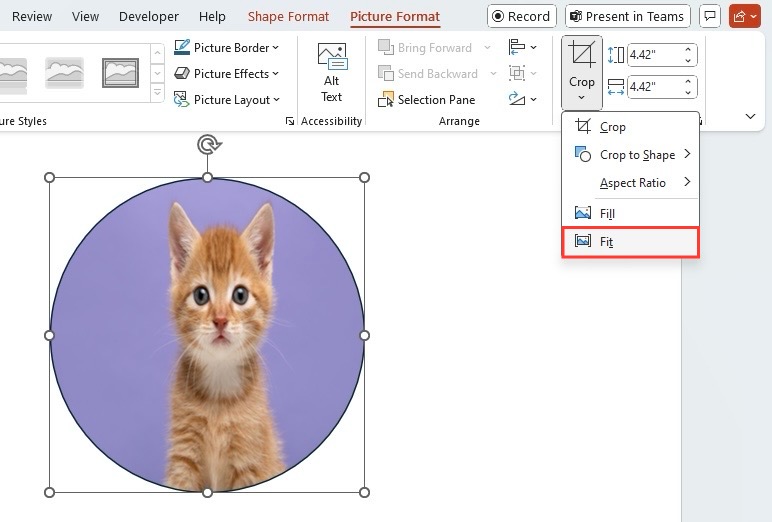
STEP 7: Adjust the image to fit the circle accordingly.
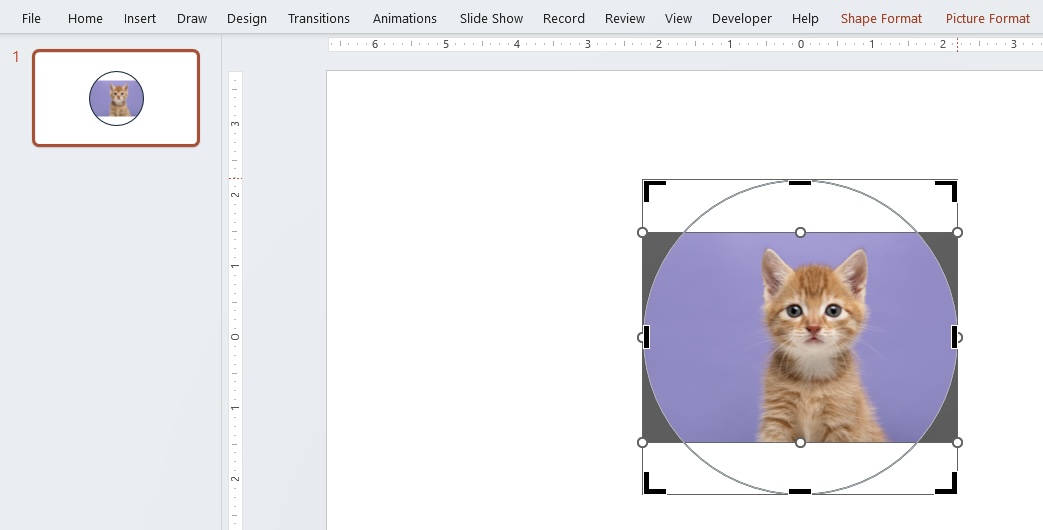
Once you’ve applied the circle crop, you can adjust the placement and the size to get it just right.
Method 2: Filling a Shape with an Image
STEP 1: Start with a blank slide or the area within your presentation where you want the circle image to appear.
STEP 2: Choose “Insert” from the menu, then select “Shapes,” and pick the oval shape.
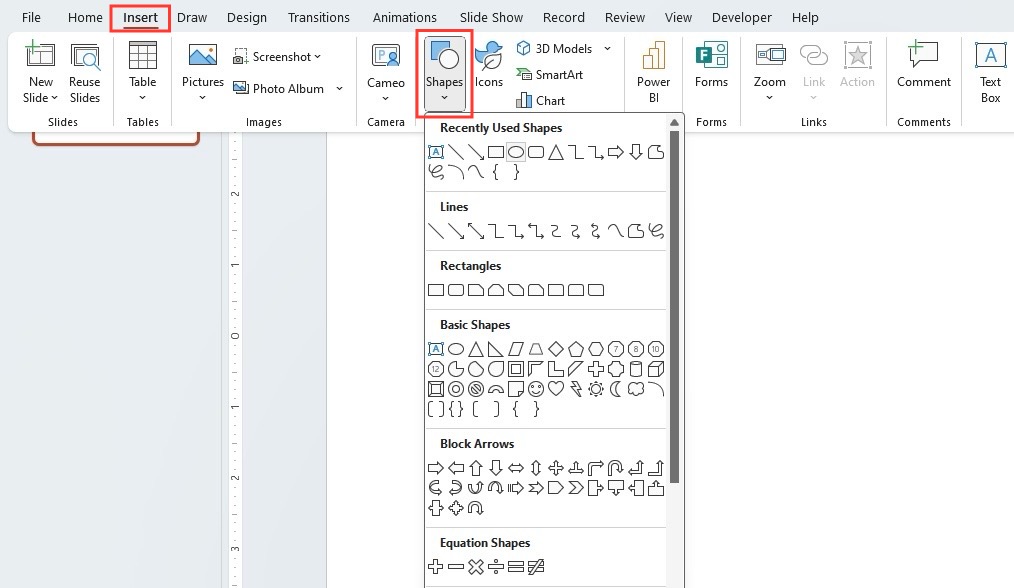
STEP 3: Hold down the SHIFT key while drawing to create a perfectly symmetrical circle on your slide.
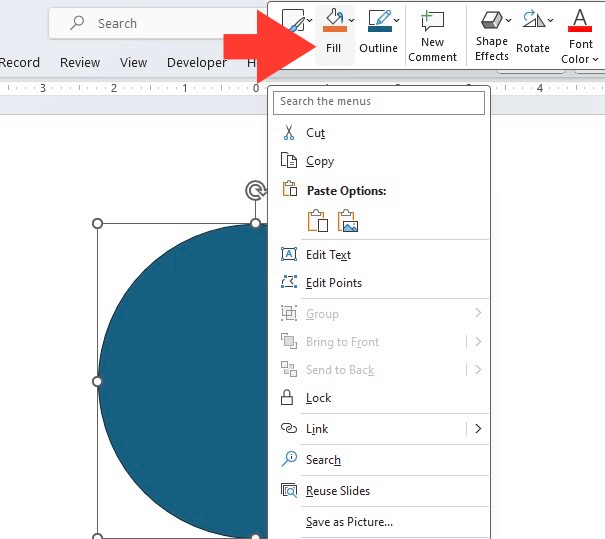
STEP 4: After drawing the shape, right-click on it, hover over “Fill” in the pop-up menu, and then click on “Picture.”
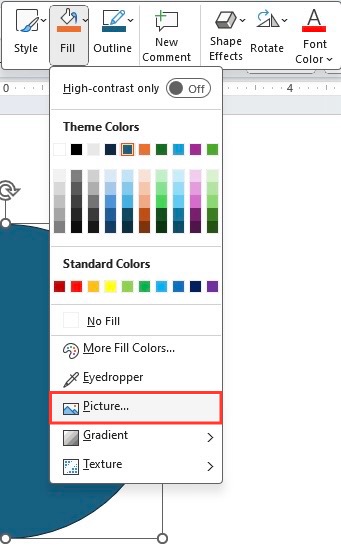
STEP 5: Upload the desired image, and it will fill the circle shape seamlessly.
STEP 6: Click on the Picture Format tab, the Crop dropdown, then Fill.
STEP 7: Adjust the image to fit the circle accordingly.
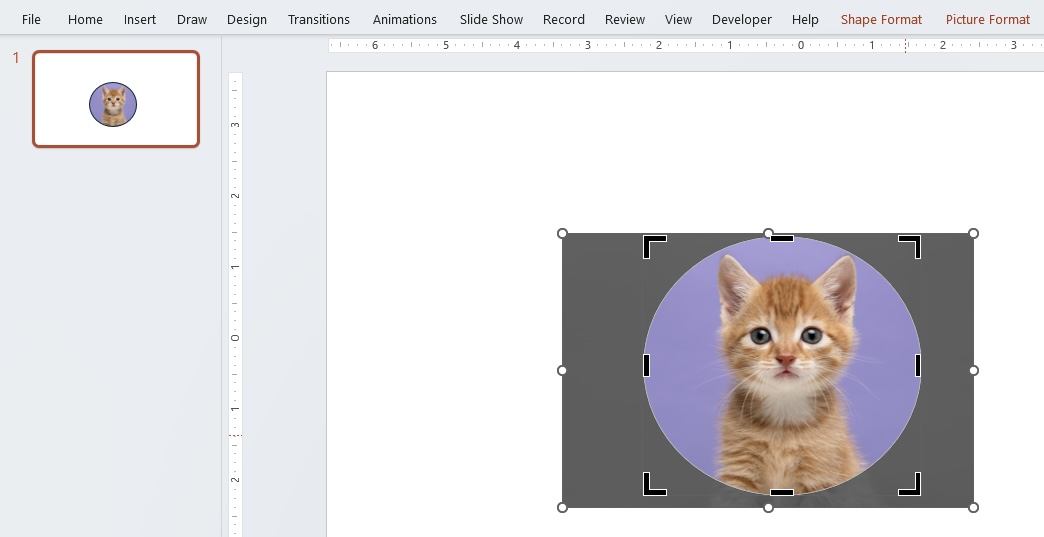

This method is useful when you need to make sure that your image fits just so within the context of your design.
Advanced Techniques
Adjusting the Size and Position After Cropping
To adjust the size and position after cropping,
- Select your circular image
- Click and drag these handles to resize your circle.
To maintain the aspect ratio, hold the SHIFT key while dragging. If you need to move the image within the cropped area, simply select the image and drag it to the desired position.
Adding Flair with Borders or Outlines
To add a border in PowerPoint, select your circular image and then follow these steps:
STEP 1: Head to the “Format” tab and look for the “Picture Border” option.
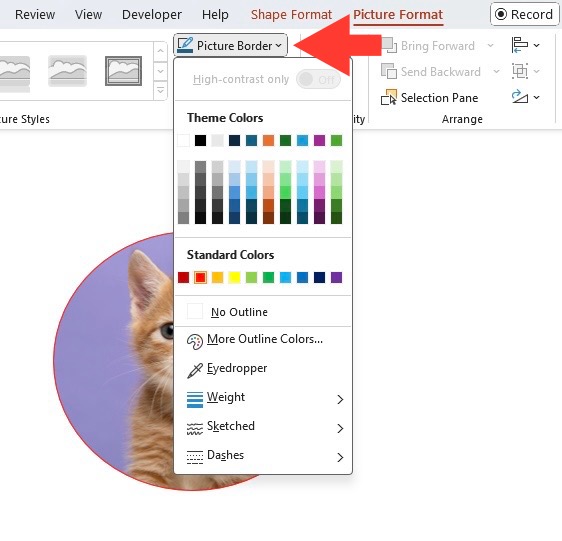
STEP 2: Select a color that complements your image and slide design to give it an attractive outline.
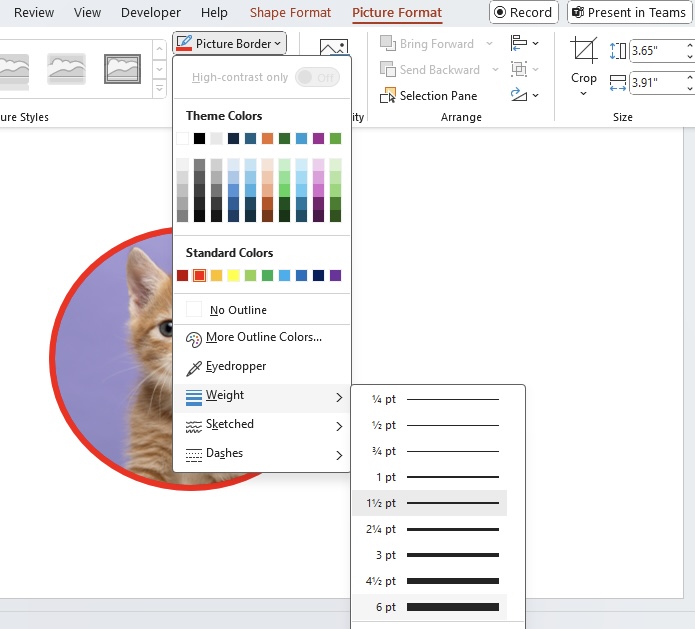
STEP 3: To make the border stand out, adjust the weight or thickness according to your preference.
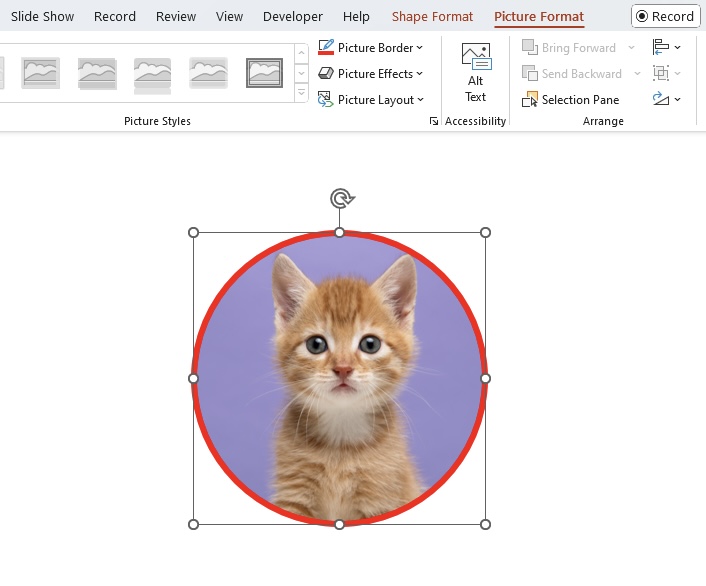
Remember, the key to a successful outline is subtlety; choose a color and weight that frames your image nicely without overpowering it. This can draw attention to the image and give it a finished look that aligns with your overall slide design.
Tips & Tricks
Aspect Ratios
STEP 1: After cropping your image to a circle, double-check the height and width dimensions in the “Size” group under the “Format” tab to confirm they’re equal.
STEP 2: If you’re using multiple circular images within a presentation, consider using the ‘Format Painter’ tool to replicate the correct aspect ratio across all images.
STEP 3: When resizing, use the SHIFT key to maintain the aspect ratio automatically, preventing any distortion of the circle shape.
Save Your Cropped Images
STEP 1: Go to the ‘File’ menu at the top left corner of the application window.
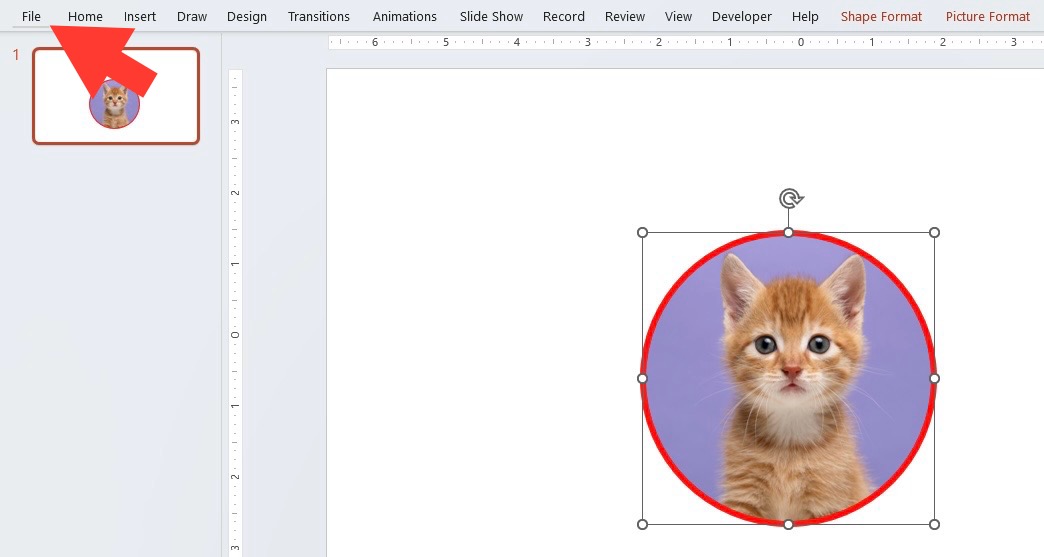
STEP 2: Click on ‘Save As’ and select the destination folder.
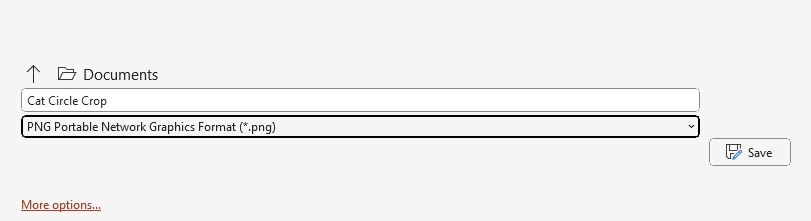
STEP 3: Enter a file name for your edited image. If you plan to use the image outside PowerPoint, save it as an image file, such as JPEG or PNG, by selecting the desired format from the ‘Save as type’ dropdown menu.
STEP 4: Hit ‘Save’ to keep the circularly cropped image, which can then be transferred, shared, or used in other documents or presentations.
FAQs
How to crop a circle in PowerPoint?
To crop a circle in PowerPoint, insert the image into your slide, then select it and go to the “Picture Format” tab. Click on “Crop,” choose “Crop to Shape,” and select the oval shape. Adjust the size by dragging the corner handles. For a perfect circle, hold the SHIFT key while adjusting.
How to make the cropped circle fit perfectly?
To make the cropped circle fit perfectly, adjust the size by dragging the available corner handles. Refine the crop points in the “Crop” dialog box to achieve the desired shape, ensuring the height and width dimensions are equal for a 1:1 aspect ratio.
How to customize the size of the cropped circle?
You can customize the size and shape of your cropped circle by following the steps below:
- Click on the image.
- Drag the corner handles to resize.
How to change the size of the cropped circle?
To alter the shape, select the crop tool again and pick a new shape from the dropdown menu. Use the “Picture Format” tab to refine the aspect ratio.
How to save the cropped circle in PowerPoint?
To save the cropped circle in PowerPoint, follow the steps below:
- Click on the “File” tab
- Select “Save As.”
- Provide your file a name
- Select the location
- Choose an image format like JPEG or PNG from the ‘Save as type’ dropdown.
- Click ‘Save’ to preserve the cropped image.

John Michaloudis is a former accountant and finance analyst at General Electric, a Microsoft MVP since 2020, an Amazon #1 bestselling author of 4 Microsoft Excel books and teacher of Microsoft Excel & Office over at his flagship MyExcelOnline Academy Online Course.

 30 Days - Full Access









