Table of Contents
How to Insert Degree Symbol
Excel Ribbon
- Go to the Insert tab
- Click Symbol

- Choose Latin-1 Supplement from the dropdown
- Find the degree symbol
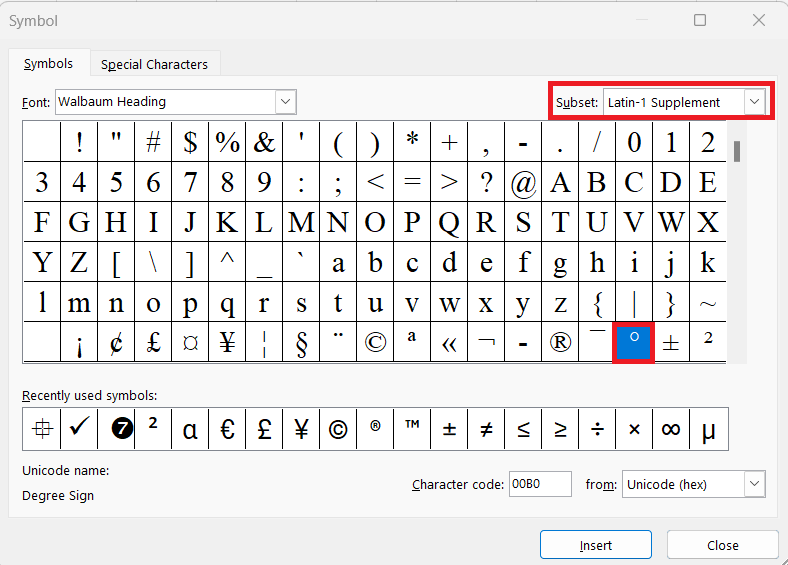
- Click on it
- Press Insert
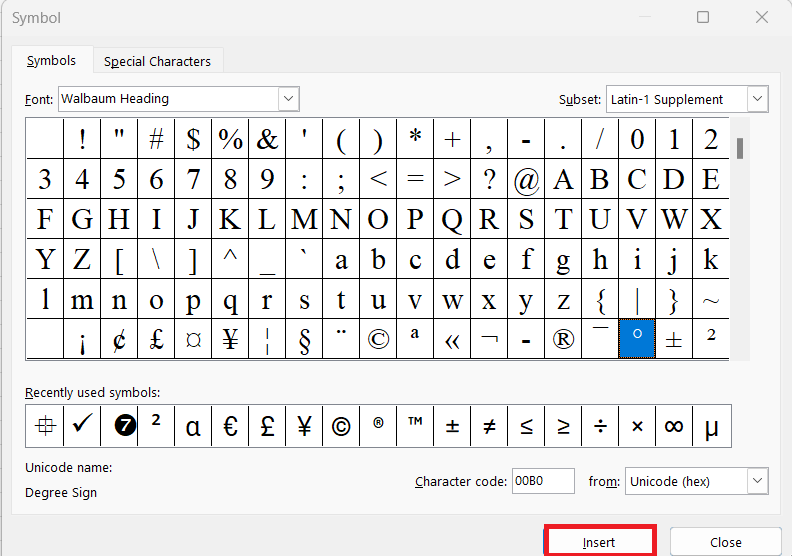
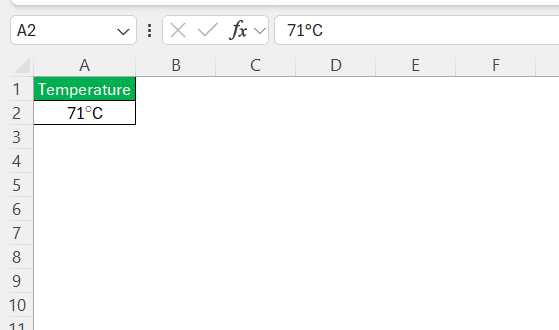
The symbol will be added to an Excel cell.
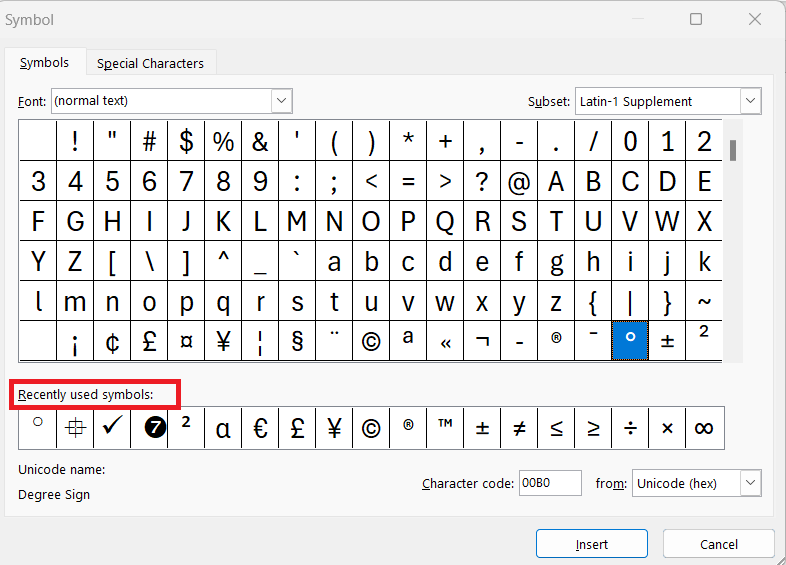
After adding the symbol once, it will be located in the Recently Used Symbols list.
Keyboard Shortcuts
The Alt code method can be used to quickly add symbols in Excel.
- Hold the Alt key
- Type 0176
The degree symbol appears in the selected cell.
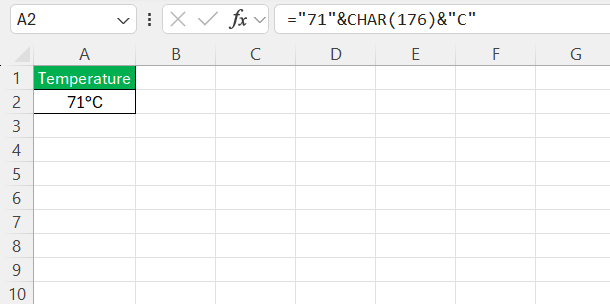
CHAR Function
The CHAR function allows you to insert specific characters based on their ASCII code. For example, to insert a degree symbol, I use this formula:
Advanced Techniques
Format Numbers
You can also display numbers with a degree symbol using custom formatting.
- Select the cell
- Press Ctrl + 1
- In the dialog box, select Custom
- Enter the format: 0°
Once I type the number in the formatted cell, the symbol will be added automatically.
AutoCorrect
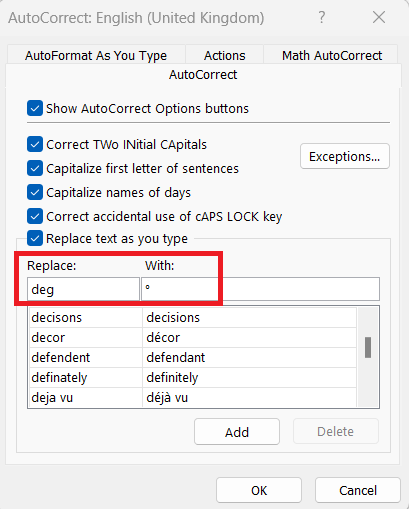
AutoCorrect feature can replace text with custom symbols. For example, you can replace deg with the degree symbol.
- Go to File > Options > Proofing
- Click on the AutoCorrect Options button.
- Type deg under Replace
- Type symbol under With
- Click Add
- Click OK
VBA Tricks
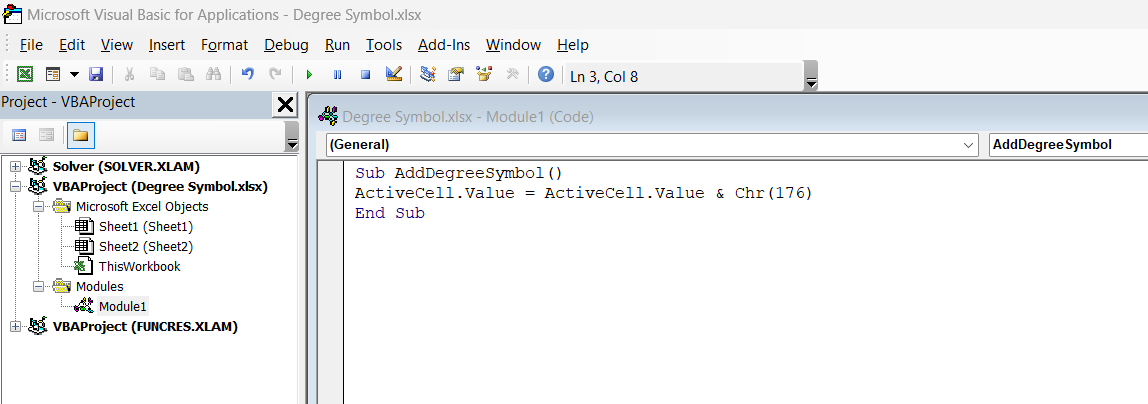
Programming custom symbol solutions with VBA is like having a personal Excel butler, one that deftly adds symbols to my data at the press of a button. Here’s a trick up my sleeve: a simple VBA macro to insert a degree symbol.
Sub AddDegreeSymbol()
ActiveCell.Value = ActiveCell.Value & Chr(176)
End Sub
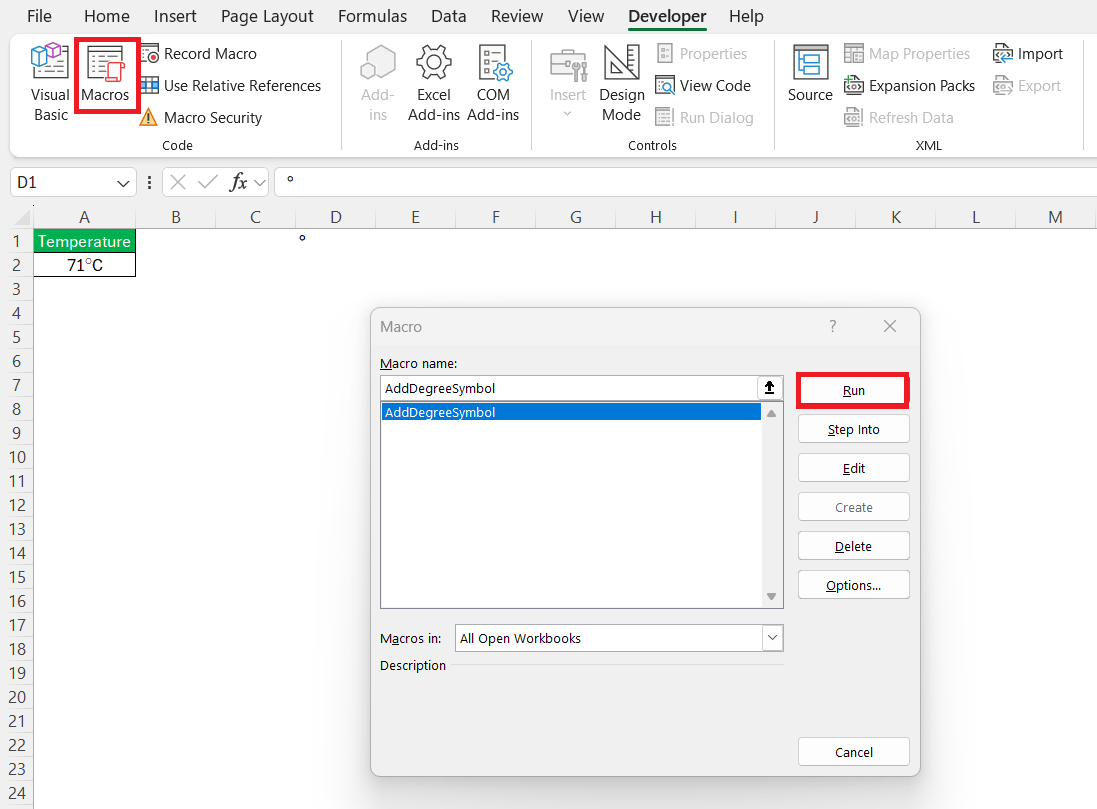
Running this script is just a matter of selecting the cell and executing the macro. Voilà—the data now sports a handy degree symbol.
FAQs
How to insert a degree symbol in Excel?
To insert a degree symbol in Excel, simply press Alt and type 0176 using the numeric keypad.
How to insert symbols in Excel?
To insert symbols in Excel,
- Click on the cell where you wish to place the symbol
- Go to the ‘Insert’ tab
- Click ‘Symbol’
- Choose your desired symbol from the dialog box that appears
- Click on ‘Insert’
What is the Quickest Way to Insert a Degree Symbol in Excel?
The quickest way to insert a degree symbol in Excel is by using the keyboard shortcut. Press Alt and type 0176 on the numeric keypad for Windows, or use Option + Shift + 8 on a Mac.
Can You Customize Autocorrect in Excel to Include Specific Symbols?
Yes, you can customize Autocorrect in Excel to include specific symbols by adding a new entry.
- Go to File > Options
- Select Proofing
- Select AutoCorrect Options,
- Type your shortcut text under ‘Replace’
- Type the symbol you want under ‘With’
- Click OK
What is the degree symbol keyboard shortcut?
The keyboard shortcut for the degree symbol on Windows is Alt + 0176, using the numeric keypad. On a Mac, it’s Option + Shift + 8.

John Michaloudis is a former accountant and finance analyst at General Electric, a Microsoft MVP since 2020, an Amazon #1 bestselling author of 4 Microsoft Excel books and teacher of Microsoft Excel & Office over at his flagship MyExcelOnline Academy Online Course.

 30 Days - Full Access









