Key Takeaways
- You can delete notebooks from your computer, the OneNote app, or OneDrive.
- Closing a notebook in the app does not permanently delete it.
- Delete files from the Recycle Bin to completely delete them.
- Inform collaborators before deleting shared notebooks.
- Always back up important notes.
Table of Contents
OneNote Across Devices
OneNote is a platform that is easy to use anywhere. It can work on different platforms like Windows, macOS, iOS, and Android devices. It is based on cloud storage, so it syncs seamlessly across devices. When you make any change in one platform, it gets reflected on all other platforms.
How to Delete Notebooks
Using File Explorer
Follow the steps below to remove the Notebook using File Explorer:
STEP 1: Open a File Explorer window and navigate to where your notebooks are located. In most cases, they will be stored in the Documents folder in a subfolder called “OneNote Notebooks.”
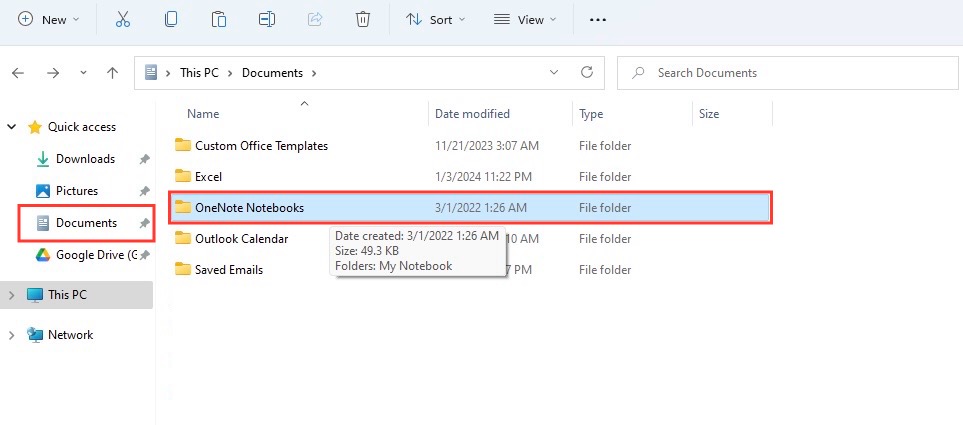
STEP 2: Find the OneNote folder you want to delete. It’s helpful to know the exact name of the notebook to avoid any accidental deletions.
STEP 3: Right-click on the folder containing the OneNote notebook and select ‘Delete.’ Alternatively, you can select the folder and press the Delete key on your keyboard.
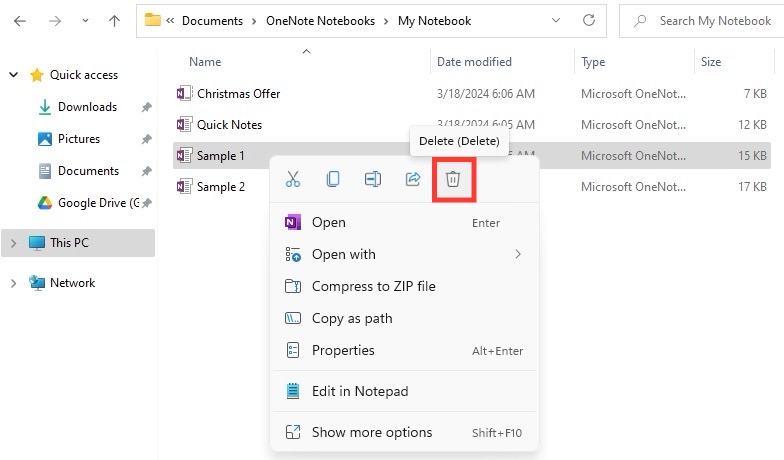
STEP 4: Confirm the deletion. You can still recover the notebook from the Recycle Bin if needed.
Remember, this moves the notebook to the Recycle Bin. To permanently remove the notebook:
STEP 1: Right-click the Recycle Bin icon on your desktop.
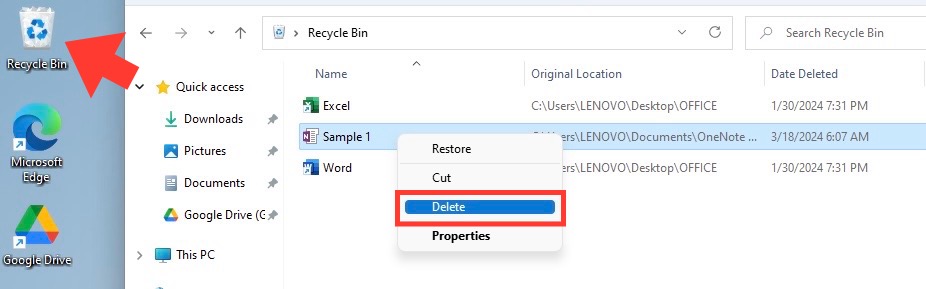
STEP 2: Select Empty Recycle Bin.
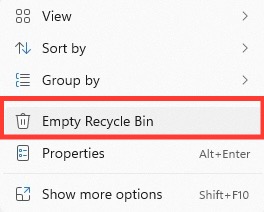
STEP 3: A warning prompt box appears. Click Yes to permanently delete the notebook.
Using OneNote App
Follow the steps below to remove Notebook using OneNote app:
STEP 1: Open OneNote and go to the Show Notebooks list.
STEP 2: Right-click on the notebook you wish to remove.
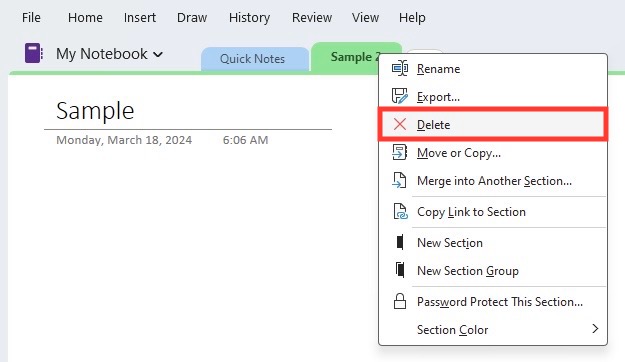
STEP 3: Select ‘Delete’ to remove it from your OneNote list. Doing so closes the notebook and stops it from syncing, but doesn’t delete the notebook from your device or OneDrive.
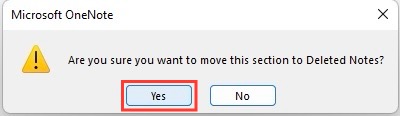
To delete the notebook after closing it:
STEP 1: Go to the folder where your OneNote files are stored (typically in your Documents folder under “OneNote Notebooks”).
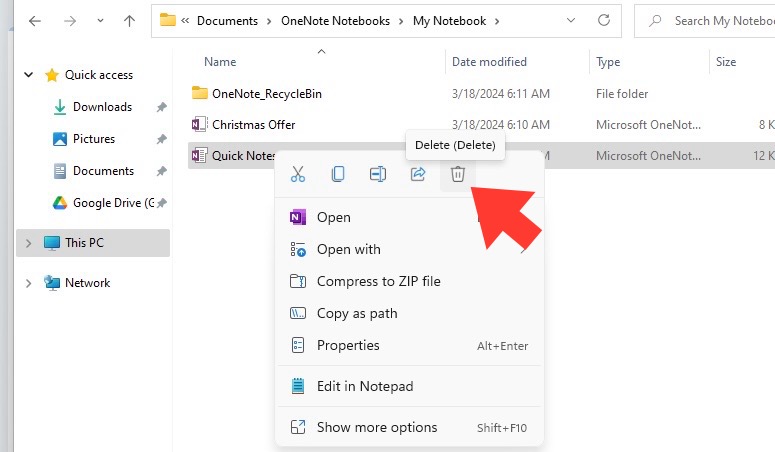
STEP 2: Delete the notebook file, as you would with any other file on your system.
Make sure to close the notebook before deleting the file to prevent any issues during syncing.
Clearing Out Notebooks in OneDrive
Step-by-Step Guide
STEP 1: Sign in to your OneDrive account online.
STEP 2: Navigate to the ‘Notebooks’ section, where all your OneNote notebooks are listed.
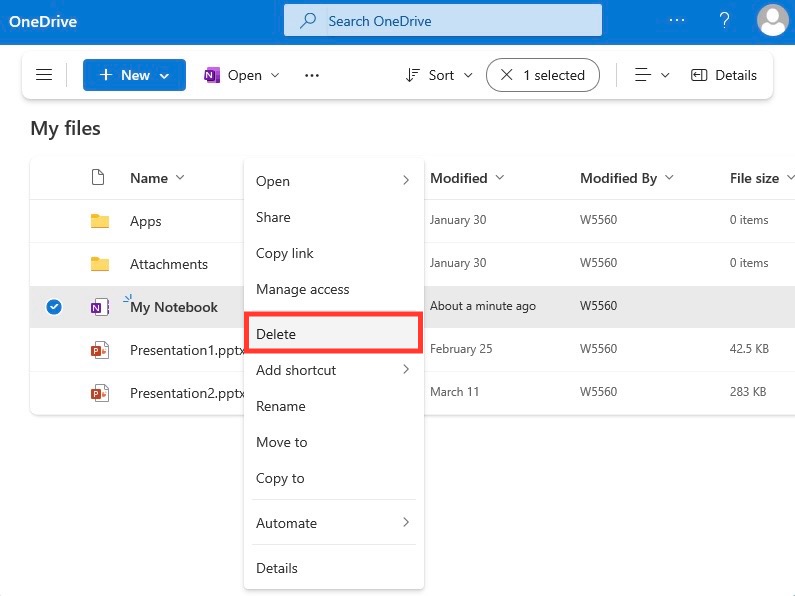
STEP 3: Locate the notebook you want to delete, click the three dots (more options) beside the notebook, or right-click on the notebook.
STEP 4: Select ‘Delete,’ and the notebook will be moved to the OneDrive recycle bin.
For complete removal:
STEP 1: Head to the ‘Recycle bin’ on your OneDrive.
STEP 2: Select the notebook(s) you want to permanently delete.
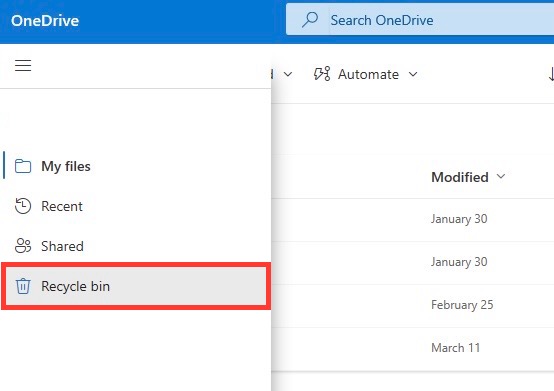
STEP 3: Click ‘Empty recycle bin’ or ‘Delete’ to permanently erase the notebook.
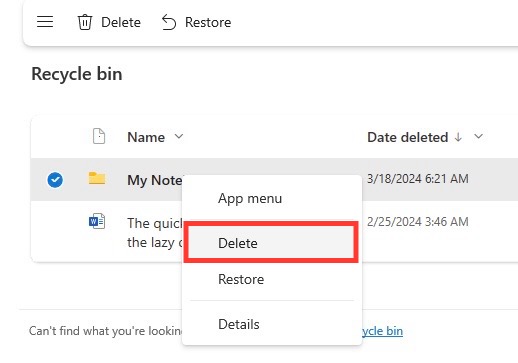
Once a notebook has been deleted from OneDrive recycle bin, it cannot be retrieved.
Delete Shared Notebooks
Follow the steps below to delete shared notebooks:
STEP 1: Go to the notebook in your OneDrive.
STEP 2: Select the notebook and choose Delete.
STEP 3: Go to the OneDrive recycle bin.
STEP 4: Select the notebook again and select Delete.
It is important to know that a shared notebook removes access for everyone, not just you.
Deleting Notebooks on Different Platforms
MacOS
STEP 1: Open the OneNote app.
STEP 2: Go to the View tab and select Notebooks.
STEP 3: Click on the notebook you want to remove.
STEP 4: Select Close This Notebook to stop syncing.
To delete it from OneDrive:
STEP 1: Sign in to the OneDrive website.
STEP 2: Select Documents > OneNote Notebooks.
STEP 3: Find the notebook you closed and want to delete, click it to select, and then press the ‘Delete’ option.
Be aware that once you delete it from OneDrive, it will disappear from all devices synced to that account.
iPad
You can delete a notebook on your iPad by following the steps below:
STEP 1: Open OneNote.
STEP 2: Go to the Notebooks list.
STEP 3: Select the notebook you wish to delete.
STEP 4: Click on the notebook icon with a circled minus sign to remove the notebook.
Remember, this action won’t delete the notebook from OneDrive. To fully delete the notebook:
STEP 1: Navigate to the OneDrive app or via a web browser on your iPad.
STEP 2: Find your notebook in the ‘Files’ or ‘Documents’ section.
STEP 3: Swipe left on the notebook and tap the red ‘Delete’ button to move it to the OneDrive recycle bin.
STEP 4: For permanent deletion, go to the recycle bin and repeat the deletion process.
Keep in mind that deleting a notebook is irreversible, and all its contents, including sections and pages, will be lost.
Android Devices
STEP 1: Open the OneNote app.
STEP 2: Go to the Notebooks folder.
STEP 3: Press and hold the notebook you wish to delete.
STEP 4: Select delete.
Online via Browser
STEP 1: Open your preferred web browser.
STEP 2: Sign in to your OneDrive account at Office.com.
STEP 2: Go to the Documents section and select the OneNote Notebooks folder.
STEP 3: Select the notebook that you intend to delete.
STEP 4: Click Delete.
This will move the notebook to the OneDrive recycle bin.
For permanent deletion:
STEP 1: Visit the OneDrive recycle bin by clicking on the ‘Recycle bin’ link usually located in the left sidebar.
STEP 2: Select the notebook you want to remove permanently and click ‘Delete’ again.
Tips & Tricks
Sharing Protocol Before Deletion
Before deleting a notebook, follow the protocols below:
- Notify all collaborators about the deletion in advance.
- Send multiple notifications and a final reminder if the notebook contains critical information.
- Mention the exact date of deletion so that they can back up information.
- Check if any collaborate needs continued access to the information. If yes, you can transfer ownership.
Backing Up Important Notes
Before you take the leap and delete a notebook, backing up your notes is a vital step to ensure no important information is lost:
STEP 1: Open OneNote 2016 on your computer.
STEP 2: Click on the ‘File’ tab and select ‘Options’.
STEP 3: In the ‘Options’ dialog box, go to the ‘Save & Backup’ section.
STEP 4: Set your preferences for backup under ‘Backup Folder’ and ‘Number of backup copies to keep’.
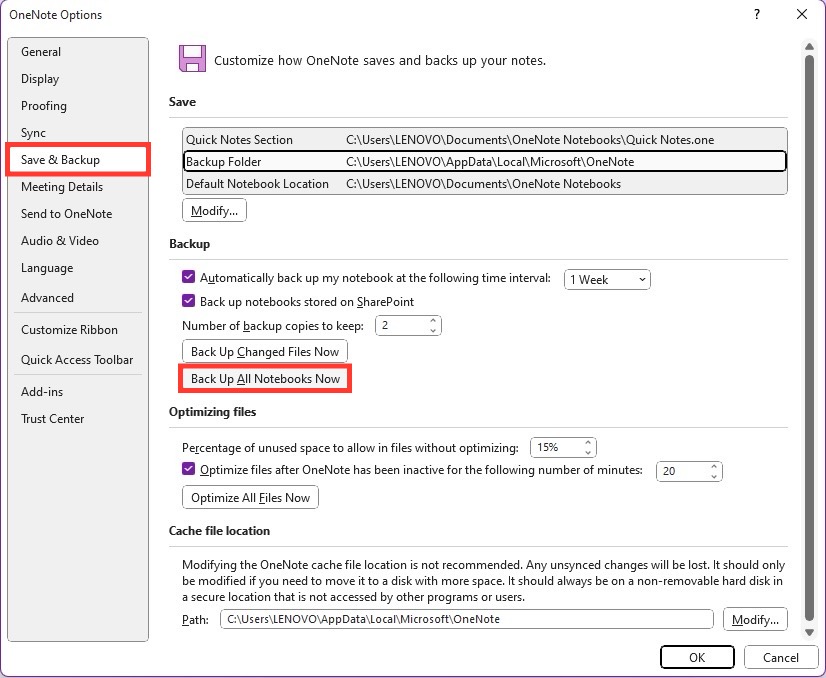
Click on ‘Back Up All Notebooks Now’ to start the manual backup process.
Whether they choose automatic backups at regular intervals or a one-time manual save, this simple precaution could save users from future headaches if they ever need to revisit archived information.
FAQs
How to retrieve a notebook that has been deleted?
You can retrieve a deleted notebook from the Recycle Bin or OneDrive recycle bin online. However, if it has been permanently deleted from the recycle bin, recovery may not be possible. Always back up notebooks before deletion as a precaution.
How to ensure all devices sync deletion correctly?
To ensure that all devices sync the deletion correctly, manually close the notebook in OneNote on all devices before you delete it from OneDrive. After deletion, occasionally check OneNote on your devices to confirm the notebook is no longer listed or syncing.
What should I do if I still see a notebook after attempting to delete it?
If a notebook still appears after you’ve deleted it, try manually closing it in OneNote across all devices. Then clear the notebook from OneDrive’s recycle bin to force a sync update. If it persists, sign out of OneNote and sign back in to refresh the notebook list.

John Michaloudis is a former accountant and finance analyst at General Electric, a Microsoft MVP since 2020, an Amazon #1 bestselling author of 4 Microsoft Excel books and teacher of Microsoft Excel & Office over at his flagship MyExcelOnline Academy Online Course.

 30 Days - Full Access









