If you’re like me, you spend hours working in Excel, analyzing data, creating reports, or simply organizing information. Staring at a bright white screen for long periods can strain your eyes, making it harder to focus.
That’s why I love using Dark Mode in Excel! It not only reduces eye fatigue but also gives the interface a sleek, modern look. In this guide, I’ll walk you through how to enable Dark Mode in Excel and share some useful tips to get the most out of it.
Key Takeaways:
- Dark Mode in Excel reduces eye strain and enhances focus by offering a darker interface.
- It provides a modern aesthetic and can help save battery life on OLED screens.
- The worksheet background remains white unless manually formatted, which can be a limitation.
- Some third-party add-ins may not be optimized for Dark Mode, causing visibility issues.
- You can switch between Dark and Light Mode anytime through the Excel Options menu.
Table of Contents
What is Dark Mode?
Dark Mode is a theme setting that changes the appearance of Excel’s interface. Instead of the default bright white background, Dark Mode applies darker shades to the ribbon, menus, and sometimes even the worksheet itself.
This setting is particularly useful for those who work in low-light environments. The shift to dark mode extends beyond a mere change of colors; it is about promoting digital well-being. Staring at a bright screen for hours can lead to eye strain and fatigue. Dark mode allows users to work on their spreadsheets with less discomfort.
The reduced glare and lower light emission are particularly useful during those late-night crunch times.
How to Activate Dark Mode
Follow these steps to enable the dark mode:
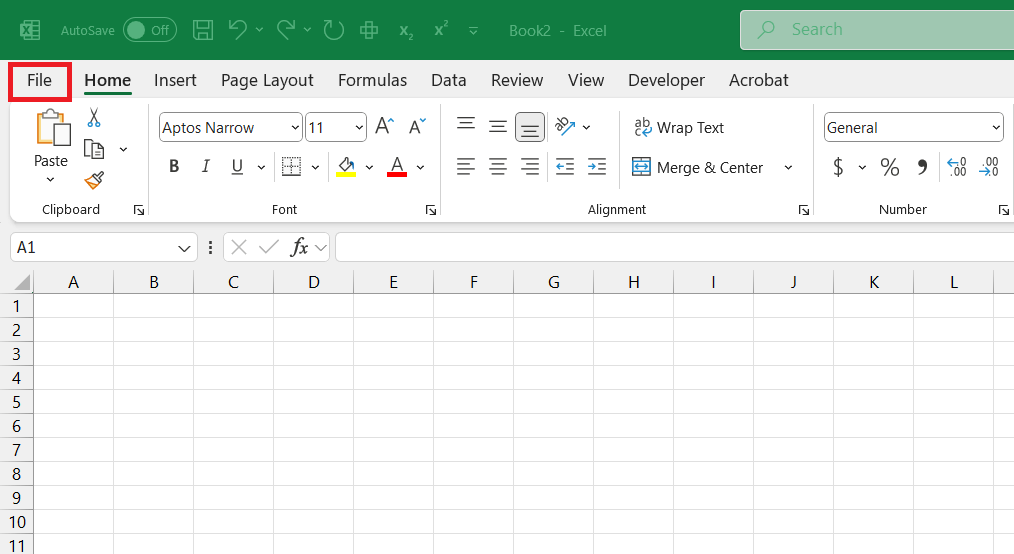
STEP 1: Click on File in the top-left corner of the worksheet.
STEP 2: Scroll down and select Options.

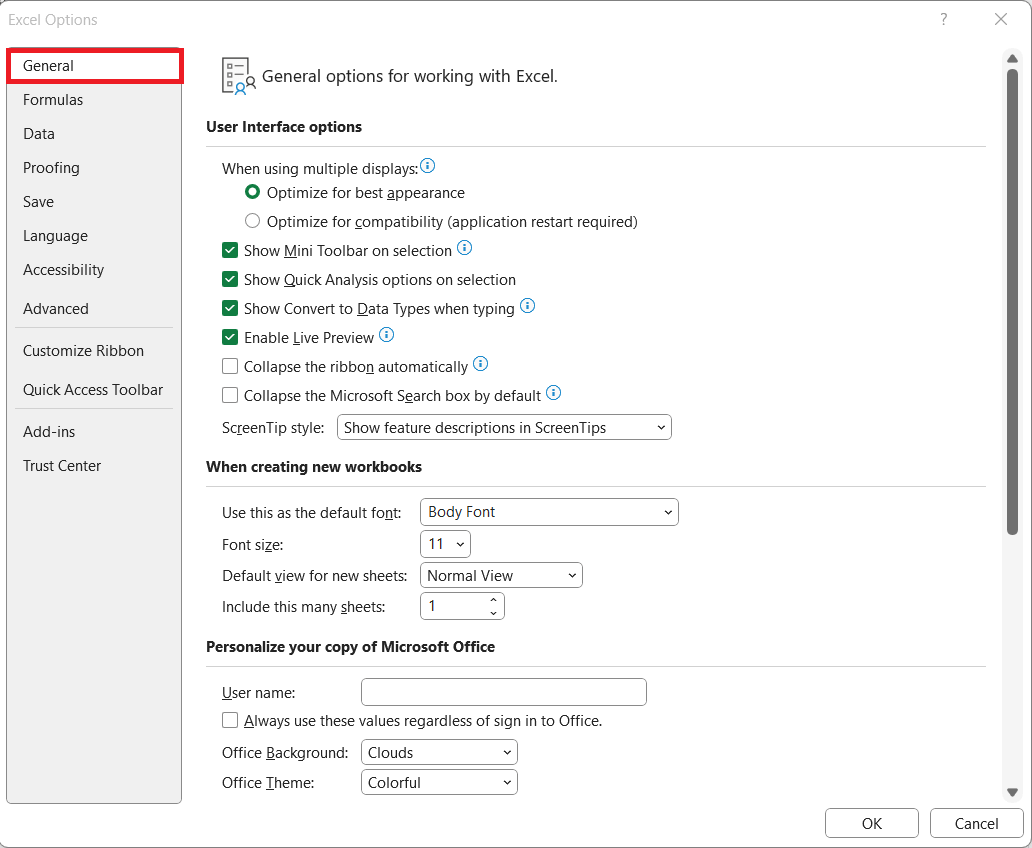
STEP 3: In the Excel Options window, go to the General tab.
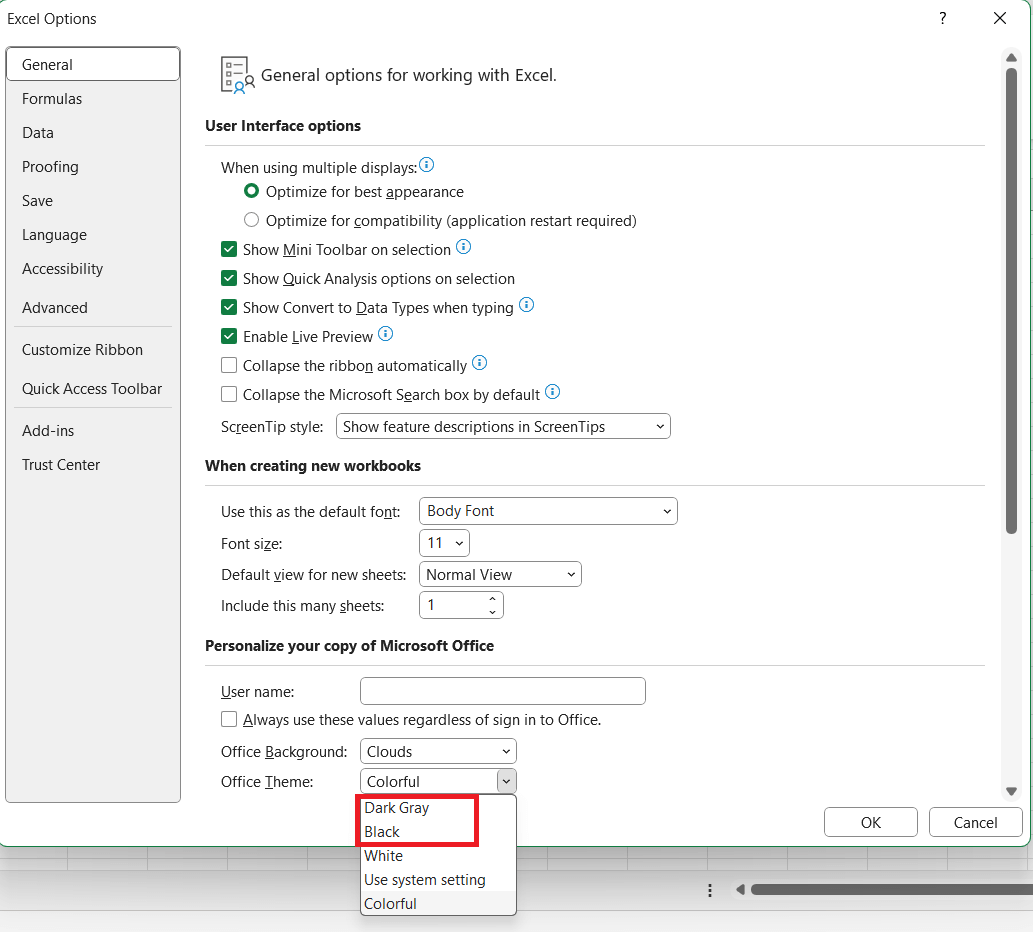
STEP 4: Click the dropdown next to Office Theme. Select Dark Gray or Black.
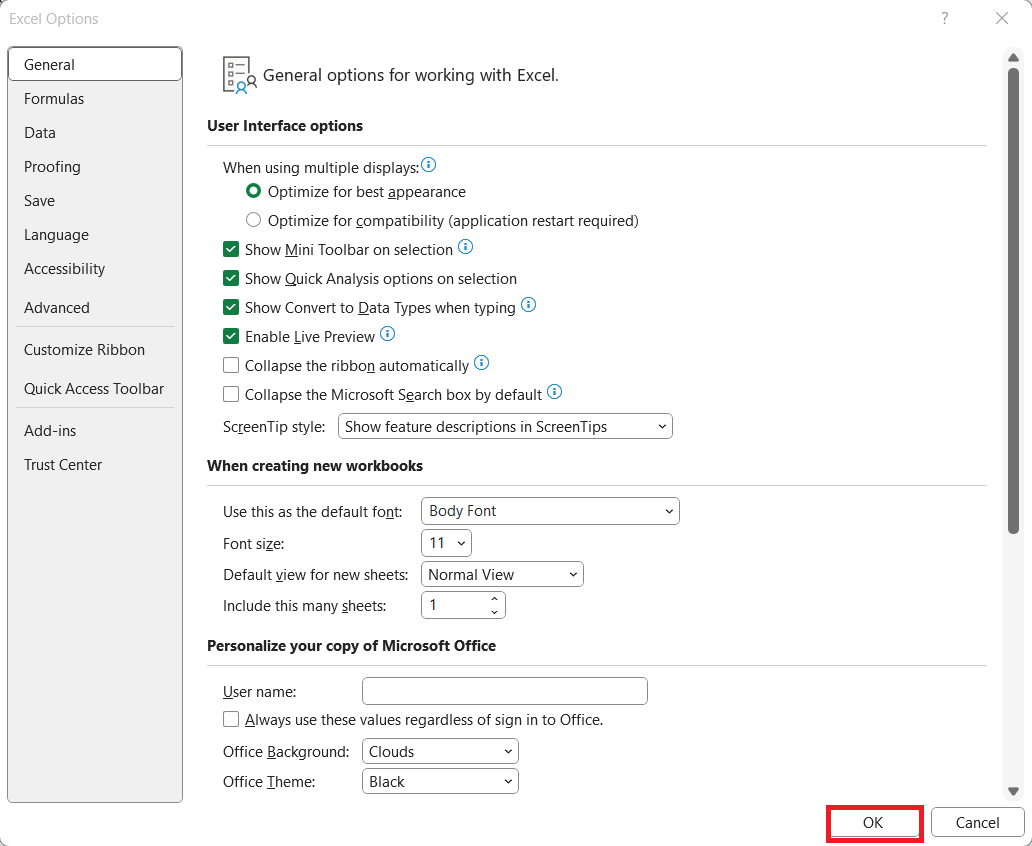
STEP 5: Click OK.
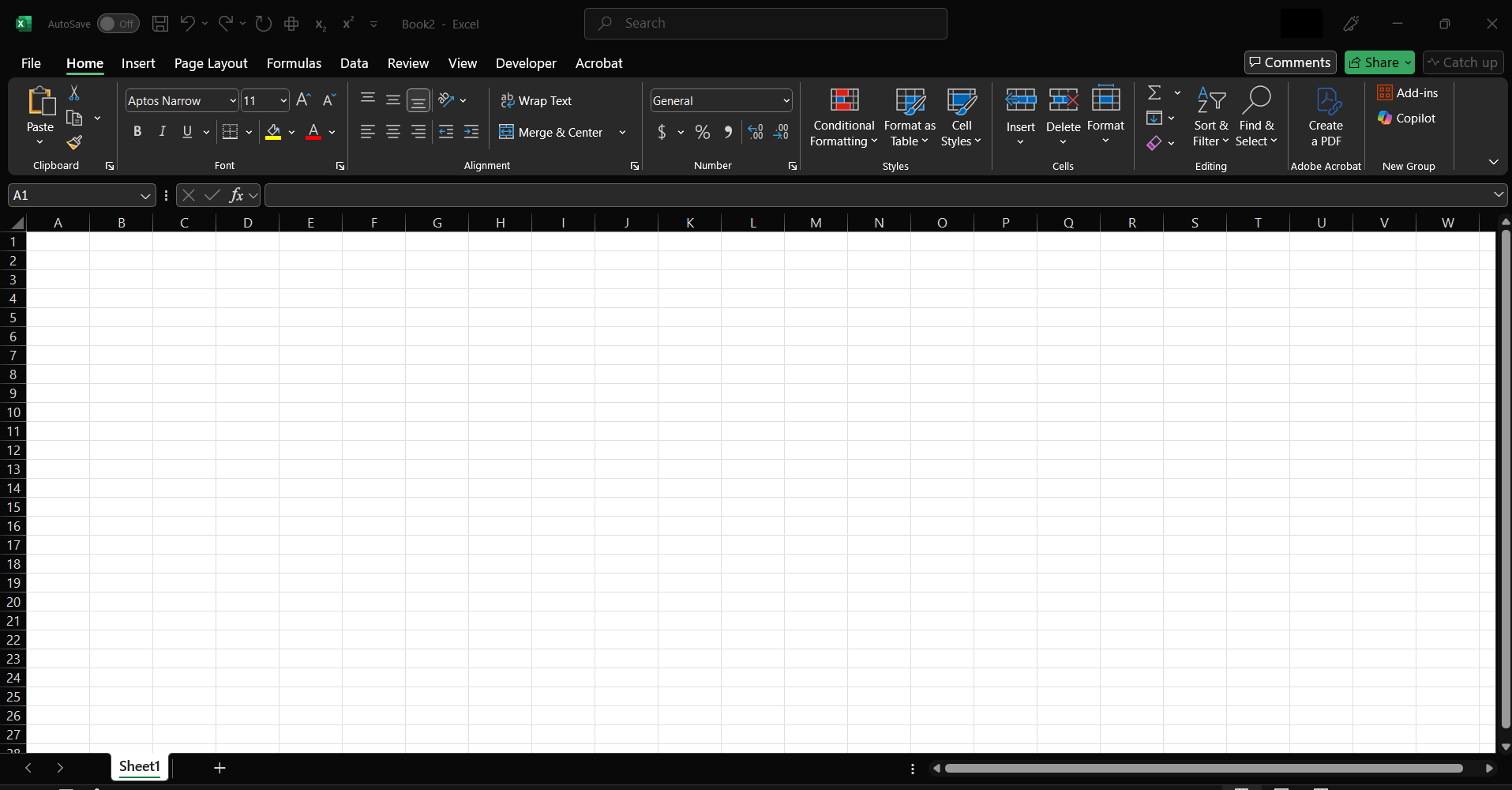
Your Excel interface will now be in Dark Mode. The ribbon, menus, and other UI elements will take on a darker shade.
Benefits and Limitations of Using Dark Mode
Benefits of Using Dark Mode in Excel
- Dark Mode is particularly useful for long working hours. The reduced brightness helps lessen eye fatigue and strain.
- With a darker background, the contrast between text and numbers helps you concentrate better on your data.
- If you’re using a laptop with an OLED screen, Dark Mode can help save battery power by consuming less energy.
- Dark Mode provides a modern and sophisticated look to Excel.
Limitations of Dark Mode in Excel
- Unfortunately, Dark Mode does not change the actual worksheet background. The grid and cells remain white.
- If you use custom dark-themed cell colors, make sure to check print previews to avoid unexpected results.
- Certain third-party add-ins might not be optimized for Dark Mode and can create visibility issues.
Tips & Tricks
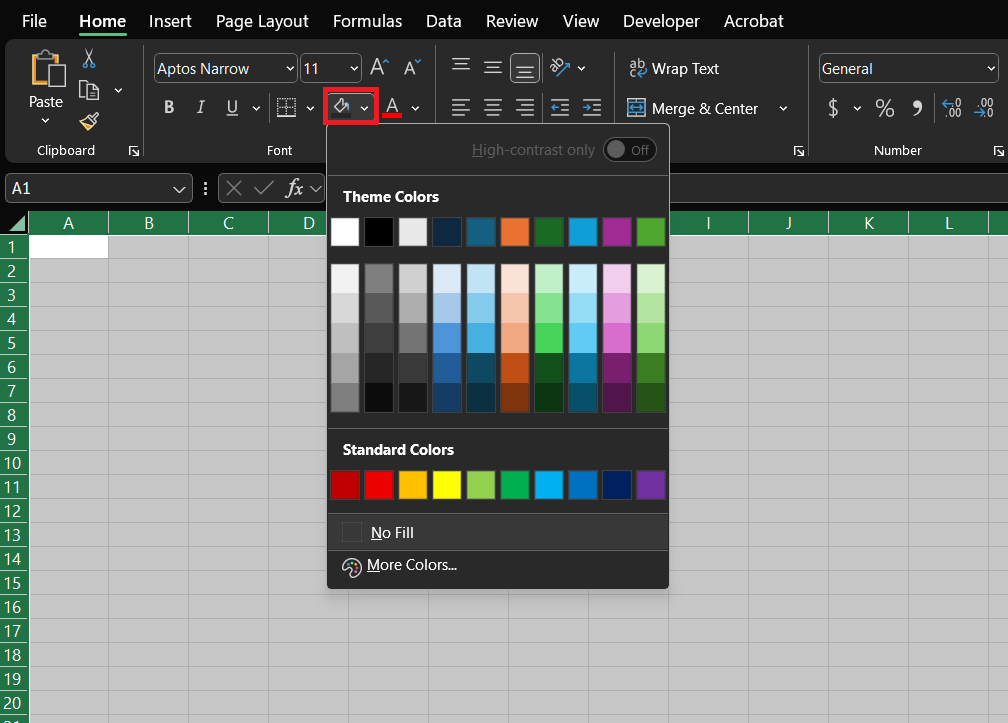
- To change the background color of the worksheet, select all cells and apply a darker fill color.
- Use bold fonts or adjust text colors. This will make sure that there is clear visibility against dark backgrounds.
- If you’re working on a worksheet that requires bright colors, you can always switch back to Light Mode.
FAQs
What is dark mode in Excel?
Dark mode in Excel is a feature that changes the default bright background to a darker color. It reduces eye strain and makes the interface more comfortable to view.
Can You Schedule Dark Mode to Activate Automatically?
You cannot schedule dark mode to activate automatically. However, you can automate it by using Windows settings that schedule dark mode across all compatible applications.
Is Dark Mode Available on All Versions of Windows?
Dark mode is not available on all versions of Windows. It is a feature introduced with Windows 10 and improved in Windows 11. If you’re using an older Windows operating system, you won’t have access to this feature.
How to Use Custom Themes Alongside Dark Mode?
You can use custom themes alongside dark mode in Excel. Custom themes allow you to personalize the appearance of your workbook further. You can include colors, fonts, and effects that complement the dark background.

John Michaloudis is a former accountant and finance analyst at General Electric, a Microsoft MVP since 2020, an Amazon #1 bestselling author of 4 Microsoft Excel books and teacher of Microsoft Excel & Office over at his flagship MyExcelOnline Academy Online Course.

 30 Days - Full Access









