 Free Practice Workbook
When you need to manage a large amount of data in my spreadsheets, you need to know the row limits in Excel. It is important to know how to limit rows to improve readability or simplify data entry. In this article, I’ll walk you through a few methods to limit the number of rows in your Excel worksheets.
Key Takeaways:
- Excel can handle up to 1,048,576 rows.
- Excel 2003 and earlier versions are limited to 65,536 rows.
- Simplify data visibility by hiding unused rows.
- Advanced users can write VBA macros to dynamically limit the number of rows.
- For datasets exceeding Excel’s row limit, consider using Power Query.
Table of Contents
Unlock Excel Row Limits
Understanding Excel’s Capacity
Excel is a grid of rows and columns. Excel helps you organize everything in rows and columns. It is useful to know how much data Excel can handle. Within the boundaries of a single worksheet, Excel can manage 1,048,576 rows. This means you can work with a very large amount of data in a single sheet.
Version-Specific Row Restrictions
The number of rows depends on the Excel version.
- In older versions like Excel 2003 or earlier, you can only use 65,536 rows
- In newer versions like Excel 2007 and later (including Microsoft 365), you get 1,048,576 rows and 16,384 columns
Over time, Excel has improved to handle larger datasets. The newer .xlsx format allows more data compared to the older .xls format
How to Excel Limit Row
Method 1: Hiding Unused Rows
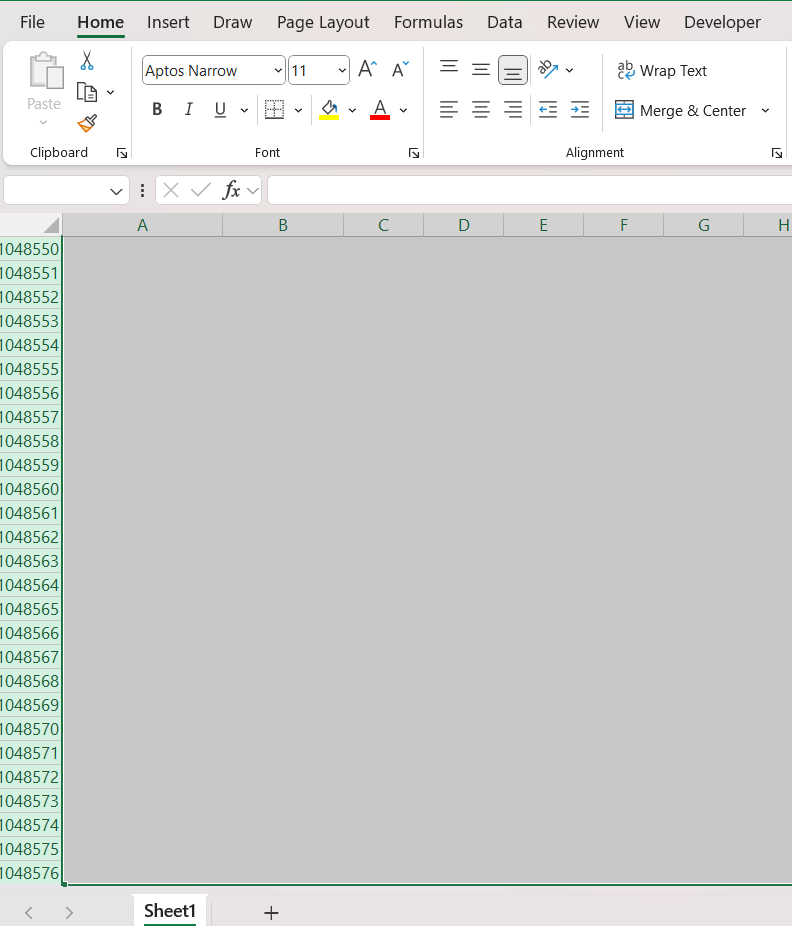
STEP 1: First, I select the rows I want to hide.
If I want to limit my worksheet to the first 50 rows.
- Click on row number 51
- Hold down the
Shiftkey - Press the
Endkey - Followed by the
Down Arrowkey to select all rows to the end of the worksheet.
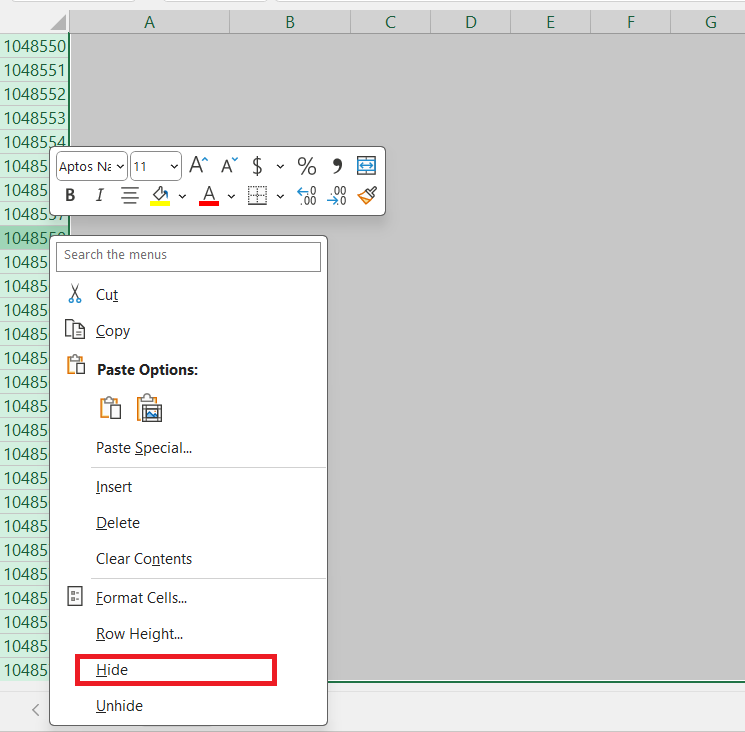
STEP 2: I right-click on one of the selected row numbers and choose Hide.
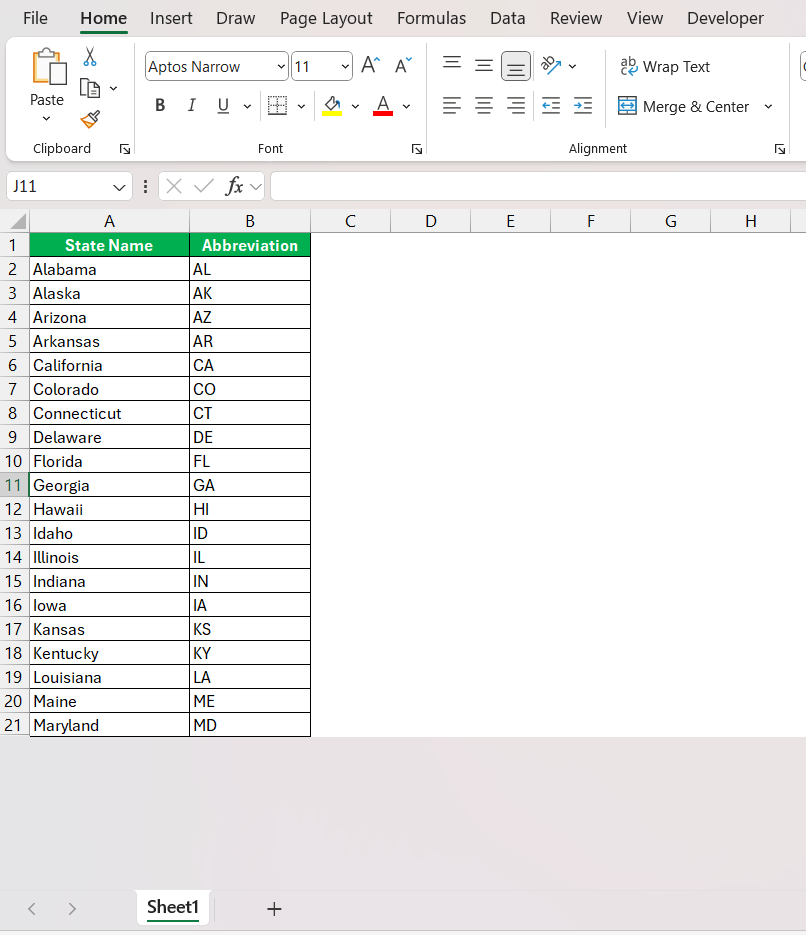
The extra rows will be hidden.
Method 2: Using VBA
STEP 1: Press Alt + F11 to open the VBA Editor.
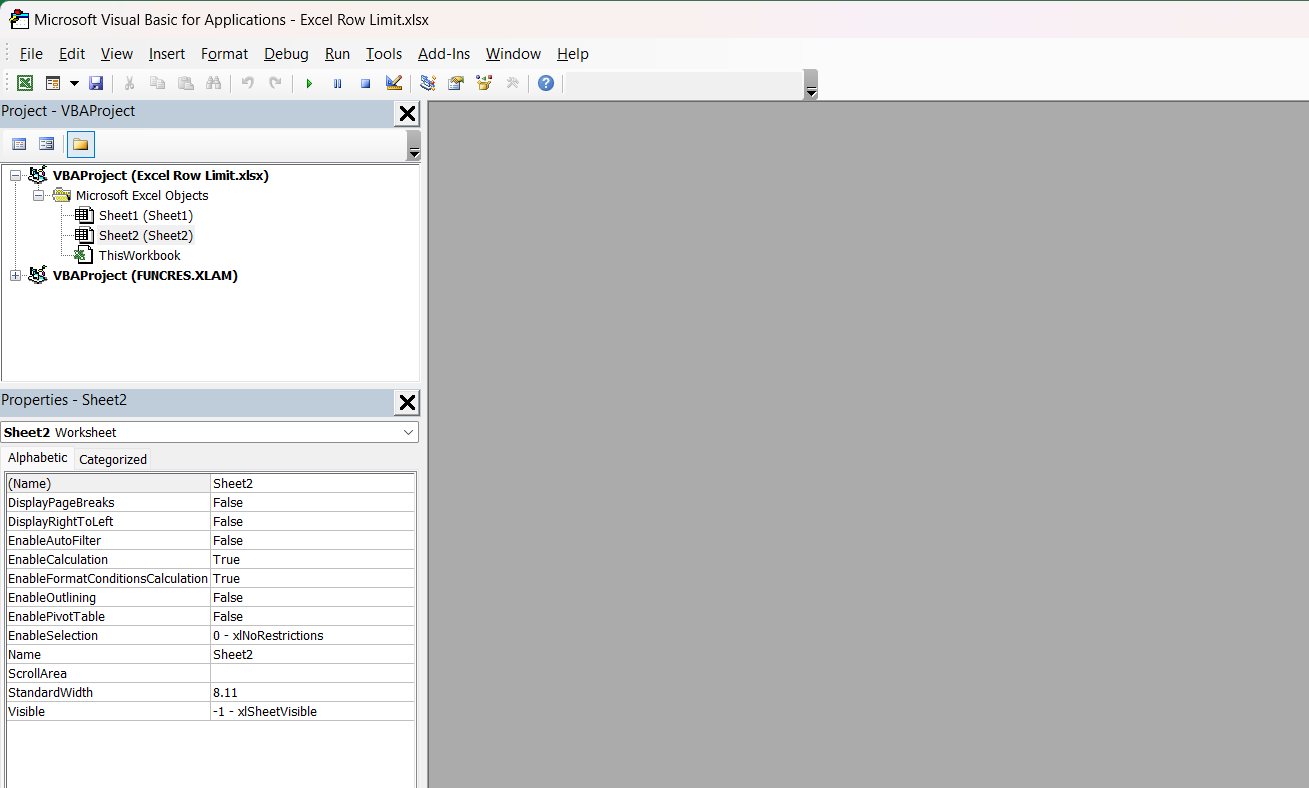
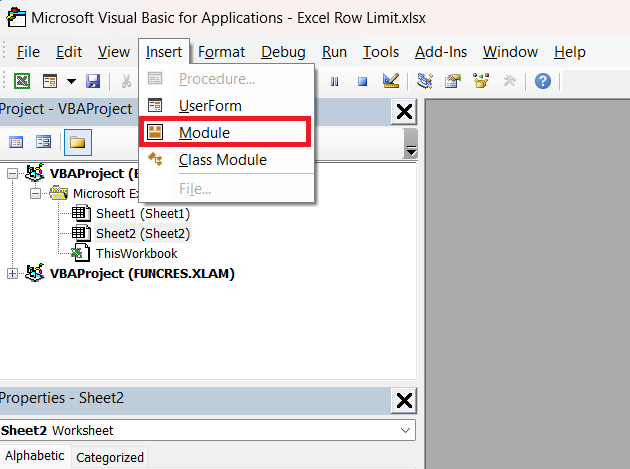
STEP 2: In the VBA Editor, go to “Insert” > “Module” to create a new module.
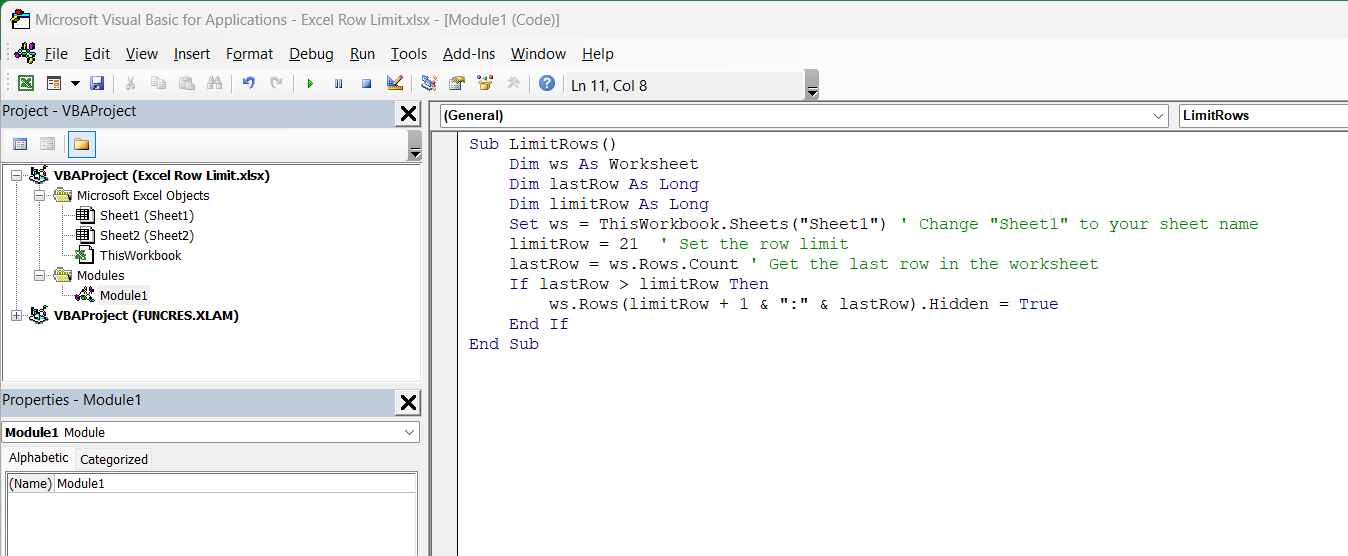
STEP 3: In the module, write a macro to delete rows beyond a certain limit.
ub LimitRows()
Dim ws As Worksheet
Dim lastRow As Long
Dim limitRow As Long
Set ws = ThisWorkbook.Sheets("Sheet2") ' Change "Sheet1" to your sheet name
limitRow = 21 ' Set the row limit
lastRow = ws.Rows.Count ' Get the last row in the worksheet
If lastRow > limitRow Then
ws.Rows(limitRow + 1 & ":" & lastRow).Hidden = True
End If
End Sub
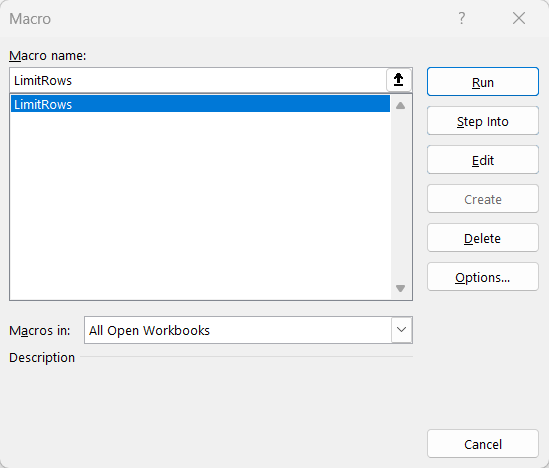
STEP 4: Run this macro by pressing F5 while in the VBA Editor.
FAQs
Does Excel have a row limit?
Yes, Excel does have a row limit
- Excel can handle up to 1,048,576 rows.
- Excel 2003 and earlier versions can handle 65,536 rows.
What triggers Excel’s row limit error?
Excel’s row limit error is triggered when you attempt to insert more data than the maximum number of allowable rows in a worksheet.
How can I limit rows in Excel without deleting data?
You can hide unused rows to keep your sheet clean and easy to read.
How to work with datasets larger than the Excel row limit?
When dealing with datasets larger than Excel’s row limit, consider these:
- Split the data across multiple worksheets
- Use Power Query to import data
Does hiding rows delete the data?
No, hiding rows only hides them from view. The data is still there and can be unhidden anytime.

John Michaloudis is a former accountant and finance analyst at General Electric, a Microsoft MVP since 2020, an Amazon #1 bestselling author of 4 Microsoft Excel books and teacher of Microsoft Excel & Office over at his flagship MyExcelOnline Academy Online Course.

 30 Days - Full Access









