Excel has become a useful tool for managing and organizing data. But it can be frustrating if the file gets overwritten, corrupted, or accidentally closed. Excel offers a version history feature thta allows you to track, view, and restore past versions of your files. In this article, you will learn how to view and restore past versions of an Excel file.
Key Takeaways:
- Version History helps you to track and restore previous versions of files.
- Excel file should be saved on OneDrive or SharePoint for version history to work.
- The Show Changes feature lets you track who changed what and when.
- Changes made to a chart will not appear in history.
- Save a copy of the file before restoring.
Table of Contents
Version History in Excel
Microsoft 365
- Open the Excel file.
- Click on the title bar.
- Select Version History.
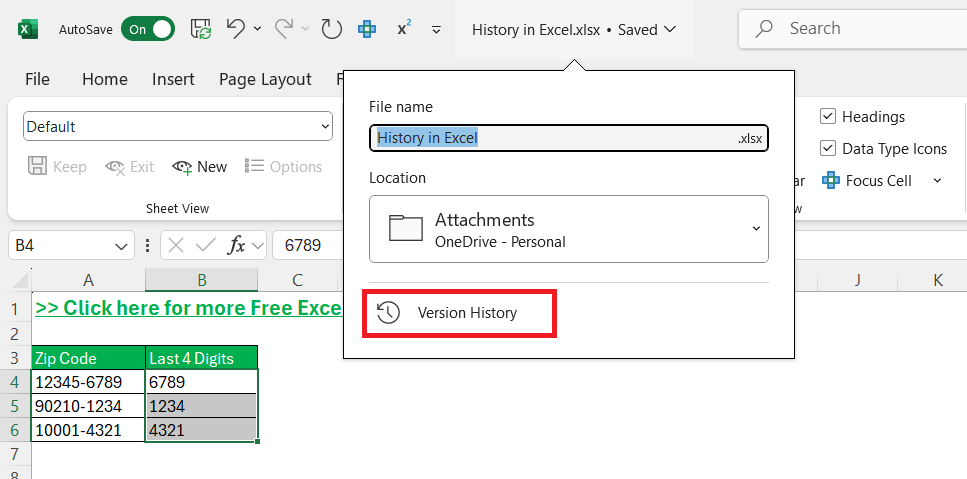
This will display a list of all previous versions, regardless of who edited them.
OneDrive
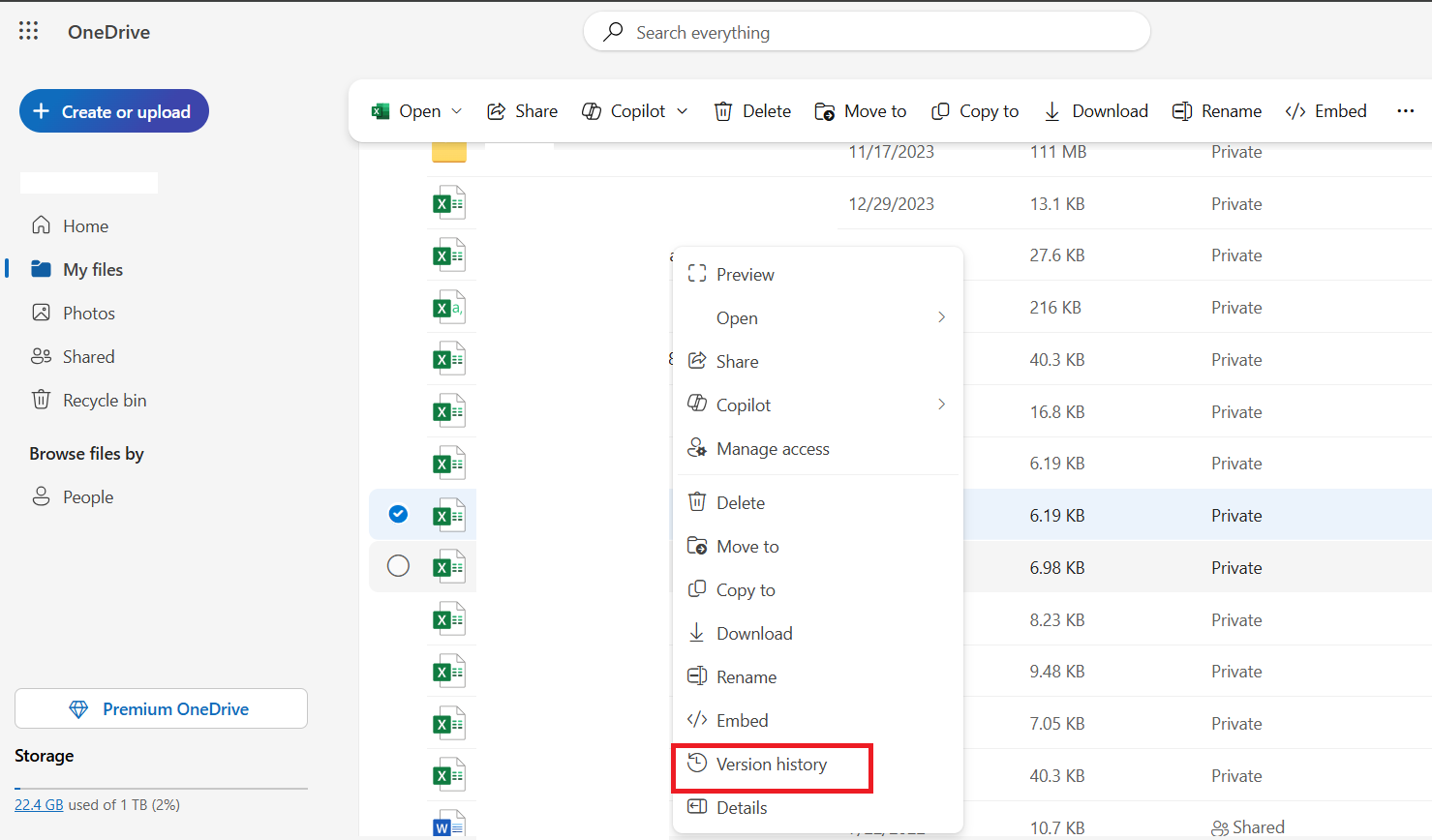
- Go to the file on the OneDrive website.
- Right-click and choose Version history.
Mobile devices
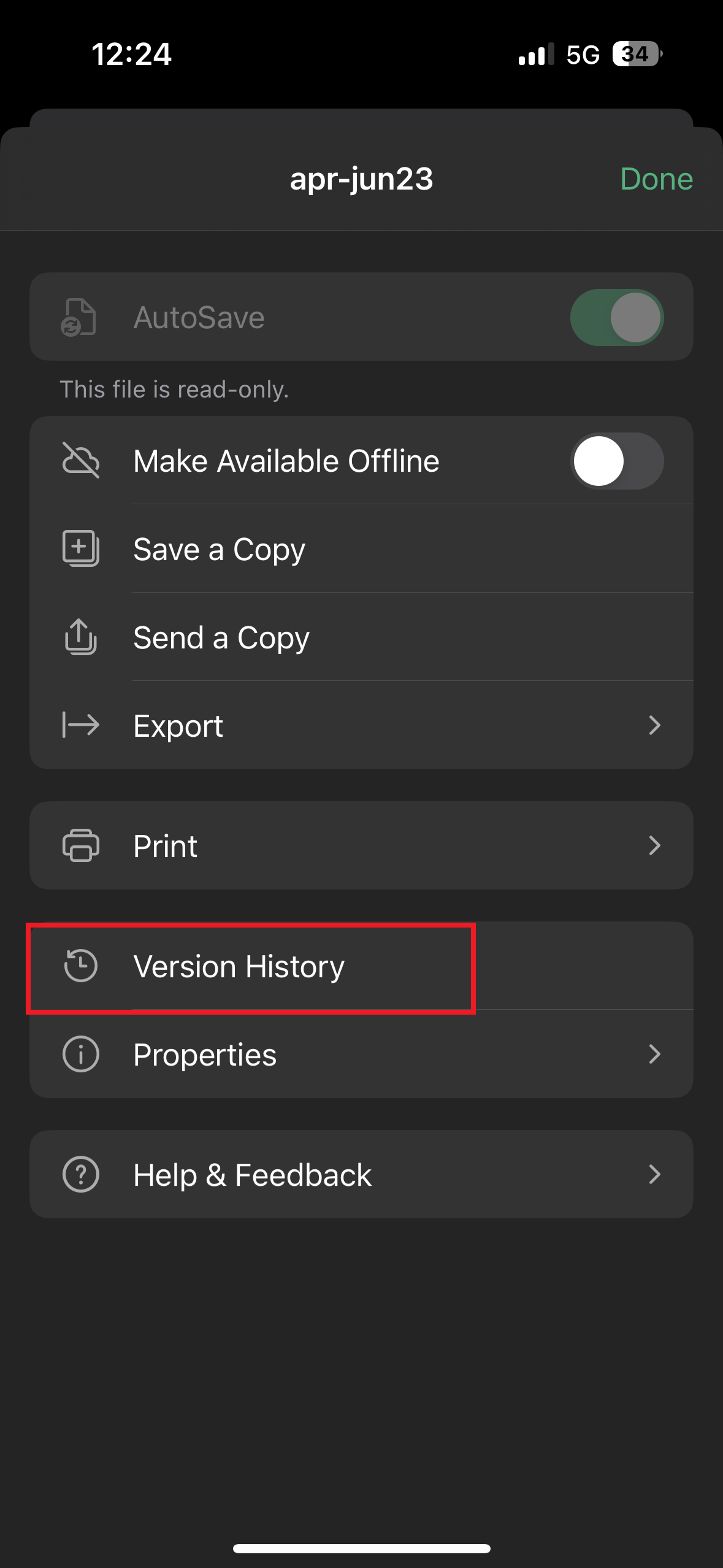
Go to File > History to explore different versions.
Understanding File Changes
How to View Recent Changes
Go to the Review tab and select Show Changes.

This opens a pane that lists all modifications. The list is in reverse chronological order, starting with the most recent. This pane contains all information, such as:
- Who made the change
- When it occurred
- What specific alteration was made
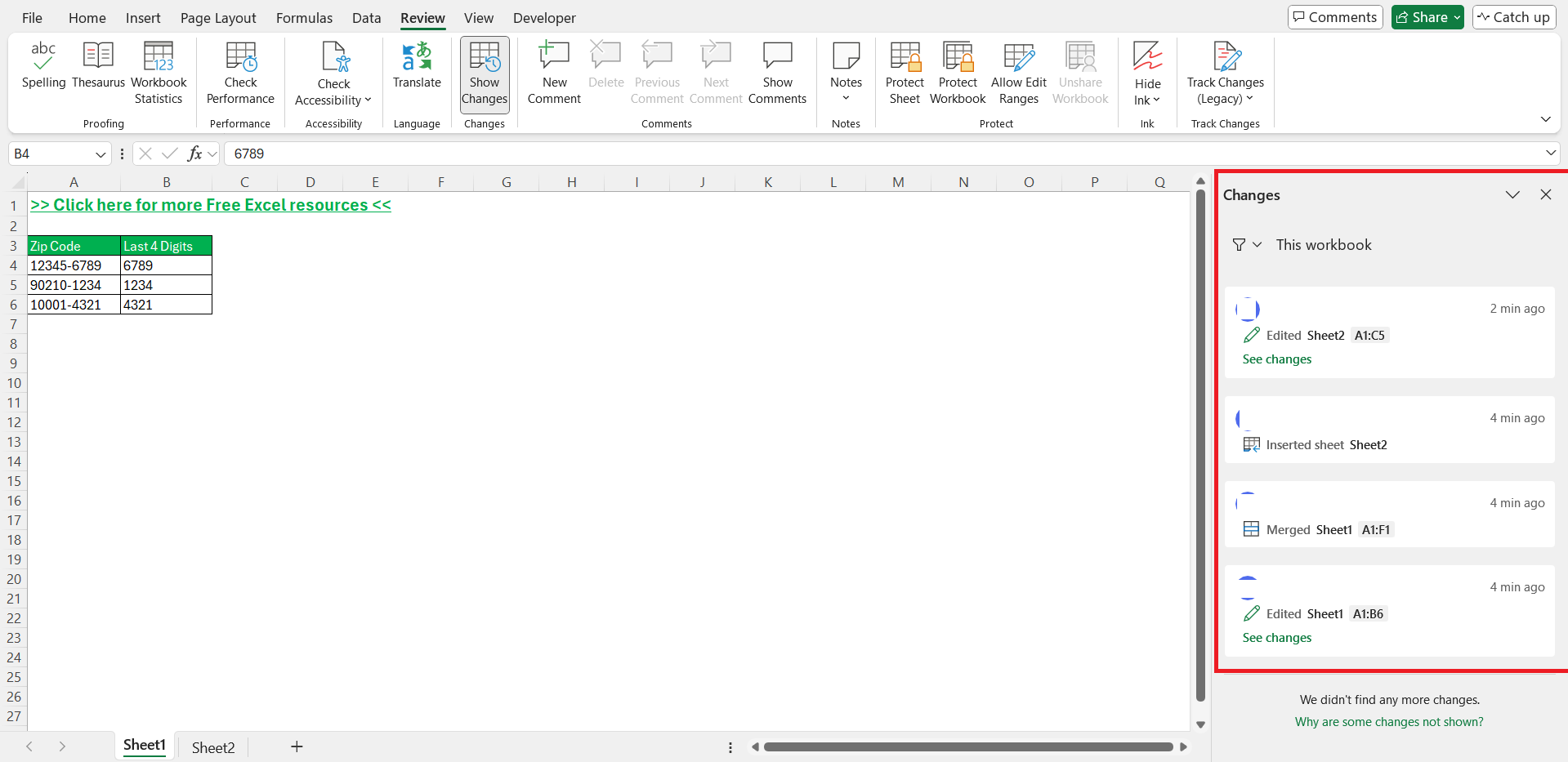
If you want to focus on a specific cell or range, you can select the cell and click on Show Changes.
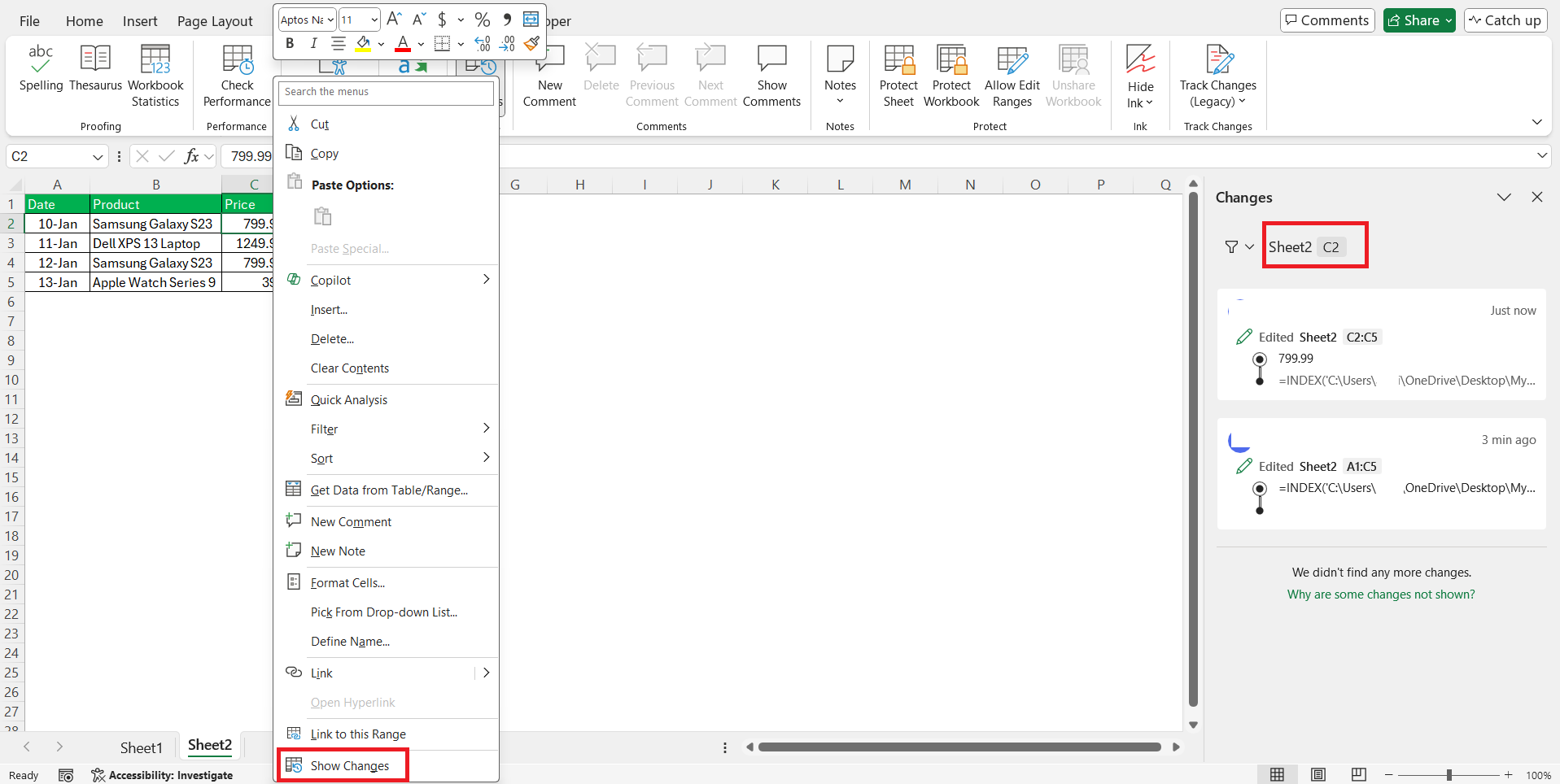
This will show only modifications made to the selected cells.
Why Changes are Missing?
Missing changes in Excel’s history can be because of the following reasons:
- If the document was edited with an older version of Excel,
- Certain features, such as editing shapes, charts, or using unsupported functionalities in co-authoring, are not tracked.
- Actions like uploading a file or saving a copy can reset the tracking pane.
- Changes made outside cell values or formulas will not be tracked.
Filter Change Lists
To manage the list of changes in Excel, filtering and organizing tools are useful.
In the Changes dialog box, click on the funnel icon at the top of the pane.
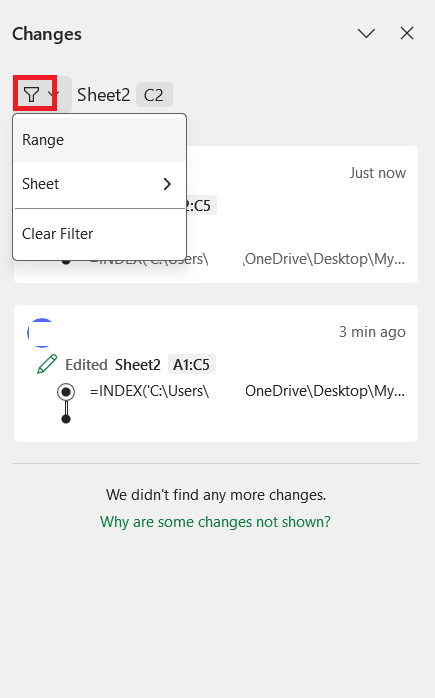
This feature allows you to specify a particular range or sheet. It can help focus on relevant changes.
Restore Past Versions
How to Restore the Previous Version
STEP 1: Open your Excel file.
STEP 2: Click on the file name in the title bar.
STEP 3: Choose Version History from the dropdown menu.
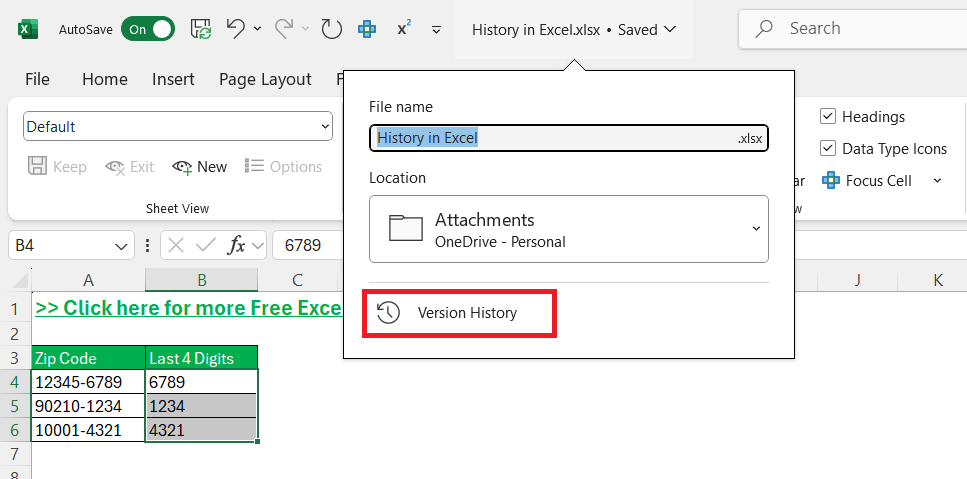
STEP 4: Check the list of previous versions. Click on the version you wish to restore.
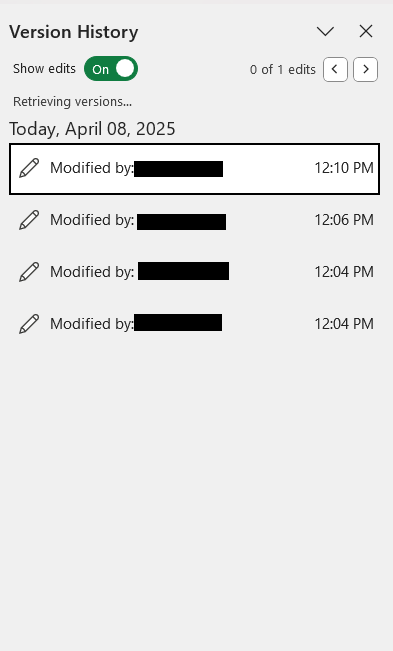
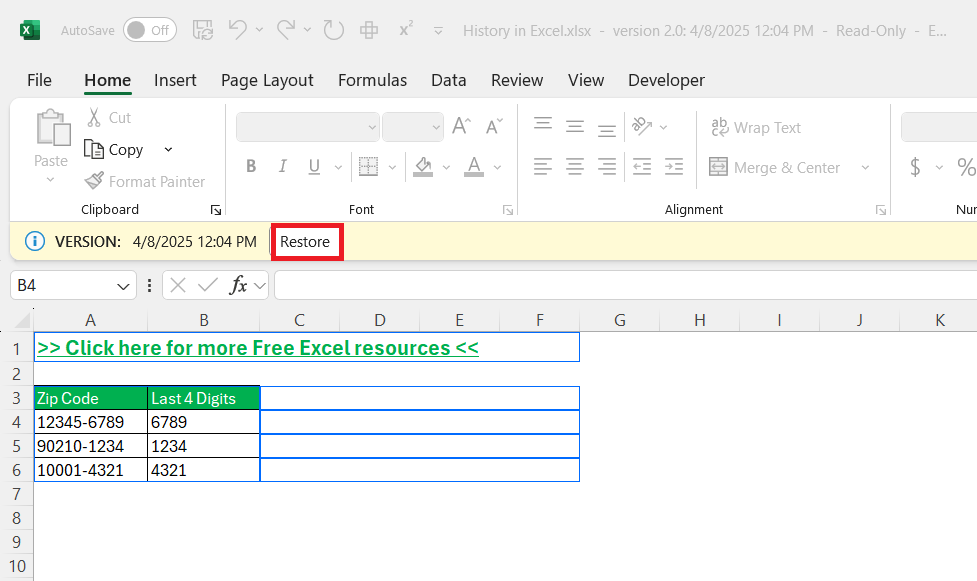
STEP 5: The chosen version will open in a separate window.
STEP 6: Once confirmed, click on the restore button.
FAQs
Does Excel have a history log?
Yes, Excel has a history log known as the “Version History” feature, which tracks changes and allows users to view and restore previous file versions when the file is stored on OneDrive or SharePoint. It’s accessible through the Excel Online platform and Microsoft 365.
How to check the version history in Excel?
Follow the steps below to check version history in Excel:
- Open your file in Excel Online
- Click on the file name in the title bar.
- Select Version History.
How to restore changes in the mobile version?
You can restore changes on the mobile version of Excel by following the steps below:
- Open your file within the app
- Go to the File menu
- Select History
- Choose the version you wish to restore.
Why can’t I see recent changes in Excel?
If you can’t see recent changes, check the points below:
- Make sure that the file is saved in OneDrive or SharePoint.
- Check that you are using an updated version of Excel.
- Check that the Show Changes feature is enabled.
- Check that you have selected the correct cell or range.
- Restart Excel.
How to combine cells without losing history?
You can manually merge information by copying data into a single cell. This will preserve the version history.

John Michaloudis is a former accountant and finance analyst at General Electric, a Microsoft MVP since 2020, an Amazon #1 bestselling author of 4 Microsoft Excel books and teacher of Microsoft Excel & Office over at his flagship MyExcelOnline Academy Online Course.

 30 Days - Full Access









