When I’m working on complex spreadsheets or diving into data analysis, distractions and a cramped workspace can really get in the way. That’s why I love the full-screen mode in Excel! By maximizing my view, I can focus on the data, make more smart adjustments, and avoid toggling between different sections or zooming in and out constantly.
Here, I’ll walk through exactly how to use full screen shortcut in Excel, and a few additional tricks to maximize your screen space.
Key Takeaways:
- Use full-screen mode in Excel to clear distractions.
- Shortcut keys like Ctrl + Shift + F1 to enter full-screen mode.
- Add the Auto-hide Ribbon command to the Quick Access Toolbar for quick access.
- Hide the formula and status bars to keep the focus on important data.
- Use Freeze Panes options to keep headers visible.
Table of Contents
Why Use Full Screen in Excel?
An Excel workspace is important for complex data analysis and viewing large spreadsheets. This is where we will need full-screen mode. By minimizing the ribbon and toolbar, we will expand our work area and focus on the data.
Going full screen in Excel is a lifesaver when I need to concentrate on my work without distraction. With full screen, all the Excel toolbars and other on-screen elements are hidden. It helps me stay focused and improves my productivity, especially when working with large datasets.
Master the Full Screen Toggle
Using Ribbon Options
Switching to full screen in Excel is remarkably smooth and efficient. We can find the Full-Screen command by clicking on the Ribbon Display Options dropdown in the Ribbon tab’s right corner.

This instantly hides extraneous interface elements giving us a pristine view of our worksheet.
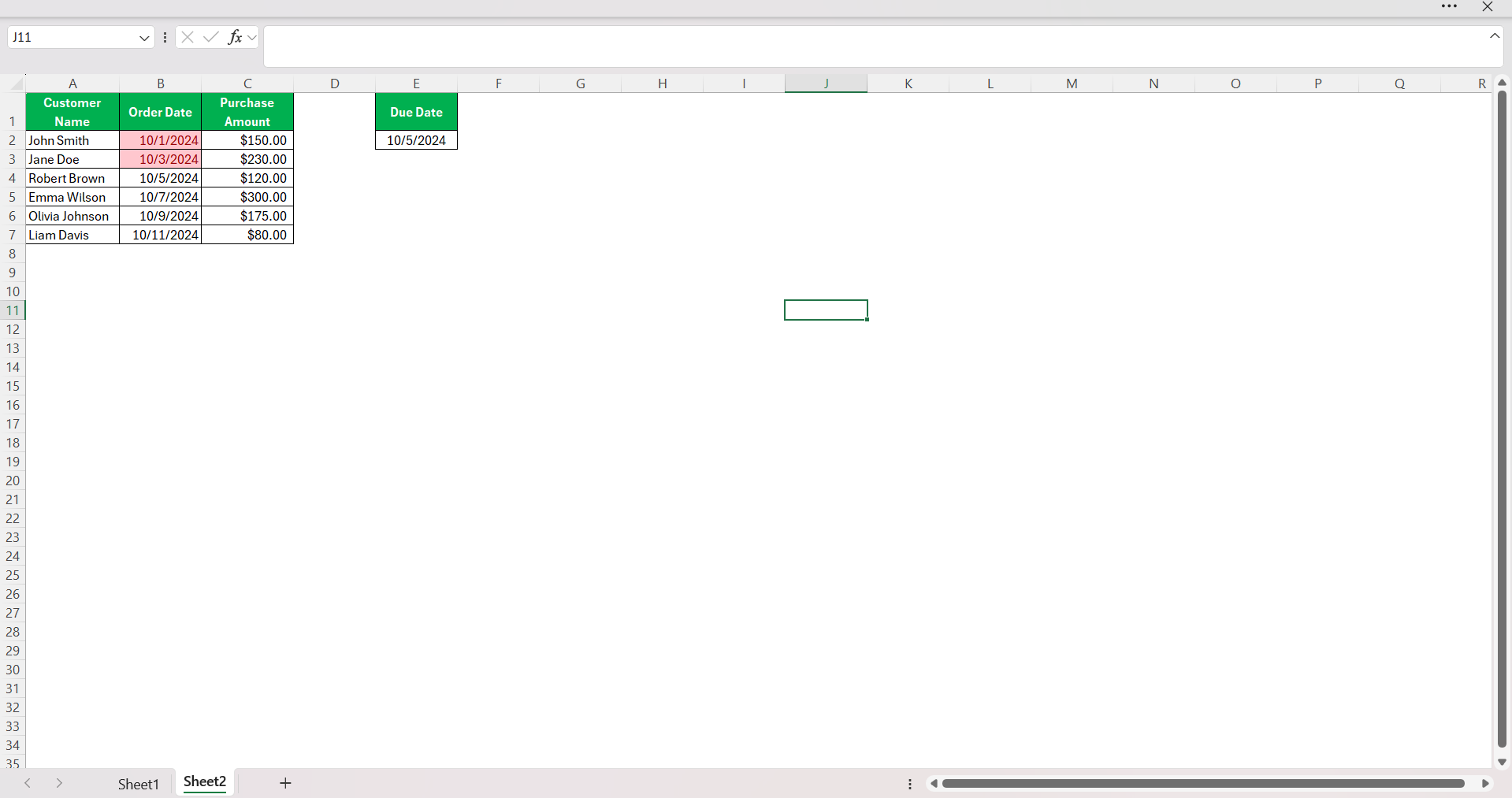
What I appreciate is how this mode simplifies the visual field, minimizing distractions for more concentrated work sessions.
If we’re making a presentation or showcasing data, the full screen becomes a professional touch that emphasizes the information over the software’s interface.
Shortcut to Full Screen
The magic combination of Ctrl + Shift + F1 instantly elevates my Excel experience to full screen perfection. For Mac users like me, the ⌃ + ⌘ + F shortcut is just as efficient
I revel in how these shortcuts liberate my workspace from the clutches of a cluttered screen with one swift keystroke. Remember, this doesn’t mean the rest of Excel’s functionality is out of reach; other keyboard shortcuts remain active, and toggling back is as simple as repeating the shortcut or using the mouse.
Quick Access Toolbar
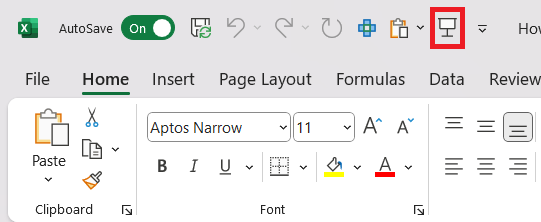
Excel doesn’t have a direct full-screen toggle button, but we can achieve a similar result by adding the Ribbon Display Options button to the QAT. Here’s how I do it:
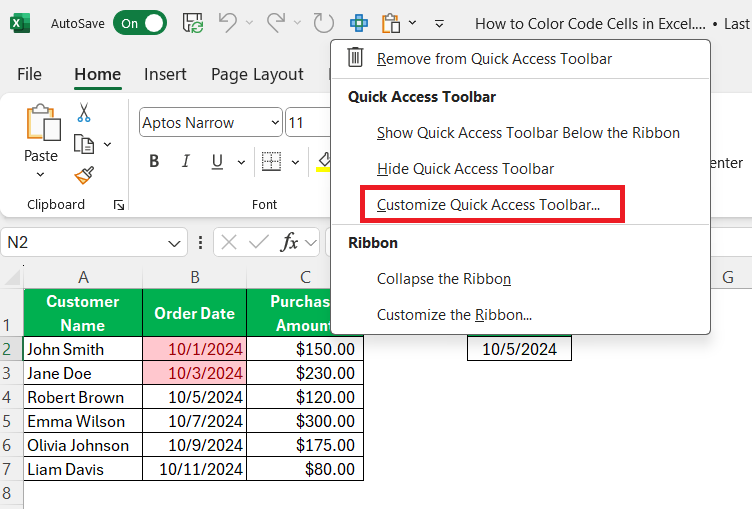
STEP 1: Right-click on the Ribbon or anywhere in the QAT area and select Customize Quick Access Toolbar.
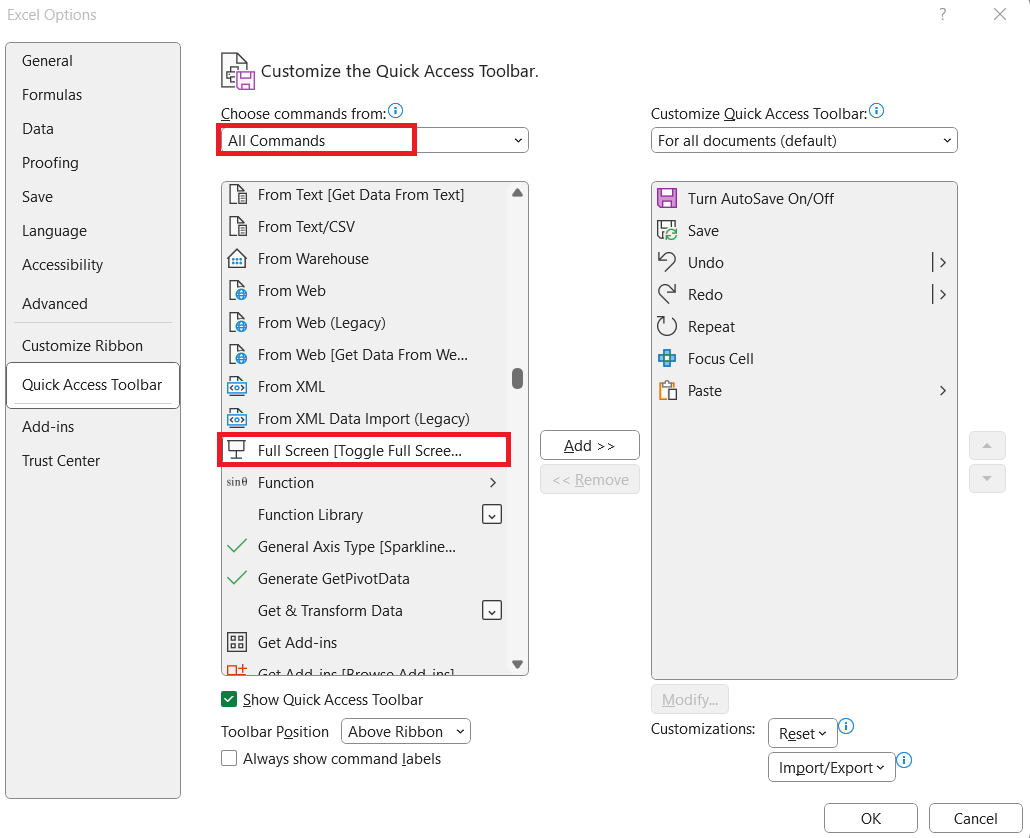
STEP 2: In the options window, go to Choose commands from and select All Commands from the dropdown. Scroll down the list and select Auto-hide Ribbon or Full Screen if available (the name can vary depending on Excel versions).
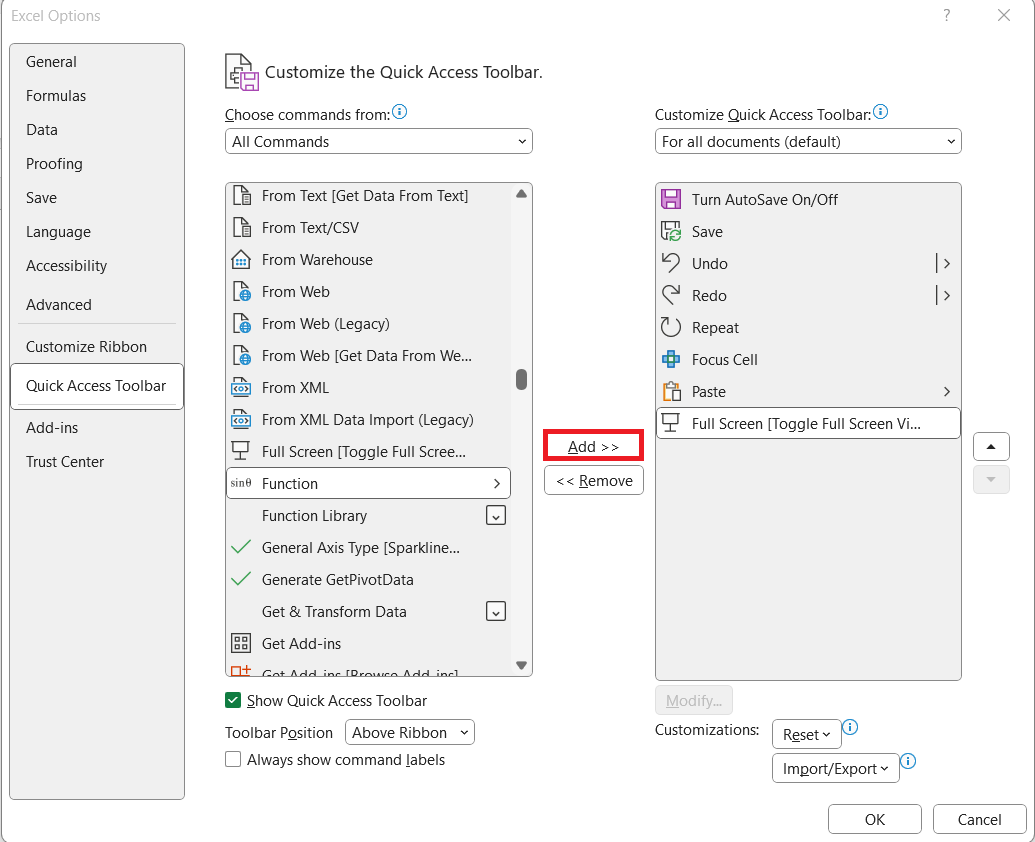
STEP 3: Click Add to place it in the Quick Access Toolbar, and then click OK.
Once added, this button will hide the Ribbon, giving me a cleaner, more full-screen-like workspace.
Additional Viewing Tricks
Zooming In and Out
Zooming in and out is an invaluable tool in Excel that aids in enhancing readability or providing an overview of the data. I’ve mastered the art of using the zoom slider at the bottom right corner of the Excel window.
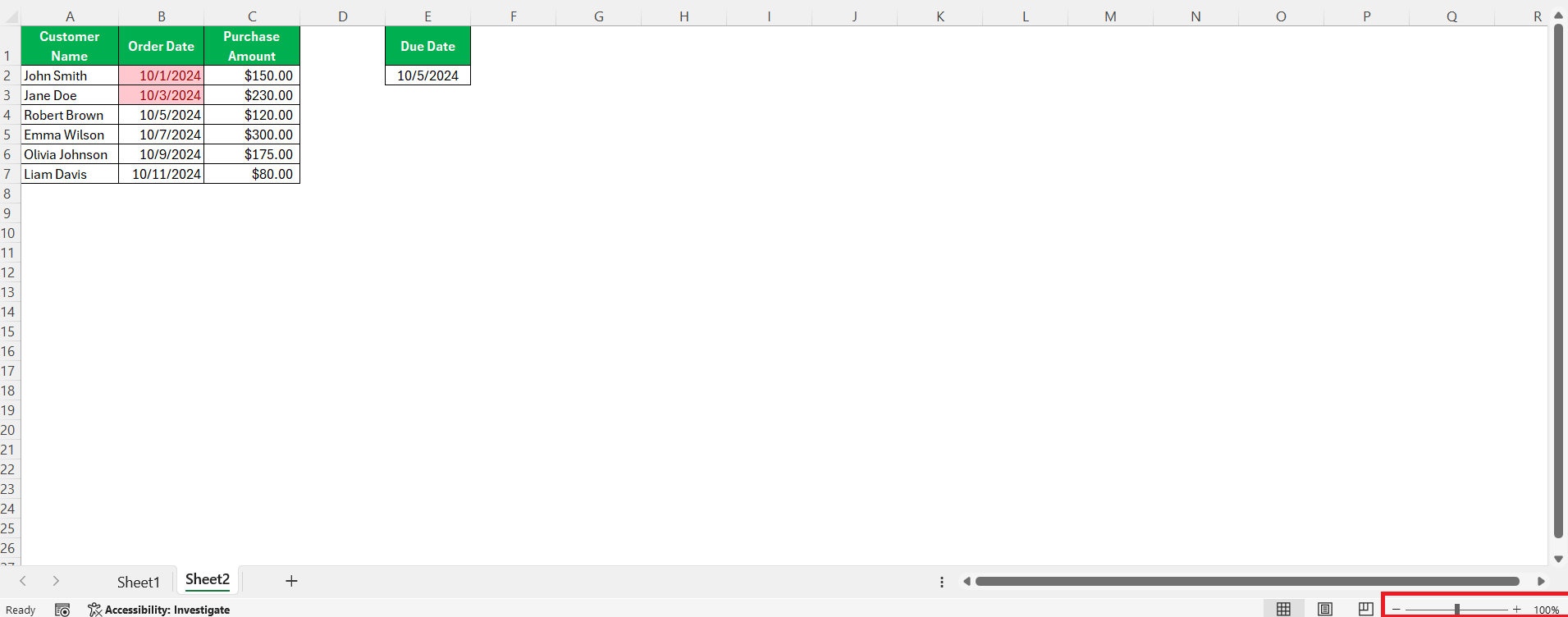
But often I find myself using the shortcut Ctrl + Mouse Scroll for precision control. When I need to jump to a specific zoom level, the View tab is there with preset percentages and even a custom zoom option for more refined adjustments.

Freezing Panes
Go through large spreadsheets without losing sight of headers is a breeze with Excel’s Freeze Panes feature. By selecting a cell and then go to View -> Freeze Panes, I effectively lock specific rows or columns in place.

It’s like having an anchor amidst the sea of data; no matter how far I scroll, the essential information stays in view. This trick is especially helpful when dealing with extensive datasets where scrolling would otherwise mean losing the context of the data.
Maximizing Workspace Without Full Screen
Sometimes, full screen is a bit too restrictive for my workflow. In these cases, I make use of Excel’s other features to maximize space while still keeping the key tools visible.
Minimize the Formula Bar
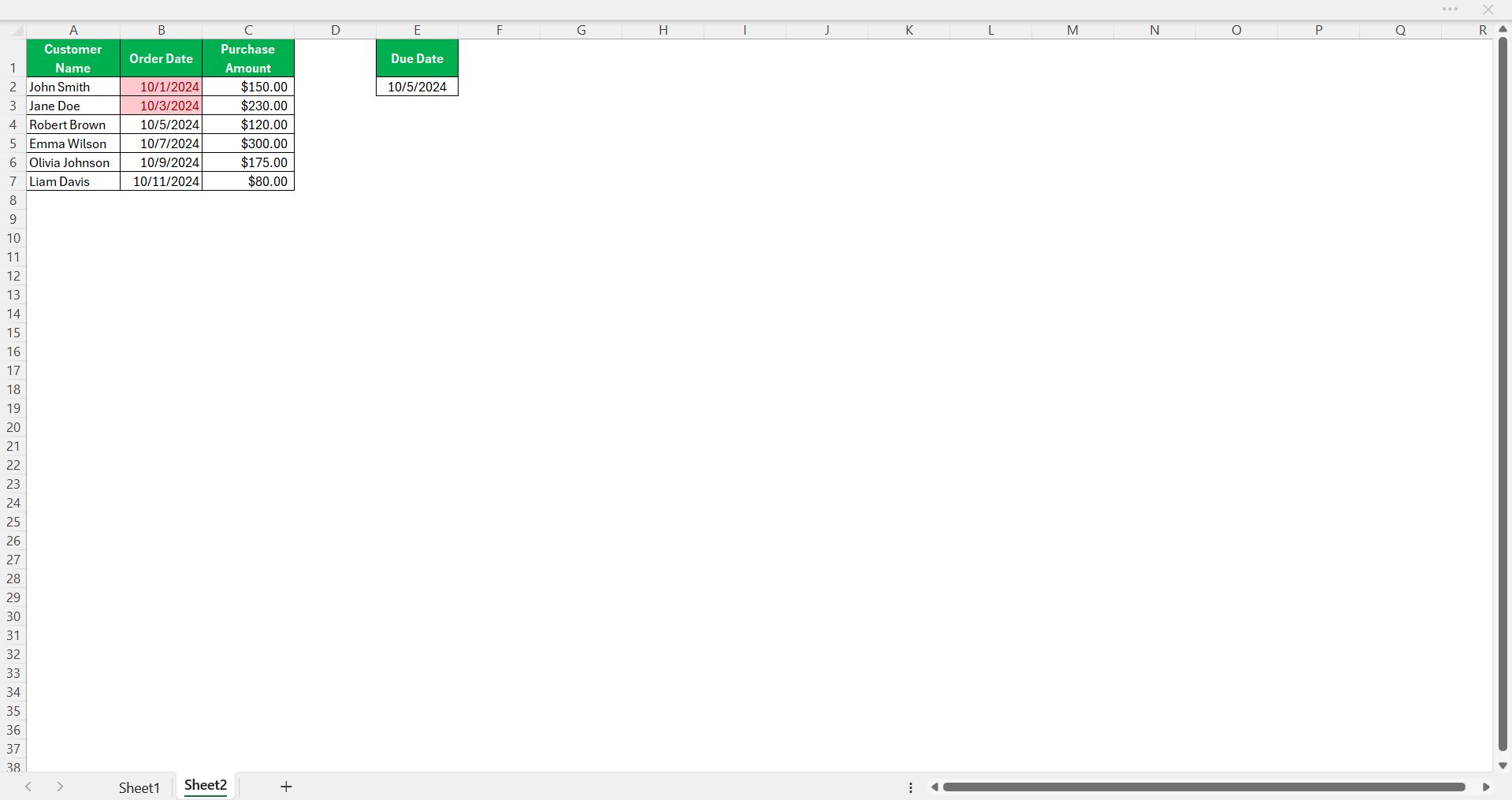
The formula bar can take up unnecessary space, especially when I don’t need it. To hide it: Go to the View tab and uncheck Formula Bar.

This helps me see more rows in my worksheet.
Minimize Status Bar
The status bar at the bottom of Excel can also be minimized.
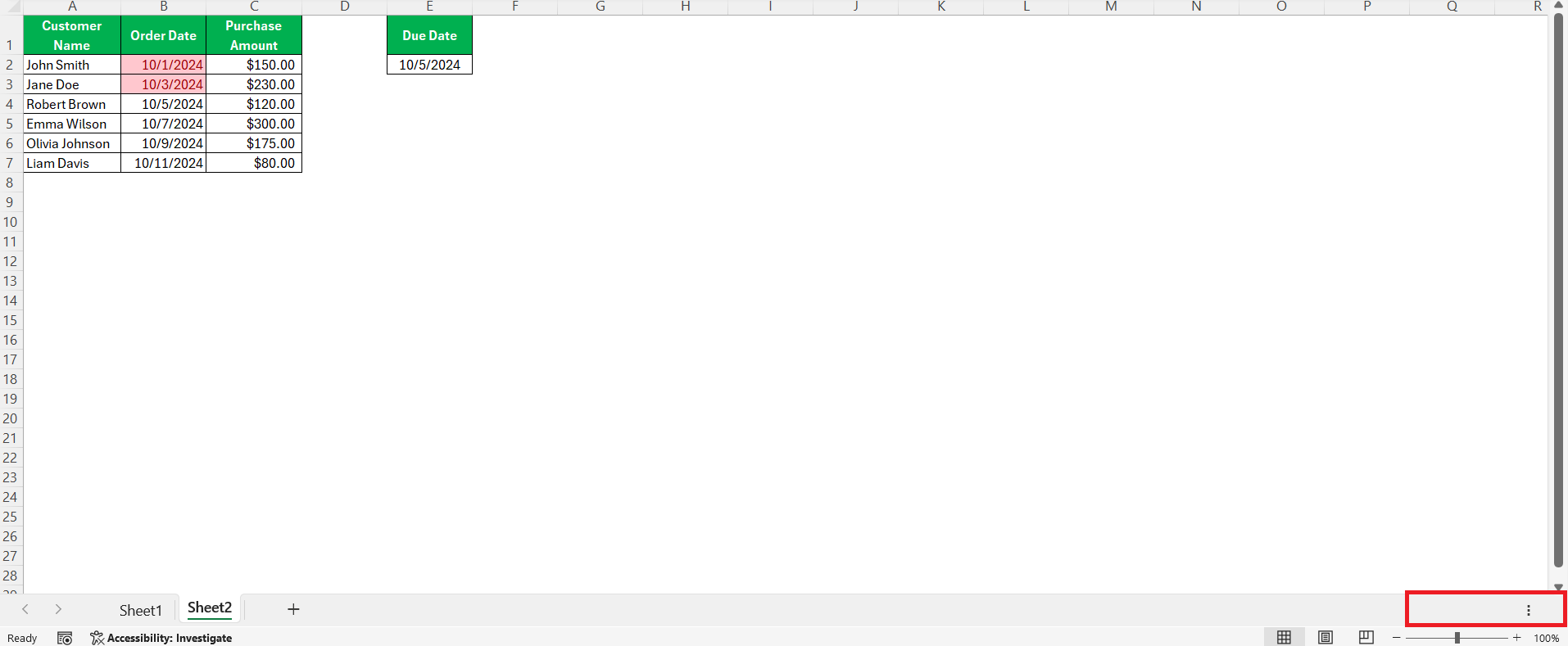
There is no direct setting to hide the status bar. But make sure that you don’t overload the items like Average or Count that you may not need constantly.
FAQs
How to apply full screen in Excel?
To enter full screen in Excel, click on the “Ribbon Display Options” icon in the top-right corner near the Minimize button, and select “Full Screen.” Your spreadsheet will then occupy the entire screen, with the Ribbon and Quick Access Toolbar hidden.
What is full screen shortcut in Excel?
The shortcut key for toggling full screen in Excel depends on the platform. On Windows, you can use ‘Ctrl + Shift + F1’. For Mac users, pressing ‘⌃ + ⌘ + F’ toggles full-screen mode. Use the same combination to exit full screen.
How to Toggle Full Screen in Different Versions of Excel?
Toggling full screen in different versions of Excel can vary. In versions before 2013, use the dedicated ‘Full Screen’ command under the View tab. In newer versions, you need to auto-hide the Ribbon with ‘ALT + W + F’. For a quick toggle, customize the ribbon to add the full-screen command or use a macro. Unfortunately, there’s no built-in shortcut for all versions.
How to Customize What is Visible on Excel’s Screen?
You can customize what’s visible on my screen by following these points:
- Right-click on the ribbon and select Customize the Ribbon.
- Show or hide gridlines and headings by going to the View tab.
- Minimize ribbon or use full-screen mode for more space.
How to make Excel full screen?
To make Excel go full screen using the F11 key.

John Michaloudis is a former accountant and finance analyst at General Electric, a Microsoft MVP since 2020, an Amazon #1 bestselling author of 4 Microsoft Excel books and teacher of Microsoft Excel & Office over at his flagship MyExcelOnline Academy Online Course.

 30 Days - Full Access









