 Free Practice Workbook
Funnel charts are used to display data across stages. They are perfect for tracking processes like sales pipelines or conversions. This guide will help you create and customize a funnel chart in Microsoft Excel.
Key Takeaways:
- Funnel charts are used to display data across stages.
- It is useful for tracking processes.
- Data should be arranged from highest to lowest.
- Improve your chart by adjusting colors, fonts, and data labels.
Table of Contents
Introduction to Funnel Charts
Funnel charts offer a dynamic way of visualizing data. It shows how data progresses through stages. It is ideal for presenting sequential steps where values decrease incrementally. You can quickly spot where the most significant drop-offs occur and which areas to focus on for improvement.
It provides information on processes where you expect a reduction in numbers over time, such as in sales pipelines or lead conversion scenarios.
How to Create a Funnel Chart
Step by Step Guide
Getting started with your funnel chart in Excel is a straightforward process.
STEP 1: Begin by selecting the data that would be represented—this includes both the stages of your process and their corresponding values.
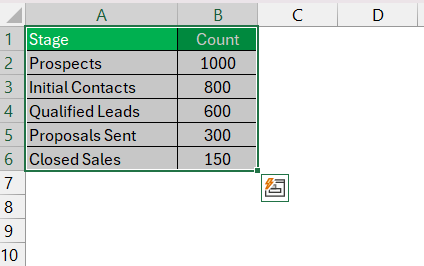
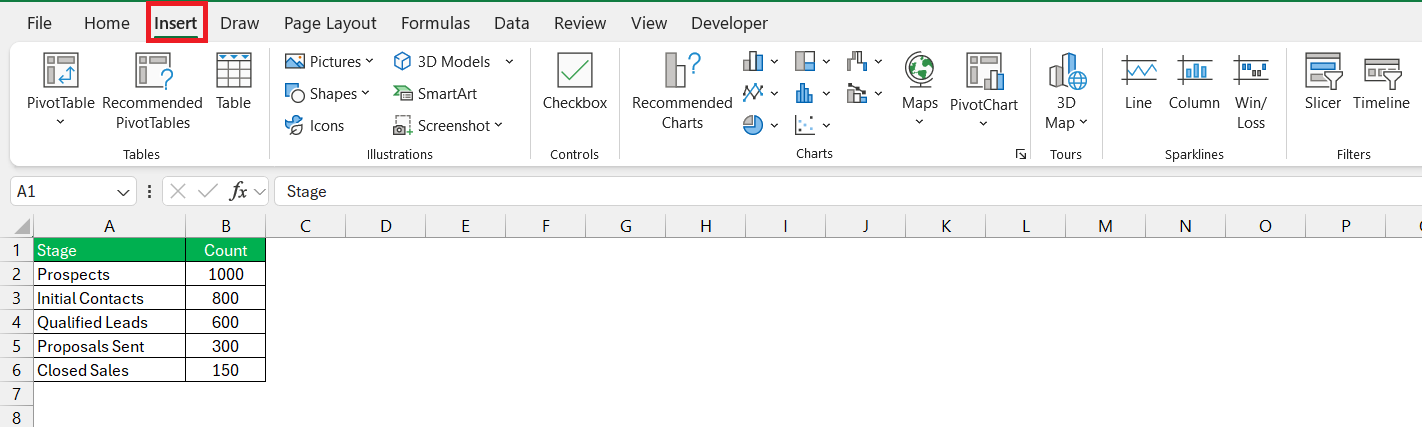
STEP 2: Go to the ‘Insert’ tab and find the ‘Charts’ group.
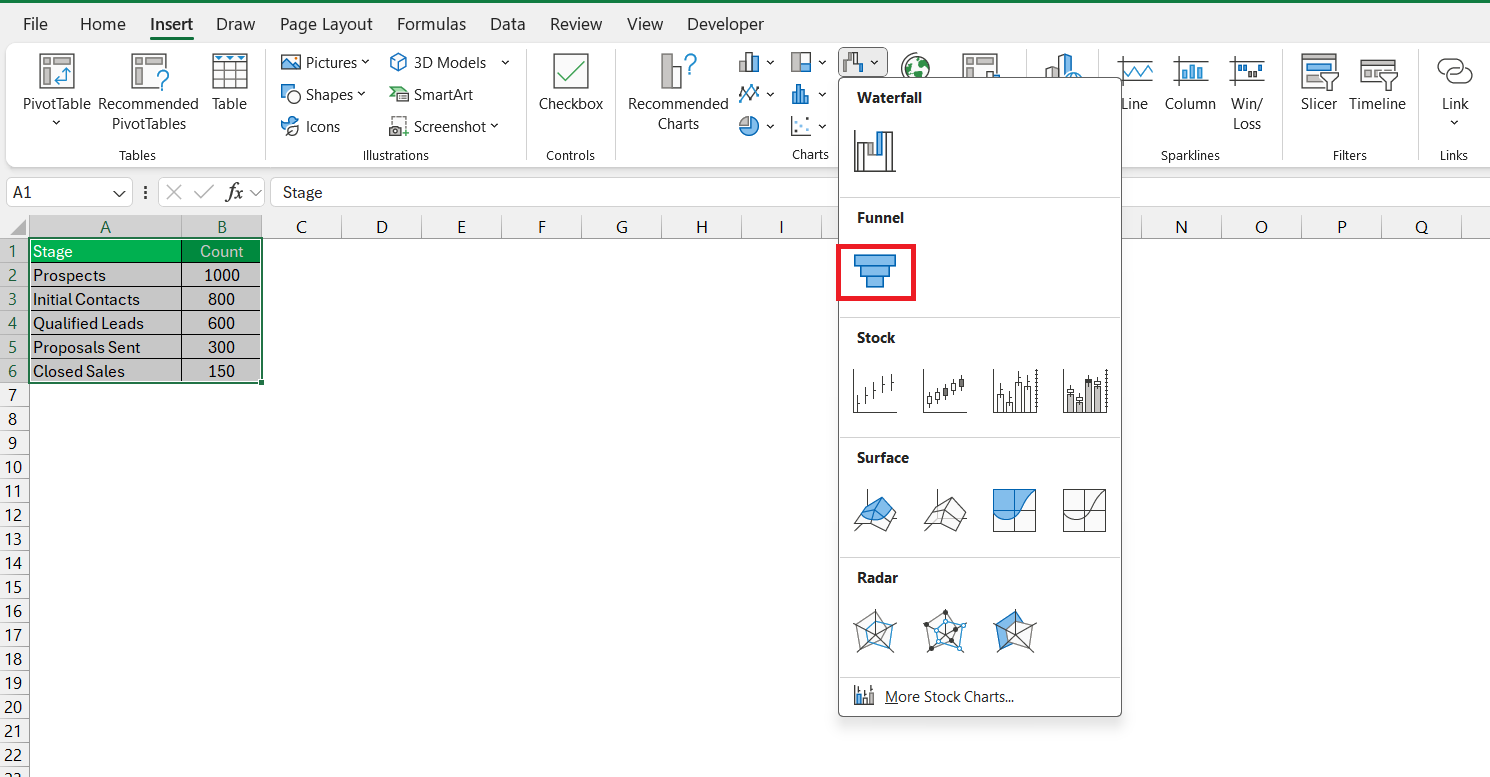
STEP 3: Click on the funnel chart icon to insert a default funnel chart.
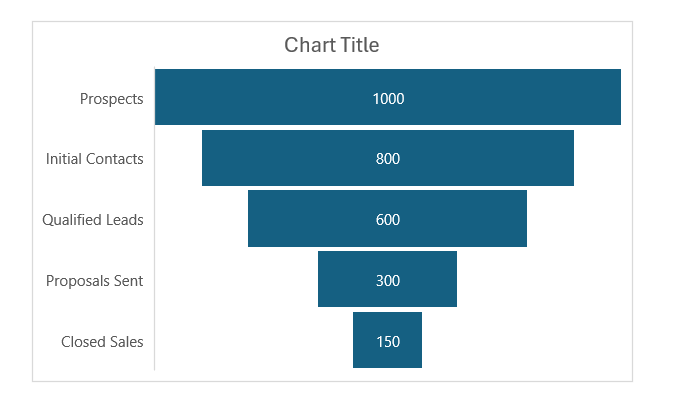
Excel will automatically generate a chart that gives you a visual starting point.
Customize the Funnel Chart
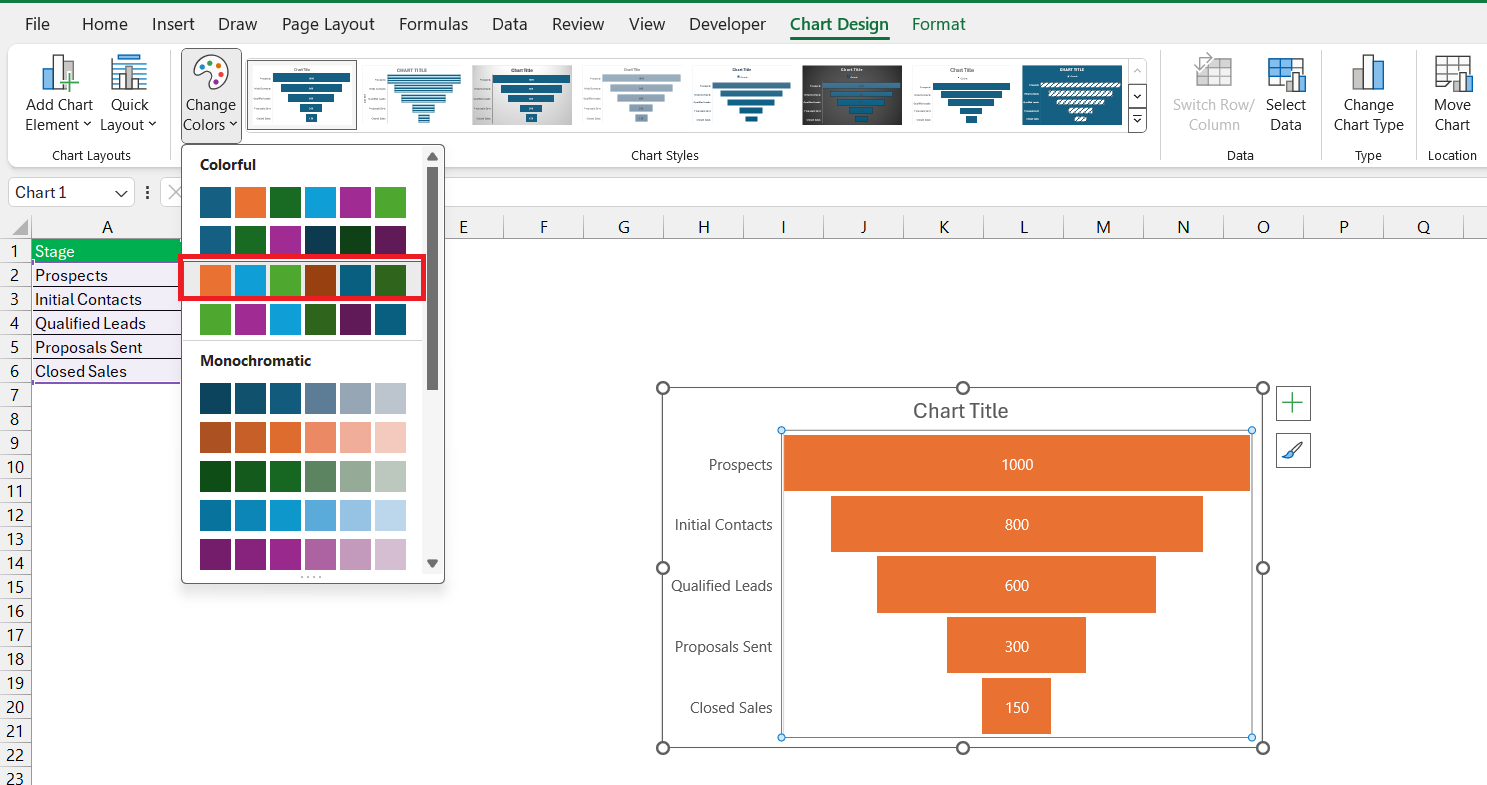
You can right-click on the chart or use options in the chart design tabs to change the color scheme.
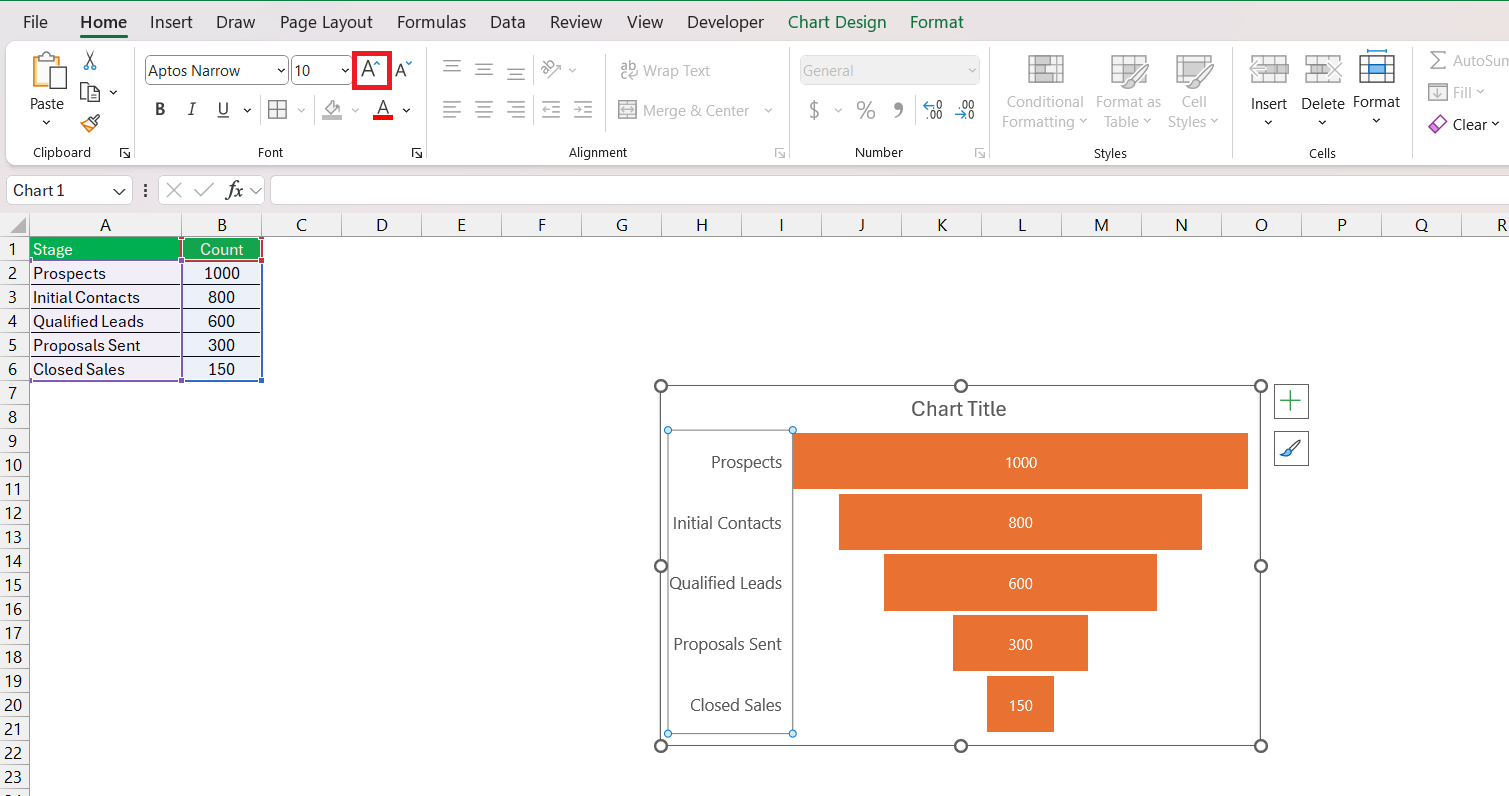
You can change the font size and color of your data labels.
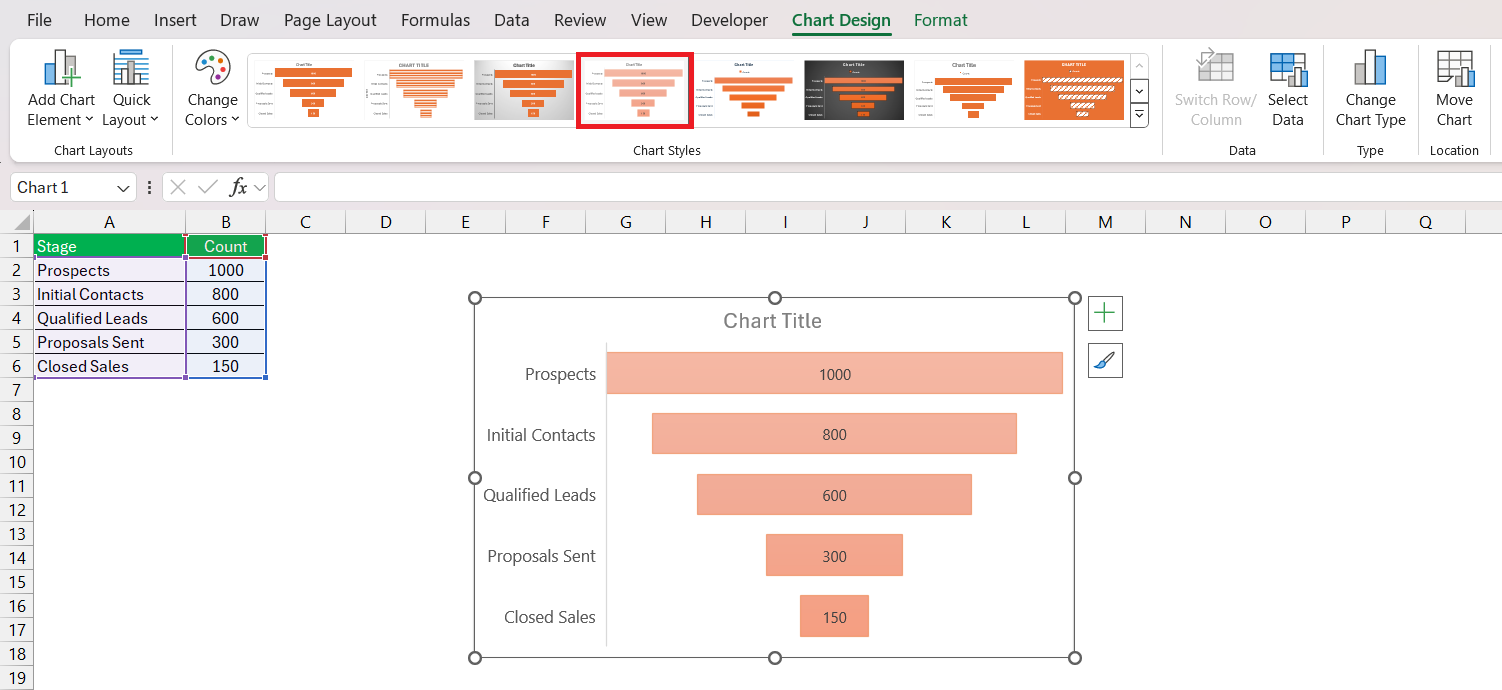
Change formatting at each level with a gradient or pattern to add visual depth.
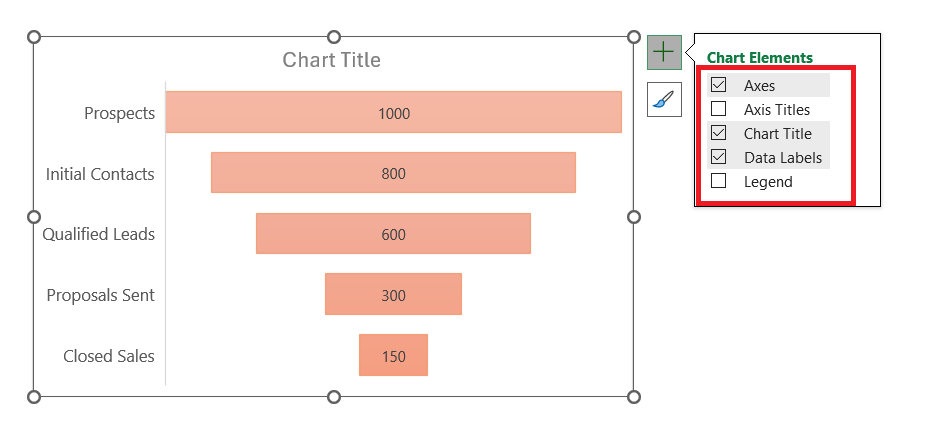
You can also add or remove elements like chart titles or legends to achieve a cleaner look.
Tips & Tricks
If your funnel chart isn’t displaying correctly, follow the points below:
- Check your data range to make sure that it includes all relevant cells
- Confirm that the data series is in the correct order.
- Make sure that the numbers are formatted correctly.
- Use contrast effectively so that text stands out against background colors
- Use a clear and concise title
- Avoid clutter by removing non-essential elements like gridlines or surplus chart elements.
FAQs
How to create a funnel chart in Excel?
Follow the steps below to create a funnel chart in Excel:
- Organize your data in descending order
- Select the range
- Go to the ‘Insert’ tab
- Choose the ‘Funnel’ option from the charts group.
What is a funnel chart?
A funnel chart shows how data decreases across different stages.
What is a funnel chart used for?
A funnel chart is used to visualize the stages in a process where quantities decrease progressively. It can be used for sales pipelines, website visitor trends, or order fulfillment processes.
How to Customize the Colors in a Funnel Chart?
- Right-click on a chart that you want to change
- Select ‘Format Data Point.
- Choose ‘Fill’
- Select the color you want.
How to edit a funnel chart in Excel?
Click on the chart to bring up the Chart Design and Format tabs.
- Adjust styles and colors
- Add chart elements like data labels
- Change the overall layout
- Drag edges to resize the char

John Michaloudis is a former accountant and finance analyst at General Electric, a Microsoft MVP since 2020, an Amazon #1 bestselling author of 4 Microsoft Excel books and teacher of Microsoft Excel & Office over at his flagship MyExcelOnline Academy Online Course.

 30 Days - Full Access









