 Free Practice Workbook
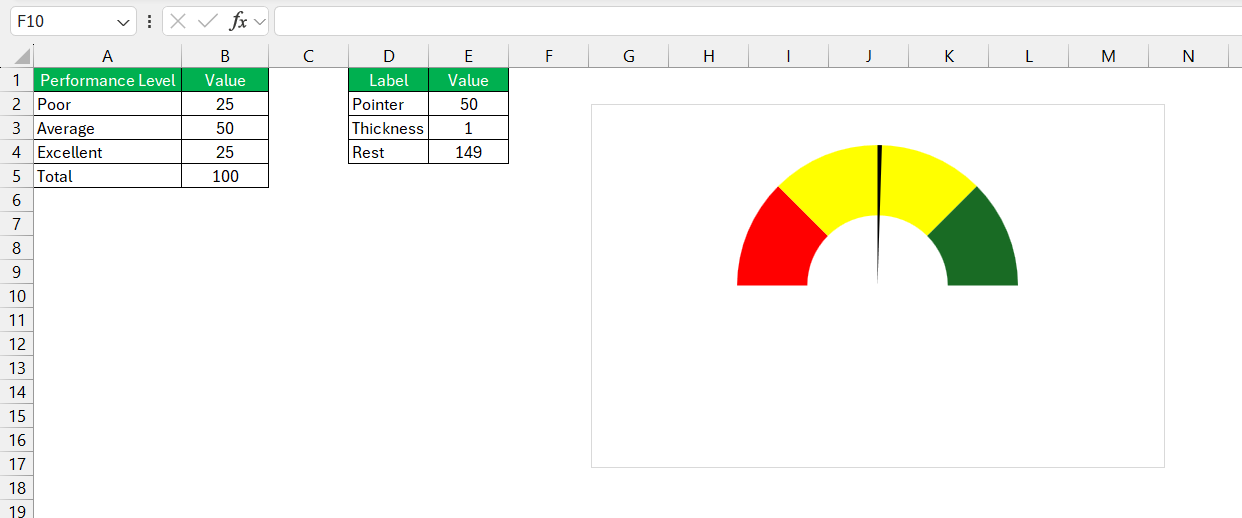
Gauge charts, also known as speedometer charts, are a great option in Microsoft Excel for showcasing single-value metrics.
Key Takeaways:
- Gauge charts are great in showing whether a metric is on track or in need of attention.
- Gauge charts show a snapshot of how a value compares to a specific target.
Table of Contents
How to Make a Gauge Chart
STEP 1: Select range B2:B5 and E2:E4.
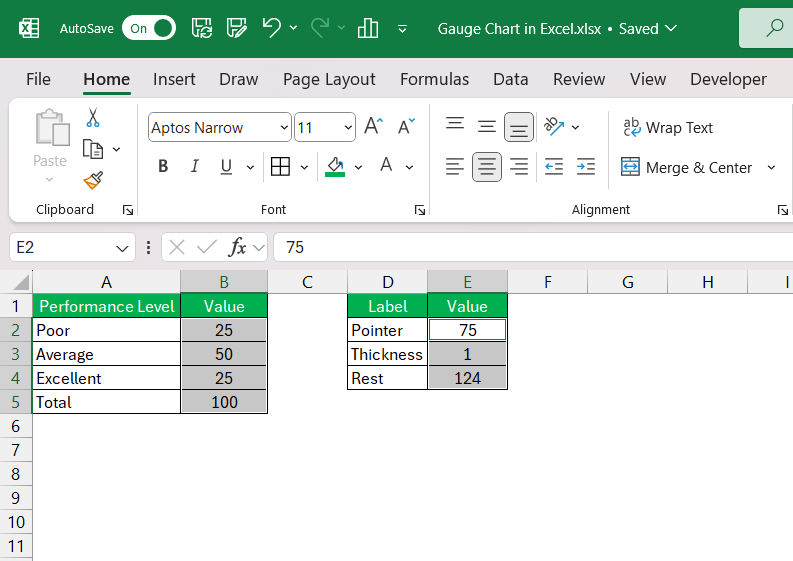
STEP 2: On the Insert tab, within the Charts group, click the Combo symbol.

STEP 3: Opt for “Create Custom Combo Chart” from the dropdown.
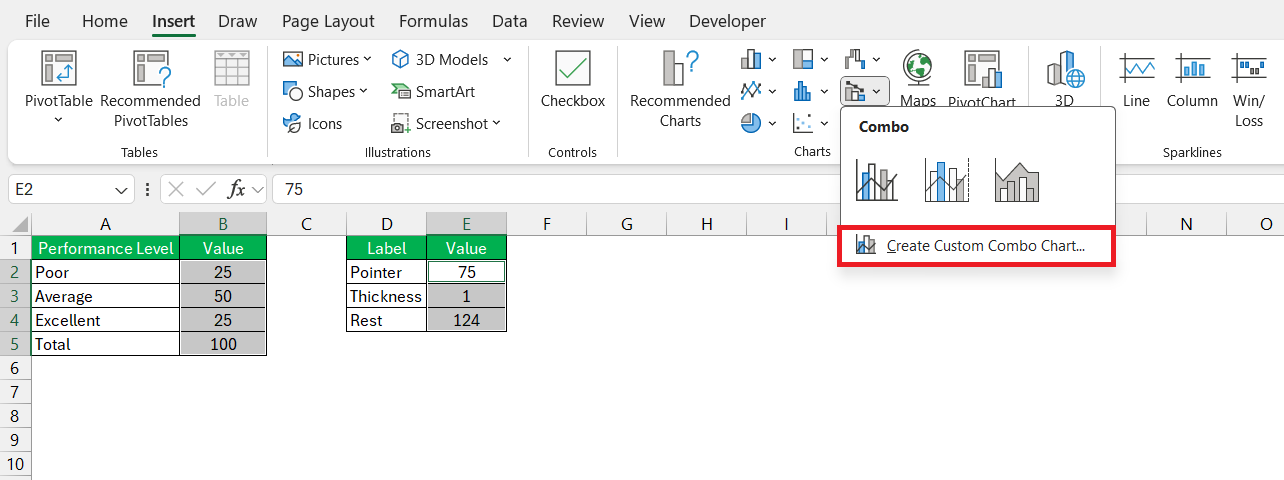
STEP 4: In the Insert Chart dialog box:
- Choose Doughnut (fourth option under Pie) as the chart type for the Donut series.
- Opt for Pie as the chart type for the Pie series.
- Chart the Pie series on the secondary axis.
- Click OK.
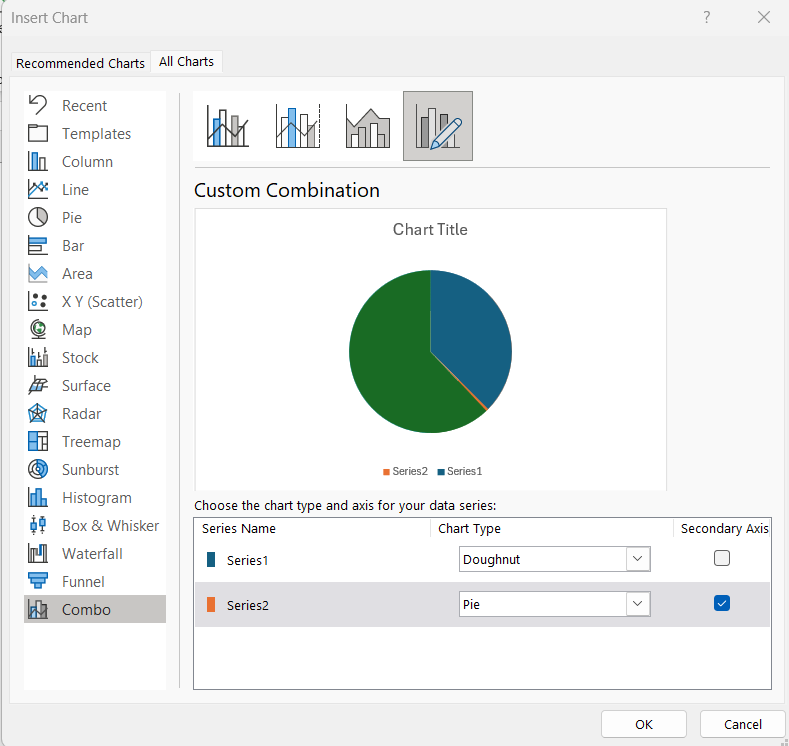
STEP 5: Remove the chart title and legend.
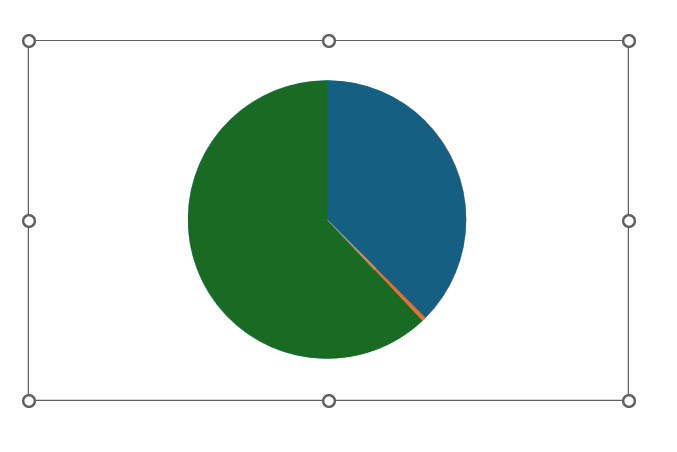
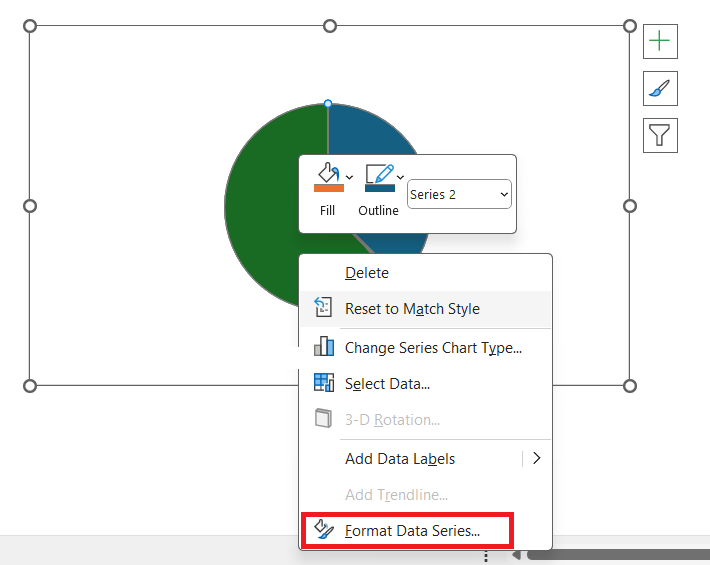
STEP 6: Right-click on the chart and select Format Data Series.
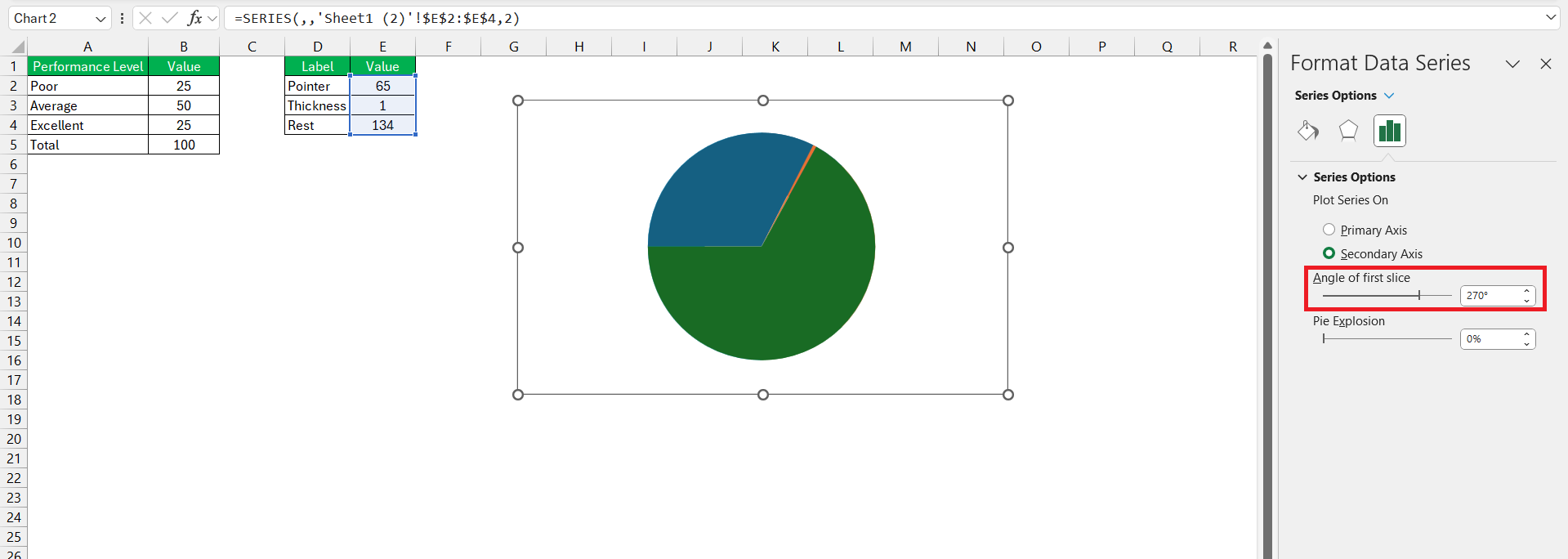
STEP 7: Rotate the first slice to 270 degrees.
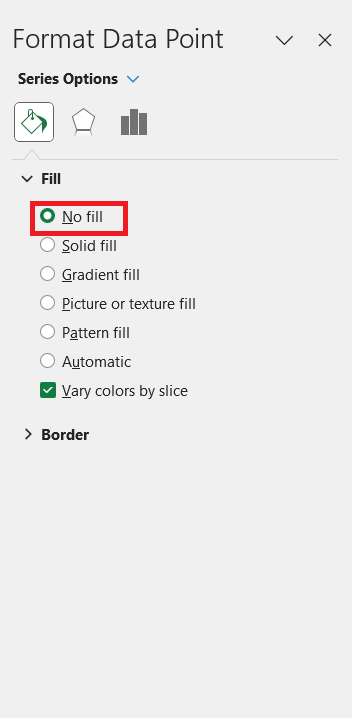
STEP 8: While holding down CTRL, use the ← and → keys to select individual data points. In the Format tab > Shape Styles group, alter the Shape Fill for each point:
- Point 1 = No Fill
- Point 2 = Black
- Point 3 = No Fill
STEP 9: Repeat the same steps to change the shape fill for the donut chart.
- Point 1 = Red
- Point 2 = Yellow
- Point 3 = Green
- Point 4 = No Fill
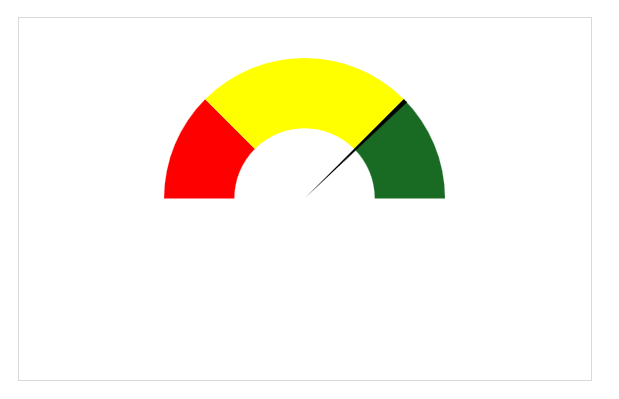
STEP 10: Utilize the Spin Button to alter the value in cell E2 from 75 to 50.
FAQs: All You Need to Know About Gauge Charts in Excel
What is a gauge chart?
A gauge chart, also known as a speedometer chart, is a tool for visualizing data in a way that resembles a car’s dashboard gauge. It features a dial and a needle that indicates where a specific data point lies within a pre-set range, often color-coded. This chart type is excellent for displaying the progress of a single value against a goal or threshold and is commonly used in dashboards for an immediate understanding of performance.
What is the use of a gauge chart?
A gauge chart is used to display key performance indicators (KPIs), giving a quick visual reference to show how close a value is to a predefined goal or benchmark. It’s particularly helpful for translating singular data points into an understandable narrative about progress, success, or areas needing attention.
What is the alternative to the gauge chart in Excel?
Alternatives to a gauge chart in Excel include bullet charts, which are great for comparing performance against a target, or thermometer charts, which visually display the percentage of a goal achieved. Both options consume less space and can be more effective in showing progress or reaching targets. They maintain simplicity while delivering a clear message about your data.

John Michaloudis is a former accountant and finance analyst at General Electric, a Microsoft MVP since 2020, an Amazon #1 bestselling author of 4 Microsoft Excel books and teacher of Microsoft Excel & Office over at his flagship MyExcelOnline Academy Online Course.

 30 Days - Full Access









