 Free Practice Workbook
When you’re working with a large dataset in Excel, it is important to apply the distinct cell style to the cells. It will clearly tell you which cells can be edited and which are calculated automatically. This will make your workbook look professional and also easy to understand. In this article, you will go through the steps on how to apply a calculation style in Excel.
Key Takeaways:
- Calculation Style is used to distinguish between input and formula cells.
- This will make your data easier to interpret.
- You can apply predefined styles to save time.
- You can also create a custom style to get more control over formatting.
- Calculation Styles work on both Windows and Mac versions of Excel.
Table of Contents
How to Apply Calculation Style in Excel
Accessing and Using Predefined Cell Styles
Accessing and using predefined cell styles is the gateway to enhancing a spreadsheet’s visual hierarchy, which can be accomplished effortlessly in Excel. When I want to apply these built-in styles, I simply select the cells that require formatting, navigate to the ‘Home’ tab, and in the ‘Styles’ group, click on the more options arrow to unveil the style gallery.
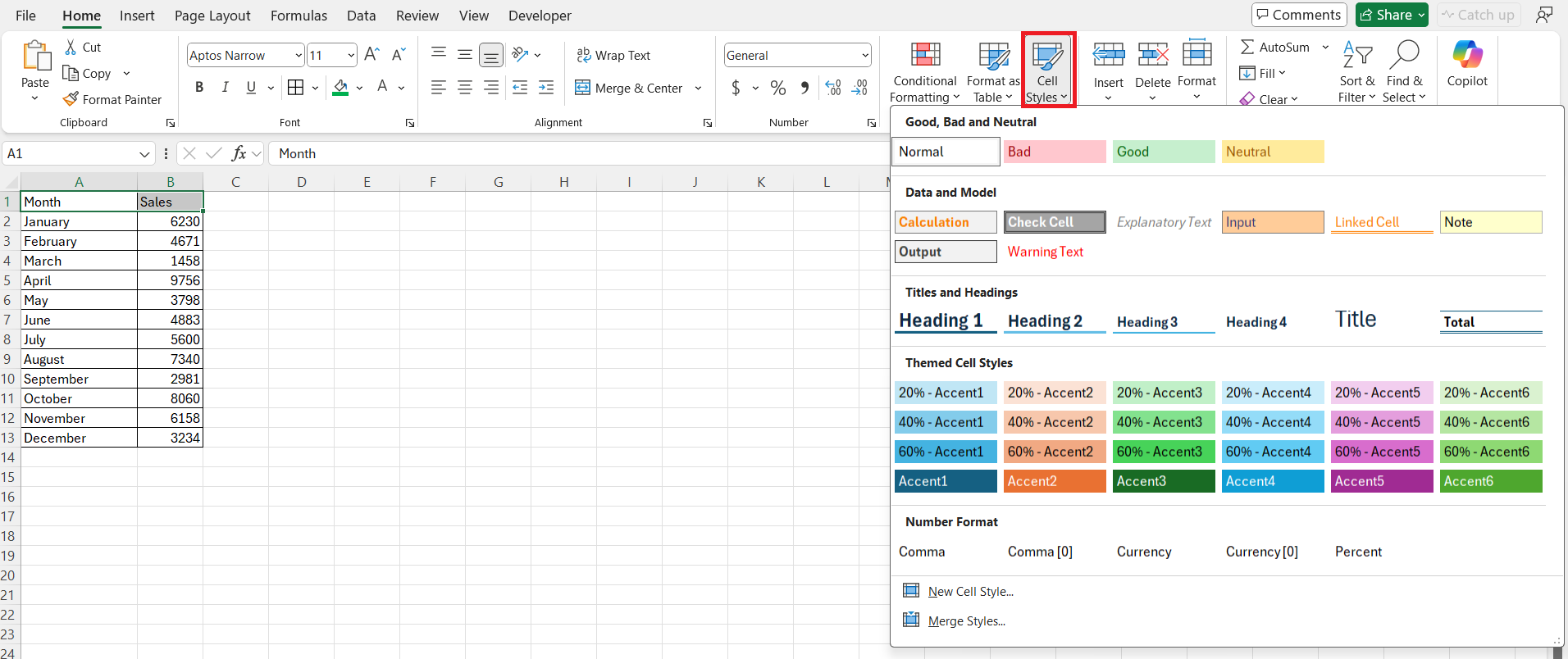
Here, it’s straightforward to pick out a style that suits my objective for the selected cells.
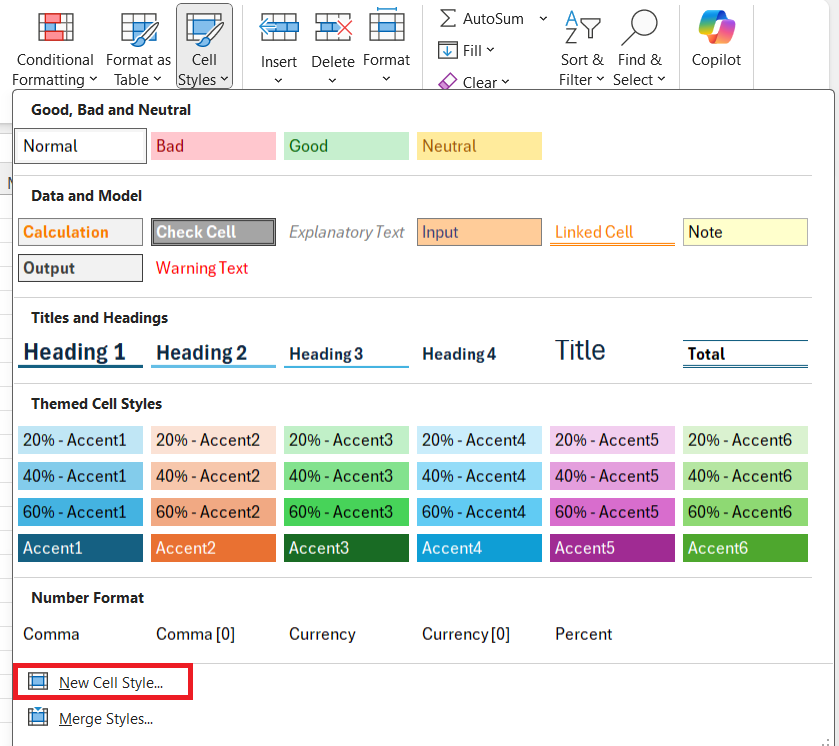
The plethora of choices within the gallery includes ‘Normal’, ‘Currency’, ‘Percent’, and more, which are instantly applicable to my selected range.
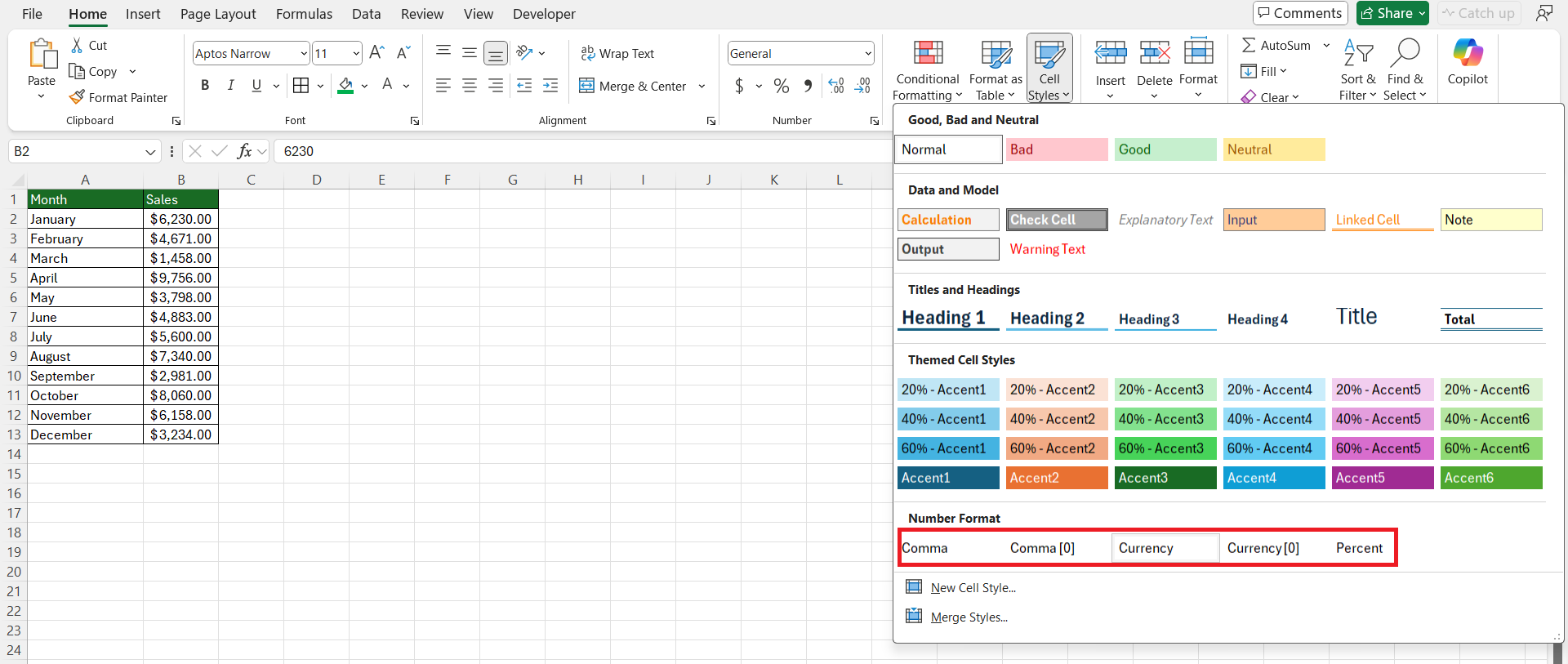
Custom Calculation Styles
Follow the steps below to create a custom style from scratch:
- Select the cell where you want to apply custom style.
- Right-click on it and select Format Cells. This will open the Format Cells dialog box.
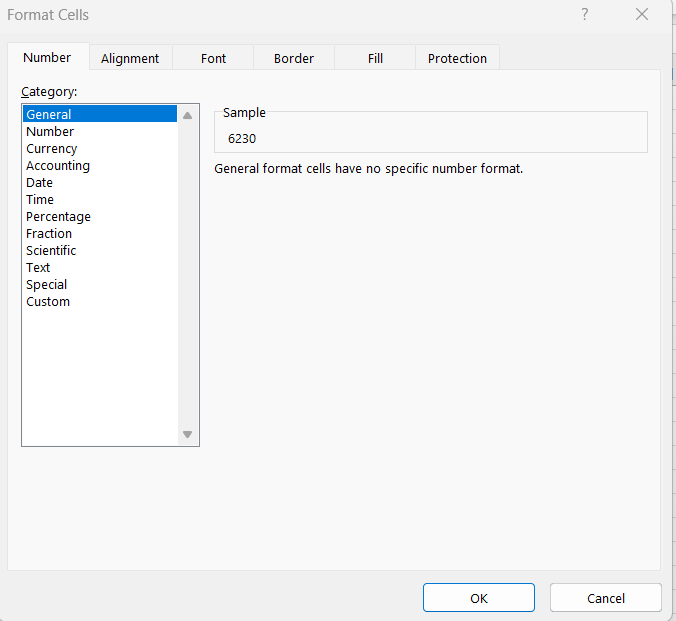
- You can select different number formats, alignment, font, border, and fill properties.
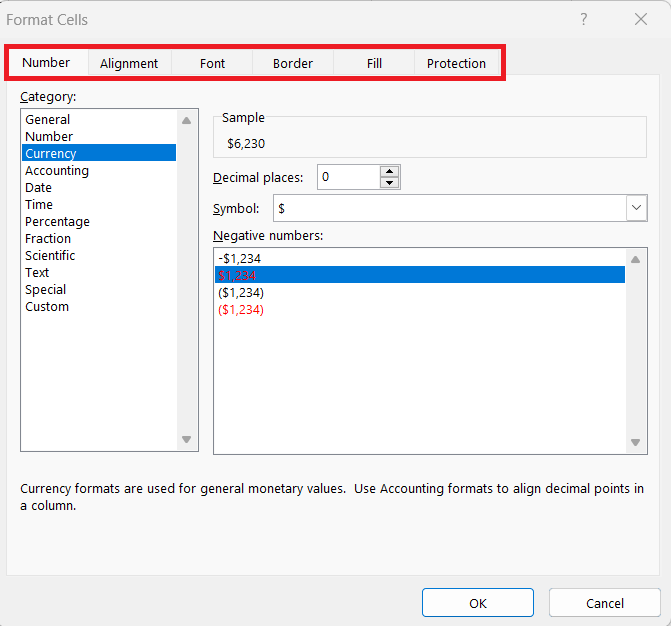
- Click on New Cell Style to save this custom style.
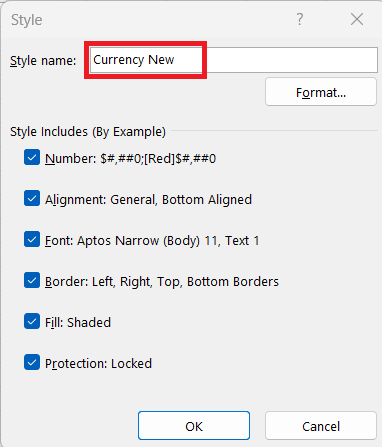
- Enter a name for this style.
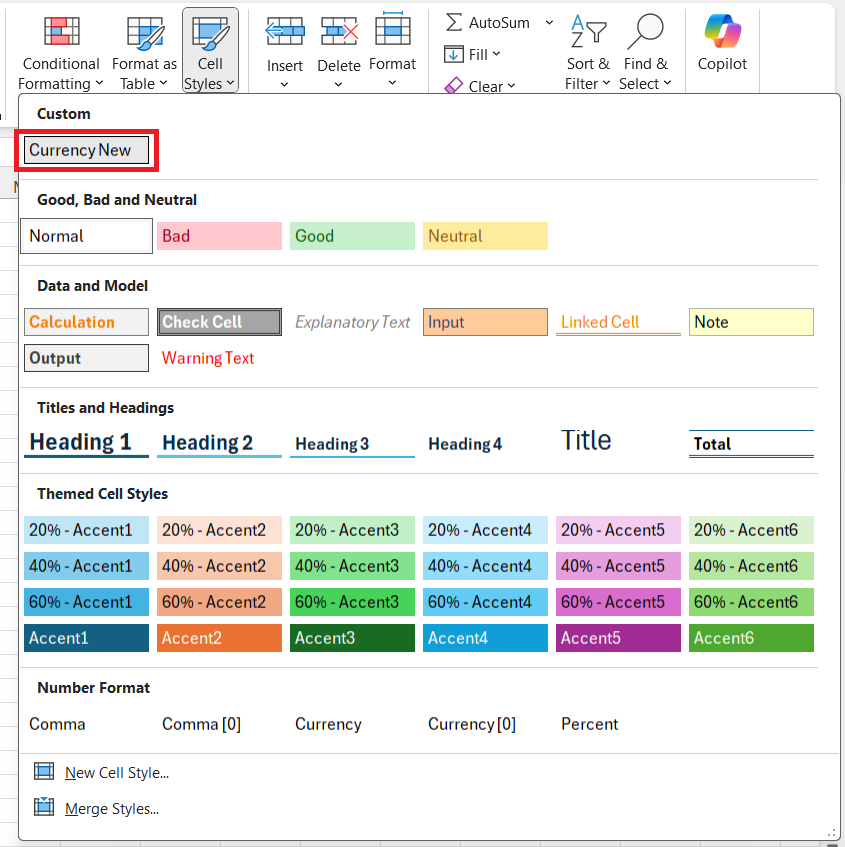
It will be added to the gallery of cell styles and can be applied whenever you require it.
FAQs
What is calculation style?
A calculation style is a predefined or custom format in Excel. It can change the appearance of cells based on the type of calculation. It should be used to distinguish calculation cells from regular data entries.
How to apply calculation style to a cell?
To apply the calculation style to a cell in Excel, first, select the cell or range of cells you wish to format. Then, navigate to the ‘Home’ tab, click on the ‘Cell Styles’ button in the Styles group, and from the dropdown menu, choose ‘Calculation’ which applies the predefined calculation style to your selected cells. If it’s not visible, you might need to expand the Cell Styles menu or create a new custom style if a specific look is needed.
Can Calculation Styles Be Used on Both Windows and Mac Versions of Excel?
Yes, calculation styles can be used on both Windows and Mac versions of Excel. Both platforms offer similar functionality for applying and customizing cell styles.
What is the Difference Between Cell Styles and Conditional Formatting?
Cell Styles are predefined, or custom sets of formatting options applied manually to cells, whereas Conditional Formatting refers to Excel’s feature that applies formatting to cells automatically based on their values. While cell styles remain static until the user changes them, conditional formatting dynamically updates as the data in the cells change, reflecting instant visual cues about the data.
What are some common cell styles available in Excel?
Some common cell styles available in Excel include Normal, Currency, Comma, Percent, Title, Heading 1, and Total. These styles cater to different data presentations, such as financial figures, headlines, and accumulated sums, and are accessible from the Cell Styles gallery in the Styles group of the Home tab. They provide a quick and efficient means for consistency and clarity in your spreadsheet’s formatting.

John Michaloudis is a former accountant and finance analyst at General Electric, a Microsoft MVP since 2020, an Amazon #1 bestselling author of 4 Microsoft Excel books and teacher of Microsoft Excel & Office over at his flagship MyExcelOnline Academy Online Course.

 30 Days - Full Access









