The BCC feature is used when you need to send an email to multiple recipients without everyone seeing each other’s email addresses. In this article, I’ll guide you through everything you need to know about how to BCC in Outlook.
Key Takeaways:
- BCC ensures email privacy by hiding recipients’ email addresses from one another.
- It is important for large group emails or business communications.
- BCC prevents the mistake of accidentally pressing the reply-all button.
- It reduces unnecessary clutter in inboxes.
- BCC is a great tool for confidentiality when sending sensitive information.
Table of Contents
Basics of BCC in Outlook
Role and Benefits of Using BCC
In email communication, BCC stands for Blind Carbon Copy. It allows you to send an email to someone without other recipients seeing their email address.
- It protects the privacy of those in the original message.
- It provides a safeguard against forwarding mistakes and Reply-All.
- It reduces the chances that recipients will be targeted by spam or viruses.
Difference Between CC and BCC
- When you use CC, each recipient sees the full list of others who received the same email.
- On the other hand, BCC conceals the list of BCC-ed recipients from everyone.
Getting Started with BCC in Outlook
Enable the BCC Field
STEP 1: Open a new email message in Outlook.

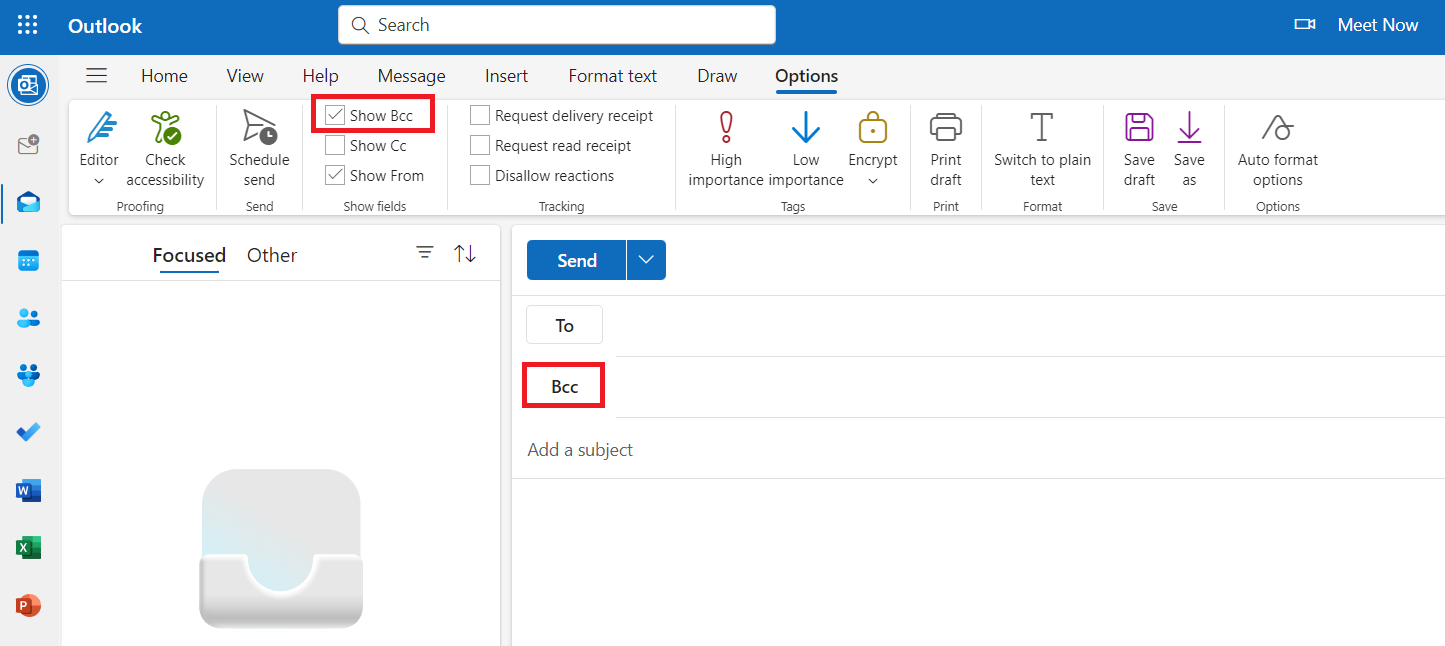
STEP 2: Once the new email window is open, you’ll see several tabs at the top of the screen. Click on the “Options” tab.

STEP 3: In the “Show Fields” section, you’ll see a button labeled “BCC.” Click it, and voilà! The BCC field will now be visible in your email window.
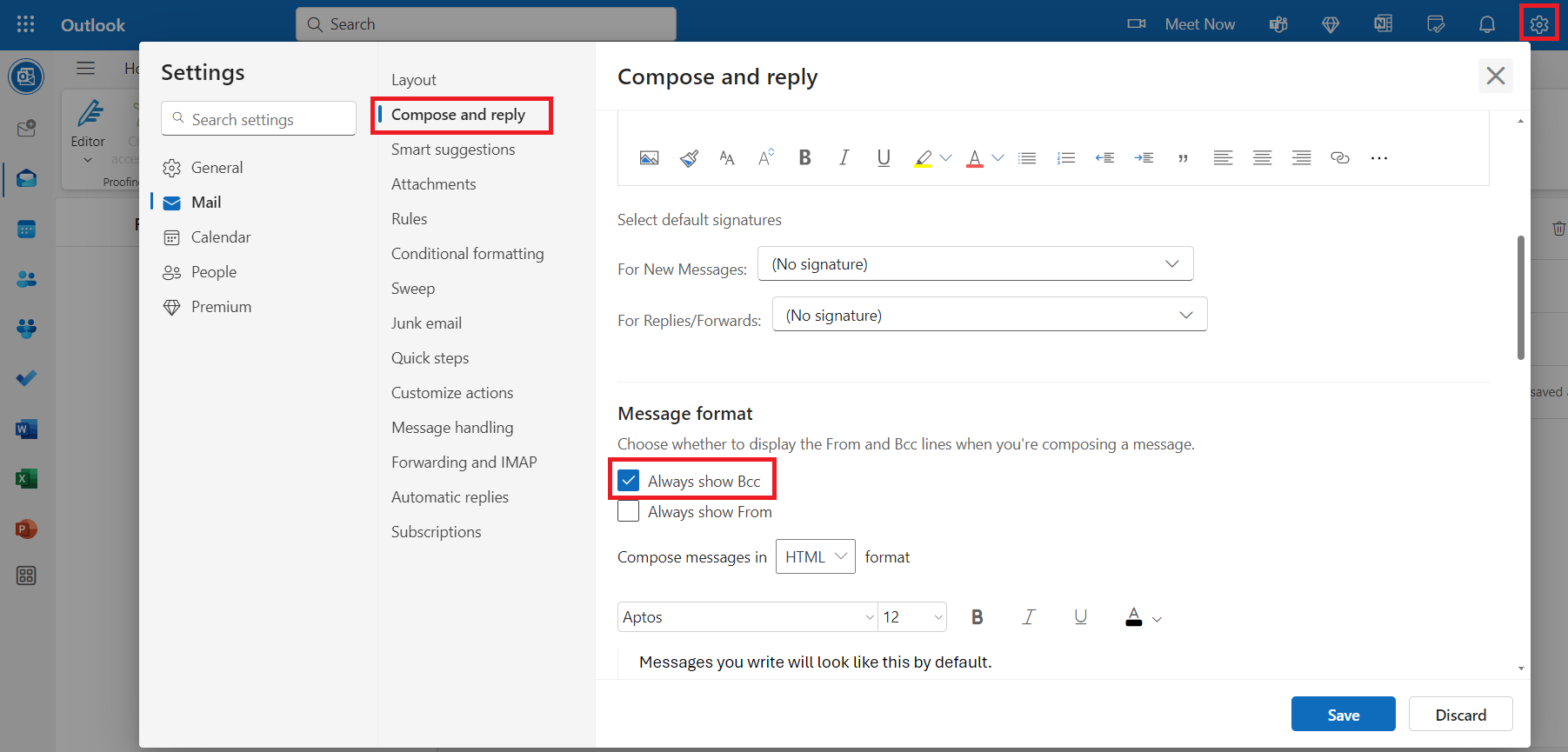
Now, if we want to avoid having to do this every time, it’s possible to make the BCC field a permanent fixture in Outlook 365. After signing into Outlook on the web, we can click the gear icon for settings, and within the Mail settings, under ‘Compose and Reply’, we’ll find an option to ‘Always show Bcc.’
How to BCC in Outlook
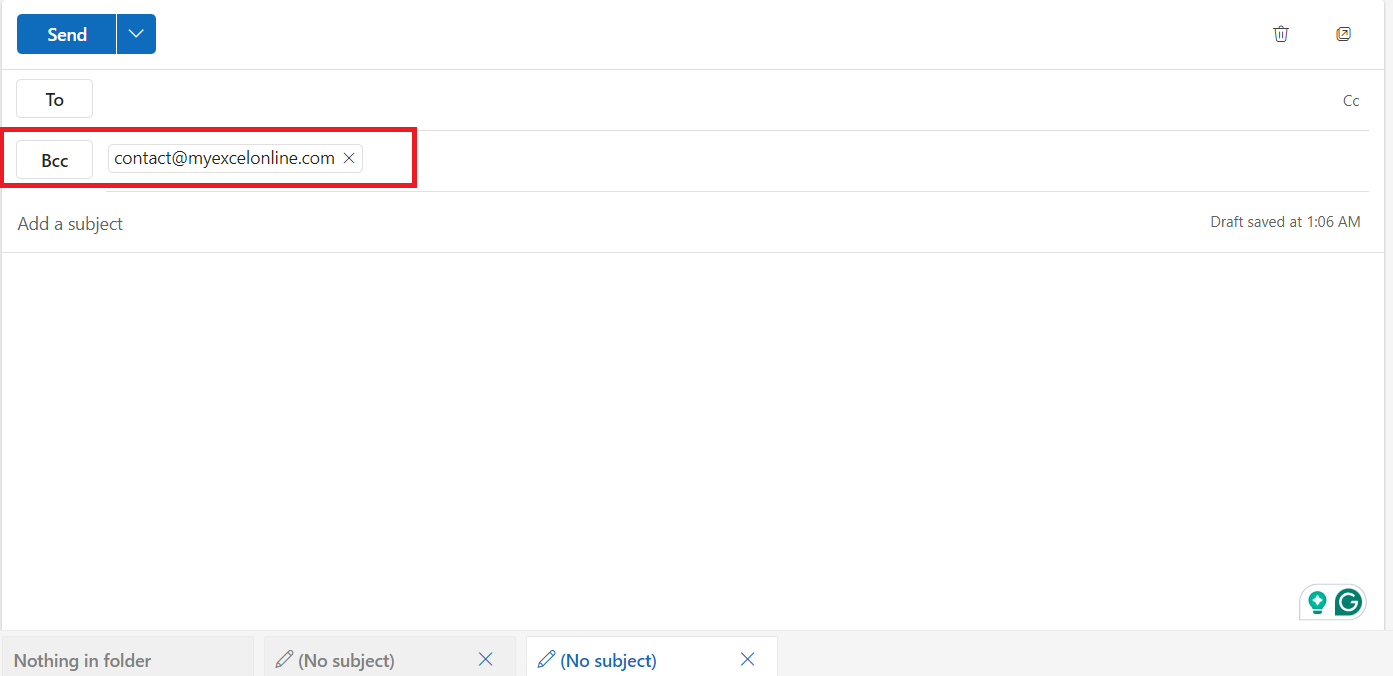
Adding recipients to the BCC field when crafting a new email in Outlook is straightforward. Once the BCC field is enabled and visible, we simply click inside it and begin typing the email addresses of those we intend to blind carbon copy.
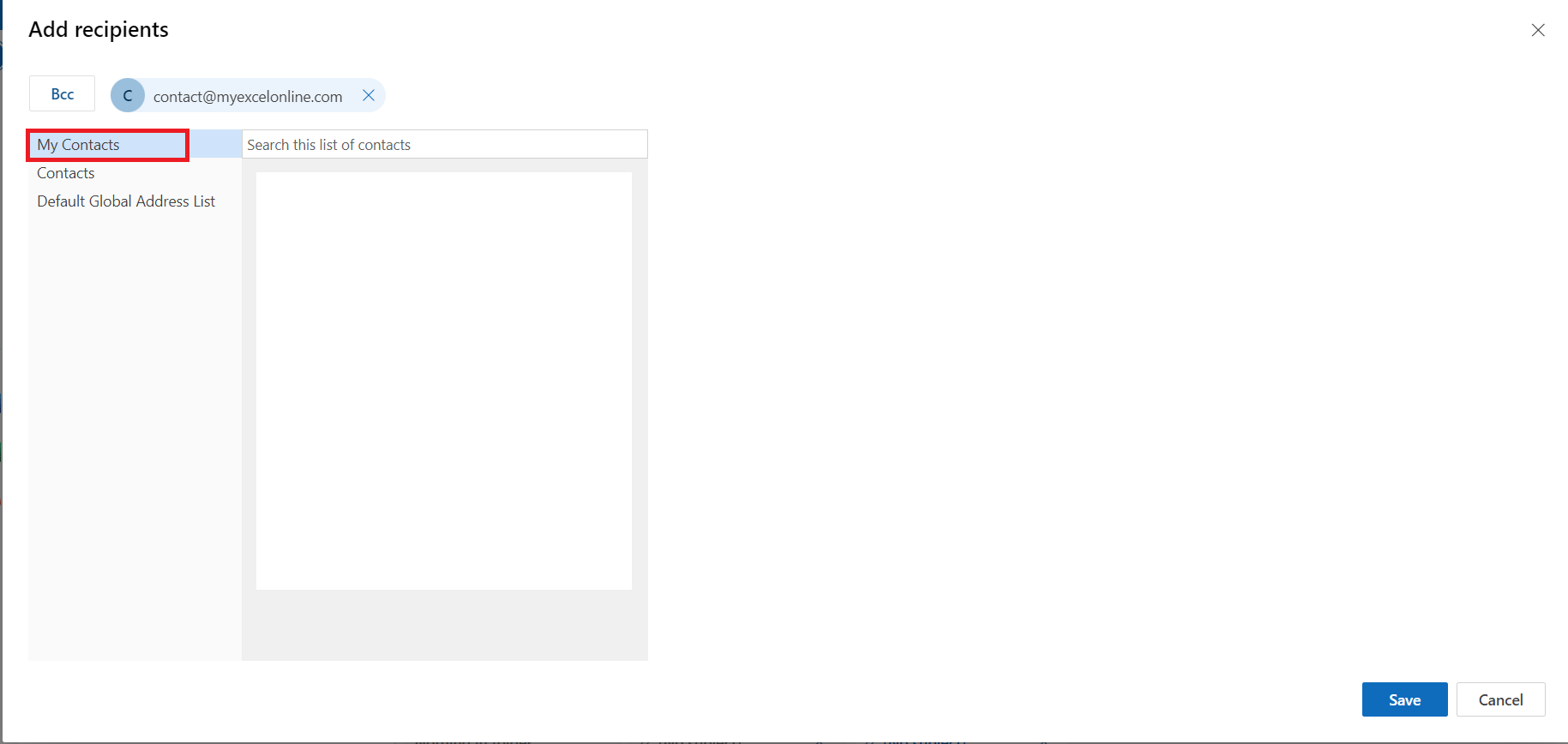
We can also select contacts from our address book by clicking ‘BCC’ to open our contacts list and ticking off the names we want to include.
Tips & Tricks
When and Why to Use BCC in Business Emails
- Use BCC to keep recipient email addresses private.
- Hide subscriber lists and protect privacy.
- Prevent unnecessary “Reply All” messages in large group emails.
Overusing BCC
While BCC is undoubtedly a powerful feature for ensuring privacy, overusing it can lead to some pitfalls. Overreliance on BCC can sometimes give the impression of secrecy or a lack of transparency in communication, which doesn’t bode well in certain professional settings.
Another risk is the accidental ‘Reply All’ scenario, where a BCC’d recipient might reply to everyone, unaware they were hidden, and inadvertently expose the BCC list or simply create confusion.
To avoid these missteps, I suggest we use BCC judiciously. BCC should be reserved for instances where privacy is paramount, such as sending sensitive company announcements or client information. Another practice is to be clear with primary recipients about the presence of BCC’d individuals, whenever appropriate, to prevent misdirected replies.
Furthermore, establishing and adhering to clear email communication guidelines within an organization can stave off potential BCC misuse. Ensuring that all team members understand when and why to use the BCC function can greatly diminish the risk of its overuse.
BCC Limitations
- Outlook limits the number of people you can send a message to at once. This will prevent spam and ensures emails are delivered successfully. The limits vary depending on your organization or email service provider.
- Sometimes, emails sent with a large number of BCC recipients might land in spam or junk folders. To avoid this, I usually keep my BCC lists reasonable in size.
FAQs
How do I use BCC in Outlook?
To use BCC in Outlook,
- Compose a new email
- Enable the BCC field
- Type or select the recipients’ email addresses
- Type the subject and body of the email
- Click send
Can BCC Recipients See Other BCC-Ed Individuals?
No, BCC recipients cannot see other BCC-ed individuals in an email.
What Happens if Someone Accidentally Replies All to a BCC Email?
If someone accidentally uses ‘Reply All’ on a BCC email, the BCC’d recipients will not be alerted. Only the original sender and anyone listed in the ‘To’ or ‘CC’ fields will receive the response.
How to send a mass email and hide recipients in Outlook?
To send a mass email and hide recipients in Outlook, use the BCC feature.
- Open a new email
- Enable the BCC field
- Enter all the recipient addresses.
This will obscure each recipient’s email address from others in the BCC list and protect their privacy. Compose your message and send it once you’re done.
Why use bcc in Outlook?
Using BCC in Outlook is key to privacy. It helps to keep recipient email addresses confidential, reduce the risk of ‘Reply All’ mishaps, and improve email appearance.

John Michaloudis is a former accountant and finance analyst at General Electric, a Microsoft MVP since 2020, an Amazon #1 bestselling author of 4 Microsoft Excel books and teacher of Microsoft Excel & Office over at his flagship MyExcelOnline Academy Online Course.

 30 Days - Full Access









