 Free Practice Workbook
 When working with large datasets in Excel, selecting multiple cells is a common task. However, if you accidentally select extra cells, you may want to deselect them without starting over. In this guide, you will learn how to deselect cells in Excel.
Key Takeaways:
- You can deselect cells by holding Ctrl and clicking them.
- Use Ctrl + Click to adjust selections without starting over.
- It works for both single cells and ranges.
- VBA can handle deselection for large or repeated tasks.
Table of Contents
The Basics of Cell Selection and Deselection
Excel’s Selection Mechanisms
When you click on a single cell, it becomes active. A border appears on that cell to signify selection. To add adjacent cells to the selection,
- Click and drag the mouse
- Use the shift key with the arrow keys to select a block of cells
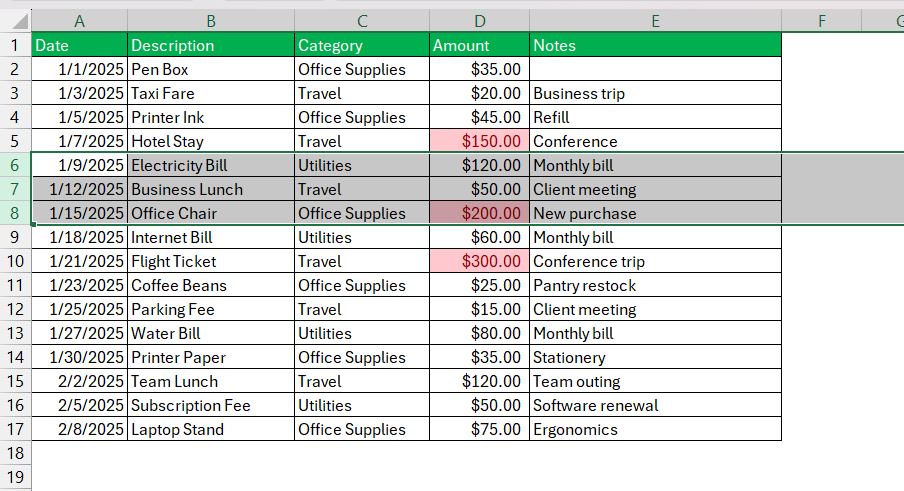
When working with non-contiguous cells, use “Ctrl” key to build a custom selection across the spreadsheet.
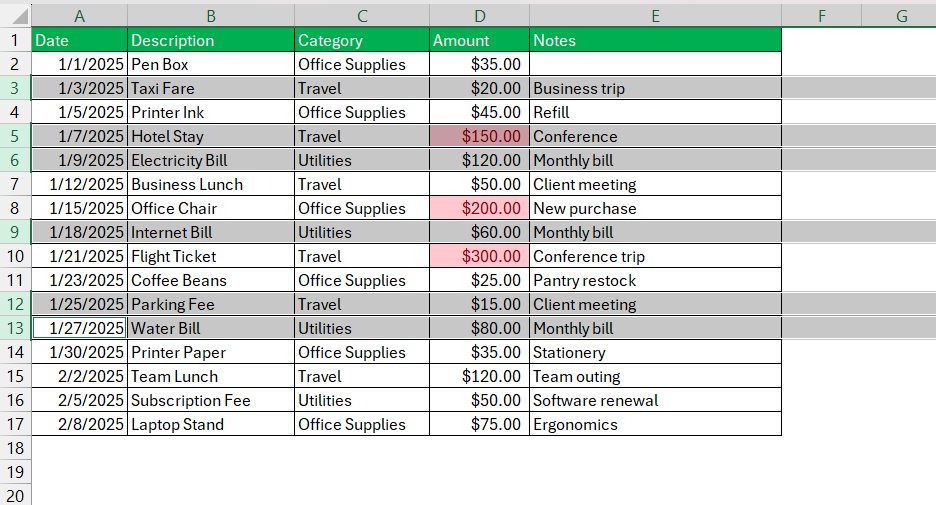
Common Pitfalls
When working with selected ranges, I often see common pitfalls that can disrupt workflow or lead to data management errors. A frequent issue is inadvertently extending a selection too far, which can lead to unwanted formatting or the inclusion of irrelevant data in calculations. Additionally, losing track of active selections, especially in large datasets, can be confusing and result in the application of functions to the wrong cells.
Another pitfall is forgetting to clear a previous selection before starting a new one, leading to cumulative selections that may not be immediately apparent. To reduce these risks, I recommend keeping a close look on the Name Box and utilizing deselection techniques, which can make all the difference in maintaining a clean and accurate Excel environment.
How to Deselect Cells
Using Ctrl+Click
STEP 1: I can select multiple cells by either:
- clicking and dragging the cells; or
- by using
Ctrl + Clickto add specific cells to my selection.
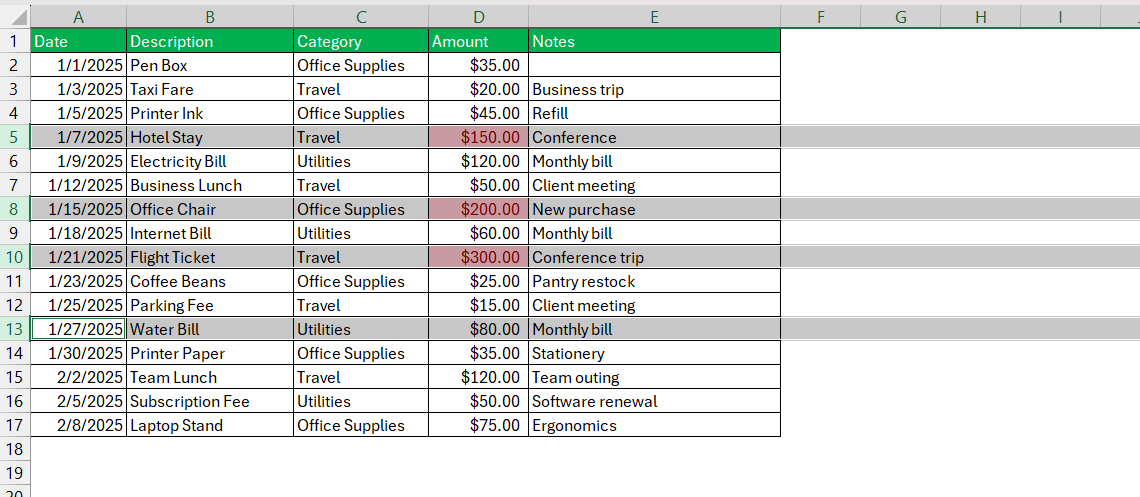
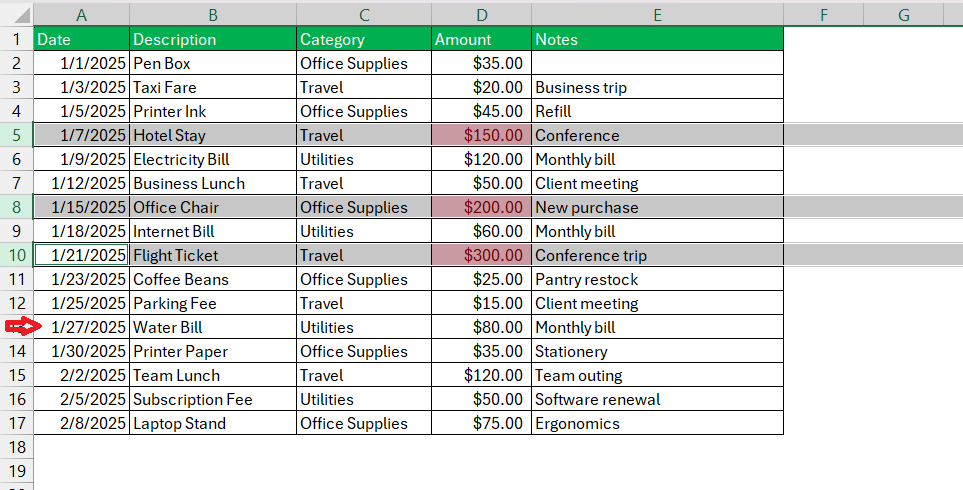
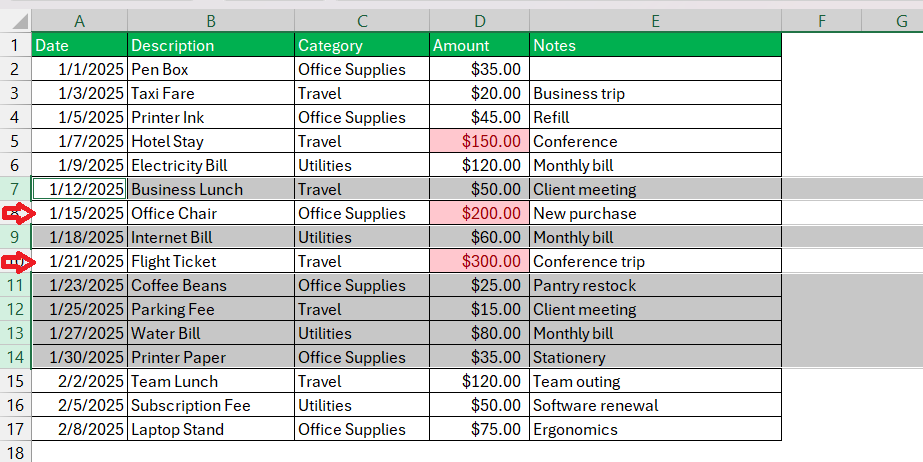
STEP 2: To remove extra cells from the selection, I simply hold down the Ctrl key and click on the unwanted cells.
Deselect Range of Cells
STEP 1: I click and drag to select a block of cells.
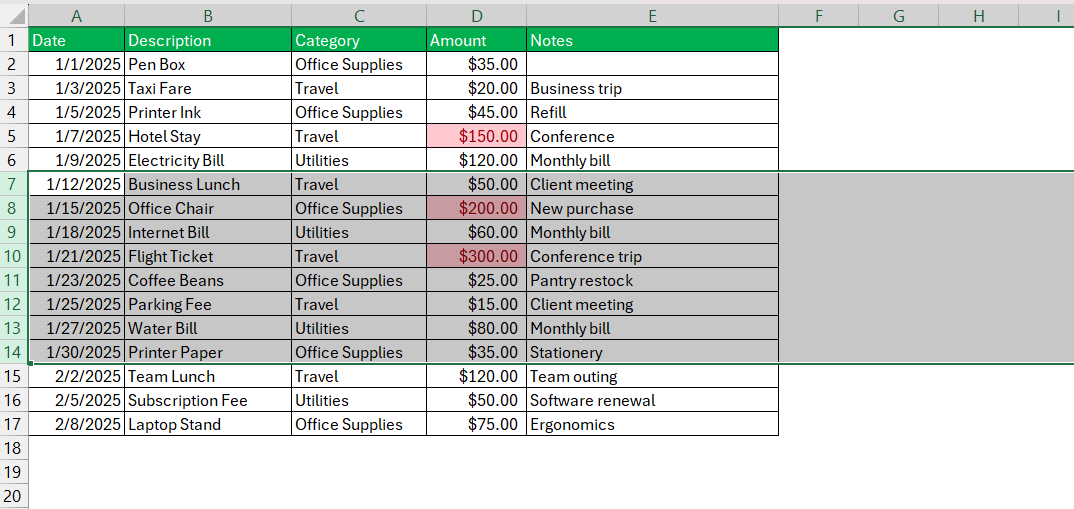
STEP 2: Holding down Ctrl, I click on specific cells within the range to remove them from the selection.
Advanced Techniques
VBA Code
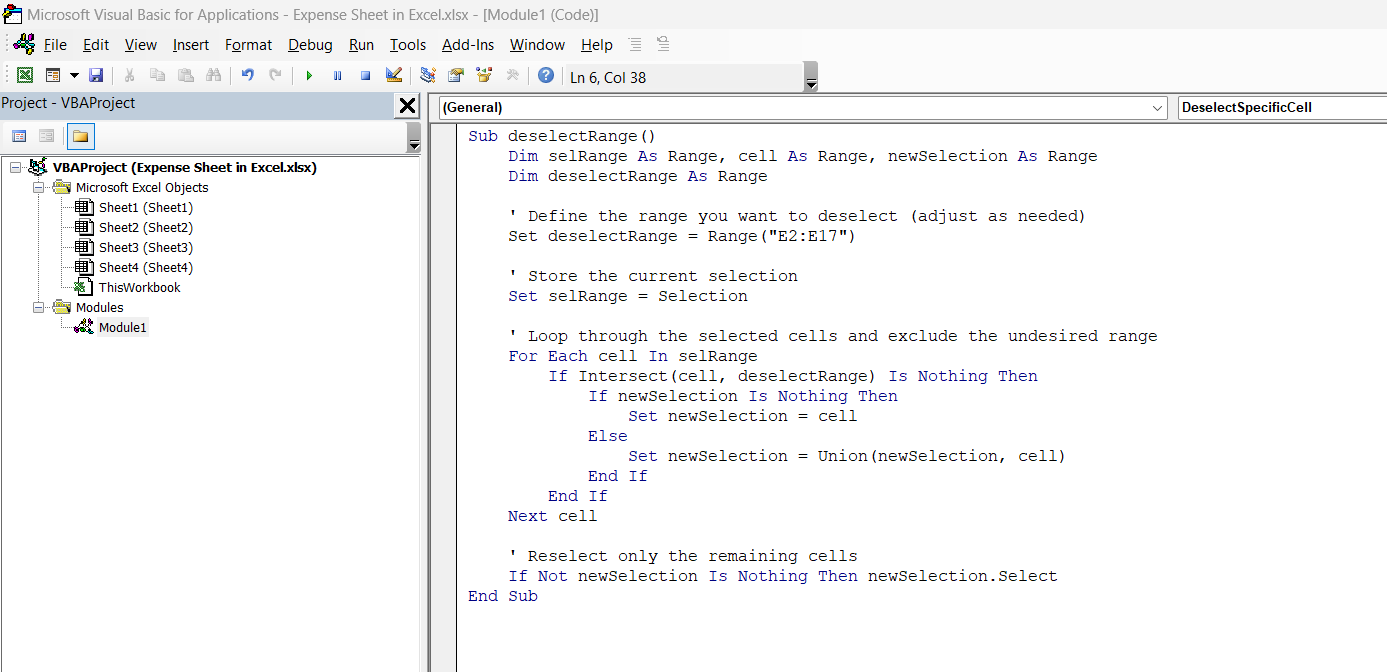
Visual Basic for Applications (VBA) can be used to deselect cells. It is a useful method when you are repeatedly selecting cells or have a large dataset.
Press Alt + F11 to open the VBA editor,
Go to Insert > Module
Enter the code below:
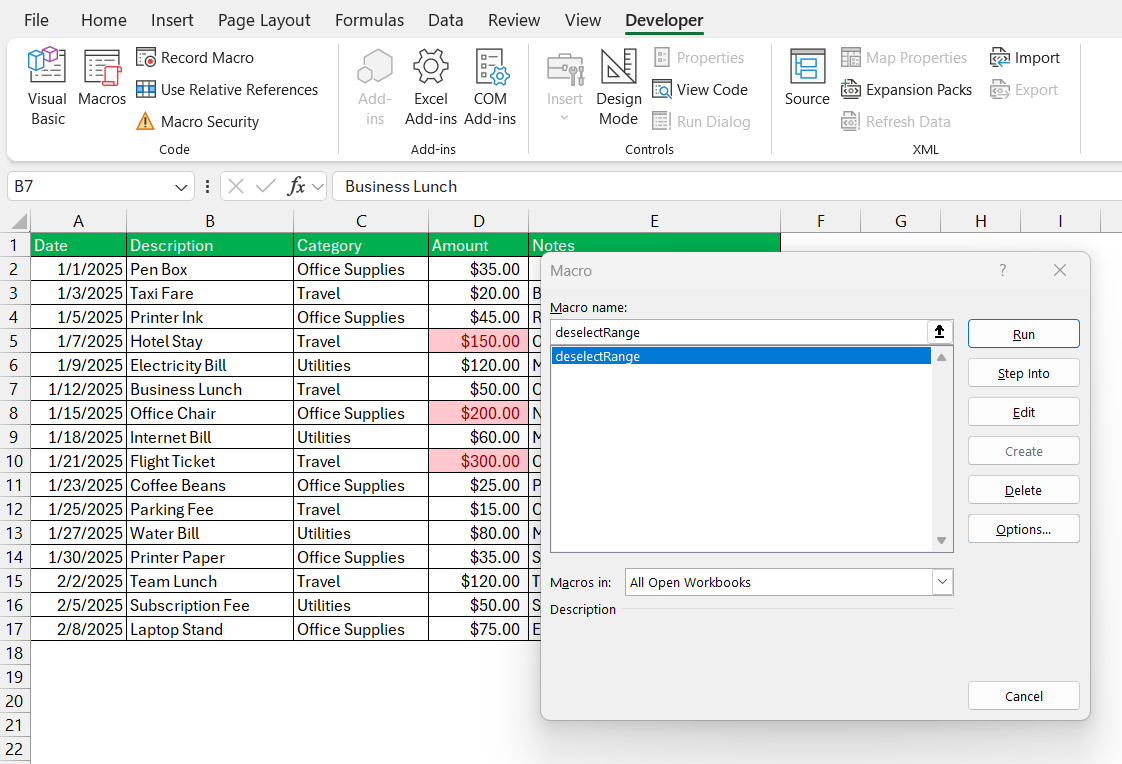
Run the script by pressing F5.
FAQs
How to Quickly Deselect a Single Cell?
To quickly deselect a single cell within an existing selection in Excel,
- Hold down the “Ctrl” key
- Click on the cell you wish to deselect
How to deselect multiple cells at once?
You can hold the Ctrl key and click each unwanted cell one by one.
Is there a shortcut to clear all selections?
Click anywhere outside the selected range to start a new selection.
Does deselection work for selected ranges?
Yes, you can remove specific cells from a selected range using Ctrl + Click.

John Michaloudis is a former accountant and finance analyst at General Electric, a Microsoft MVP since 2020, an Amazon #1 bestselling author of 4 Microsoft Excel books and teacher of Microsoft Excel & Office over at his flagship MyExcelOnline Academy Online Course.

 30 Days - Full Access









