Merging cells is a powerful feature that helps us to create organized, professional-looking tables. Merging cells allows us to combine multiple cells into one larger cell. This makes it easier to design tables with custom formatting and layouts. In this article, I will cover the step-by-step guide on how to merge cells in Word.
Key Takeaways:
- Merging cells combines multiple cells into one larger cell.
- It helps create clean and professional-looking tables.
- You can merge cells using right-click or the Layout tab.
- Only data in the top-left cell is kept after merging.
- Formatting, such as borders and alignment, improves table appearance.
Table of Contents
Introduction to Merging Cells
Merging cells in a Word document improves both its functionality and look. When I work on reports, business plans, or any document, the ability to merge cells in a table can be very useful. It allows me to create spacious headings, group related data, and provide readers with an easily navigable layout. Merging cells adds to the professional appearance of the document and makes sure that the key information stands out.
When I want a title to cover several categories beneath it, merging the cells allows me to center the title neatly above these columns. However, it is important to remember that merged cells affect how text is distributed and can sometimes hinder sorting and filtering of table data.
I always prioritize a balance between aesthetics and functionality.
How to Merge Cells in Word
I start by clicking and dragging to highlight the desired cells.
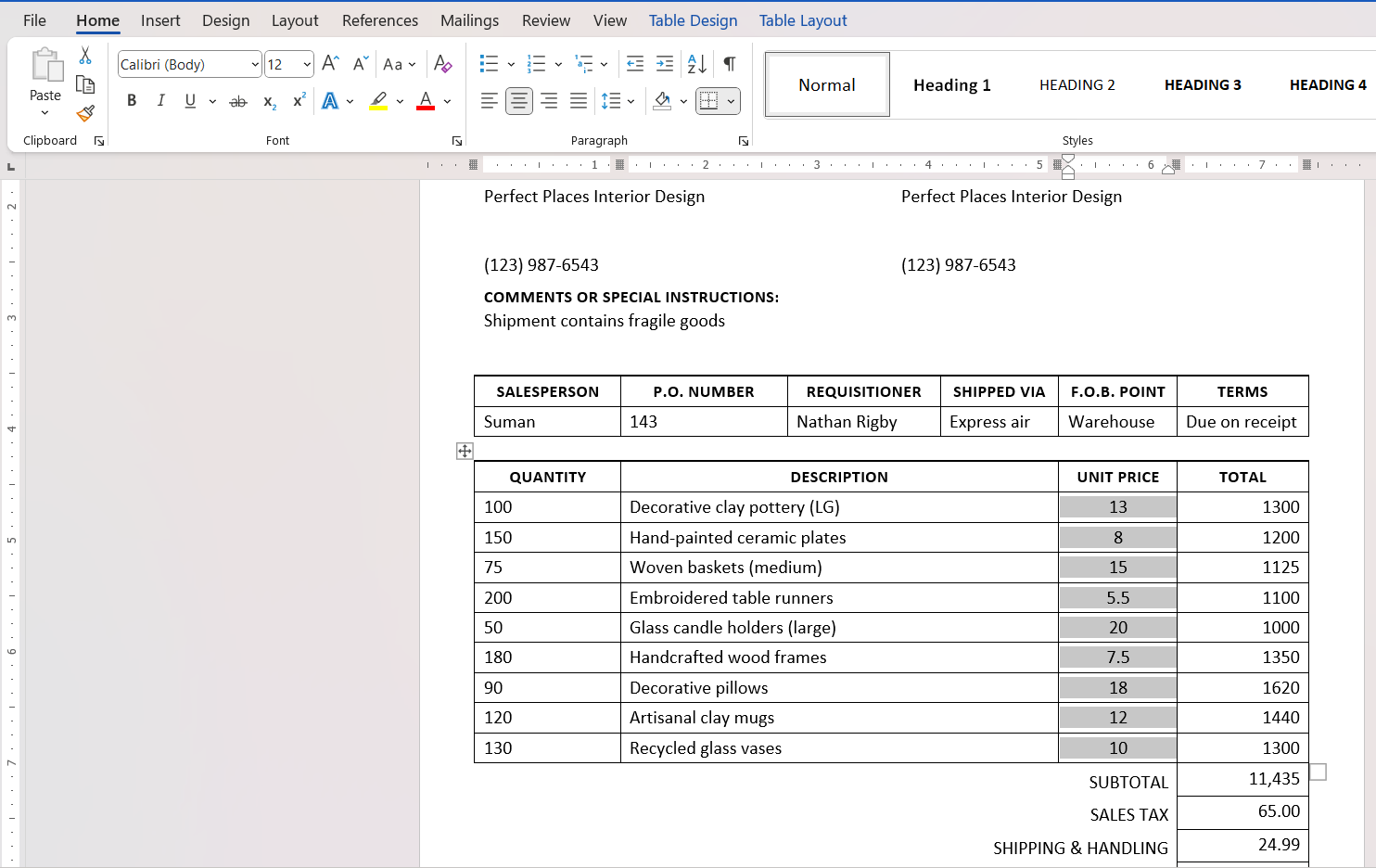
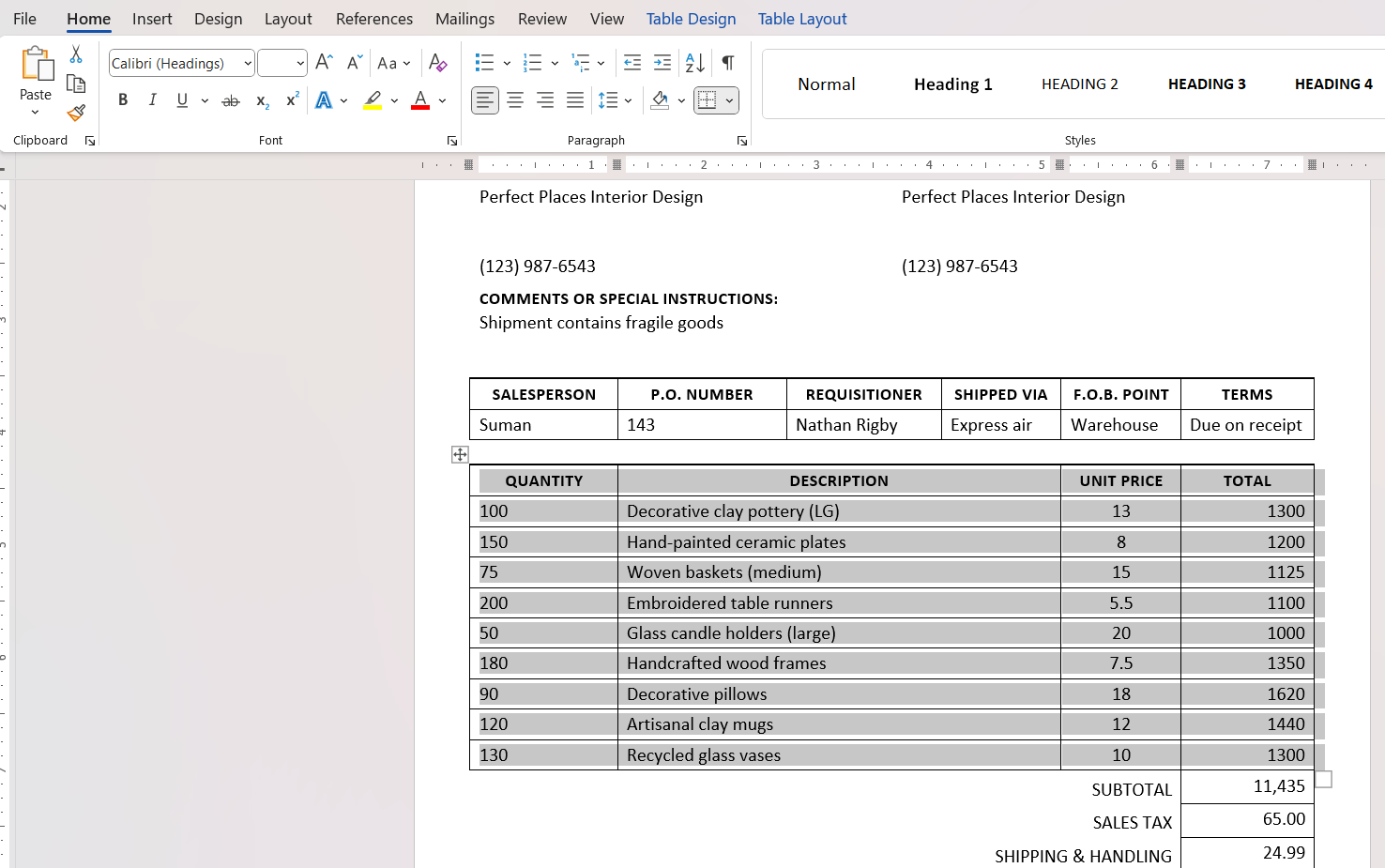
If I need to select an entire table, I hover over the table until I see the table selection icon. Then, I click it.
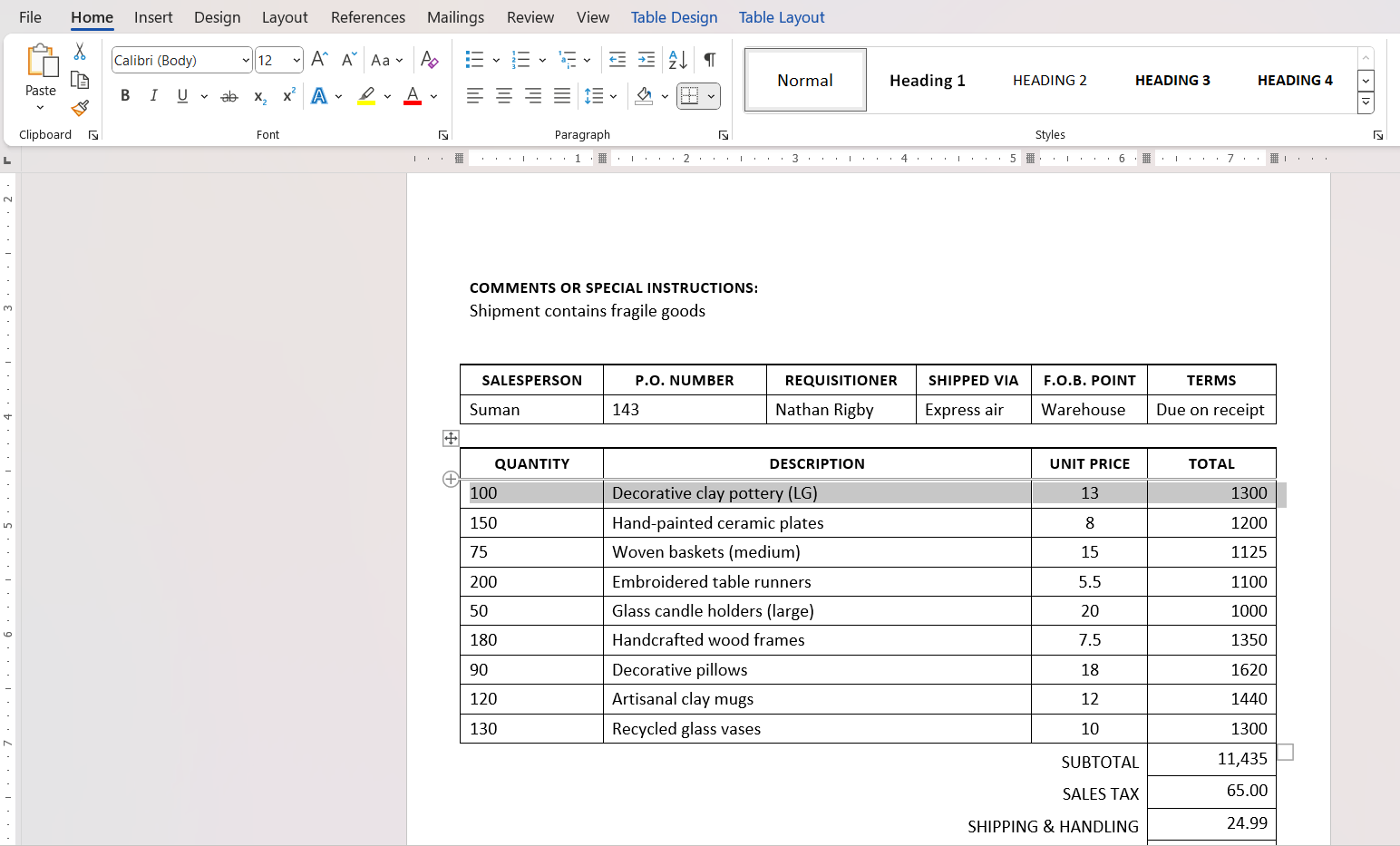
For individual rows or columns, I click on the left edge of the first cell in a row or the top edge of the first cell in a column.
Once I’ve selected the intended cells, I follow the steps below:
STEP 1: Right-click on the highlighted selection to bring up the context menu.
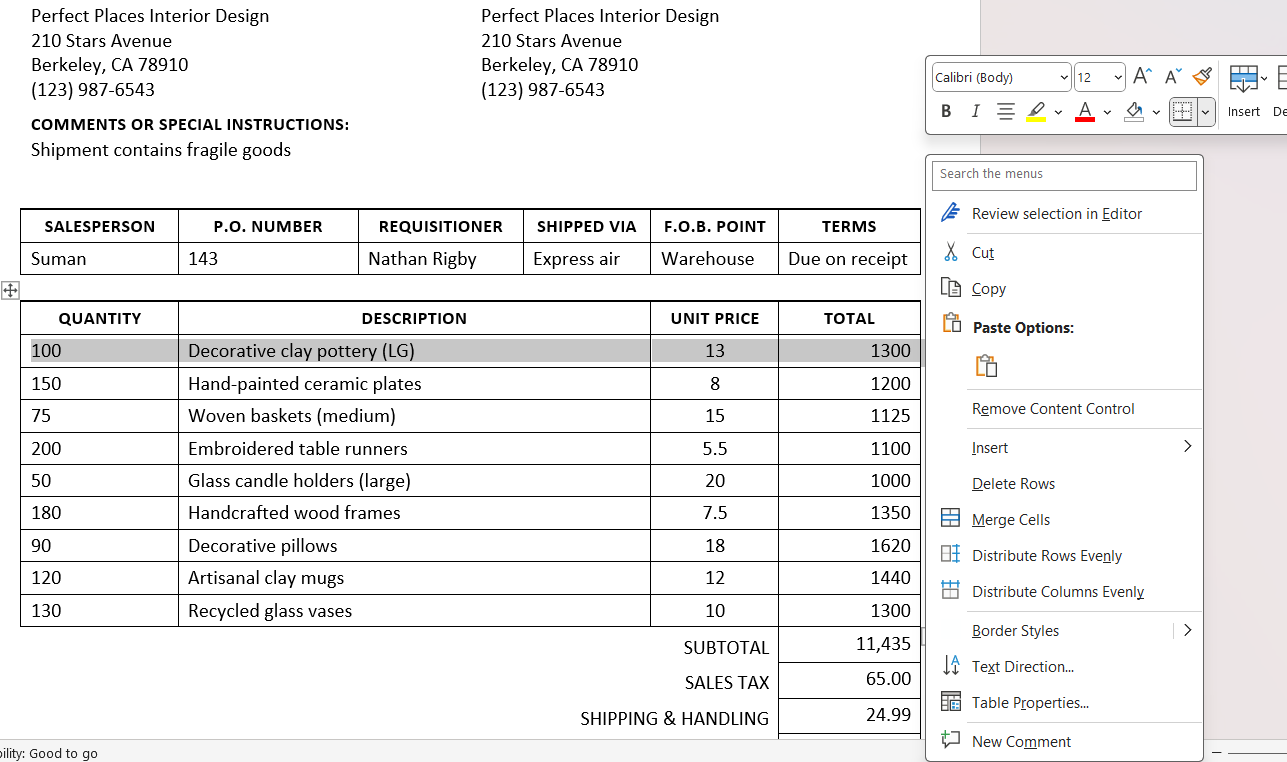
STEP 2: From the menu, I choose ‘Merge Cells’.
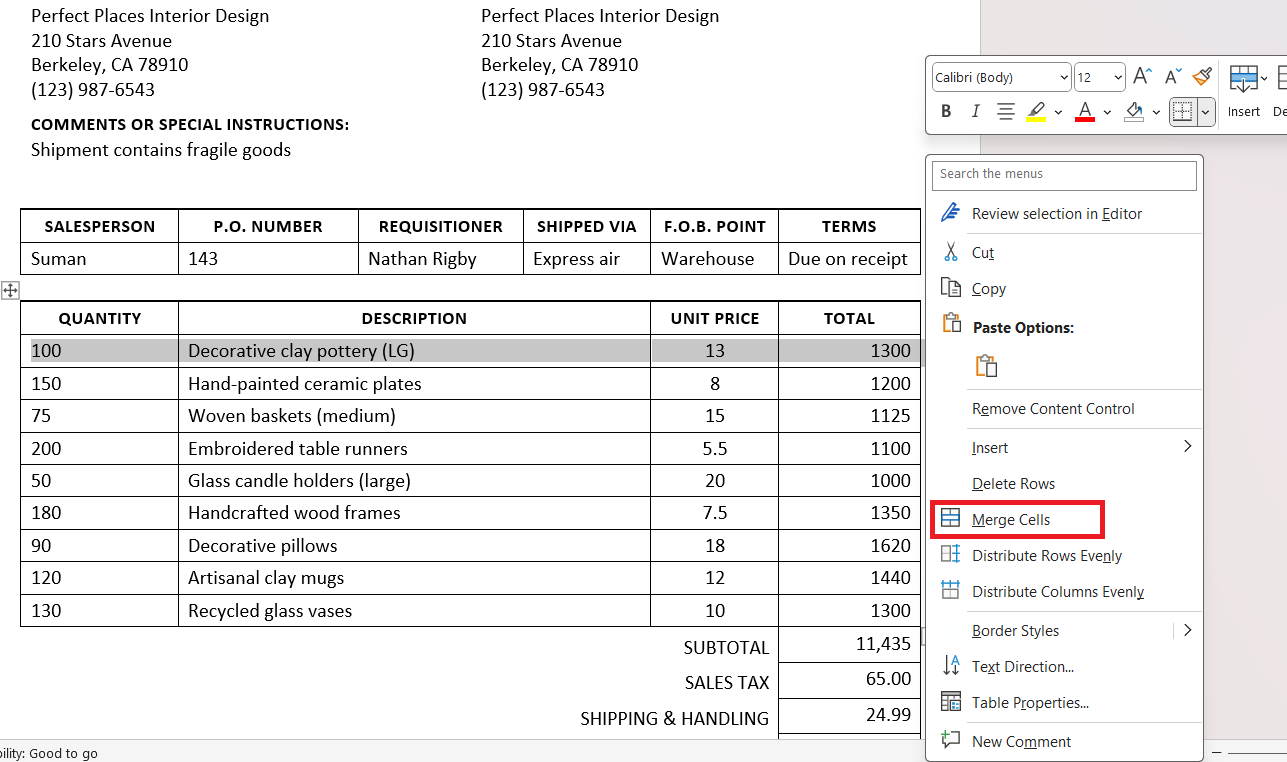
Alternatively, I can find ‘Merge Cells’ by going to the ‘Layout’ tab under ‘Table Tools’ on the Ribbon.

Once clicked, the selected cells become one larger cell.
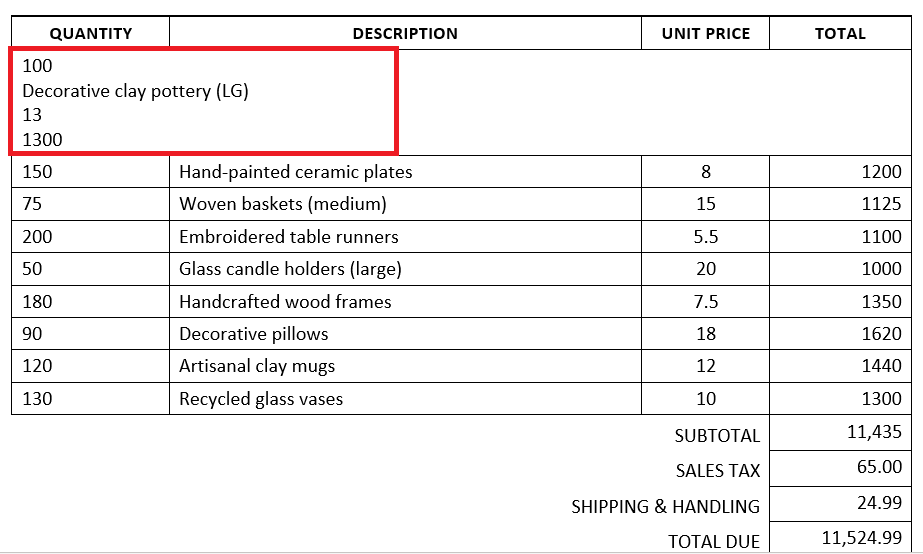
This process is particularly useful when I’m preparing headers or creating a distinctive area within a table to display a special note or larger chunk of data.
Tricks and Tips
- Verify that the cells to be merged are adjacent. Word does not permit the merging of non-adjacent cells.
- I always make sure that I do not unintentionally lose data. Only the top-left-most cell’s data is preserved in a merge operation.
- When merging cells within a row or column that affect table dimensions, I take care to adjust the layout to prevent any unintended changes.
- Before finalizing a merge, I check how it might impact sorting and formulas.
Troubleshooting Merge Issues
- If I merge cells and important information disappears, I check the row height and column width to make sure they can accommodate the content. Adjusting them can often reveal hidden text.

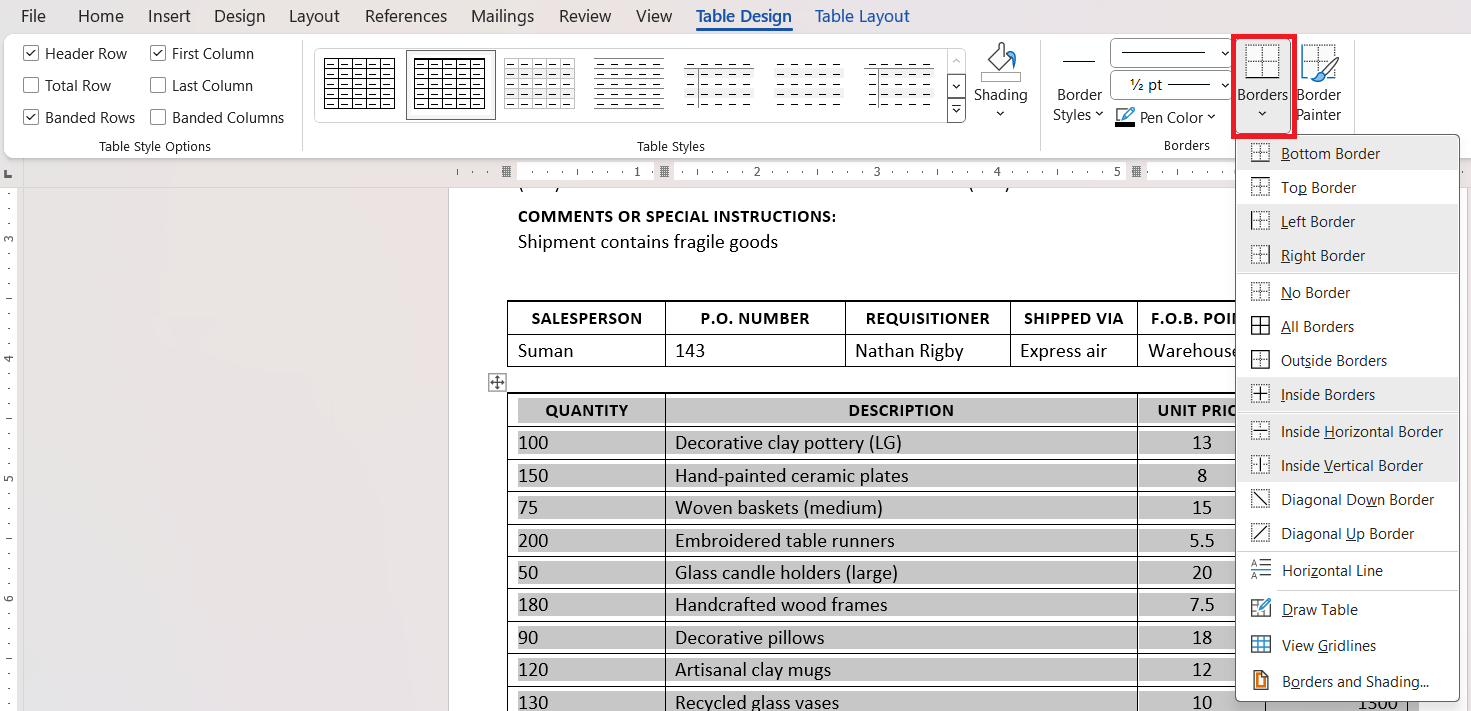
- Uneven borders after merging can disrupt the table’s look. Here, I use the Border tool to manually reapply the correct border style.
- On the odd occasion when I can’t merge cells, it’s often because the cells aren’t lined up properly due to previous formatting. I undo that for a clean, consistent layout, and then attempt merging again.
Enhancing Word Tables Beyond Merging Cells
Additional Formatting Tips for Impressive Tables
When I’ve mastered cell merging, additional formatting can elevate my tables further. To enhance their appearance and readability, I:
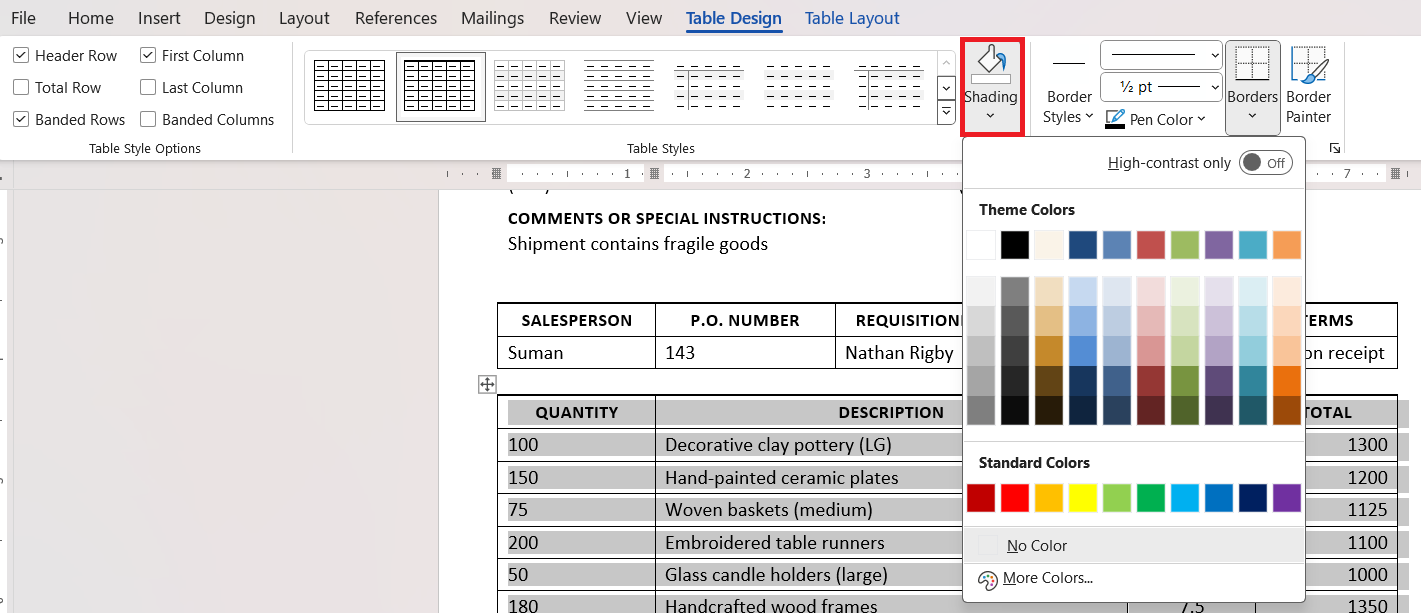
- Picking the right border style and adding a subtle color can differentiate sections clearly. Under the ‘Design’ tab on the Ribbon, I select the merged cells, then use the ‘Borders’ dropdown and ‘Shading’ button to customize these settings.
- Depending on the content, aligning the text within the merged cells can improve legibility. Can be managed under the ‘Layout’ tab.

- To maintain a visual flow, I ensure that font styles and sizes are consistent throughout the table.

- Sometimes, adding an icon or an image within a merged cell can accentuate the point I’m trying to emphasize within the table.

These additional steps, while simple, are effective in making tables in Word documents look polished and professional.
FAQs
How to merge cells faster in Word?
To merge cells faster in Word, use the keyboard shortcut Alt + H, M.
How to Fix a Mistake If I Accidentally Merge the Wrong Cells?
If you accidentally merge the wrong cells, quickly press Ctrl + Z to undo the merge.
Can Merged Cells Be Split Back Into Individual Cells?
Yes, merged cells can be split back into individual cells.
- Select the merged cell
- Right-click on it.
- Choose Split Cells
- Specify how many columns and rows you want to split the cells into.
Why merge cells in Word?
Merging cells in Word can create a cleaner layout and enable the alignment of text over multiple columns or rows. It helps organize table data more effectively for better comprehension and visual appeal.
How to merge cells in Word in Mac?
To merge cells in Word on Mac, follow these steps:
- Select the cells you wish to combine.
- Click on ‘Table Layout’.
- Click ‘Merge Cells’ within the Merge group.
Your selected cells will merge into one.

John Michaloudis is a former accountant and finance analyst at General Electric, a Microsoft MVP since 2020, an Amazon #1 bestselling author of 4 Microsoft Excel books and teacher of Microsoft Excel & Office over at his flagship MyExcelOnline Academy Online Course.

 30 Days - Full Access









