 Free Practice Workbook
When working on Excel, you will find that there is an in-built row header. But it is not part of the actual data, and when you print the sheet, it will vanish. So, it is important to learn how to number rows in Excel. In this article, you will learn how to do that.
Key Takeaways:
- The built-in row header in Excel does not get printed with your data.
- Manual numbering is simple but slow for large amounts of data.
- Fill handle quickly creates a number series.
- ROW function updates numbers automatically.
- SEQUENCE function generates numbers based on specific rules.
Table of Contents
How to Number Rows in Excel
Method 1: Manual Numbering
The most straightforward way to number rows is to type numbers manually.
- Select a cell where you want to start numbering.
- Type 1 and press Enter.
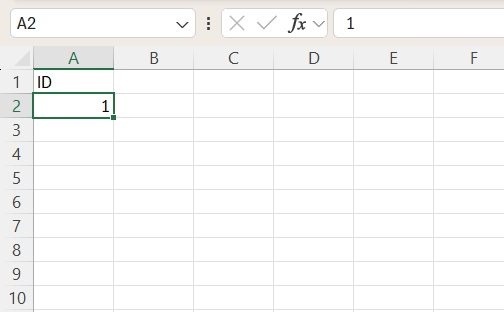
- In the next cell, type 2.
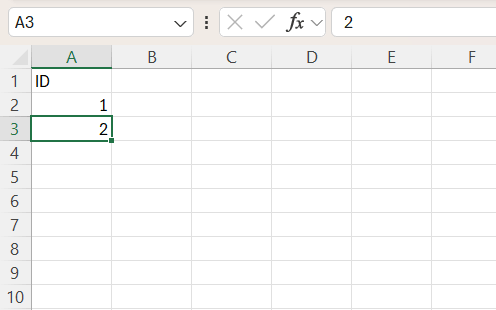
- Continue typing numbers as needed.
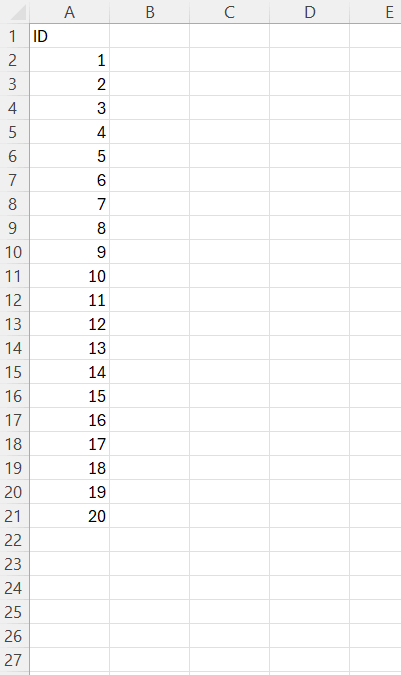
This method can be used for very small datasets. However, it becomes inefficient when dealing with hundreds of rows.
Method 2: Fill Handle
The fill handle is a small square at the bottom-right corner of a selected cell. It allows you to quickly extend a series.
- Enter 1 in the first cell.
- Enter 2 in the cell below it.
- Select both cells.
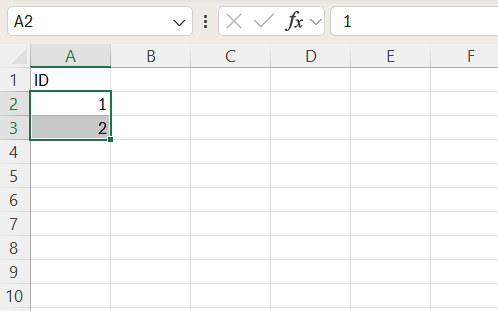
- Drag the fill handle downward.
Excel will automatically continue the sequence (3, 4, 5, and so on).
This method is much faster than manual typing. It will add the numbers, but the number will be static. So, when you delete or insert rows, the number will not adjust automatically.
Method 3: ROW Function
The ROW function returns the row number of the cell in which it is used.
=ROW(A1)
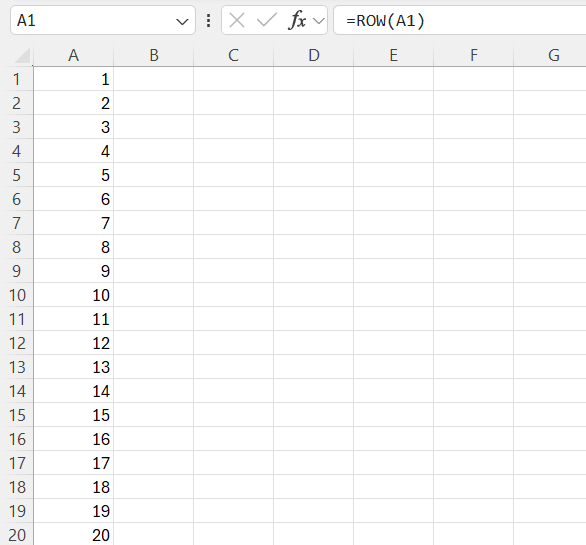
The advantage of this method is that it updates automatically. If you insert or delete rows, Excel recalculates the numbers without any extra effort.
Method 4: SEQUENCE Function
The SEQUENCE function can create a list of numbers based on certain rules. The syntax of this function is:
=SEQUENCE(rows, [columns], [start], [step])
- Rows (Required): Number of rows
- Columns (Optional): Number of columns
- Start (Optional): What number do you want to start at?
- Step (Optional): How much to add to each number in the list?
To generate a list of numbers from 1 to 100, the formula will be:
=SEQUENCE(100,1,1,1)
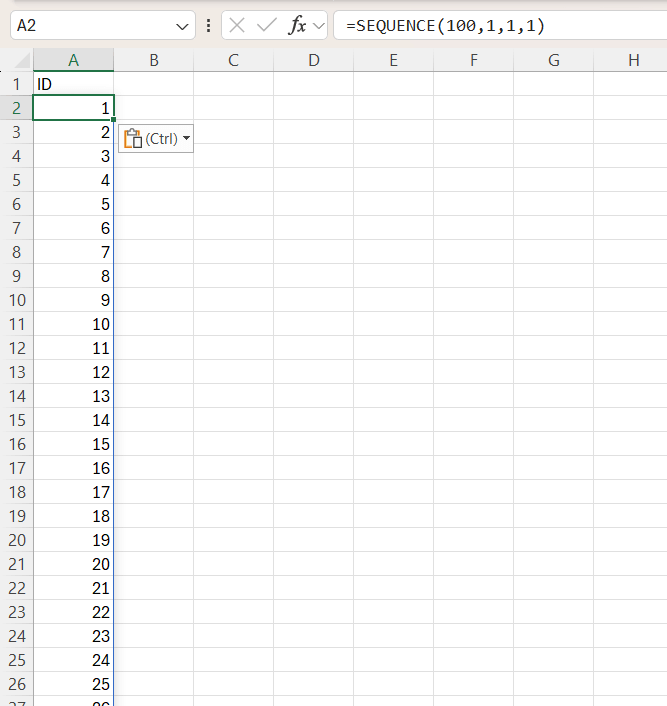
It is especially useful when you need to generate a list of numbers instantly without dragging or copying formulas.
Tips & Tricks
- If your dataset keeps changing, you should avoid using static numbering methods like manual entry or fill handle. Use the ROW function as it can keep updating as the data changes.
- If the data contains blanks, you can use this formula =IF(A2<>””,ROW(A2)-1,””). It will only number that rows that are not blank.
- Convert data into a table. It will automatically copy the formula for new rows.
- If you want the numbering to start from 99, you can adjust the ROW formula accordingly.
- Use Freeze Panes to keep the row numbering visible.
FAQs
Why are row numbers not printed in Excel?
Row numbers are not printed because they are not part of the actual data in the worksheet.
Which method is best for large datasets?
The ROW or SEQUENCE function is best for large datasets. This is because it saves time and updates automatically.
Does the fill handle update automatically?
No, the fill handle creates static numbers. They do not update when rows are added or deleted.
How to number only non-empty rows?
You can number only non-empty rows by using an IF formula along with the ROW function.
=IF(A2<>””,ROW(A2)-1,””)
How to start numbering from a different number?
You can start numbering from a different number by adjusting the formula or the starting value. If you want numbering to start from 100, use:
=ROW(A1)+99

John Michaloudis is a former accountant and finance analyst at General Electric, a Microsoft MVP since 2020, an Amazon #1 bestselling author of 4 Microsoft Excel books and teacher of Microsoft Excel & Office over at his flagship MyExcelOnline Academy Online Course.

 30 Days - Full Access









