 Free Practice Workbook
Hyperlinks in Excel can be a useful feature to add links directly in your spreadsheet. But sometimes they get in the way, when you’re working with a large dataset or simply want to format your cells cleanly. In this article, I’ll walk you through how to remove hyperlinks in Excel with just a few simple steps.
Key Takeaways:
- Managing Hyperlinks in Excel is important for avoiding distractions.
- Removing hyperlinks one by one is simple using the right-click menu.
- Bulk deletion of hyperlinks can save time.
- VBA code provides a customizable and efficient way to remove hyperlinks.
- Disabling automatic hyperlinking prevents Excel from creating unwanted links while typing URLs.
Table of Contents
How to Remove Hyperlinks
Removal of Individual Links
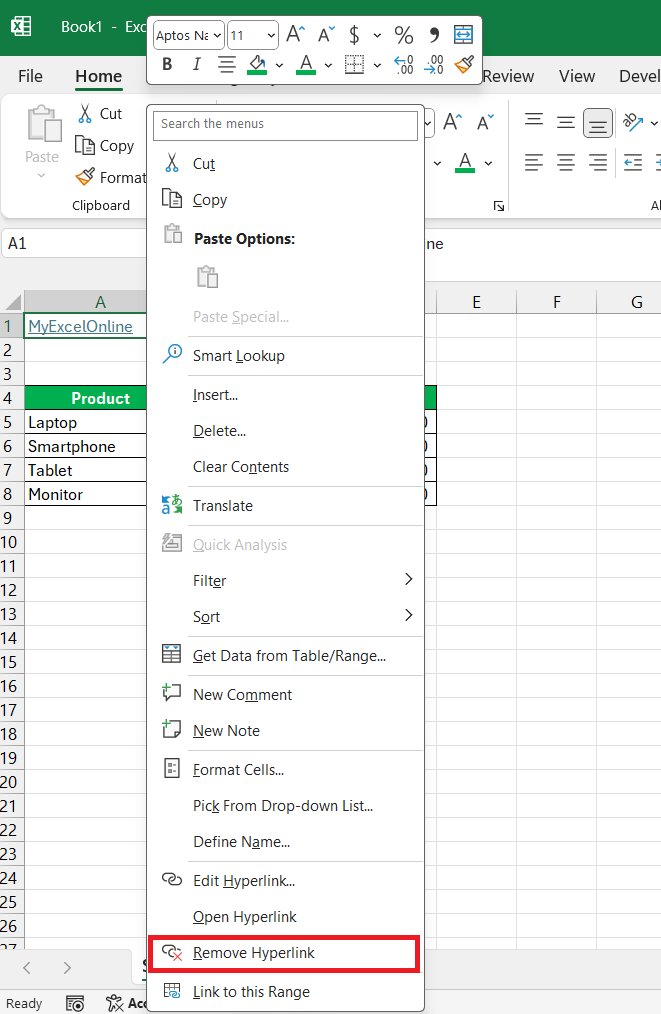
When I want to remove an individual hyperlink quickly in Excel, I find the right-click menu to be the most straightforward approach. First, I open my spreadsheet and locate the cell with the undesirable link. Then, with a simple right-click on the cell, a menu pops up where I select “Remove Hyperlink.”
Bulk Deletion Techniques
For those times when I need to expunge multiple hyperlinks from a spreadsheet, there are bulk deletion techniques that can save loads of time. Here’s one that I find particularly efficient:
- I start by selecting the range of cells that includes all the hyperlinks I wish to remove. If the hyperlinks are scattered throughout the worksheet, I press ‘Ctrl’ and click each cell I need to select.
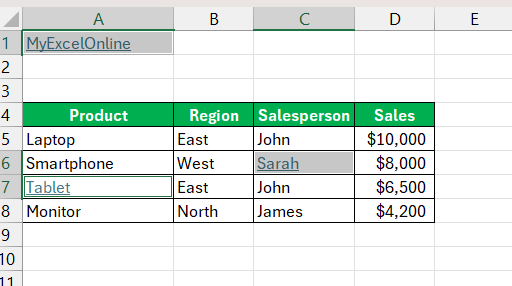
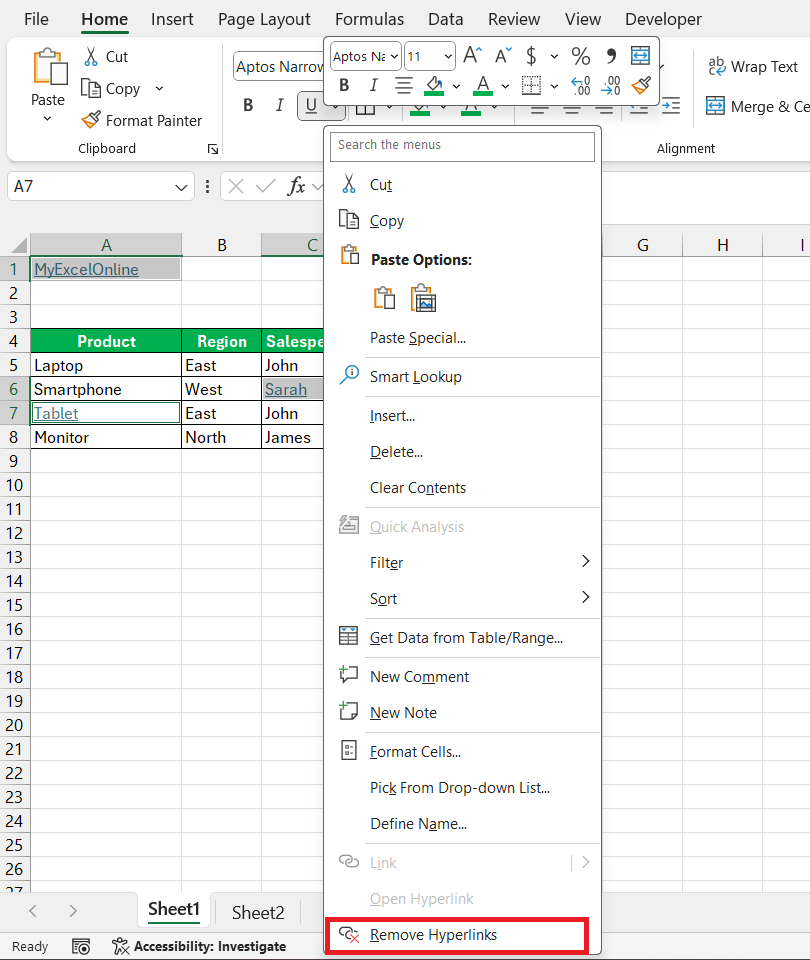
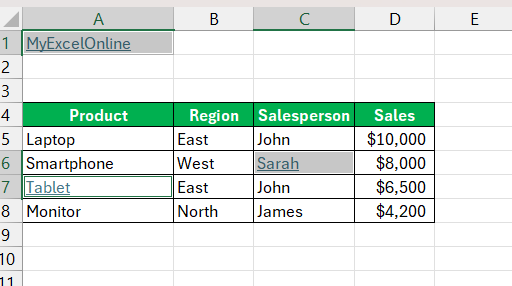
- Then, I right-click on the selected area, and from the context menu, I choose ‘Remove Hyperlinks’. Excel then eliminates all hyperlinks within the selected range in one go.
You can use another method for bulk deletion.
STEP 1: I select the cells with hyperlinks.
STEP 2: I head to the ‘Home’ tab, click on ‘Editing’, and then on ‘Clear’.

STEP 3: By choosing ‘Remove Hyperlinks’, Excel removes all hyperlinks in the selected cells, while keeping the text.
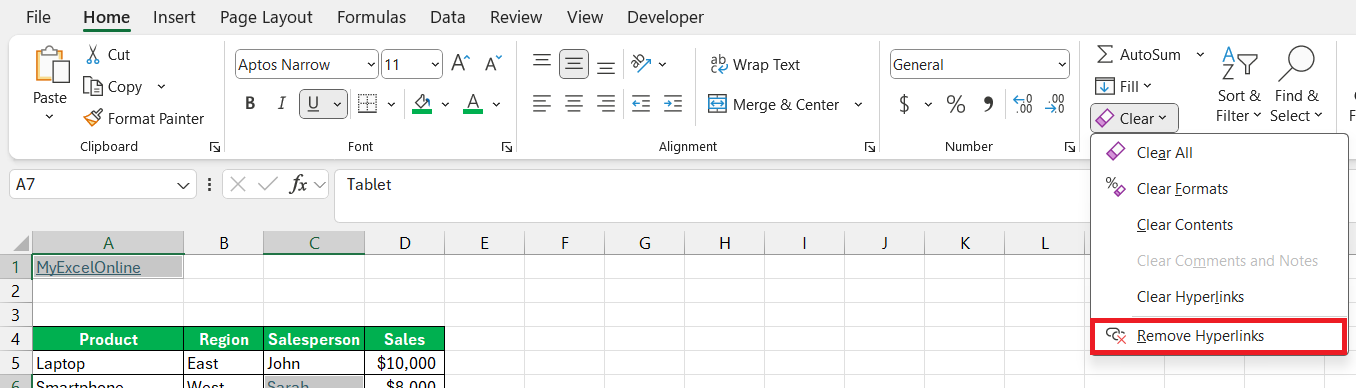
These techniques prove to be effective when dealing with large datasets, ensuring a hyperlink-free spreadsheet without breaking a sweat.
Advanced Tools and Shortcuts
Writing VBA Code
VBA script cam remove all hyperlinks from either the active sheet or the entire workbook.
STEP 1: To get started, I press “Alt + F11,” which thrusts me into the Excel VBA editor.
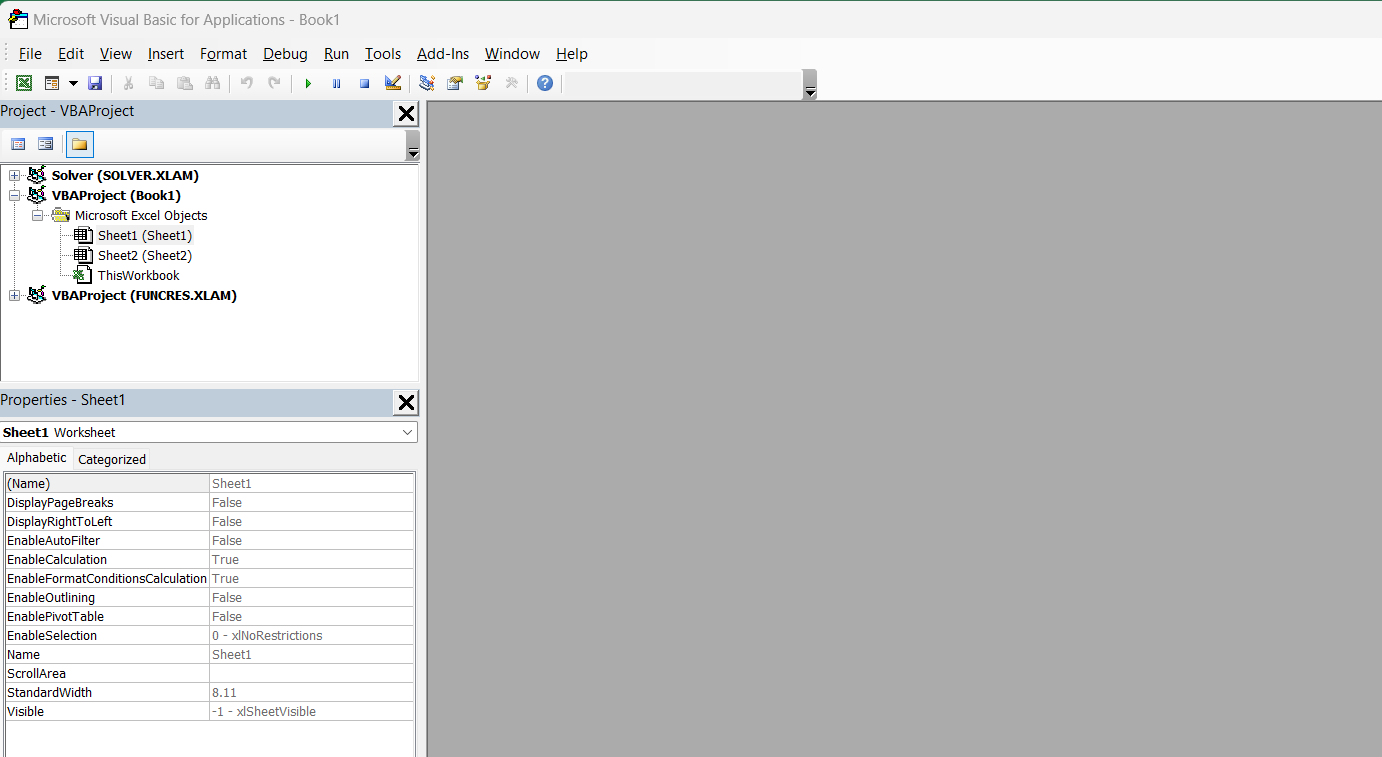
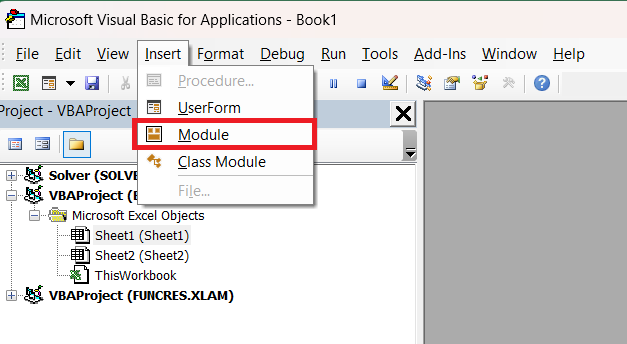
STEP 2: From there, I click on “Insert” and then “Module” to create a space where I can enter my code.
STEP 3: For removing hyperlinks from the workbook, I paste:
Sub RemoveHyperlinksWorkbook()
Dim ws As Worksheet
For Each ws In ActiveWorkbook.Worksheets
ws.Hyperlinks.Delete
Next ws
End Sub
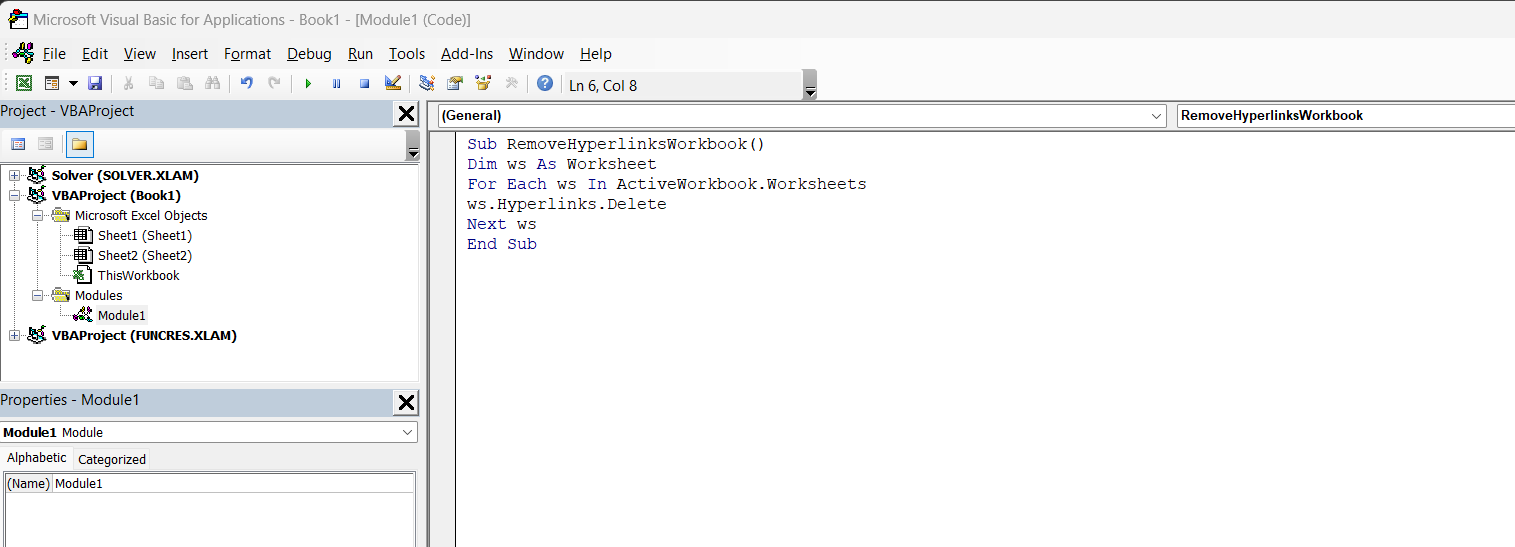
STEP 4: To run my chosen code, I press “F5” or click the “Run” button.
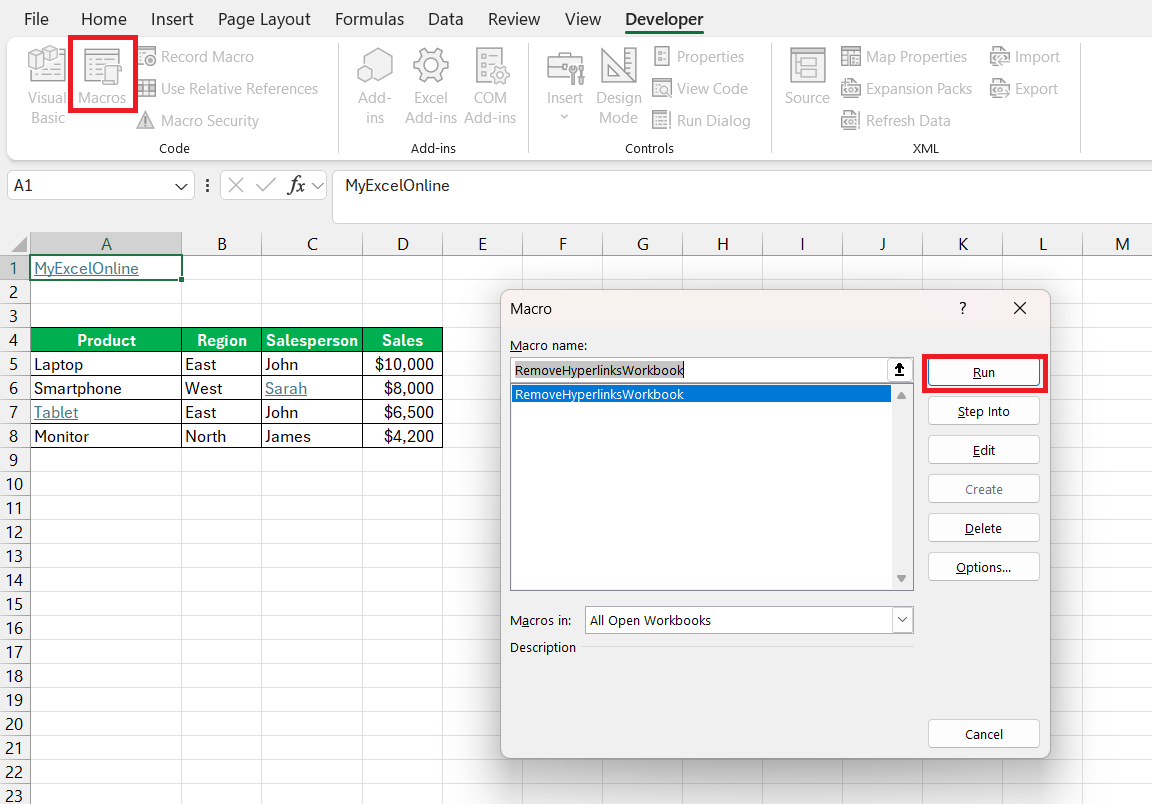
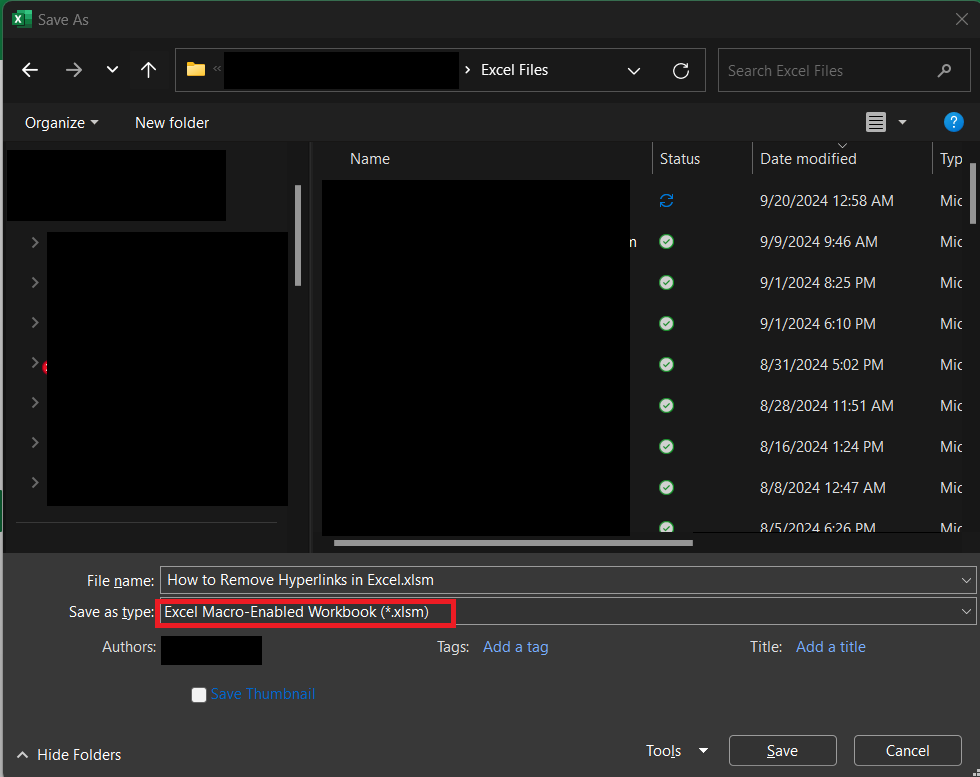
Remember, before closing the editor, save the workbook as a Macro-Enabled Workbook (.xlsm extension) to preserve the script for future use.
VBA coding offers precise control and customization for hyperlink management—a true boon for anyone dealing with large, dynamic datasets.
Avoiding Unwanted Hyperlinks
Disabling Excel’s Automatic Hyperlink Feature
Turning off Excel’s automatic hyperlink feature is a proactive measure to prevent the hassle of having to remove links later. This will stop Excel from converting URL-like text to clickable links.
STEP 1: I navigate to the “File” tab at the top of my workbook and click “Options” at the bottom of the side bar.

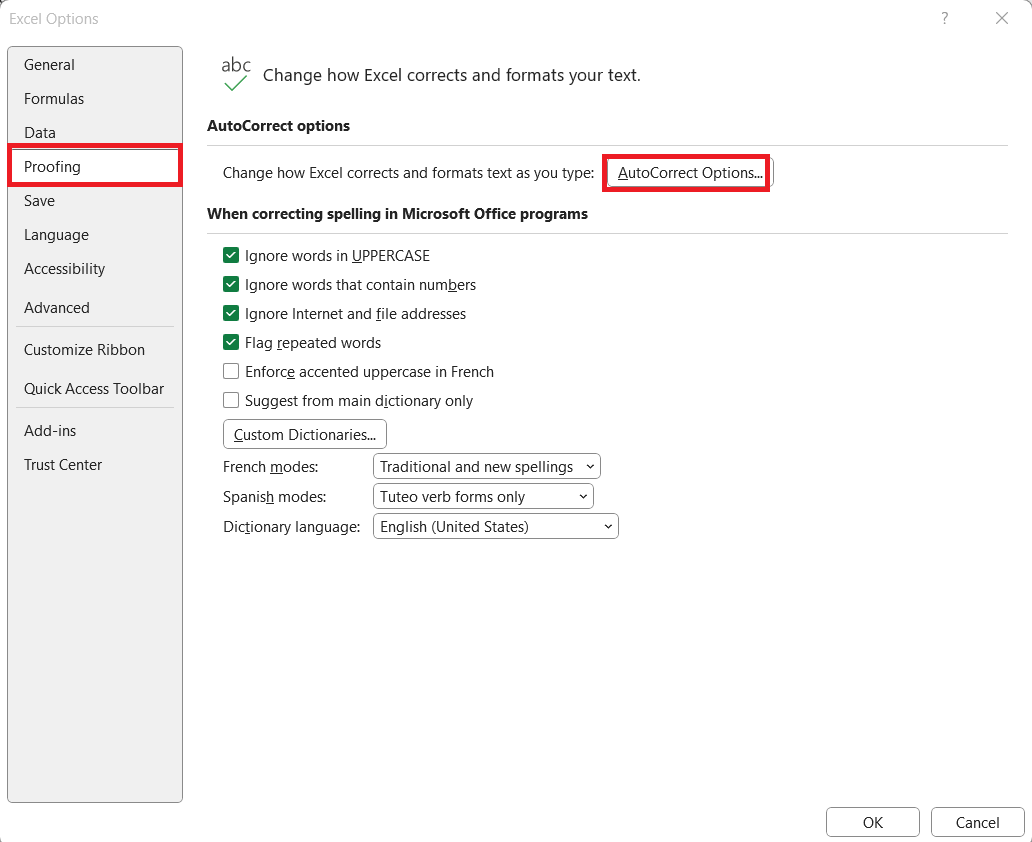
STEP 2: In the “Excel Options” window that appears, I select “Proofing” from the side menu. Then, I click on the “AutoCorrect Options” button to open its dialog box.
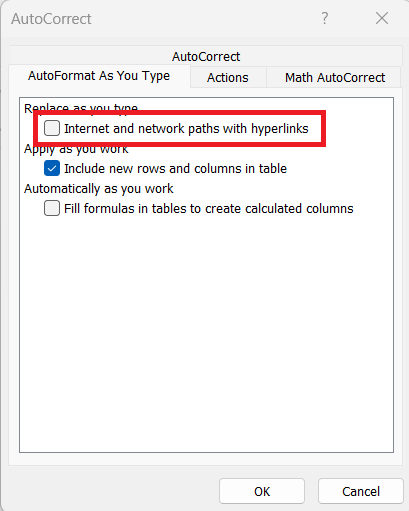
STEP 3: In the “AutoFormat As You Type” tab, I look for and uncheck the checkbox labeled “Internet and network paths with hyperlinks.” I click “OK” to apply the changes and close out of the dialogs.
Pasting Content Without Generating Hyperlinks
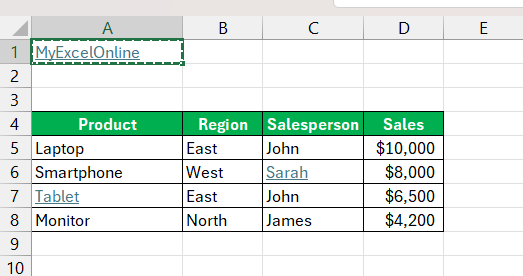
STEP 1: I first copy the URL I wish to paste.
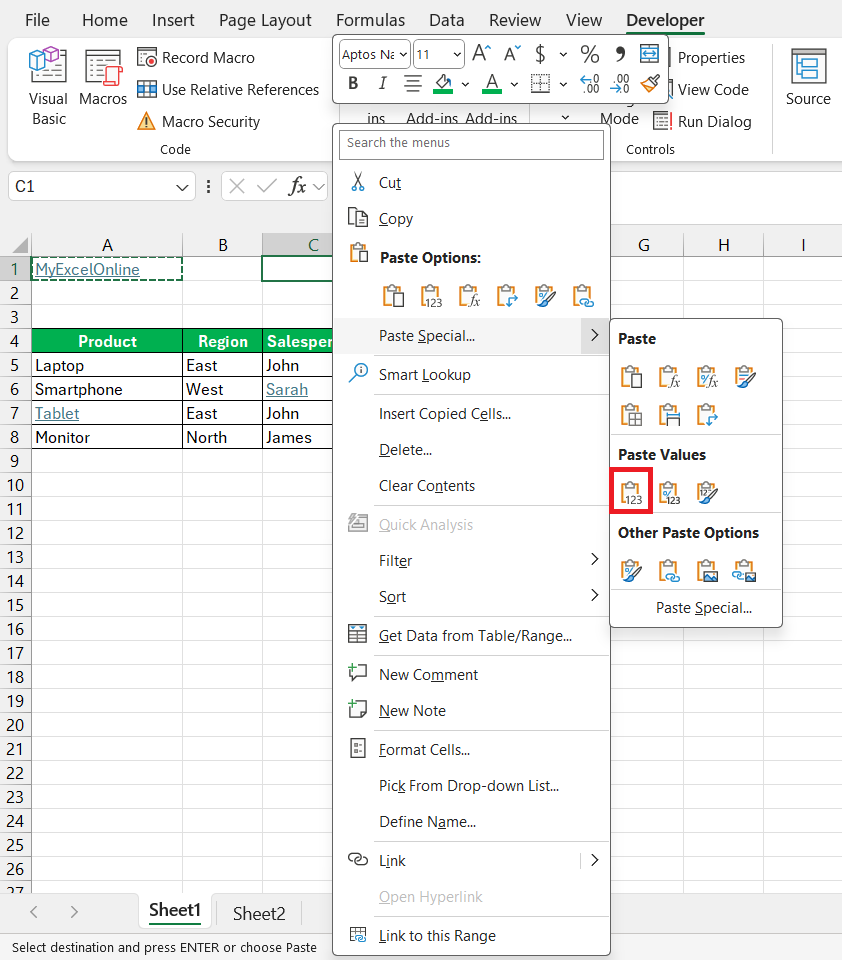
STEP 2: I then right-click the intended cell in Excel and from the context menu, I hover over “Paste Special.” In the submenu, I select the “Value” option.
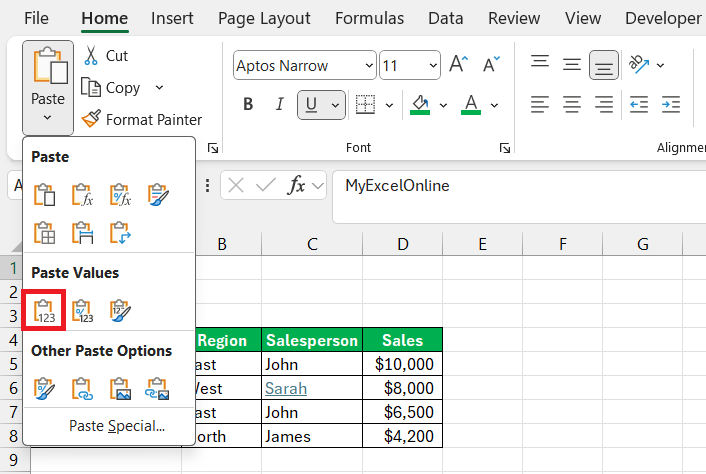
Alternatively, on the “Home” tab in the Ribbon, I can click the lower part of the “Paste” button to reveal a menu with the option to “Paste as Values,” which performs similarly.
Keyboard Shortcuts for Managing Hyperlinks
To insert a hyperlink, use the shortcut “Ctrl + K”. For removal,
- Select the cell with the hyperlink
- Press “Ctrl + 6”
- Hit the “Delete” key.
FAQs
What is a hyperlink in Excel?
A hyperlink in Excel is a convenient shortcut that allows you to jump to another location within your workbook. It transforms a cell into an interactive element.
How to remove an existing link in Excel?
To remove an existing hyperlink in Excel,
- Right-click on the cell containing the link
- Select “Remove Hyperlink” from the context menu.
Can I prevent Excel from automatically creating hyperlinks?
Yes, you can prevent Excel from automatically creating hyperlinks.
- Go to the “File” tab
- Click Options > Proofing
- Click on “AutoCorrect Options.”
- Under the “AutoFormat As You Type” tab, uncheck the “Internet and network paths with hyperlinks” option.
- Click “OK”
How to remove hyperlinks without affecting cell formatting?
To remove hyperlinks without affecting cell formatting,
- Select the cells
- Go to the ‘Home’ tab
- Click on ‘Clear’ in the ‘Editing’ group
- Choose ‘Clear Hyperlinks’
How to remove all hyperlinks?
To remove all hyperlinks in an Excel worksheet
- Press “Ctrl + A” to select all cells
- Right-click
- Choose “Remove Hyperlinks”

John Michaloudis is a former accountant and finance analyst at General Electric, a Microsoft MVP since 2020, an Amazon #1 bestselling author of 4 Microsoft Excel books and teacher of Microsoft Excel & Office over at his flagship MyExcelOnline Academy Online Course.

 30 Days - Full Access









