One of the most useful features of OneNote is the ability to share a page with others. When collaborating with teammates, sharing notes from a meeting, or sending ideas to a friend, sharing a OneNote page is simple and effective. Let me show you exactly how to share a page in OneNote.
Key Takeaways:
- You can share an entire notebook or specific sections in OneNote.
- It enables seamless teamwork.
- Collaborators can simultaneously edit notebooks.
- You can share notebooks by using the Share and Manage Access options.
- Adjustable permissions allow for secure and controlled sharing of sensitive content.
Table of Contents
How to Share a Page in OneNote
Share via Link
Sharing a workbook in OneNote is straightforward, and I’ve found it to be a reliable means to disseminate information quickly. Here’s how I usually do it:
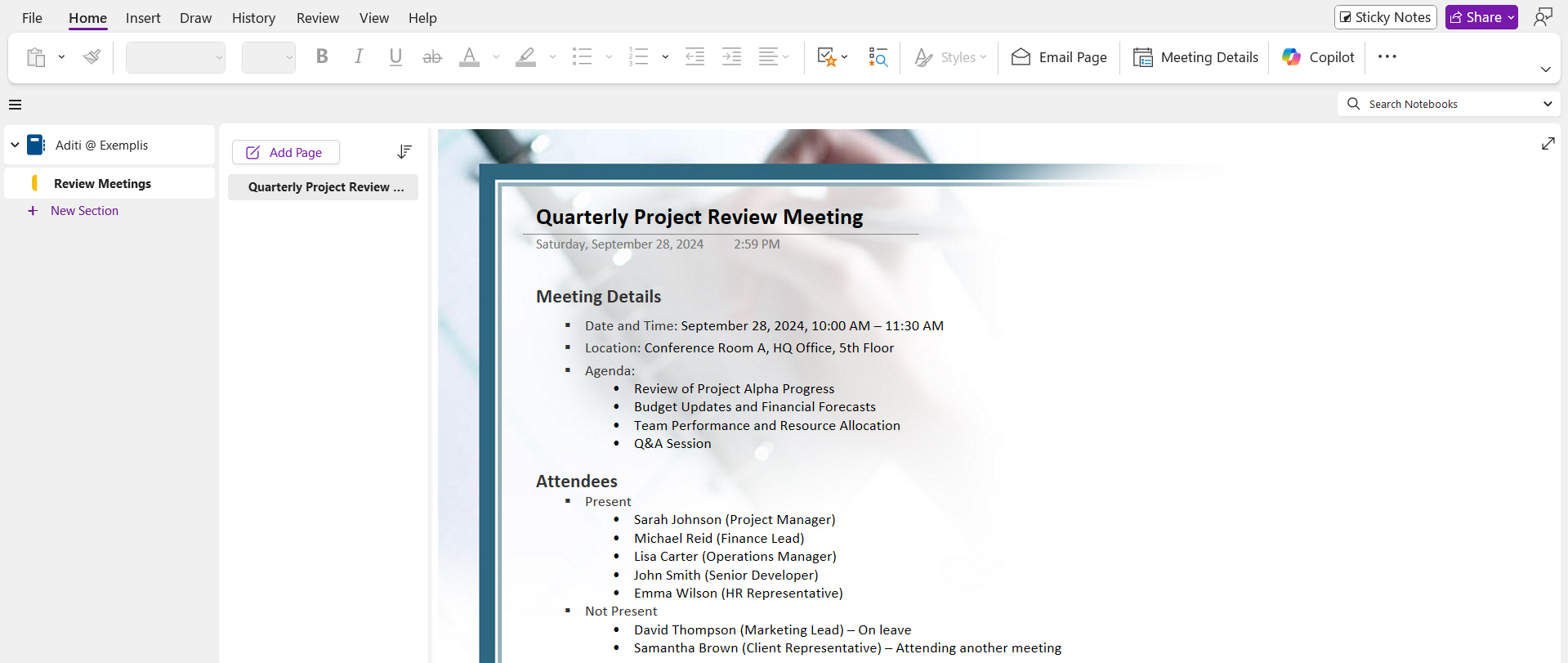
STEP 1: Open the OneNote notebook that contains the page I need to share.
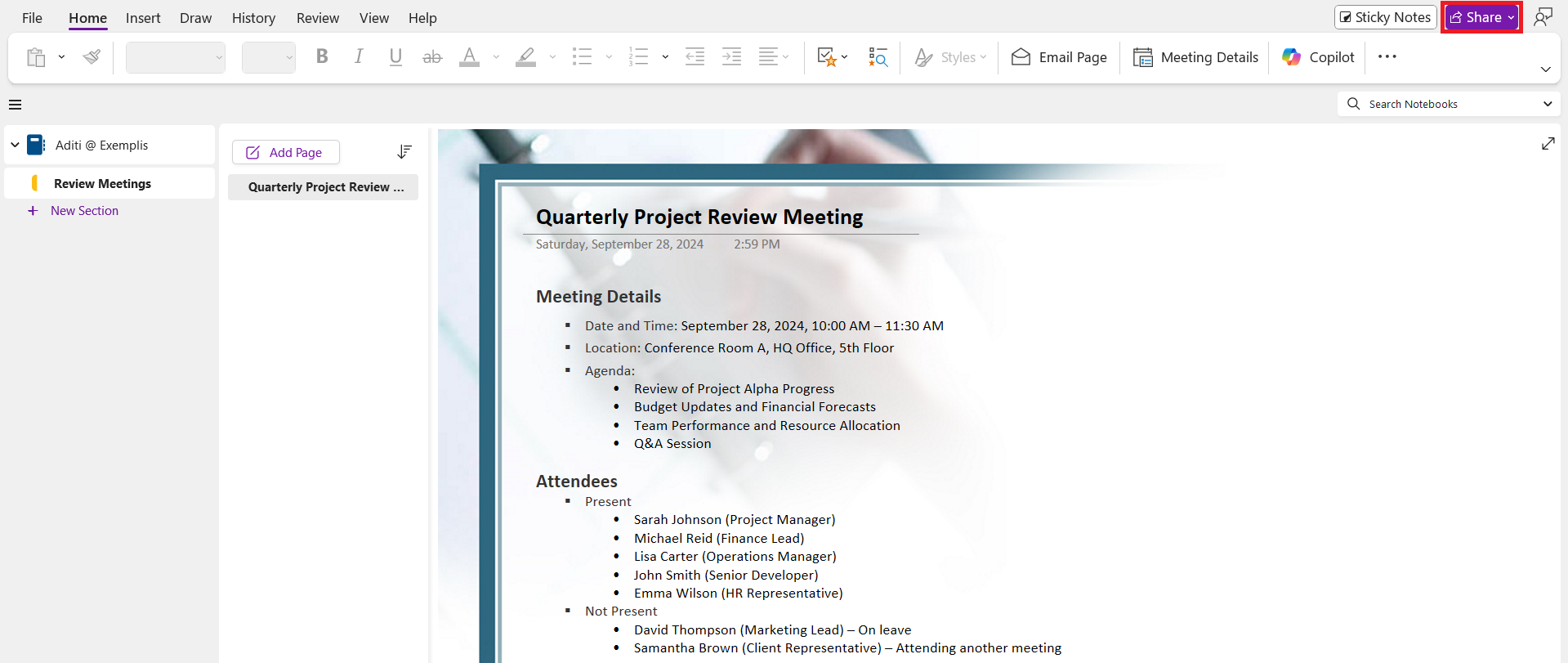
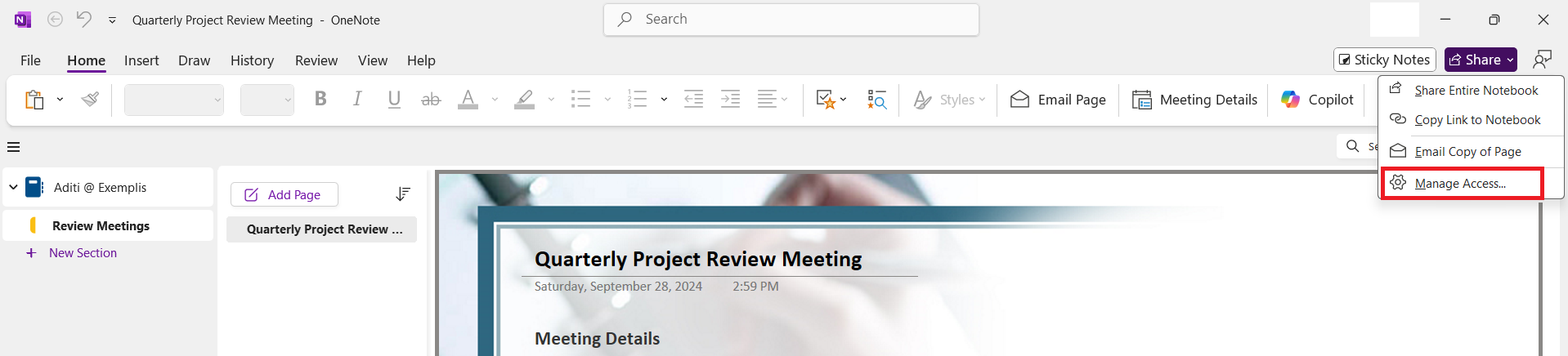
STEP 2: Go to the upper right corner of the app and click on Share.
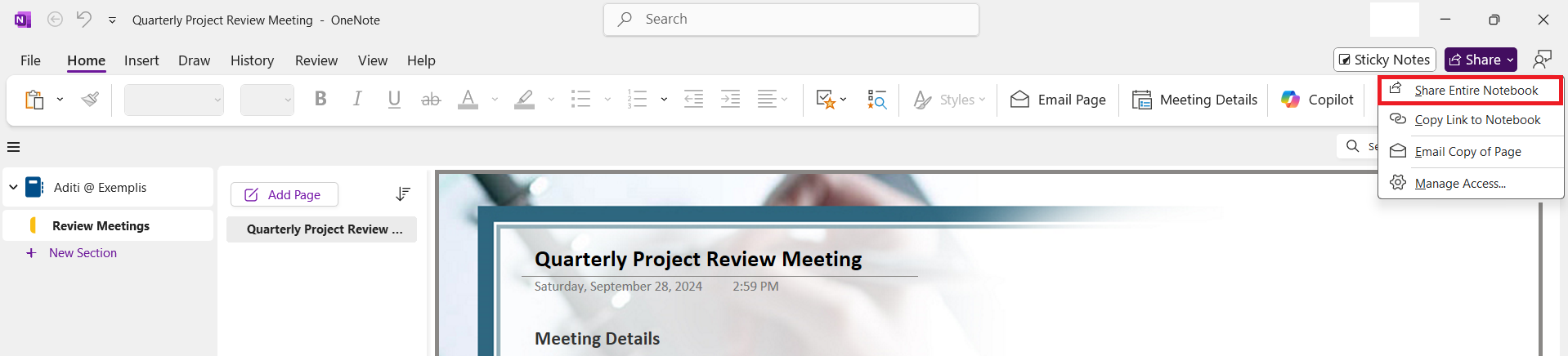
STEP 3: Select Share entire notebook.
Advanced Tips
Real-Time Co-Authoring
Microsoft OneNote allows multiple people to edit the same notebook at the same time. The changes made by the users appear instantly on the page.
Everyone sees updates live, and there is no need to refresh.
Managing Access
You can use the Manage Access option to control who can see or edit your notes:
STEP 1: Open the notebook in OneNote.
STEP 2: Click the Share button.
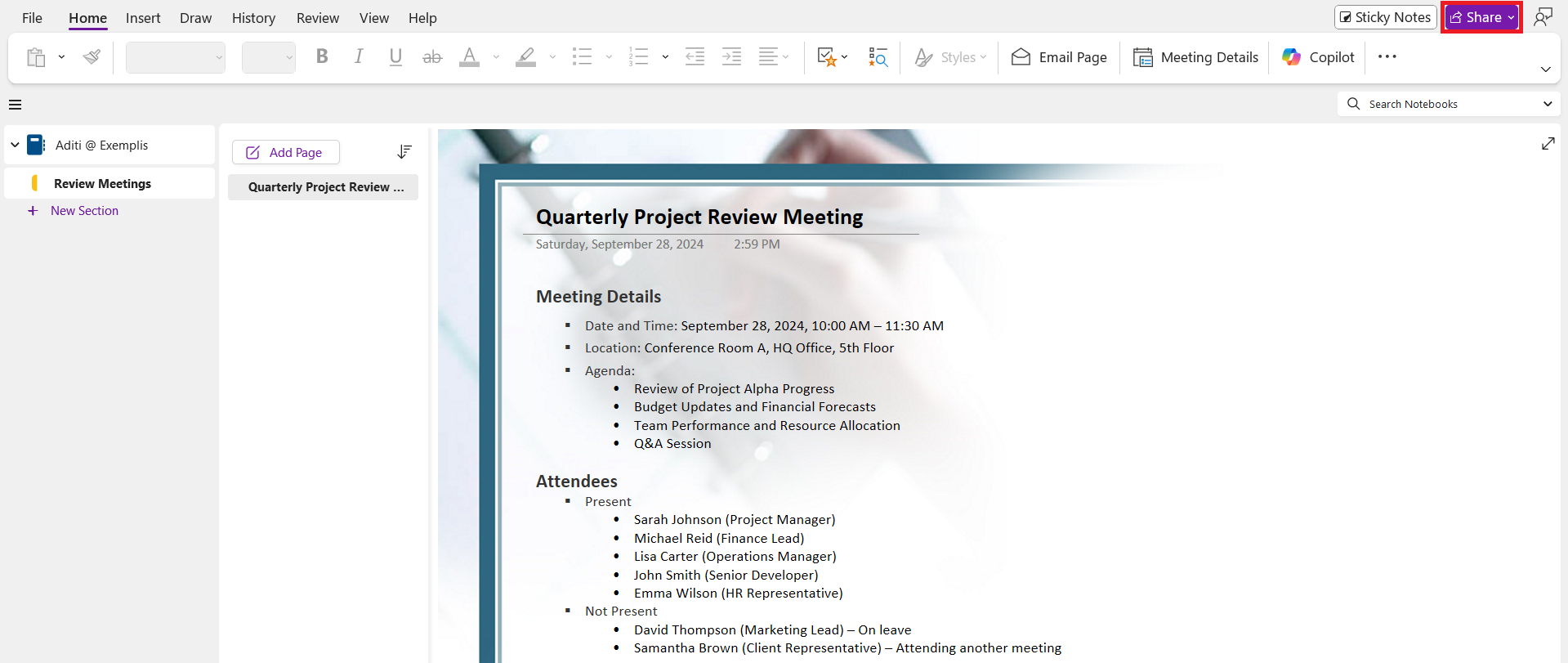
STEP 3: Select Manage Access.
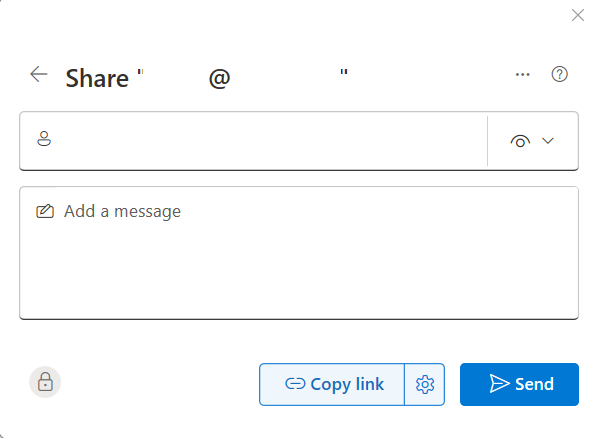
Enter the recipient’s email address and press Send.
Share via Email
If you want to quickly send notes without worrying about links or permissions, email works great.
- Open the page in OneNote
- Go to File > Share > Send Page by Email
- Enter the recipient’s email address
- Click Send
Export as PDF
- Open the page
- Go to File > Export
- Choose the format as PDF
- Save the file
- Share it via email or upload
Tips & Tricks
- Use clear titles for OneNote pages so that collaborators can understand the purpose.
- Make sure that the content is short. Try to keep the pages concise and relevant.
- OneNote should be structured properly before sharing.
- To sure that the permission for sharing aligns with your sharing goals.
FAQs
How to Share a Specific Section in OneNote?
To share a specific section in OneNote, follow the steps:
- Right-click on the section tab you want to share
- Choose Share Section from the context menu.
- Enter the email address of the person or people you wish to collaborate with
- Send the invitation.
They will receive an email notification with a link to the section.
How to Send a Page Content via Email from OneNote?
You can send a page’s content via email from OneNote.
- Go to the upper right corner of the application.
- Click on Share.
- Select Email Copy of Page.
- Enter the recipient’s email address.
- Press Send.
What Are My Options If OneNote’s Page Sharing Is Removed?
If OneNote’s page sharing is removed, you can:
- Share the entire notebook or section
- Export the page as a PDF
- Manually share it.
How to Recover Deleted OneNote Sections?
- Open OneNote.
- Go to File > Info > View Deleted Notes.
- This will open the Notebook Recycle Bin.
- Right-click on the section you wish to restore
- Select Move or Copy.
What happens to page links that I’ve already shared with other people?
If you have shared page links from OneNote with other people, they will continue to have access to those pages as long as you haven’t moved or deleted the content within your notebook.

John Michaloudis is a former accountant and finance analyst at General Electric, a Microsoft MVP since 2020, an Amazon #1 bestselling author of 4 Microsoft Excel books and teacher of Microsoft Excel & Office over at his flagship MyExcelOnline Academy Online Course.

 30 Days - Full Access









