 Free Practice Workbook
One of the most useful tricks I’ve come across in Excel is how to skip a line within a cell. While Excel is primarily a tool for calculations, data analysis, and visualization, there are times when formatting becomes important for readability. Skipping a line inside a cell adds a professional touch and improves the presentation. In this article, I’ll walk you through how to skip a line effortlessly in any Excel cell.
Key Takeaways:
- Use Alt + Enter to skip a line within a cell.
- Skipping a line allows for better formatting and readability.
- Use Wrap Text so that all text is visible within the cell boundaries.
- Use Find and Replace with Ctrl + J to insert line breaks after specific characters.
- Use CHAR(10) in formulas to insert line breaks automatically.
Table of Contents
How to Skip a Line in Excel
Alt + Enter Shortcut
When you need to store detailed notes, descriptions, or formatted content in a single cell, pressing enter is not the solution. As Enter moves the cursor to the next cell, rather than creating a new line within the same cell.
Using the Alt + Enter shortcut allows us to fit the content within cells by skipping a line wherever necessary.
STEP 1: Click on the cell where you want to enter the text.
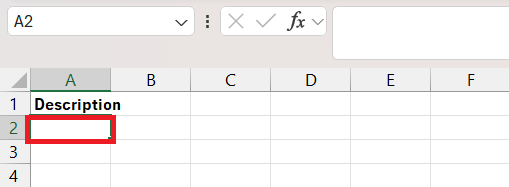
STEP 2: Begin by typing the first part of the text.
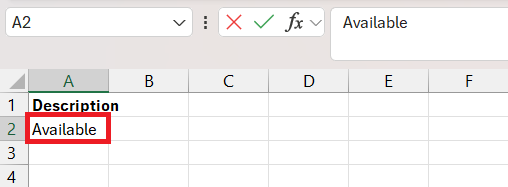
STEP 3: When you want to start a new line within the same cell, press ALT + Enter on your keyboard.
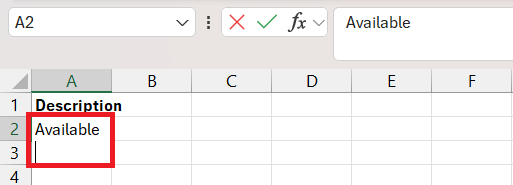
STEP 4: After pressing ALT + Enter, Excel will create a new line within the cell.
You can now continue typing on the new line.
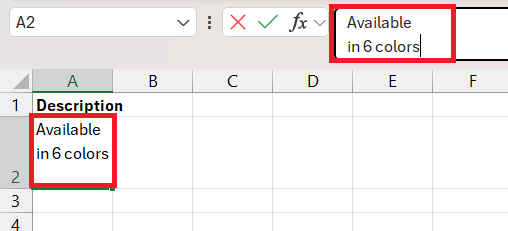
Check the result.
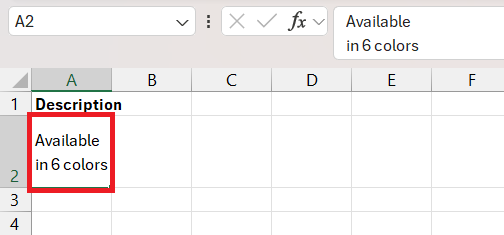
Use Wrap Text
After using ALT + Enter to skip lines within a cell, you might notice that some of the text goes beyond the cell boundaries. By default, Excel doesn’t automatically wrap text, so the content may look cut off. To make sure that all the text fits neatly within the cell, you can use text wrapping by following these steps:
STEP 1: Highlight the cell(s) where you’ve inserted line breaks.
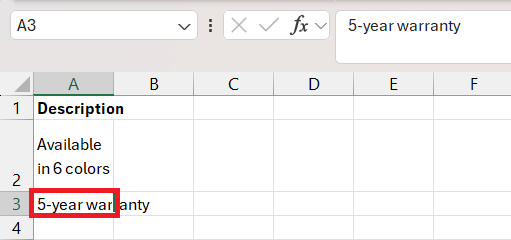
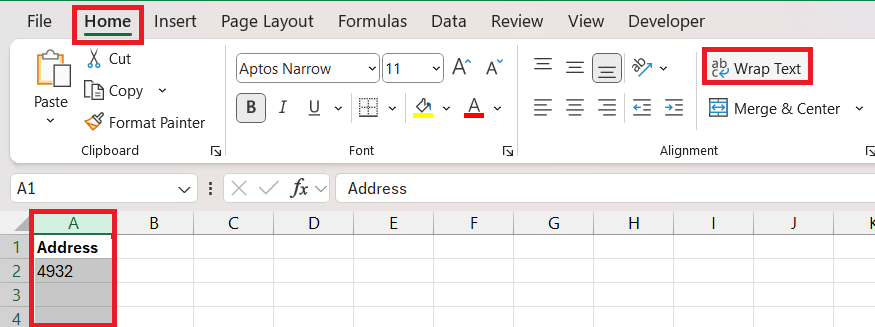
STEP 2: Go to the Home tab > Alignment group > Wrap Text button.

By using Wrap Text, long paragraphs of text are transformed into manageable blocks.
Find and Replace
You can use the find and replace feature to replace a comma with a line break. This can be used to insert a line break after a comma so that mutlpi parts of the address will appear on separate lines.
STEP 1: I highlighted the cells where you want to insert line breaks.
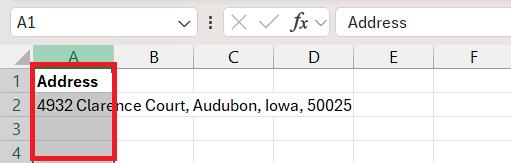
STEP 2: Pressed CTRL + H to open the “Find and Replace” window and in the Find what field, type a comma “,“.
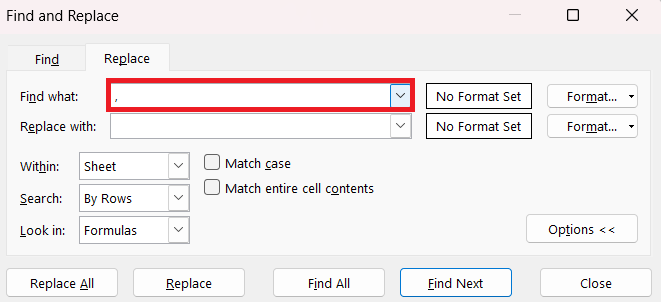
STEP 3: In the Replace with field, type a comma “,” and after the comma press CTRL + J.
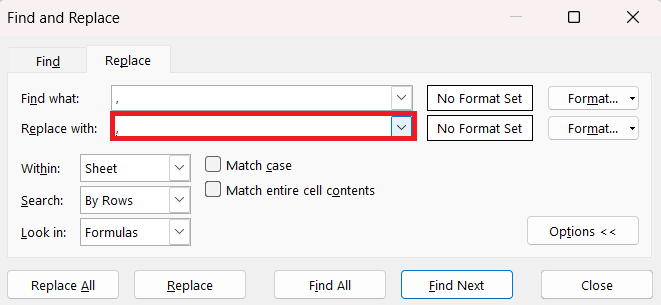
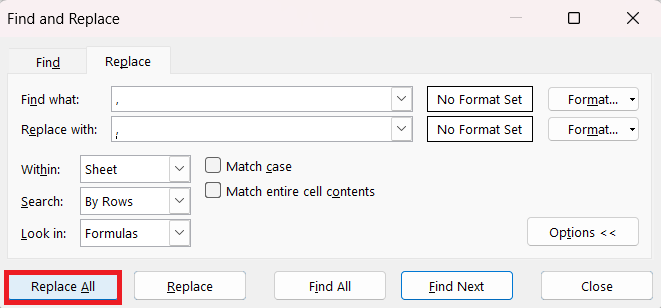
STEP 4: Clicked “Replace All,” and Excel inserted line breaks after every comma in the selected cells.
STEP 5: To make sure the new lines are visible, select the cells and go to the Home tab > Wrap Text.
Check the result.
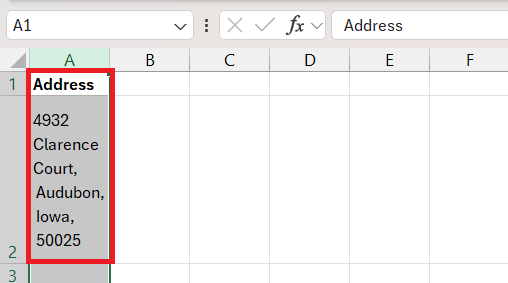
Each address now has its components (street, city, state, zip) on separate lines.
Advanced Techniques
Wrap Text
I can use the CHAR function to automatically insert a line break within a concatenated string. By including & CHAR(10) & between the text elements in a formula, I force a line break at precise points. This is particularly useful when combining data from different cells into one cell with a structured format.
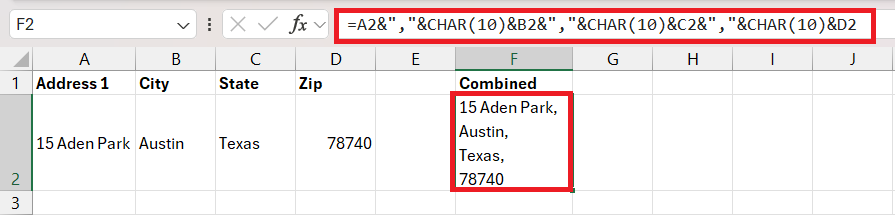
Always keep in mind that to make the text visible, I must enable Wrap text.
Excel’s Row Height Feature
By precisely adjusting the height of rows, I can create a more breathable layout, which is particularly effective for key sections or headers in the spreadsheet.
To do this, right-click on the row number for a more precise adjustment, select ‘Row Height’, and enter the desired measurement. Playing around with different row heights allows me to find the perfect balance between data density and readability.
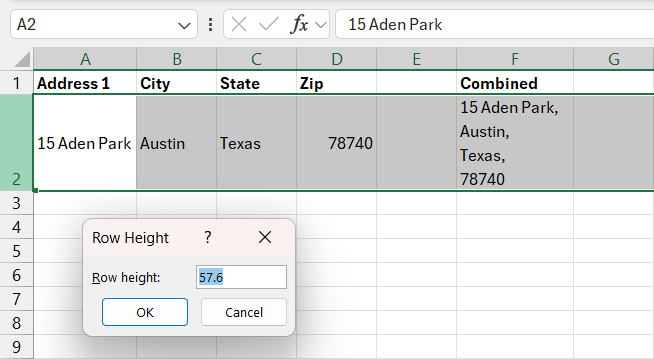
This subtle adjustment tool is a neat trick in my arsenal for improving visual flow and drawing attention to specific areas without altering the data itself. It’s about making the spreadsheet serve both the data and its users, displaying information in the clearest possible way.
FAQ
How to skip a line in an Excel cell?
To skip a line within an Excel cell,
- Click into the cell where you want the new line to begin
- Press Alt + Enter
- Continue typing on the next line
Why is my text not showing on multiple lines?
If your text is not showing on multiple lines, you need to turn on Wrap Text.
- Go to the Home Tab
- Select the Wrap text button
How to add line breaks using a formula?
You can add line breaks in a formula using the CHAR function.
=A1 & CHAR(10) & B1
How to add line breaks by replacing spaces?
You can use the Find and Replace feature to add a line break instead of a space.
- Select the cells.
- Press Ctrl + H to open the Find and Replace window.
- In the Find what field, type a space.
- In the Replace with field, press Ctrl + J to insert a line break.
- Click Replace All.
Is there a formula to create a new line within an Excel cell?
Yes, use the CONCATENATE function or ‘&’ operator with CHAR(10) in your formula to create a new line within an Excel cell.

John Michaloudis is a former accountant and finance analyst at General Electric, a Microsoft MVP since 2020, an Amazon #1 bestselling author of 4 Microsoft Excel books and teacher of Microsoft Excel & Office over at his flagship MyExcelOnline Academy Online Course.

 30 Days - Full Access









