 Free Practice Workbook
Adding a clear and descriptive title to an Excel chart is an important step. It helps you understand the chart’s purpose. In this article, you will learn how to title a graph in Excel.
Key Takeaways:
- A clear title helps you understand the purpose of Excel charts.
- Link chart titles to worksheet data to make them dynamic.
- Format titles with appropriate font size, color, and style for better readability.
- Place the title strategically so that it does not hide any key elements.
Table of Contents
What is Chart Title?
A chart title is a description for your chart. It is more than just a label. It tells people the purpose of your chart and makes the chart easy to understand.
Consider these points:
- Keep it simple.
- Use technical words only if needed.
How to Title a Graph in Excel
Add a Basic Chart Title
Follow the steps below to add a chart title in Excel:
- Click on the chart.
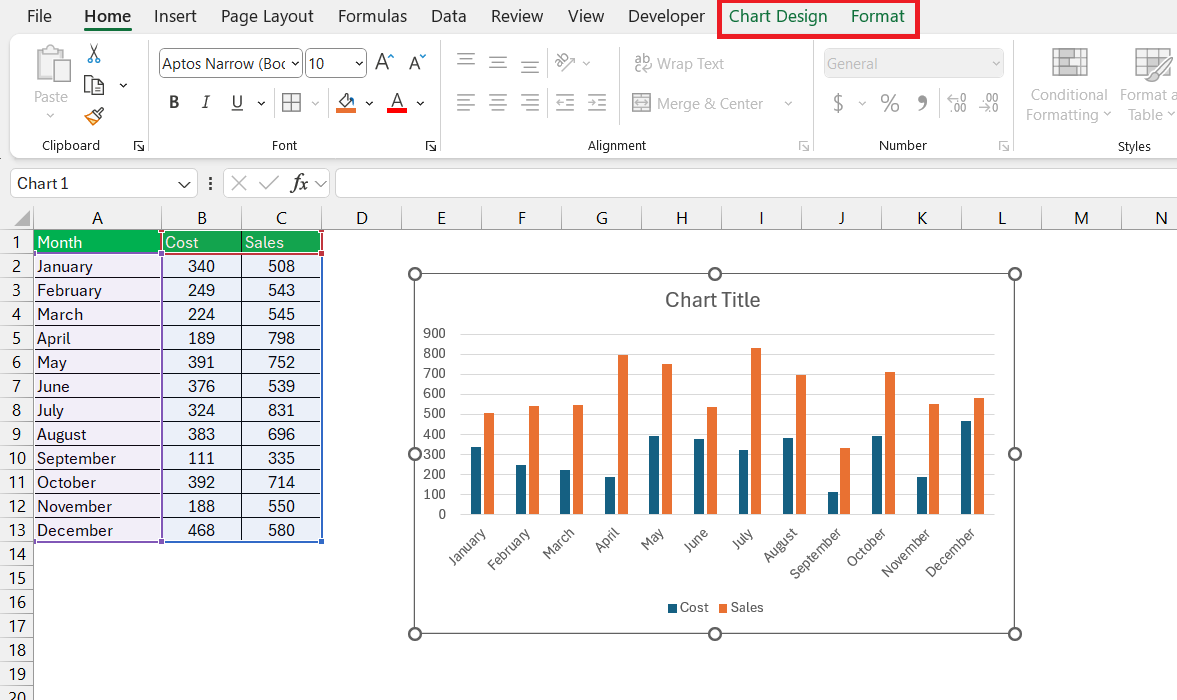
- Go to the Chart Design > Add Chart Element > Chart Title. Choose your preferred position – None, Above Chart, Centered Overlay.
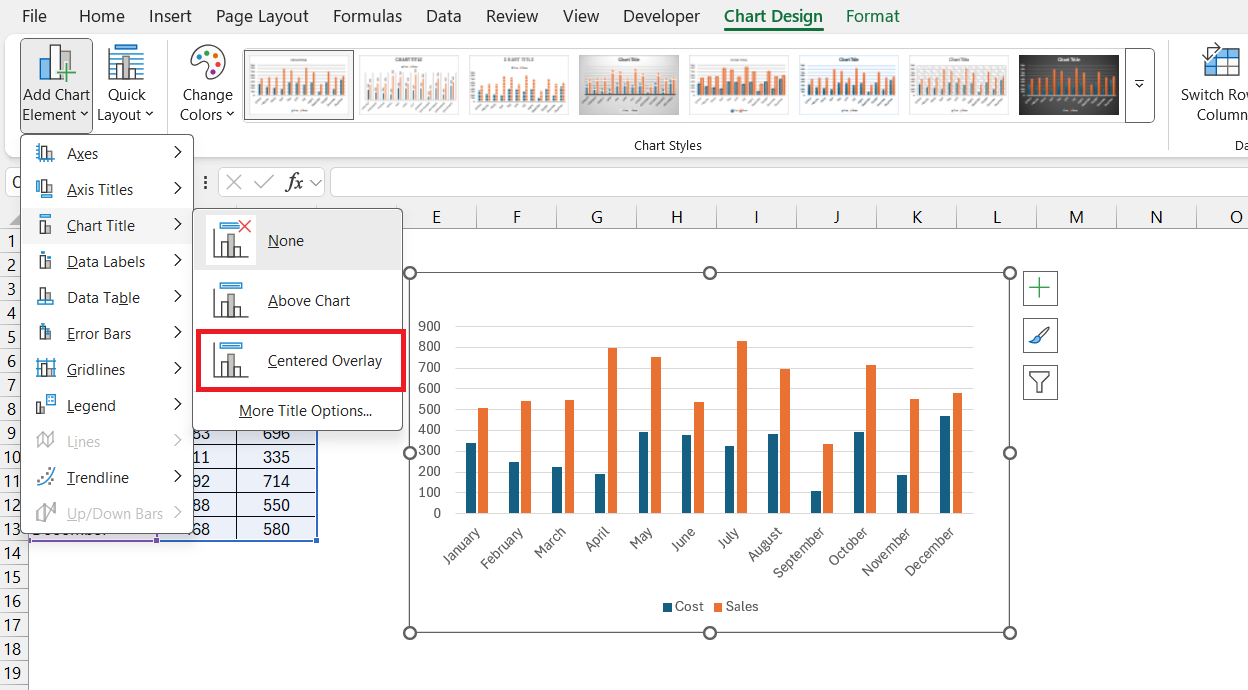
A placeholder text will be added as Chart Title.
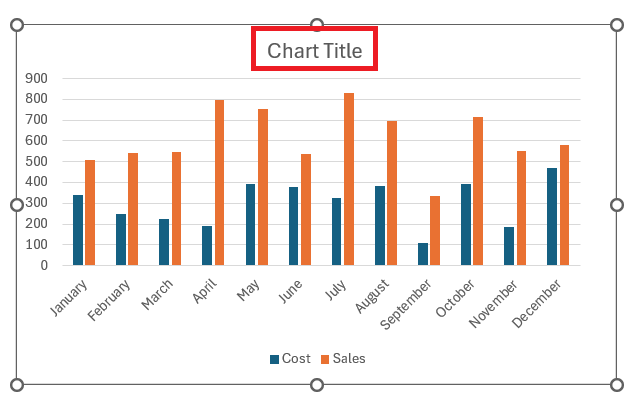
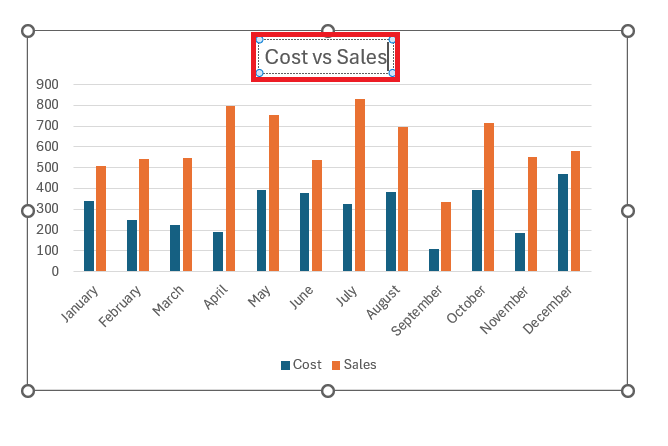
- Select the textbox and type the chart title you want.
Link Chart Title to Worksheet Data
If you need to regularly update the chart title, you should link it to a cell. Any change in the cell’s date will be reflected in the chart title automatically.
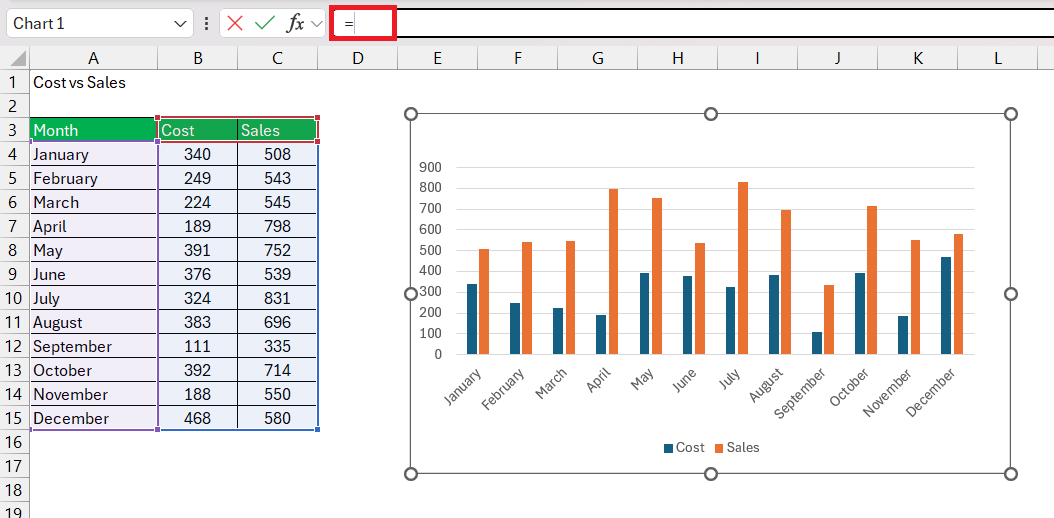
- Click on the chart title
- Type an equal sign (=) in the Formula bar
- Click the cell with the data you want as your title.
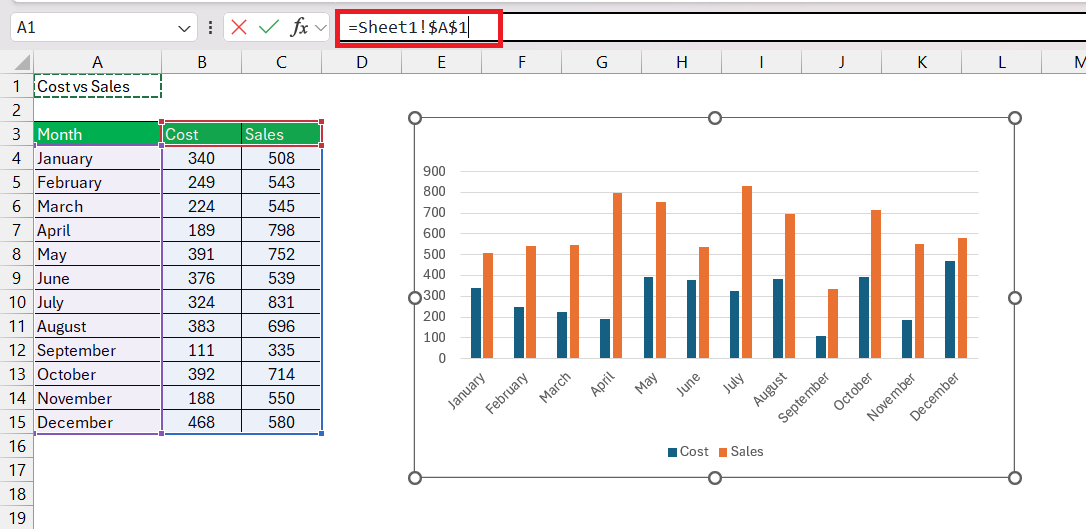
- Press Enter.
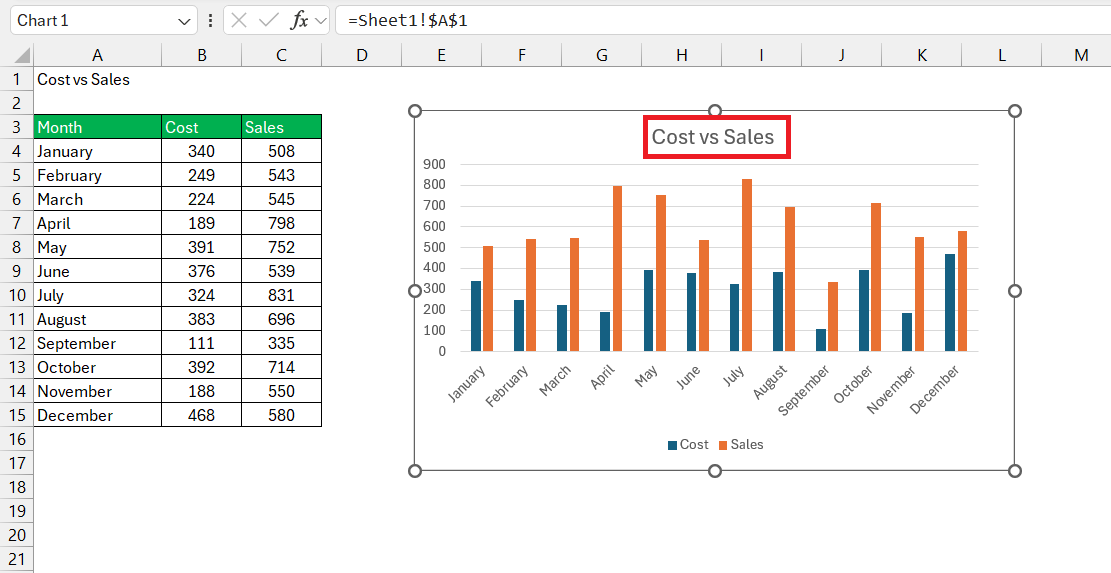
Your chart title now dynamically updates to mirror the cell’s content.
Customizing Chart Title
Font, Size, and Color
To make sure your title captivates attention, play around with font, size, and color.
- Click on the chart title and select the Home tab.
- Bold or italicize the font.
- Increase the size to make your title more commanding.

Use a color shade that contrasts well with the background. It should be legible and go well with the overall palette of your document.

Troubleshoot Common Issues
Overcoming Obstacles with Axis Titles and Data Labels
Axis titles and data labels are key in clarifying chart data, but adding them or editing them might bring about some hiccups. To sidestep common issues, remember to select the chart and enable the Axis Titles feature through the ‘Add Chart Element’ in the Chart Tools.
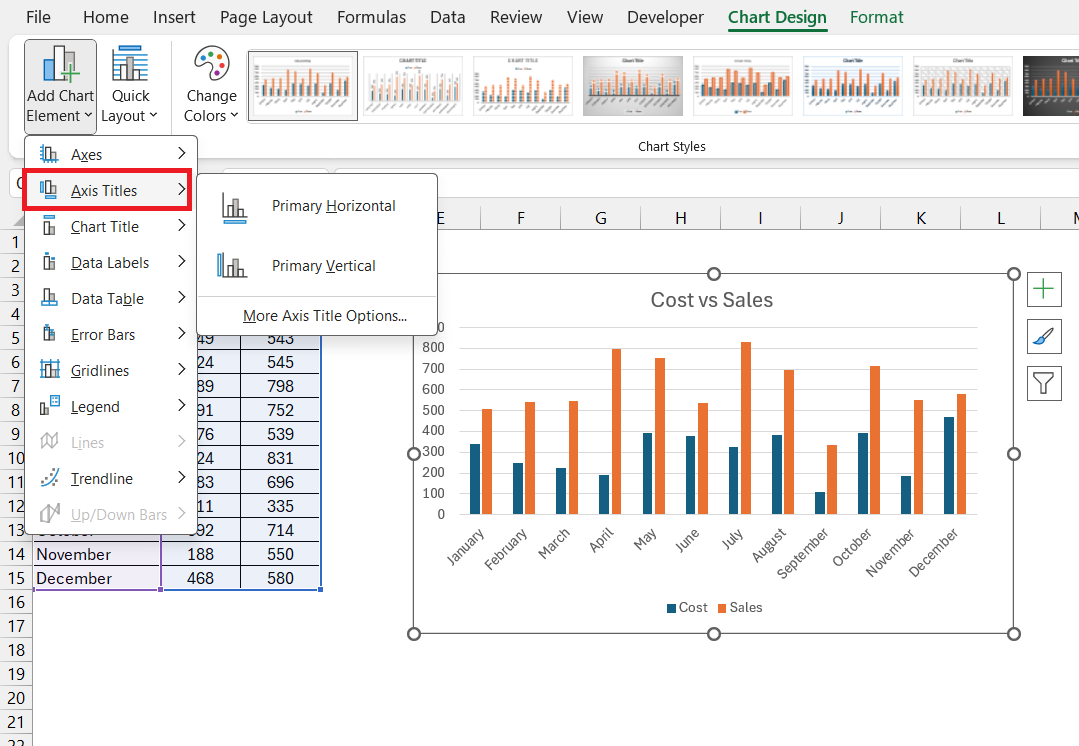
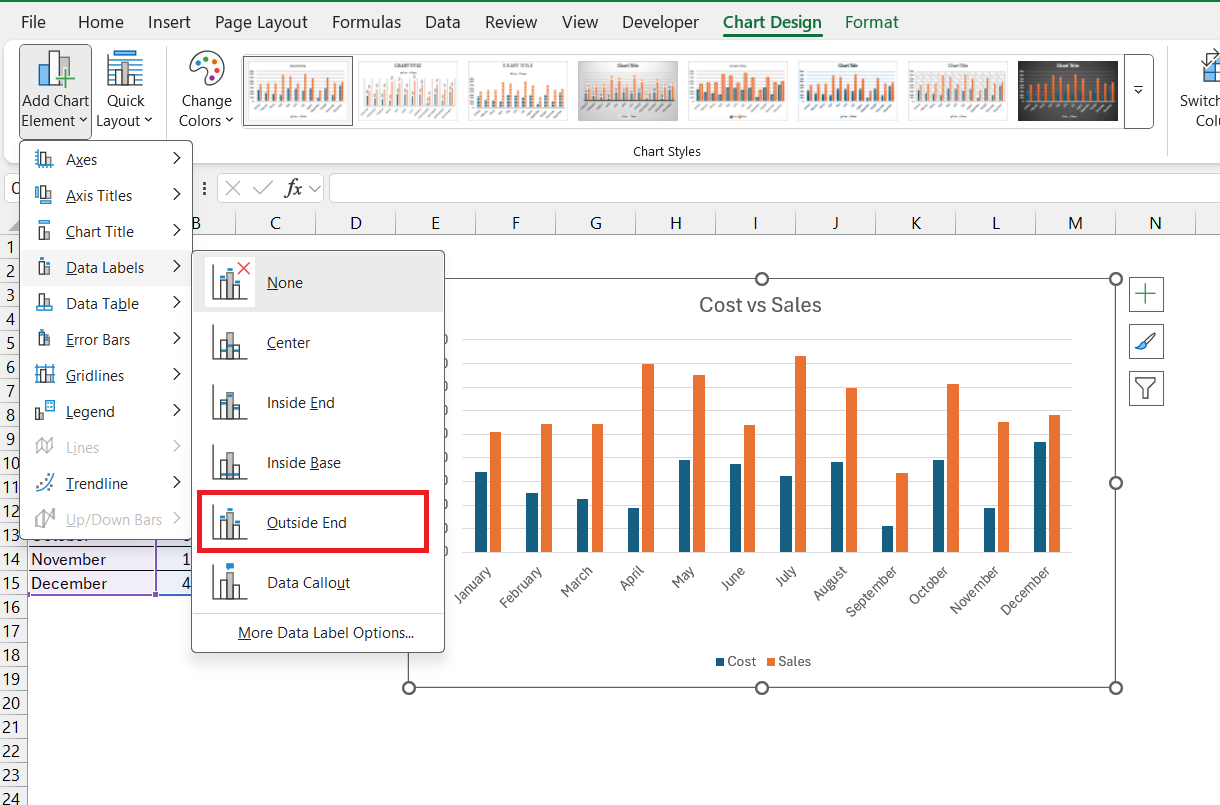
If the axis titles or data labels don’t appear as they should, double-check the chart type. For data labels overlapping or being too cramped, you can adjust their position to ‘Outside End’.
FAQs
What is the Chart Title?
The chart title is a description provided to the chart to help the user understand its purpose.
How to add a title to my chart that updates automatically?
To add a chart title that updates automatically in Excel, follow the steps below:
- Click on the chart title
- Type an equal sign (=) in the Formula bar
- Click the cell with the data you want as your title.
- Press Enter.
Your title reflects any changes to that cell.
Why isn’t my chart title showing after I added it in Excel?
If your chart title isn’t showing after adding it in Excel, check if it’s hidden by selecting the chart and using the ‘Add Chart Element’ button to toggle the title on. If misplaced, use the chart formatting options to resize and reposition it visibly.
How to automatically add a title to a chart in Excel?
To automatically add a title to a chart in Excel, create your chart, go to the ‘Design’ tab, click on ‘Add Chart Element’, select ‘Chart Title’, and choose a position. For dynamic titles, link it to a worksheet cell containing your desired title text.

John Michaloudis is a former accountant and finance analyst at General Electric, a Microsoft MVP since 2020, an Amazon #1 bestselling author of 4 Microsoft Excel books and teacher of Microsoft Excel & Office over at his flagship MyExcelOnline Academy Online Course.

 30 Days - Full Access









