 Free Practice Workbook
A checkmark is a small tick symbol (✓). It can be used to mark a task as done, show if something is verified, or show that a requirement has been met. In Excel, you can use different methods to if complete show checkmark automatically. In this article, you will learn how to insert a checkmark in Excel.
Key Takeaways:
- A checkmark can show that a task is complete or verified.
- You can use the IF function to show a checkmark automatically.
- UNICHAR can be used to insert a checkmark using a formula.
- You can use Conditional Formatting to show checkmark icons based on values.
- Excel 365 allows you to add clickable checkboxes directly to cells.
Table of Contents
Introduction to Checkmarks in Excel
What is a Checkmark?
A checkmark is a small tick symbol (✓) used to show that something is complete, correct, approved, or verified. You can either add it manually or insert it automatically based on a value in another cell. It can also be combined with conditional formatting. For example, you can make completed items appear with a checkmark and change their formatting automatically.
If complete show checkmark
If you want to show checkmark if a task is completed, it can be done using features available in Excel. Excel will check the condition:
- If TRUE, the checkmark symbol will appear.
- If FALSE, the cell can show something else or stay blank.
How to Show a Checkmark If Complete in Excel
Method 1: IF Function with UNICHAR
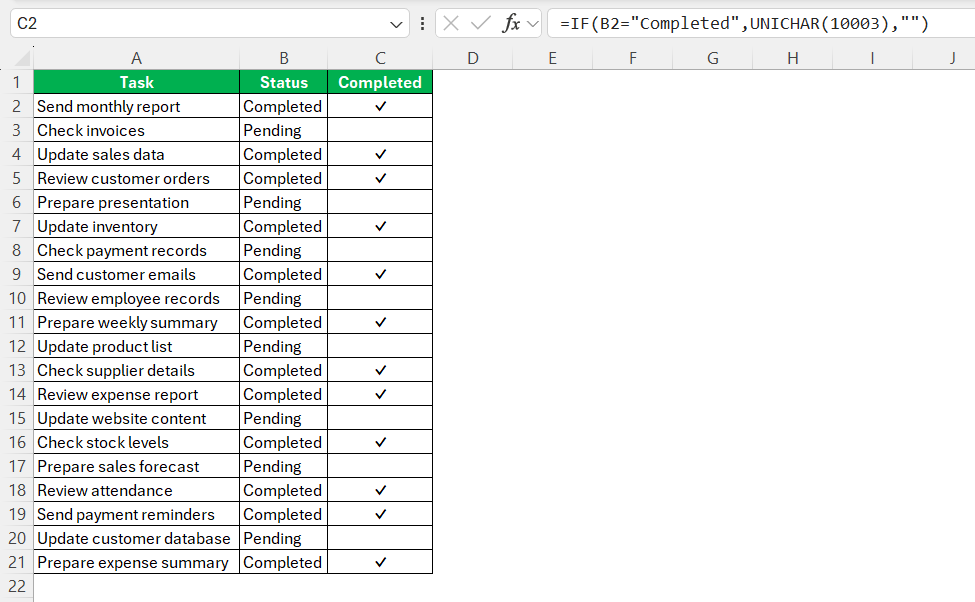
You can use the IF function to check if the task is completed and then use the UNICHAR to show a checkmark if the condition is met.
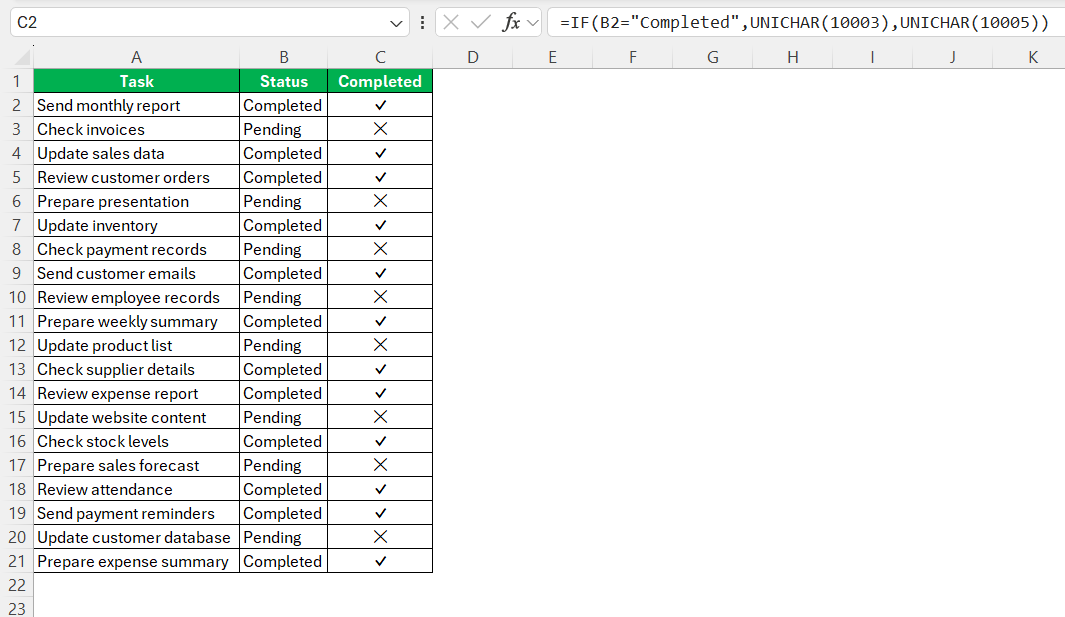
You can also add a cross for pending tasks using UNICHAR(10007).
Method 2: IF Function with a Pasted Checkmark
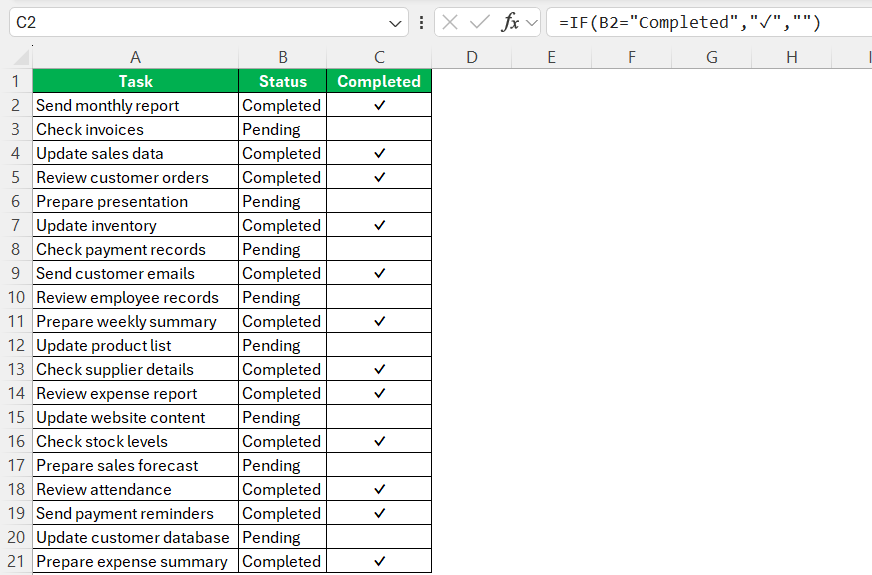
Instead of using the UNICHAR function to add the checkmark symbol, you can add it manually.
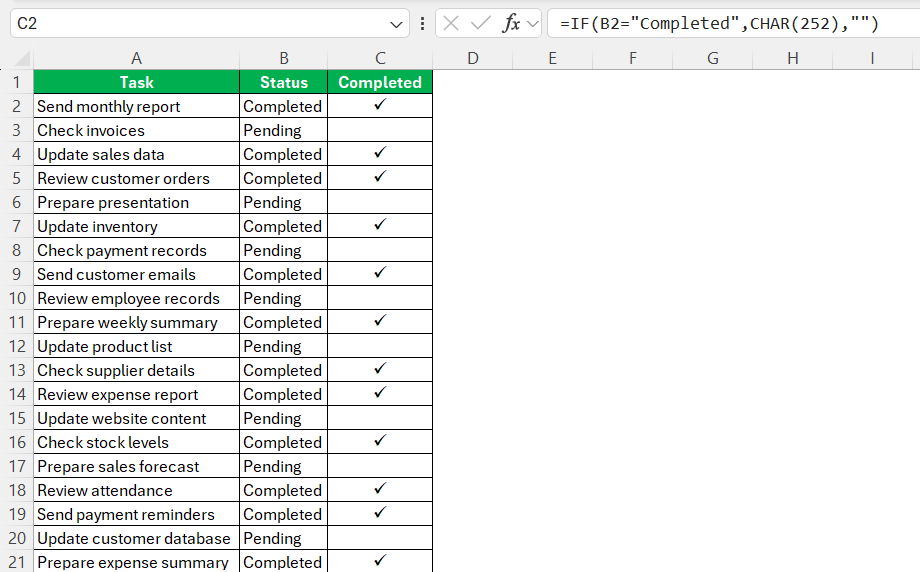
Method 3: IF Function with CHAR and Wingdings
The CHAR function can also be used to insert the checkmark in Excel. The syntax of this function will be:
=CHAR(252)
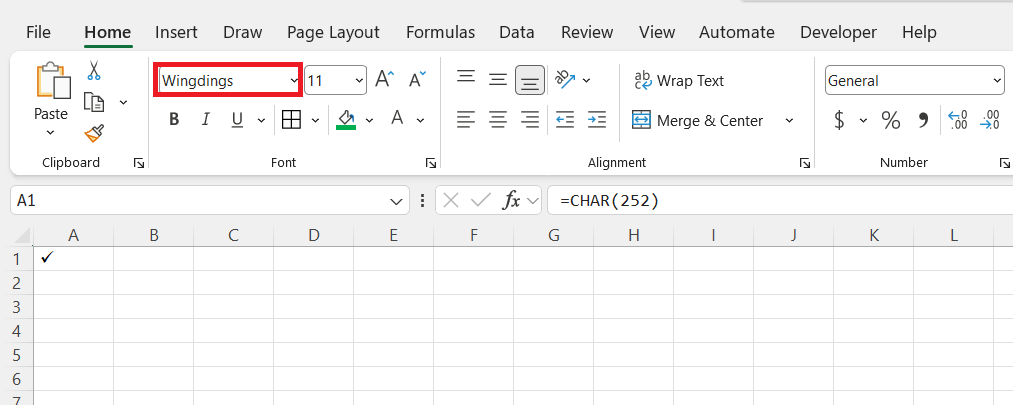
Make sure that the font selected is Wingdings.
You can also use this CHAR function to show a checkmark if complete.
Method 4: Checkboxes in Excel 365
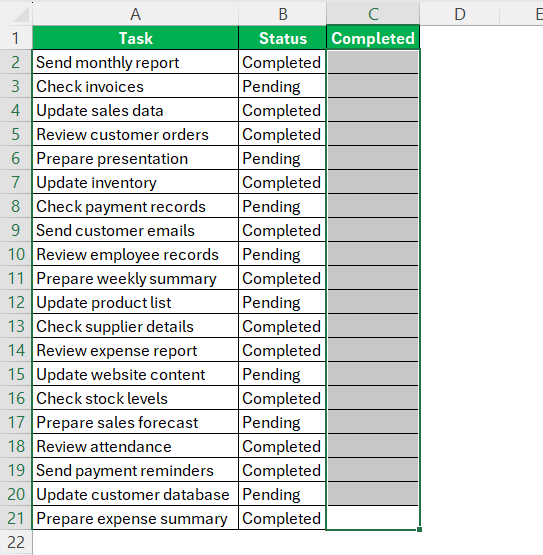
Excel 365 has built-in clickable checkboxes. Follow these steps below to add clickable checkboxes:
STEP 1: Select the cells where you want checkboxes.
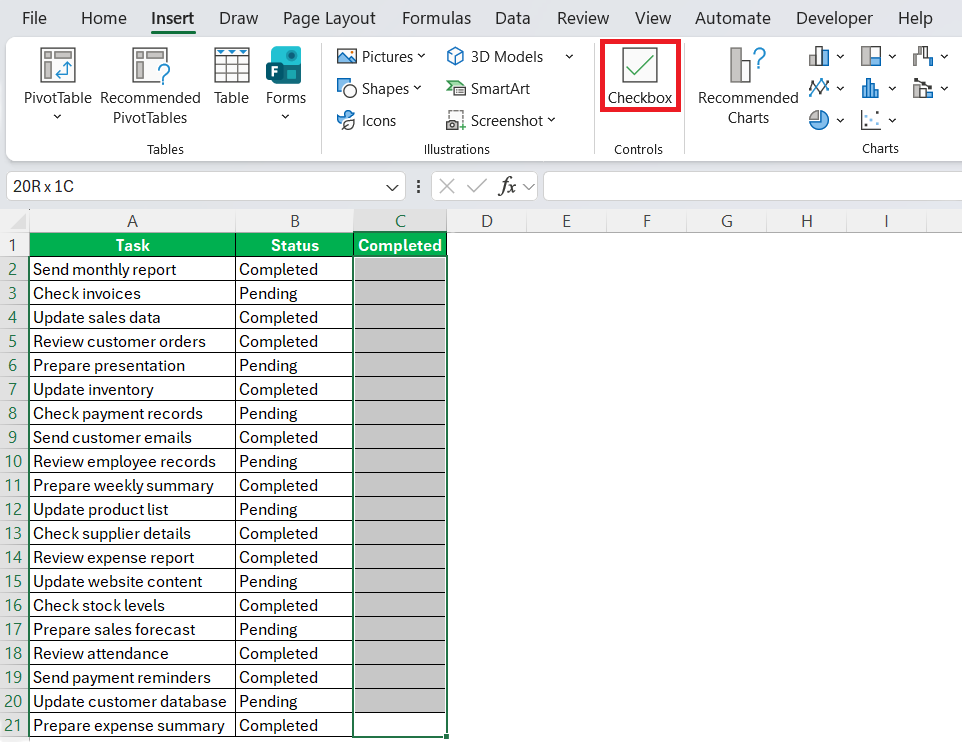
STEP 2: Go to Insert > Checkbox in the Cell Controls group.
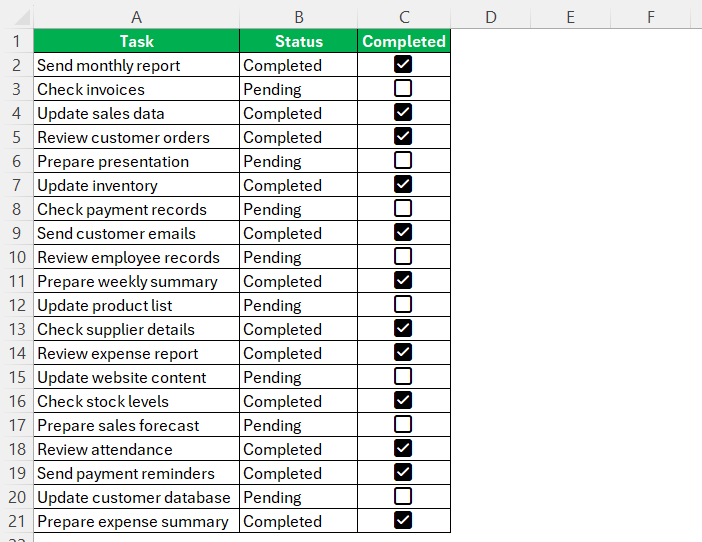
STEP 3: Click a checkbox to mark a task as complete.
Common Errors When Using Checkmarks
- Make sure the cell uses a font that supports the checkmark symbol.
- Check the formula and make sure the cell references are correct.
- Make sure the font is set to Wingdings when using the CHAR function.
- Make sure you are using a version of Excel that supports the built-in Checkbox feature.
- If the checkmark does not appear when complete, check the condition in the IF function. The value in the status cell must match the condition used in the formula.
FAQs
1. How to show a checkmark when a task is complete?
You can use the IF function with UNICHAR. The formula checks the task status and shows a checkmark when the condition is met.
2. Can I add a checkmark manually in Excel?
Yes. You can copy and paste a checkmark symbol (✓) directly into a cell.
3. Can I show a cross for incomplete tasks?
Yes. You can use a different symbol for incomplete tasks. For example, UNICHAR(10007) can be used to show a cross.
4. Can I use a checkbox instead of a checkmark?
Yes. Excel 365 has a built-in Checkbox feature. You can click the checkbox to mark a task as complete.
5. Why is my CHAR(252) checkmark not working?
Make sure the cell font is set to Wingdings. The CHAR(252) method depends on the Wingdings font to display the checkmark correctly.

John Michaloudis is a former accountant and finance analyst at General Electric, a Microsoft MVP since 2020, an Amazon #1 bestselling author of 4 Microsoft Excel books and teacher of Microsoft Excel & Office over at his flagship MyExcelOnline Academy Online Course.

 30 Days - Full Access









