 Free Practice Workbook
When working with financial data in Excel, I often need to insert the cent symbol (¢). It is useful when creating pricing lists, invoices, or financial reports. In this guide, I will show you how to insert the cent symbol in Excel.
Key Takeaways:
- Insert the cent symbol in Excel using keyboard shortcuts.
- Use the custom number format to automatically display the cent symbol.
- Use the Symbol dialog box in Excel to insert the cent symbol.
- The CHAR function can automate the insertion of the cent symbol within formulas.
- Use the AutoCorrect rule for frequent use.
Table of Contents
Introducing the Cent Symbol
Cent represents one hundredth of a dollar. The cent symbol is written as ¢.
$1 = 100¢
The cent symbol is mainly used with currencies like:
- US Dollar (USD)
- Canadian Dollar (CAD)
- Australian Dollar (AUD)
Instead of writing “0.25 USD,” using “25¢” is easier to read.
This currency is important for clients, management, or auditors to understand exactly what the numbers represent.
How to Insert Cent Symbol in Excel
Method 1 – Keyboard Shortcuts
- Enable Num Lock
- Hold down the Alt key
- Type ‘0162’ on the numeric keypad.
- Release the Alt key

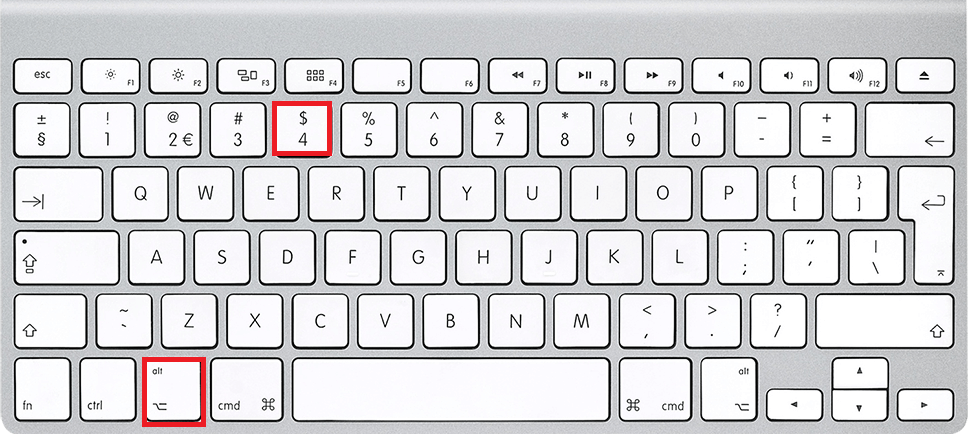
Mac users have simpler shortcuts.
- Press Option
- Press 4
The cent symbol will be inserted.
Method 2 – Custom Number Format
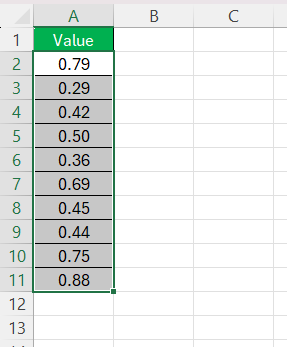
STEP 1: Highlight the range of cells.
STEP 2: Press Ctrl + 1.
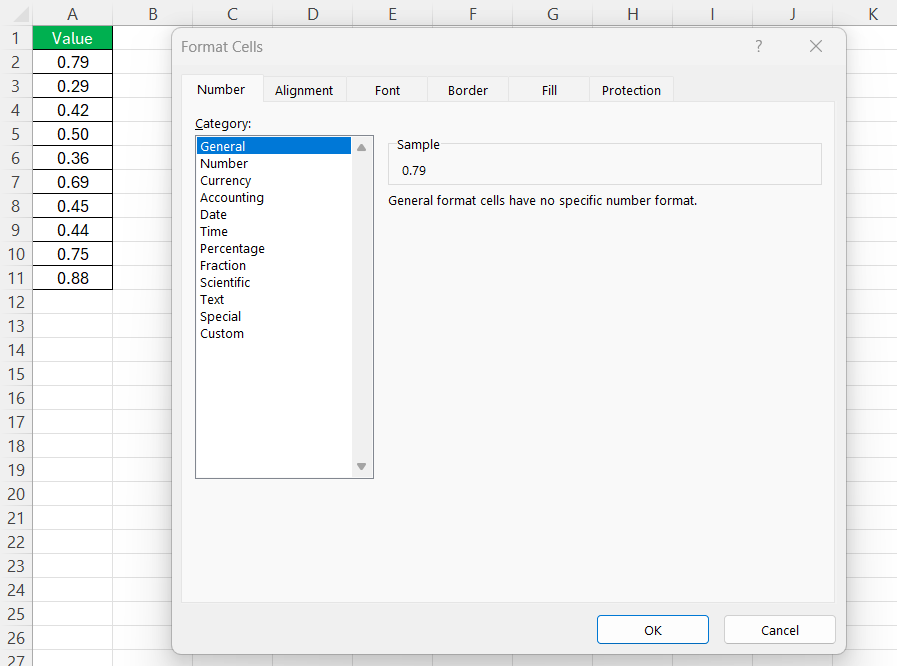
STEP 3: Select Custom.
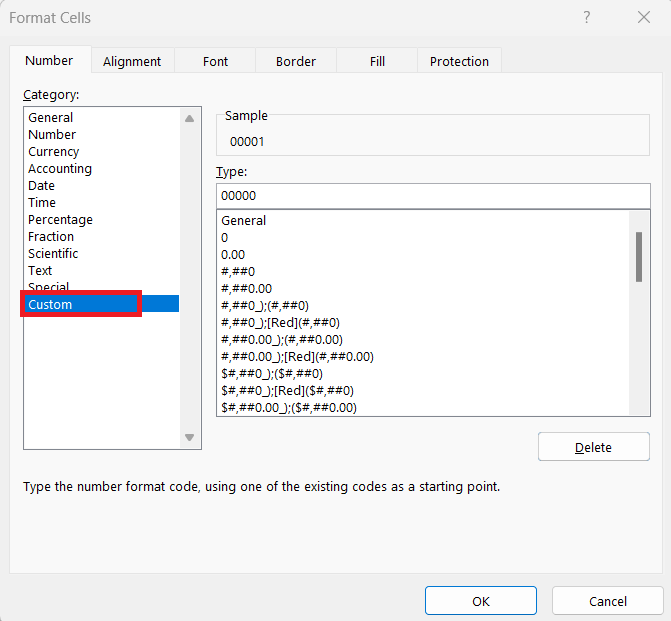
STEP 4: In the Type field, enter
[<1].00¢; $0.00
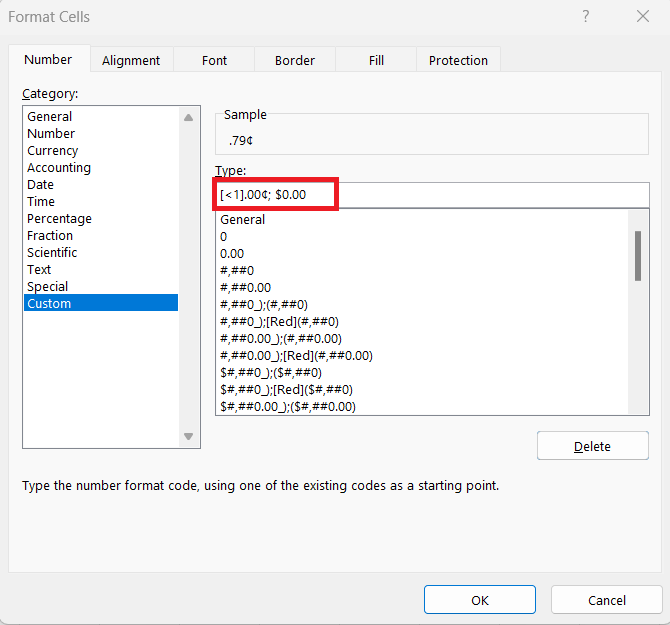
STEP 5: Click OK.
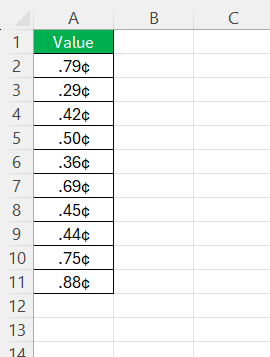
Method 3 – Symbol Dialog Box
STEP 1: Click on the cell where you want to insert the cent symbol.
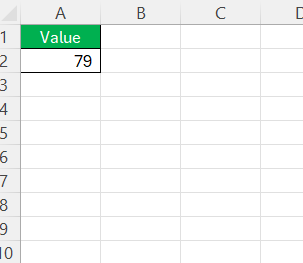
STEP 2: Go to the Insert tab. Click on Symbol in the Symbols group.

STEP 3: In the Symbol dialog box, select the cent symbol (¢).
STEP 4: Click Insert, and then Close.
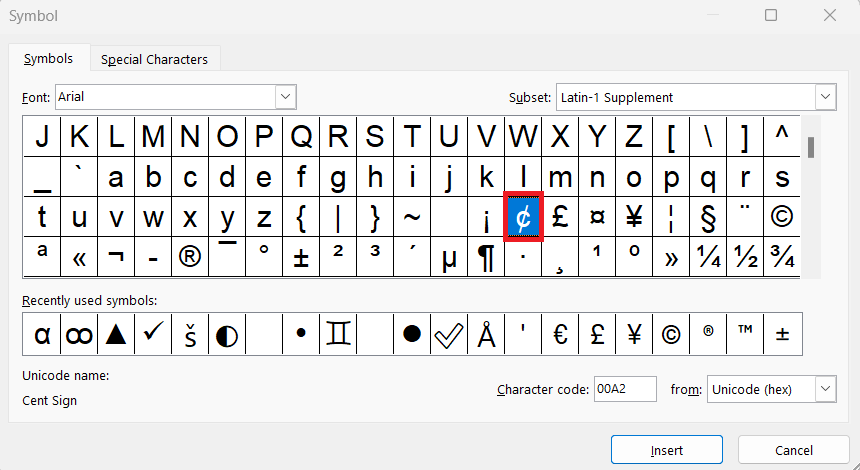
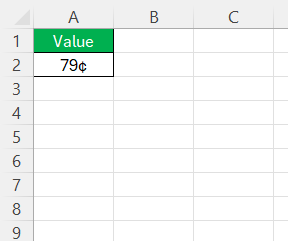
A Cent Symbol will be inserted.
Method 4 – CHAR Function
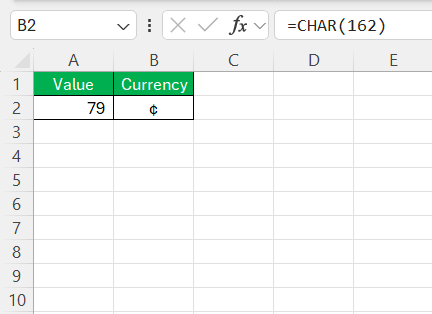
Excel’s CHAR function can also be used to insert the cent symbol. It is useful to automate the process or include it as part of a formula.
=CHAR(162)
FAQs
How to Quickly Access the Cent Symbol in Excel?
To quickly access the cent symbol in Excel,
- Enable Num Lock
- Press ‘Alt’ + ‘0162’ on your keyboard
This inserts the cent symbol directly into your selected cell.
How to Create a Shortcut for Inserting the Cent Symbol?
You can insert the cent symbol using the Quick Access Toolbar or by setting up an AutoCorrect rule.
What is the CHAR function for the cent symbol?
You can use the CHAR function to insert the cent symbol in formulas.
=CHAR(162)
How to type a cent symbol in Mac?
On a Mac, press ‘Option’ + ‘4’.
How to insert special symbols in Excel?
In Excel, to insert special symbols, click the ‘Insert’ tab, then click ‘Symbol’. Choose the font and subset (if needed), select your desired symbol, and click ‘Insert’. For repeated use, consider copying and pasting the symbol or setting up an AutoCorrect rule.

John Michaloudis is a former accountant and finance analyst at General Electric, a Microsoft MVP since 2020, an Amazon #1 bestselling author of 4 Microsoft Excel books and teacher of Microsoft Excel & Office over at his flagship MyExcelOnline Academy Online Course.

 30 Days - Full Access









