Table of Contents
Introduction to Check Marks
Check marks are not just symbols; they are visual affirmations. They can signify achievement, completion, or approval. It provides certainty and creates a narrative of progress. You can use a check mark to provide structure to your content. They act as visual cues guiding your audience through the material. They can be used to distinguish between done and pending, or right and wrong.
How to Insert Check Marks
Wingdings Font
Here are the steps to create a perfect check mark using the Wingdings font:
STEP 1: Open your PowerPoint slide.
STEP 2: Select the text box where you want the check mark.
STEP 3: Go to the Home tab.
STEP 4: Select Wingdings from the dropdown list.
STEP 5: Hold Alt and type 252 on your numeric keypad.
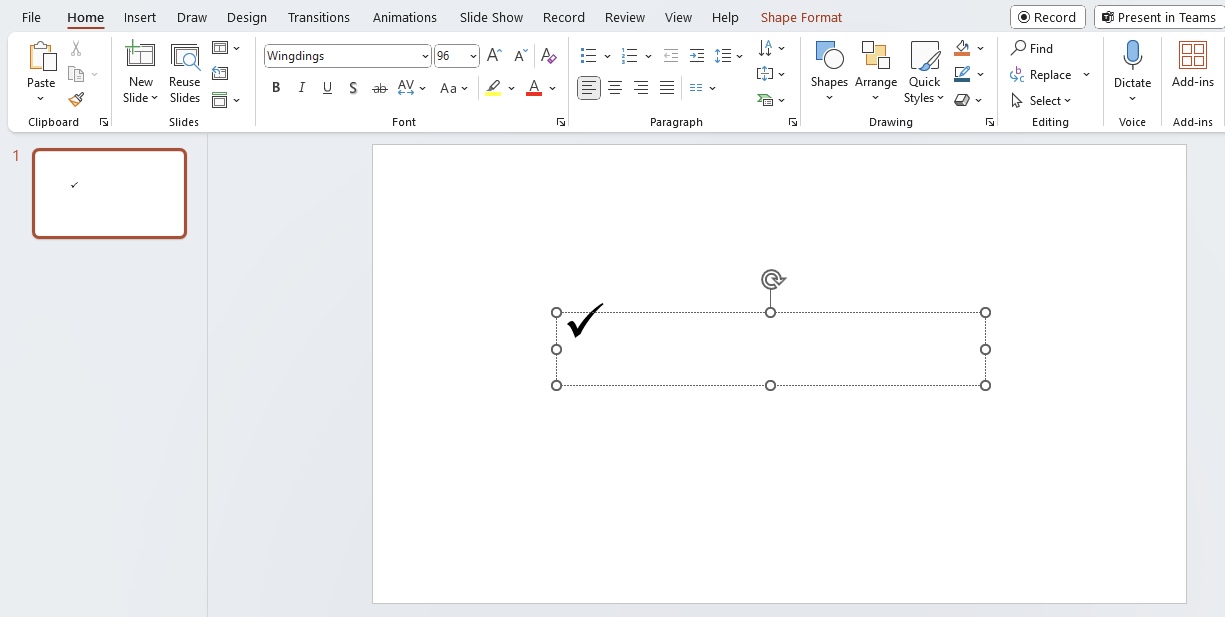
Your check mark appears.
Symbol Dialog Box
STEP 1: Go to the Insert tab > Symbols dropdown > Symbols.
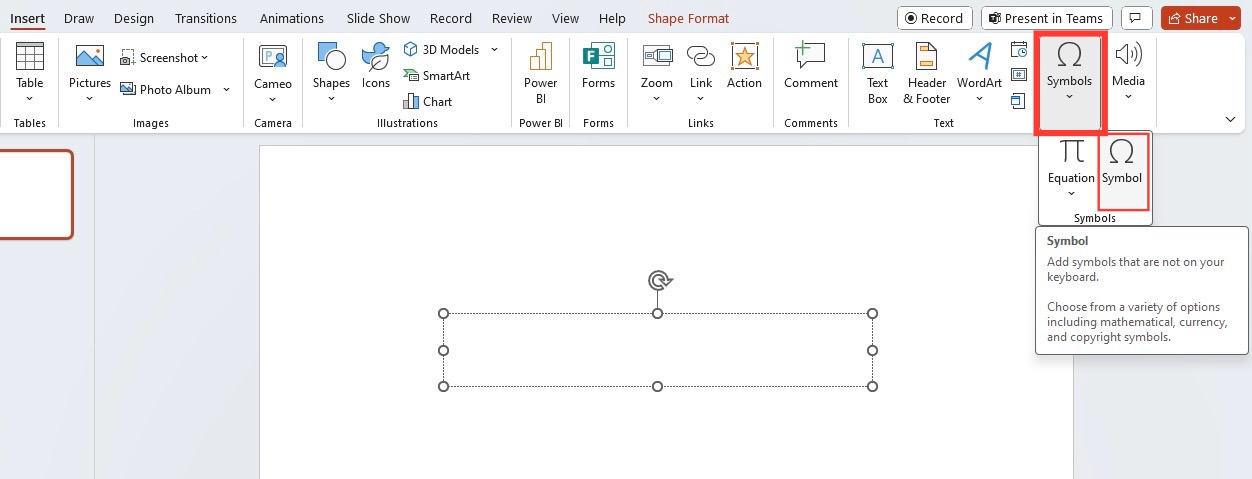
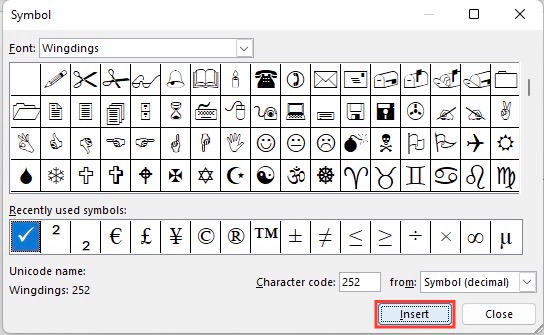
STEP 2: Select the checkmark symbol
STEP 3: Click Insert.
Creative Approaches to Using Check Marks
Custom Designs
If the standard check mark looks bland, you can add a custom design.
STEP 1: Go to the Insert tab.
STEP 2: Click on Shapes and pick a shape that looks like a check mark.
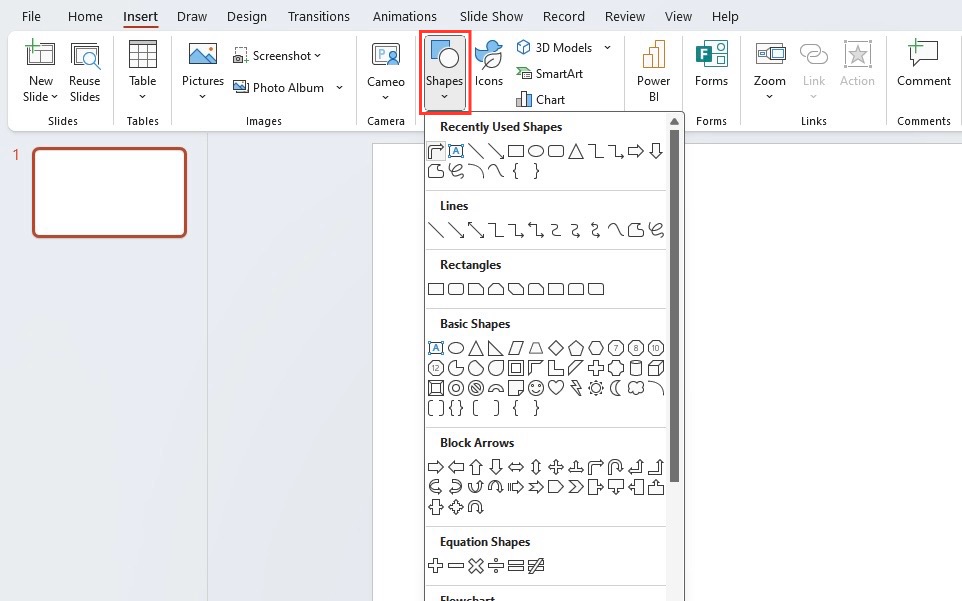
STEP 2: You can combine different shapes like lines and angles, to form your unique check mark.
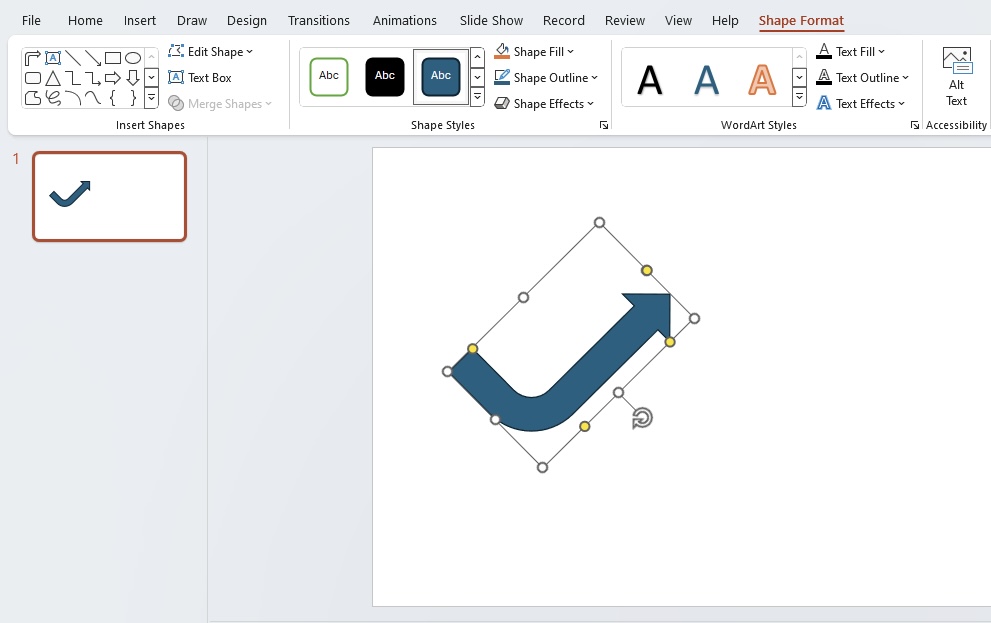
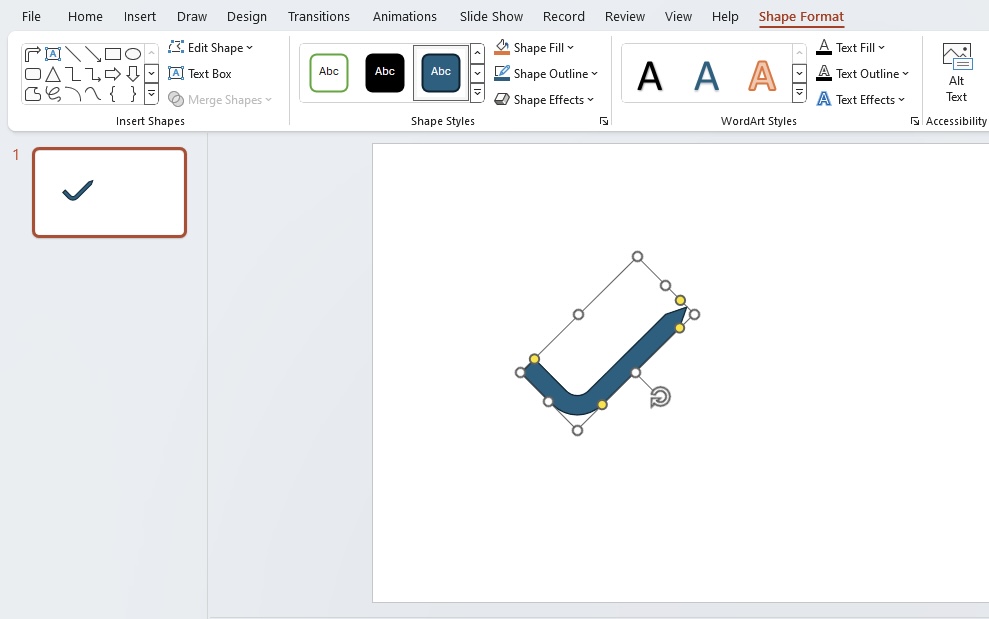
STEP 3: Go to the “Shape Format” tab and edit the color fills, line styles, and effects.
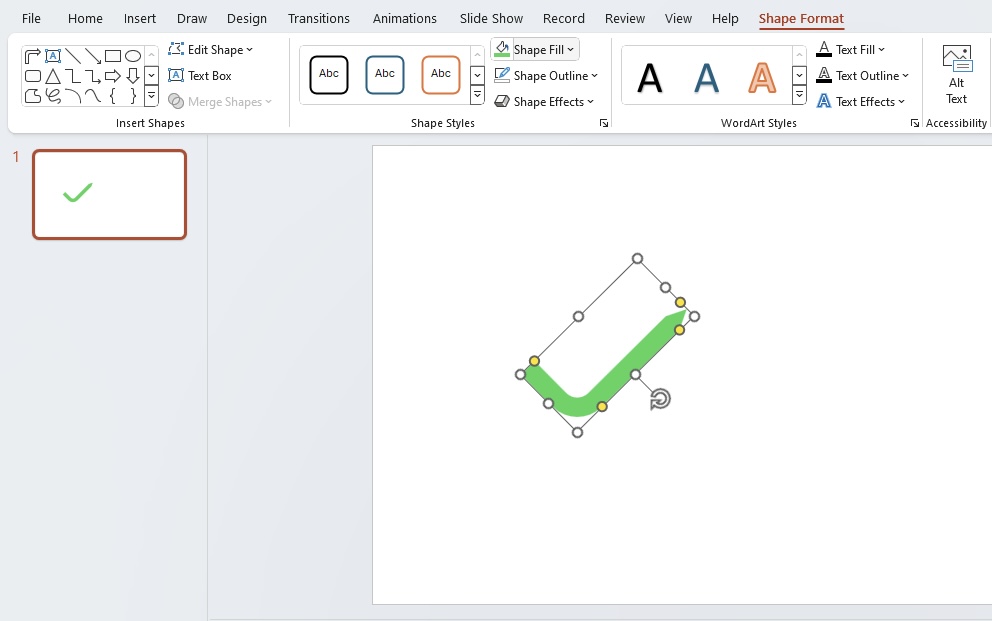
Add Animation
You can follow the steps below to add animation to your checkmark:
STEP 1: Insert a check mark.
STEP 2: Click on the Animations tab.
STEP 3: Select an entrance effect like Zoom or Bounce.
STEP 4: Select Start On Click or After Previous to control when the check mark appears.
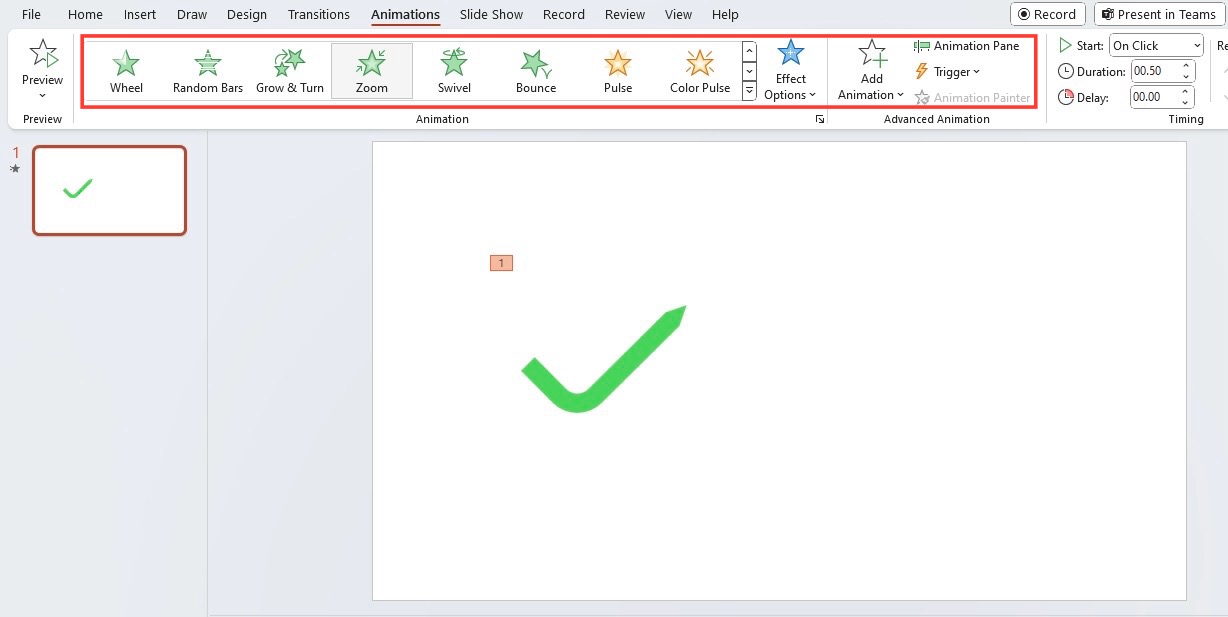
STEP 5: Adjust the Effect Options to change how the check mark enters.
This will convert a static presentation into an interactive experience.
Tips and Tricks
- A check mark that is too small is easy to overlook. Make sure it is large enough by dragging its handles.
- To make your check mark pop, select a color that differentiate font from the background.
- Adjust the thickness and style of the check mark’s borders.
- Use a gradient or texture fill for a more dynamic look.
FAQs
How to Add a Check Mark in PowerPoint?
To add a check mark in PowerPoint, follow the steps below:
- Place your cursor where you want the check mark.
- Hold the Alt key
- Type ‘0252’ or ‘0254’ on your numeric keypad
How to Create a Clickable Checkbox in PowerPoint?
Follow the steps below to create a clickable checkbox in PowerPoint:
- Go to ‘File > Options > Customize Ribbon
- Check the Developer box.
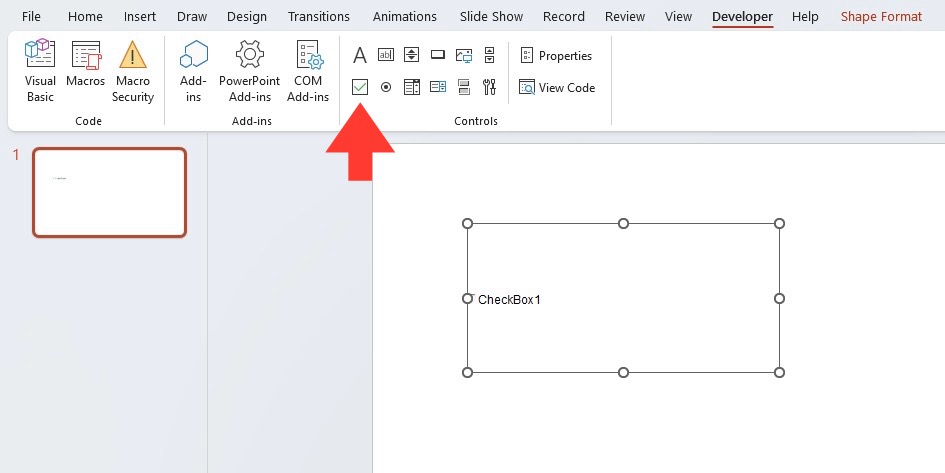
- Under Controls, click the checkbox icon.
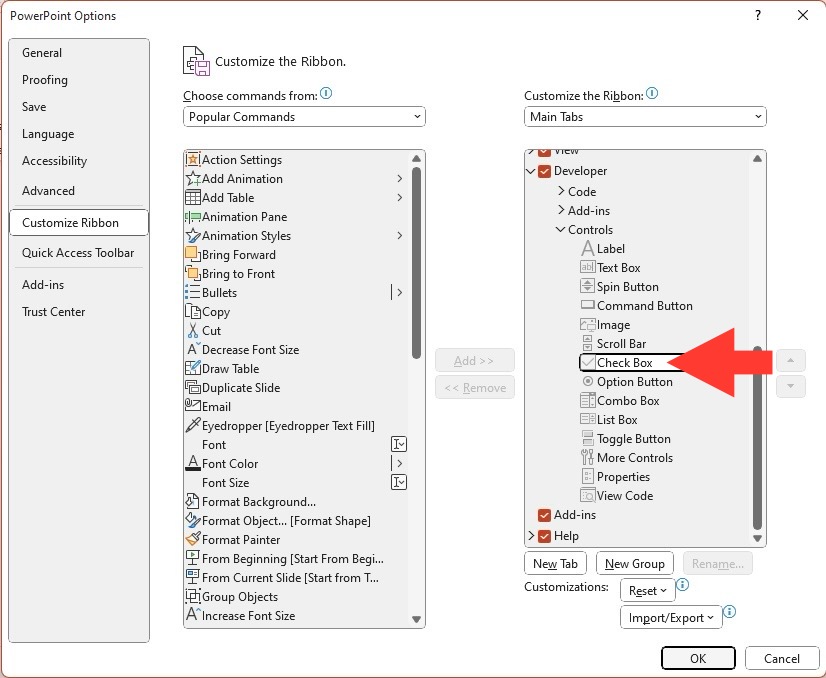
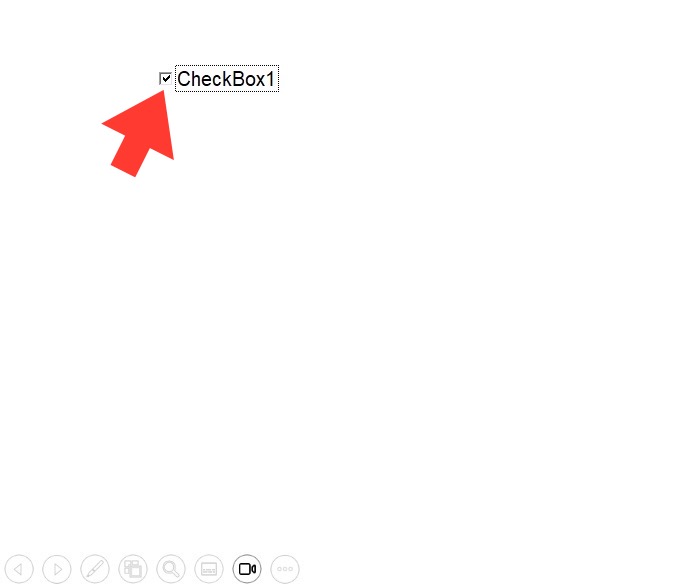
- Click and drag on the slide to place it.



John Michaloudis is a former accountant and finance analyst at General Electric, a Microsoft MVP since 2020, an Amazon #1 bestselling author of 4 Microsoft Excel books and teacher of Microsoft Excel & Office over at his flagship MyExcelOnline Academy Online Course.

 30 Days - Full Access









