 Free Practice Workbook
Embark on a journey through Microsoft Excel‘s check mark features, exploring their significance and diverse applications. Checkmark isn’t just symbols; it is a key tool for clarity and organization in spreadsheets, offering a concise way to communicate completion and progress.
Key Takeaways:
- Check marks in spreadsheets serve as more than just symbols.
- They offer a quick way to display completion.
- Understanding the difference between check marks and checkboxes.
- Use methods like CHAR and UNICHAR functions to insert a checkmark.
- Symbol command can also be used to insert a checkmark.
Table of Contents
All About Check Marks in Excel
The Significance of Check Marks in Spreadsheets
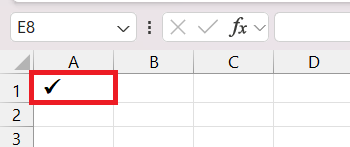
A checkmark is a symbol that is used to show something is correct, approved, or completed. They are not only a symbol but a method of communication. They can be used to mark:
- Clients who have paid.
- Task that has been completed.
- Reports that were submitted
- Applications that were approved.
Check Marks vs Checkboxes
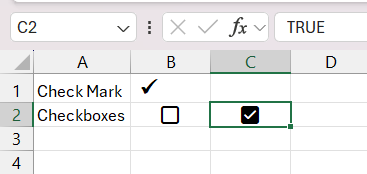
Check marks and check boxes may look similar, but they are different in practice.
- A check mark is a static symbol, but checkboxes are interactive.
- A check mark is like a text, but checkboxes are clickable.
- You can insert a check mark using functions or a symbol. But, you need to use develop tab to insert checkboxes.
- Checkboxes are linked to a cell and return TRUE or FALSE.
How to Insert Checkmarks
CHAR Function
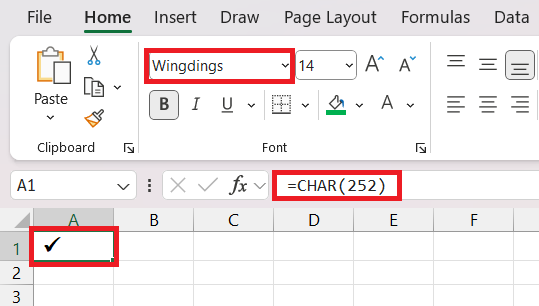
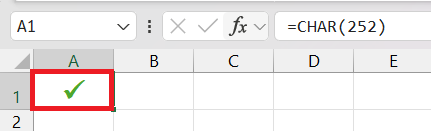
- Enter the CHAR function.
- Type the code 252.
- Change font to Wingdings
The check mark symbol will appear.
UNICHAR Function
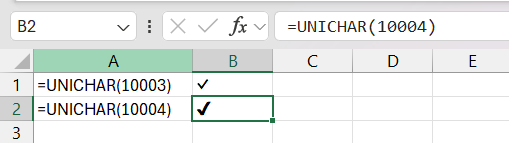
Now, for the UNICHAR function.
Use =UNICHAR(10003)to insert a classic check mark.Use =UNICHAR(10004)to insert a heavier version.
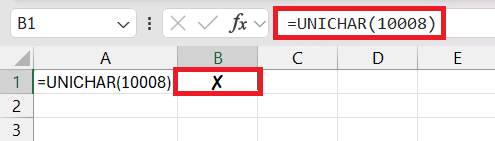
If you want to insert an X for tasks not done, you can use this function:
=UNICHAR(10008)
Symbol Command
To insert a check mark using the Symbol command, do the following steps:
STEP 1: Go to the Insert tab, and select Symbol.

STEP 2: Scroll through the list of characters.
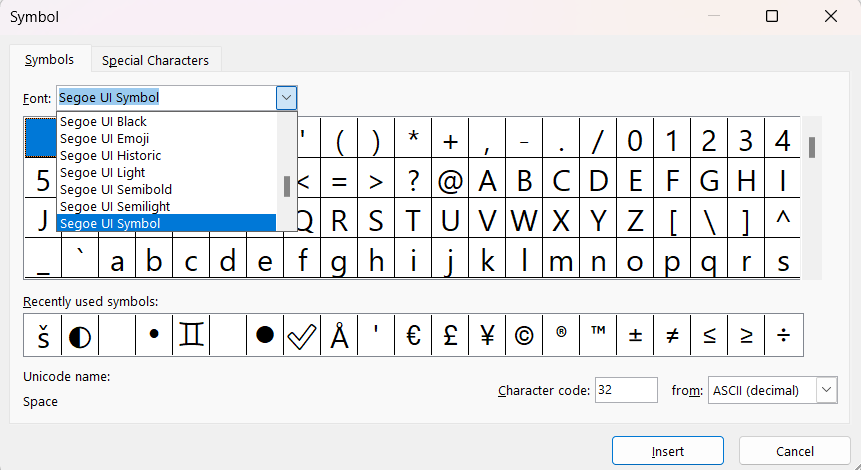
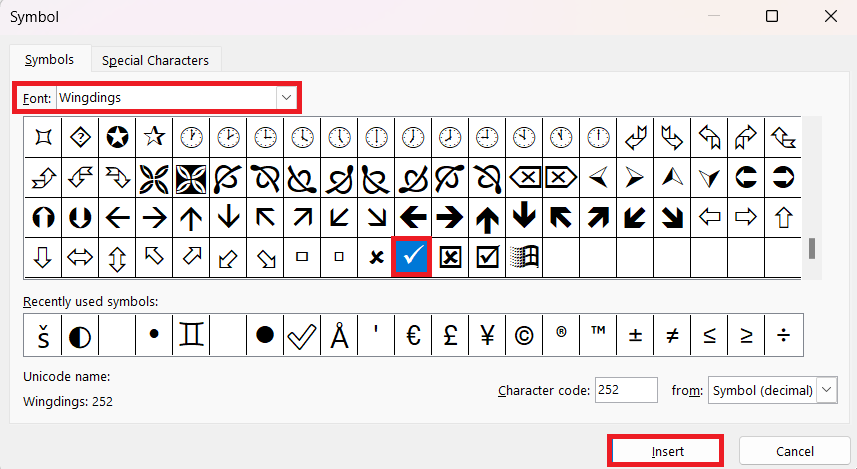
STEP 3: Choose Wingdings and find the check mark. Press Insert.
Keyboard Tips
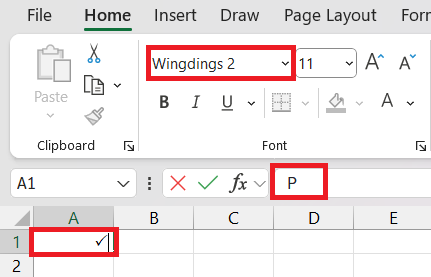
The keyboard shortcuts are probably the fastest way to insert a check mark.
- Change font to Wingdings 2.
- Press the combo SHIFT+P.
Copy-Paste Method
After you have inserted a check mark in Excel, you can use the copy and paste method to apply it to other cells.
- Press Ctrl + C to copy the check mark.
- Press Ctrl + V to paste it.
Troubleshoot Problems
If the checkmarks are not appearing correctly, you will follow the points below troubleshoot the problem:
- If the checkmark is not visible, make sure that the cell is not too small. Adjust the row height and column width accordingly.
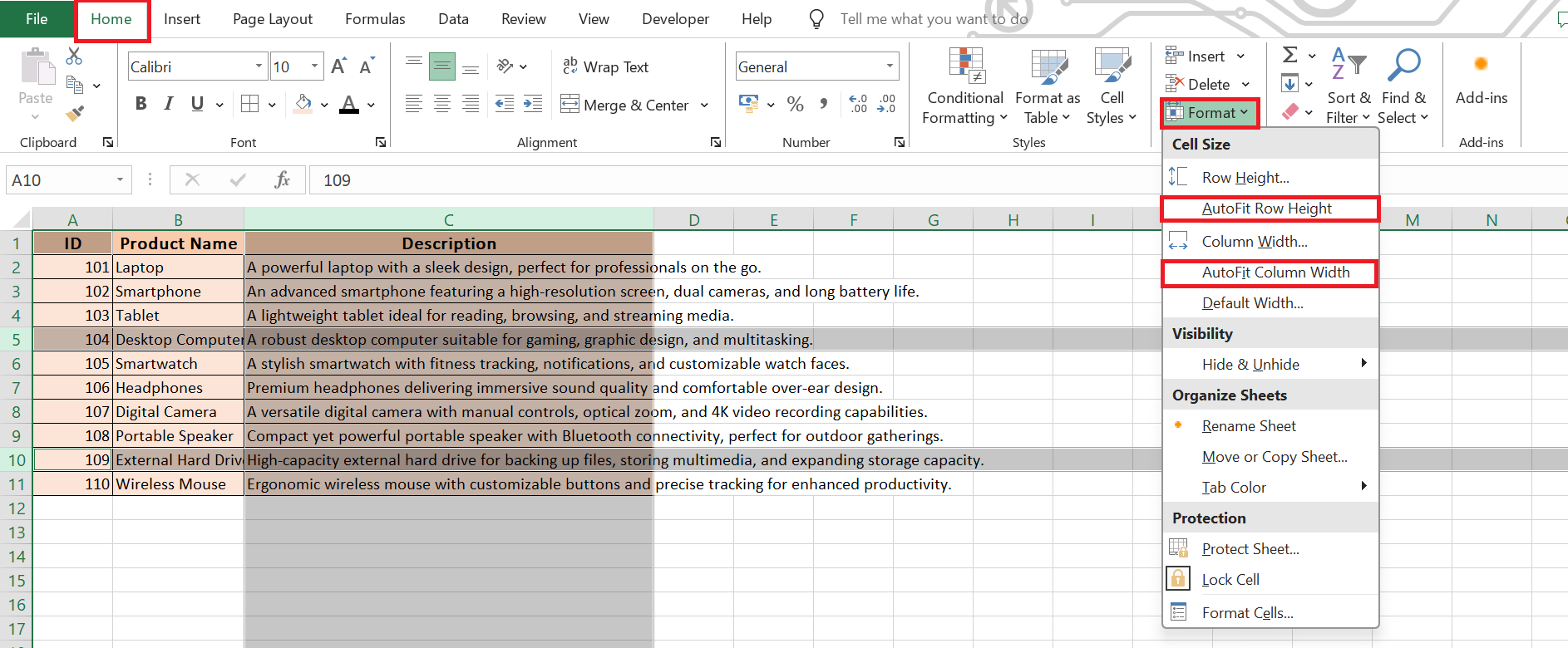
- If the check mark appears differently, check if Wingdings or a similar font is selected.
- Make sure you are set up for Unicode if you are using the UNICHAR function.
- Make sure that the cell is not left vacant by mistake.
- The font you are using does not recognize the character code for a check mark.
Customize and Format Check Marks
Resize and Color
Making your check marks easy to spot with a splash of color or a size increase. Increase the font size to give them more prominence, or color them in a way that they leap off the page at anyone who glances at your data. To do this,
- Select the cell containing the check mark.
- Go to the Home tab.
- Increase the font size, or add color.
For example, a red check mark could signify an urgent task, while a green one might indicate completion.
Combine Check Marks with Excel Functions
You can make your spreadsheet more interactive by combining check marks with the IF function. The IF function can check a condition and display a check mark if the condition is met.
=IF(A1>100, CHAR(252), “”)
This function indicates that a check mark will appear for any value over 100.
Make sure to set the font to Wingdings so that the check mark appears correctly.
FAQs
What is the quickest way to insert check marks?
The quickest way to insert check marks in Excel is to use keyboard shortcuts.
- Change font to Wingdings 2.
- Press Shift + P to insert a check mark.
How to format a checkmark symbol?
To make a checkmark symbol stand out,
- Change the font size and color.
- Apply bold styling
- Use Conditional formatting to format a check mark based on pre-set rules.
How to type a checkmark on a keyboard?
To type a check mark (✔) on a keyboard, follow the steps below:
- Make sure that Num Lock is turned on.
- Hold down the Alt key and type
10003on the numeric keypad. - Release the Alt key.
Acheck mark will appear.
How to insert a checkmark using the UNICHAR function?
To enter a Unicode check mark symbol in the Excel formula bar, use the UNICHAR function with the appropriate code for the check mark. For example, enter =UNICHAR(10003) in the formula bar and press Enter; this will insert a standard check mark. Make sure the cell is formatted in a font that can display Unicode characters, like Arial or Calibri, to properly show the symbol.
Are there any pitfalls to avoid when working with Excel check marks?
When working with Excel check marks, watch out for pitfalls such as using the wrong font, which can thwart your symbols from appearing correctly. Ensure you’re using a font that supports check marks like Wingdings. Also, avoid inserting check marks in cells that are too small or already contain data, as it may not display properly. Another pitfall is forgetting to switch back from a symbol font like Wingdings to a standard font, which can cause subsequent data entry to look like symbols instead of text.

John Michaloudis is a former accountant and finance analyst at General Electric, a Microsoft MVP since 2020, an Amazon #1 bestselling author of 4 Microsoft Excel books and teacher of Microsoft Excel & Office over at his flagship MyExcelOnline Academy Online Course.

 30 Days - Full Access









