When creating my PowerPoint slide deck, it is important pay particular attention to line spacing. Line spacing that makes my content more legible and allows breathing space between sentences. It can improve my audience’s experience and help them better comprehend my message. In this article, you will learn how to adjust line spacing in PowerPoint.
Key Takeaways
- You can change line spacing from the Home tab using the Line Spacing option.
- Spacing options include 1.0, 1.5, 2.0, and more.
- Custom spacing can be used for better control.
- Line spacing improves the readability of your content.
- Format Painter can be used to keep spacing consistent across slides.
Table of Contents
Steps to Adjust Line Spacing
Access the Line Spacing Features
To access the line spacing features in PowerPoint:
STEP 1: Select the text that requires adjustment.
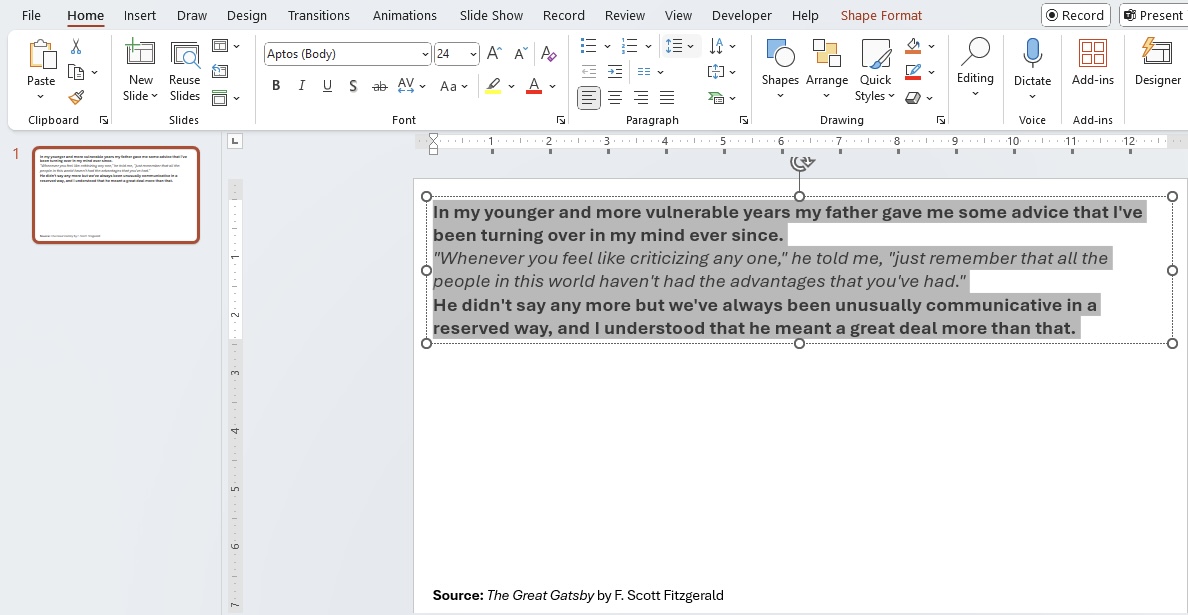
STEP 2: Go to the Home tab.
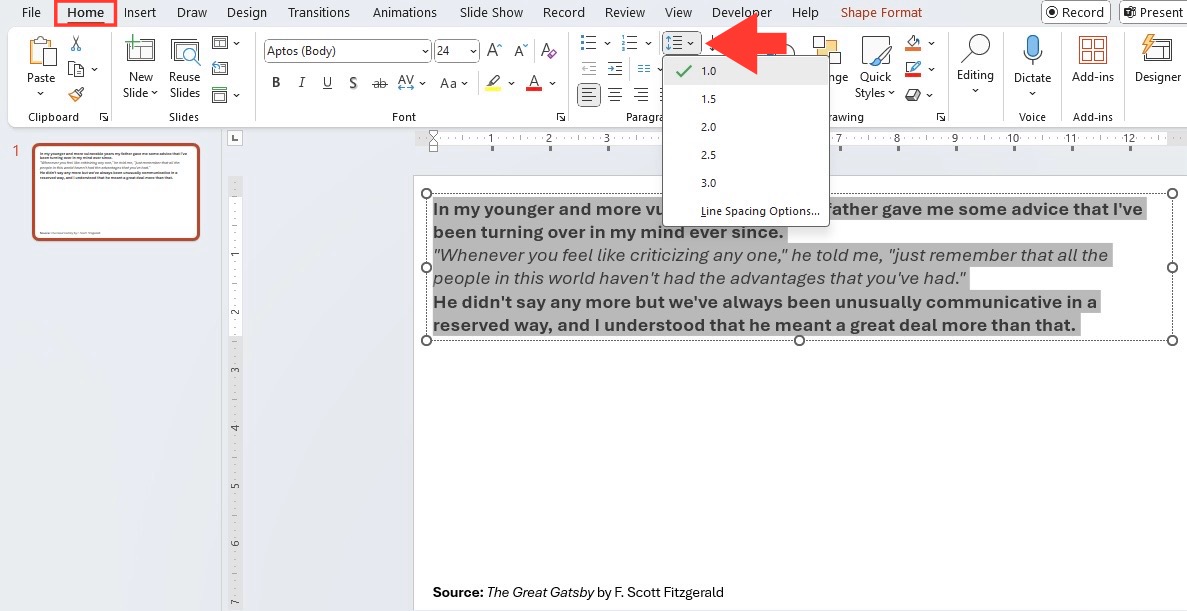
STEP 3: Click on the Line Spacing button.
STEP 4: From the dropdown, select a commonly used line spacing preset.
Customize Line Spacing
PowerPoint allows you to set custom spacing between lines. Follow the steps below to set a custom line spacing:
- Highlight the text you want to modify.
- Go to the Home tab.
- Click on the Line Spacing button.
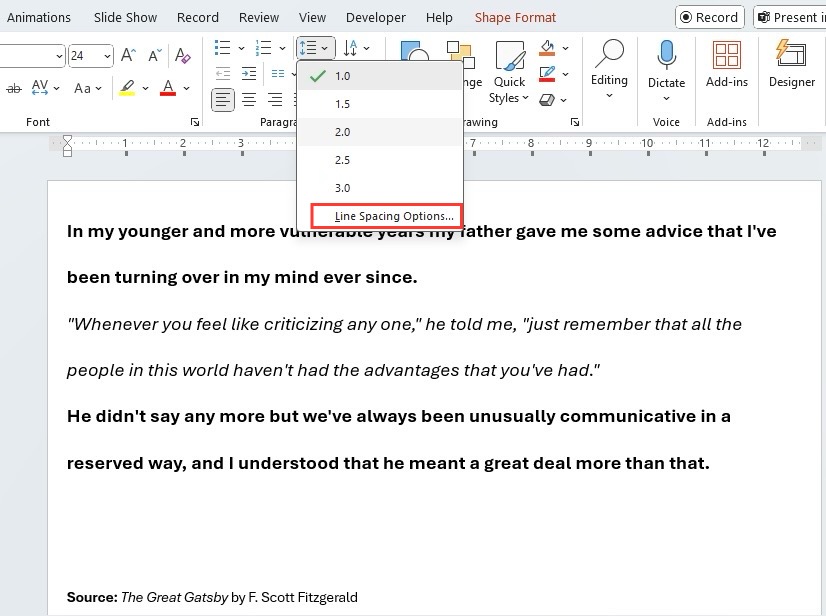
- Choose Line Spacing Options from the dropdown.
- Set your desired spacing.
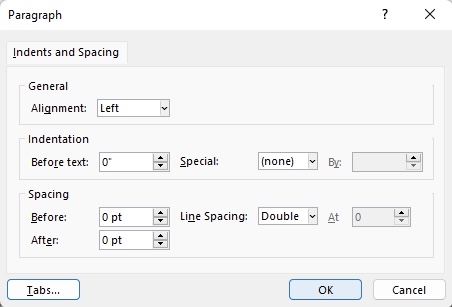
- Click OK.
The custom line spacing will be applied.
Increasing the font size is also a crucial part of customizing your text. This can be easily done by selecting your text box > clicking on the Home tab > then adjusting the font size to ensure optimum visibility.
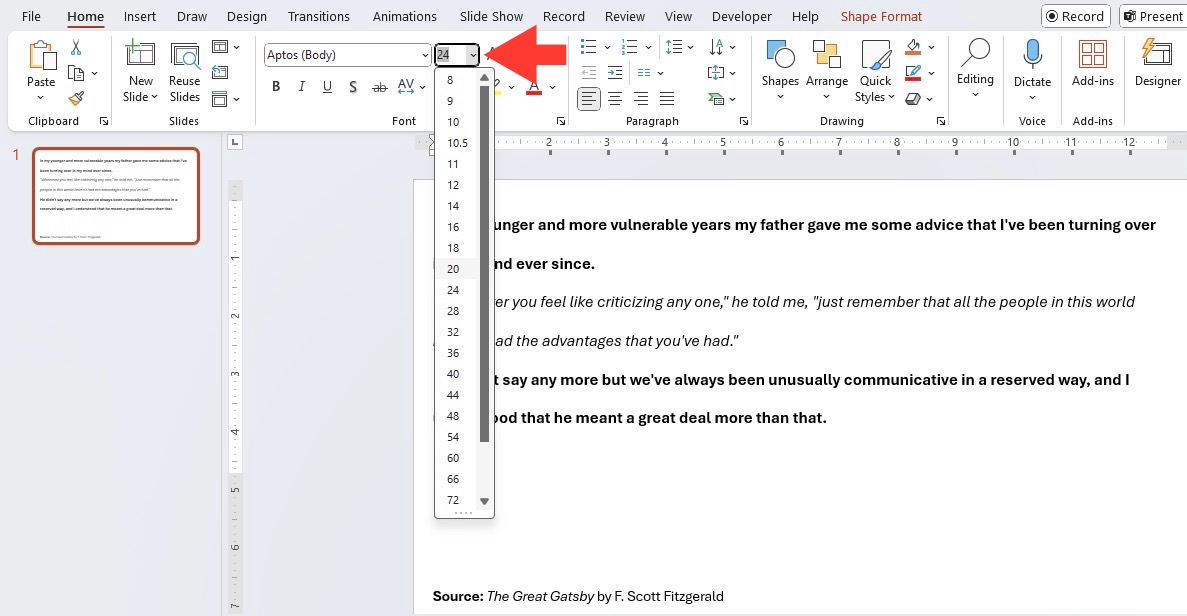
Remember, the goal is to make your slide easy to read at a glance, so don’t shy away from scaling up those fonts to fill the space effectively.
Tips & Tricks
Balancing readability with aesthetics is the key to presenting text that not only communicates effectively but also looks good. When you adjust line spacing, it’s important to consider the readability of your text, ensuring that it isn’t cramped and overwhelming, or too spaced out, causing the reader’s focus to drift. But aesthetics play a role too – the spacing should match the tone and style of your presentation.
To find that sweet spot, preview your slides to see how they look from a distance, simulating an audience perspective. Experiment with different line spacings while paying attention to the overall look and feel of your slides. Aesthetic appeal and readability go hand-in-hand, and when they’re well-balanced, your presentation can capture and retain the audience’s attention with ease.
Choosing the right line spacing can depend on the amount of text on a slide, the size of your audience, or even the content’s formality level. For example, tight line spacing can make a dense, informative slide appear even more overwhelming, while generous spacing can underpin key points by giving them the space to stand out. If your audience is seated far from the screen, wider line spacing can enhance legibility.
When working on a business presentation, you can use 1.5 line spacing throughout the slides. This will show professionalism and clarity. For an informal situation like a workshop presentation, you can use multiple line spacing. This will make your audience more engaged.
Troubleshoot Common Issues
Inconsistent Spacing Across Slides
You can use the Format Painter option to maintain consistent line spacing across all slides.
- Select the text with the spacing you want to replicate.
- Go to Home Tab
- Click on the Format Painter icon.
- Apply it to the text on other slides.
If you wish to apply it to multiple selections, you can double-click on the Format Painter icon.
Overcrowded Text Fields
When you encounter overcrowded text fields, follow the points below for better legibility.
- Increase the line spacing to allow the text to stand out.
- Edit the text and keep only the important points.
- Add bullet points or subheadings to your context.
- Remove irrelevant images as they can take up space.
FAQs
How to change line spacing for bullet points in PowerPoint?
To change line spacing for bullet points, select the text containing the bullets, then go to the Home tab, click the Line Spacing icon, and choose your desired spacing. For custom settings, select Line Spacing Options and tweak as needed. Just a few simple steps, and your bullet points will have the perfect breathing room!
How to apply custom line spacing to specific sections of text?
You can apply custom line spacing to specific sections by following the steps below:
- Highlight the text you want to modify.
- Go to the Home tab.
- Click on the Line Spacing button.
- Choose Line Spacing Options from the dropdown.
- Set your desired spacing.
- Click OK.
What is the best setting for line spacing?
The best line spacing setting during a presentation is usually between 1.5 and 2.0. This setting can provide clear separation between the lines and also make the text easy to read.

John Michaloudis is a former accountant and finance analyst at General Electric, a Microsoft MVP since 2020, an Amazon #1 bestselling author of 4 Microsoft Excel books and teacher of Microsoft Excel & Office over at his flagship MyExcelOnline Academy Online Course.

 30 Days - Full Access









