Table of Contents
Rounding in Excel
When you have to display the figures as multiples of 5, Excel can be a great tool for that. It has various rounding functions that can be used according to your needs.
- If you need to round to a specified number of digits, use ROUND.
- If you need to round to a specified multiple, use MROUND.
- If you need to round up a number, use CEILING.
- If you need to round down a number, use FLOOR.
Rounding to the Nearest Multiple of 5
ROUND Function
The ROUND function can be used to round to the nearest integer or to a specific decimal place. This is useful when you have to provide uniformity across figures and comply with numerical precision.
The formula to round to the nearest multiple of 5:
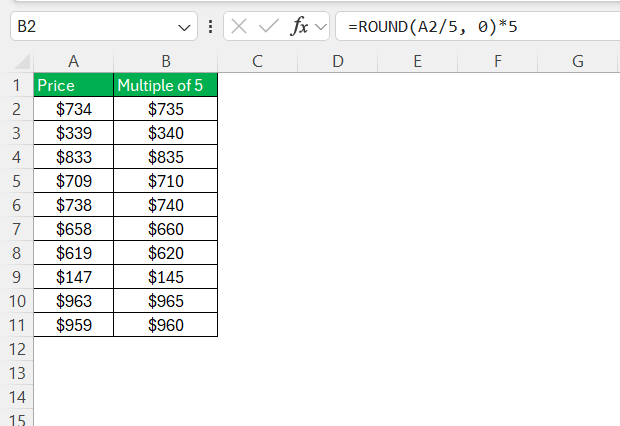
This function will:
- Divide the number by 5
- Round to the nearest whole number
- Multiply it back by 5
For rounding to the nearest 50, the formula will be:
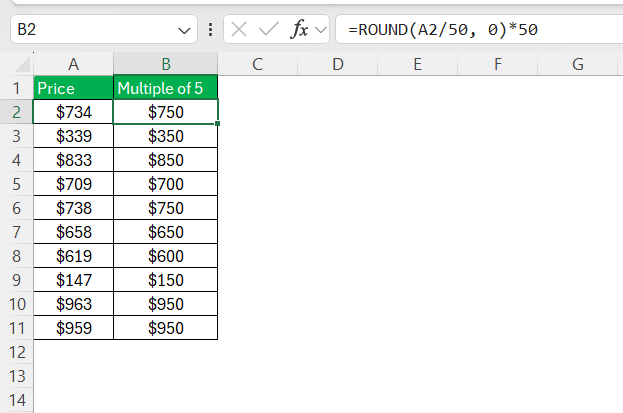
This method is useful when you have to round off orders to the nearest box when each box contains 50 items.
MROUND Function
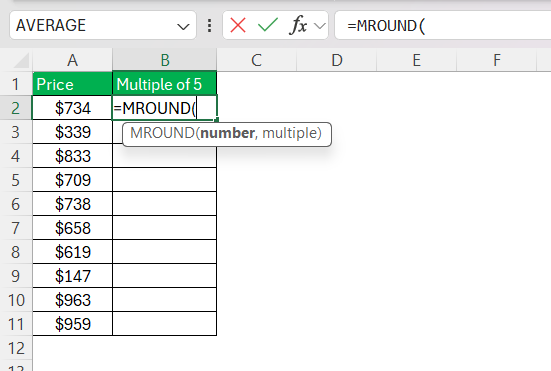
The MROUND function is used to round off numbers to specific multiples. It is useful when dealing with units that come in sets.
STEP 1: Enter the MROUND function.
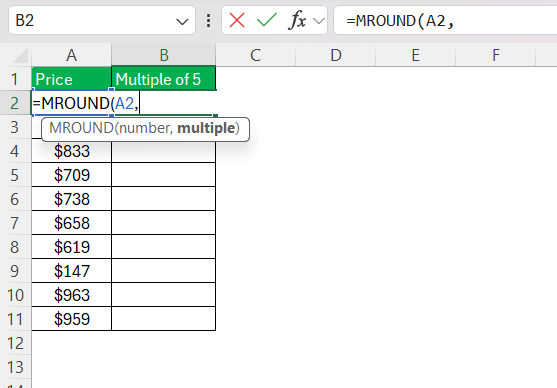
STEP 2: Select the cell containing the price followed by a comma.
STEP 3: Type 5.
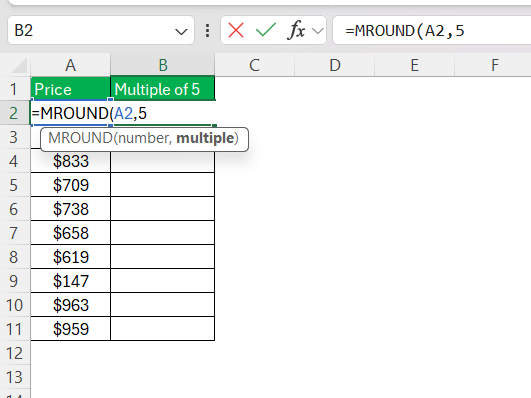
STEP 4: Close the parentheses and hit enter.
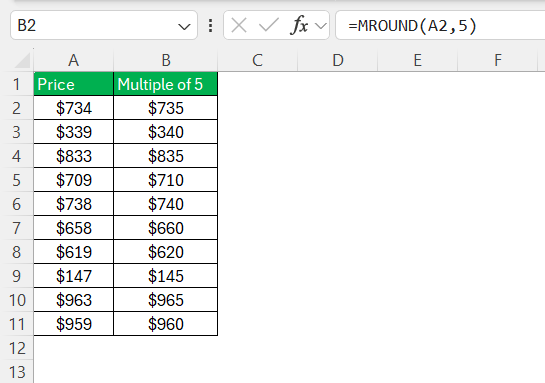
This simple function can make sure that the data in your spreadsheet is consistent.
CEILING and FLOOR Functions
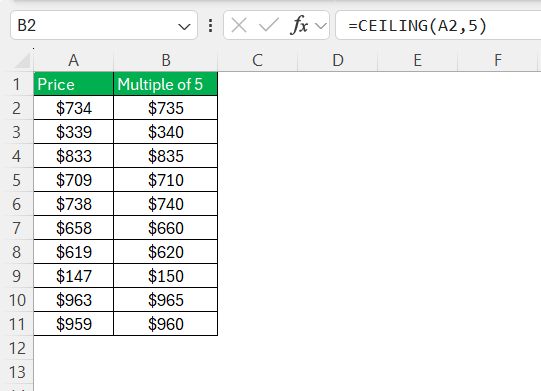
Sometimes, you want to either round up or round down to the next multiple of 5. The CEILING function is used to round up to a specific multiple. This is useful when you are working on budgeting and you do not want to understate expenses.
STEP 1: Enter the CEILING function.
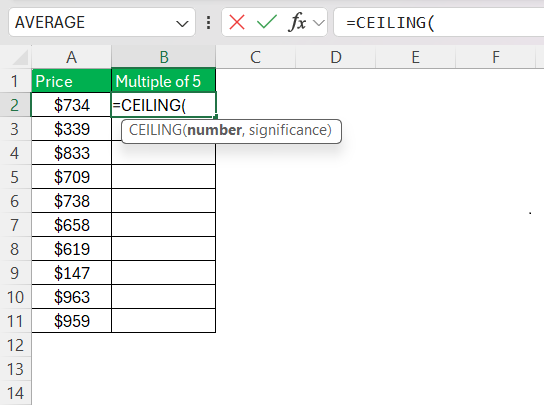
STEP 2: Select the cell containing the price, followed by a comma. Then, type 5.
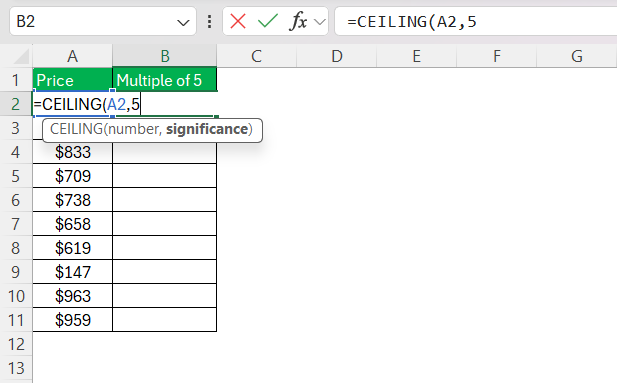
STEP 3: Close the parenthesis and press enter.
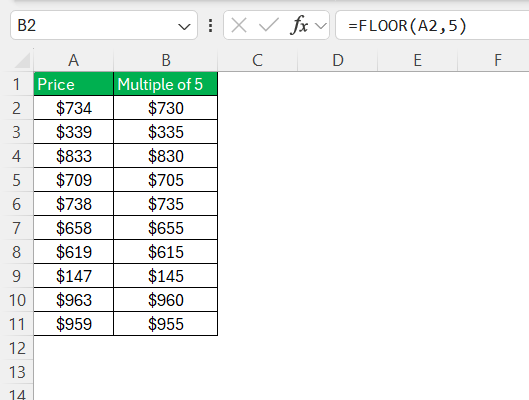
The FLOOR function is used to round down. For example, when you have to apply discounts, you would want to round down to the nearest multiple of 5. This will avoid overestimation.
STEP 1: Enter the FLOOR function.
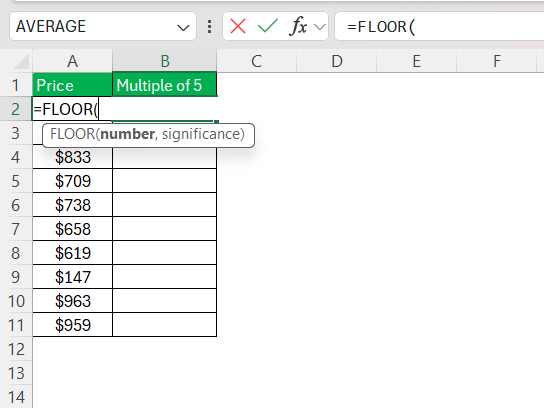
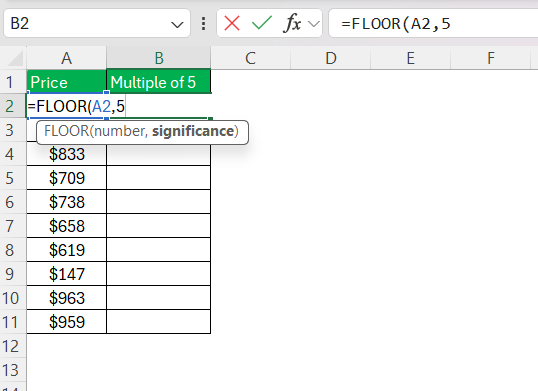
STEP 2: Input the number.
STEP 3: Insert a comma and then type 5.
STEP 4: Close the parentheses and hit enter.
Tips & Tricks
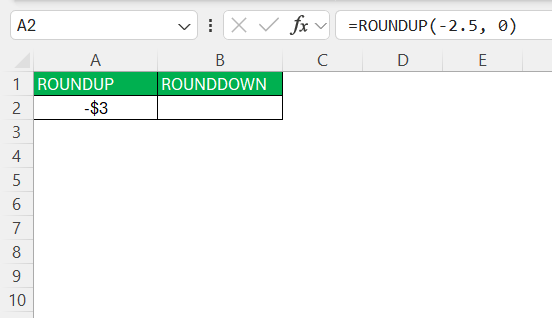
It can be tricky to understand how Excel handles negative numbers and special formats. The rounding function will convert the negative number to its absolute value and then round it accordingly.
The ROUNDUP function on a negative number will decrease the original value and move it away from zero.
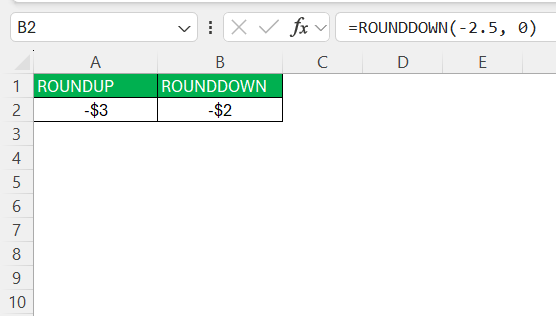
ROUNDDOWN can be used to move closer to zero.
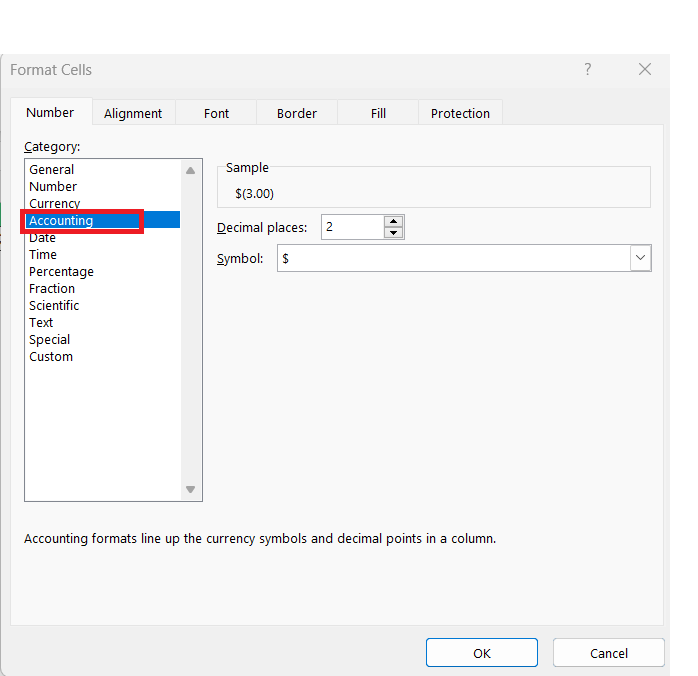
The ACCOUNTING format aligns decimal points and includes currency symbols. Follow the steps below to change format to accounting:
STEP 1: Go to Home tab > Number group.

STEP 2: Click the arrow next to the number formats.
STEP 3: Select Accounting and type the number of decimal places.
FAQs
How to multiply by 5 in Excel?
You can use the multiplication operator to multiply a number by 5.
=A1*5
How to round to the nearest multiple of 5?
You can use the MROUND function to round to the nearest multiple of 5.
=MROUND(A1, 5)
What is the difference between ROUND, MROUND, CEILING, and FLOOR?
- ROUND is used to round a number to a specified number of decimal places.
- MROUND is used to round to the nearest specified multiple.
- CEILING is used to round up to the nearest multiple.
- FLOOR is used to round down to the previous multiple.

John Michaloudis is a former accountant and finance analyst at General Electric, a Microsoft MVP since 2020, an Amazon #1 bestselling author of 4 Microsoft Excel books and teacher of Microsoft Excel & Office over at his flagship MyExcelOnline Academy Online Course.

 30 Days - Full Access









