 Free Practice Workbook
Table of Contents
Introduction to Ogive Graphs
What is Ogive Graph?
Ogive graphs might sound complex, but they’re a popular and straightforward way for me to visualize cumulative frequencies in a dataset. They let me quickly see how many values fall above or below certain thresholds, which is invaluable when I’m dealing with large amounts of data. It helps in identifying patterns and outliers in the dataset. It also provides information about the distribution of the datset.
Preparing Your Data
Before you start creating an ogive graph, you need to prepare a data table. Enter the class interval and its frequencies in two separate columns. Make sure that the data is clean and does not contain any duplicates.
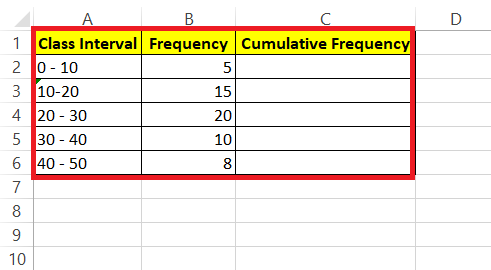
When setting the class interval, you need to keep these things in mind:
- Decide the values that each class will contain.
- Keep the size of the class interval the same across the dataset.
- Lower class limit is the smallest number in the range.
- Upper class limit is the largest number in the dataset.
Step-by-Step Guide to Creating an Ogive in Excel
Plot Cumulative Frequency
First, you need to create a helper column that will calculate the cumulative frequency. This can be done by adding the frequency of a class to the total frequency of all classes before it.
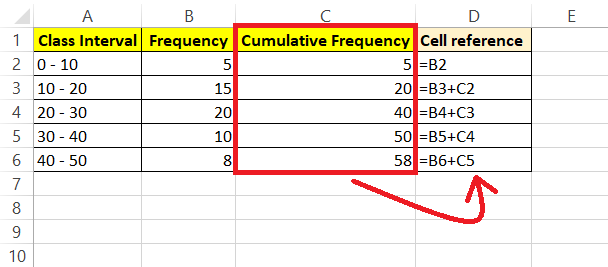
Change Axis Scales
Once your cumulative frequencies are ready, follow the steps below to change the axis scale:
STEP 1: Select the data range for the class intervals and cumulative frequencies.
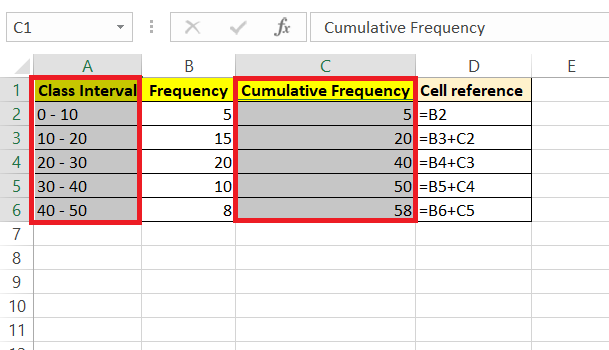
STEP 2: Go to the “Insert” tab in Excel.
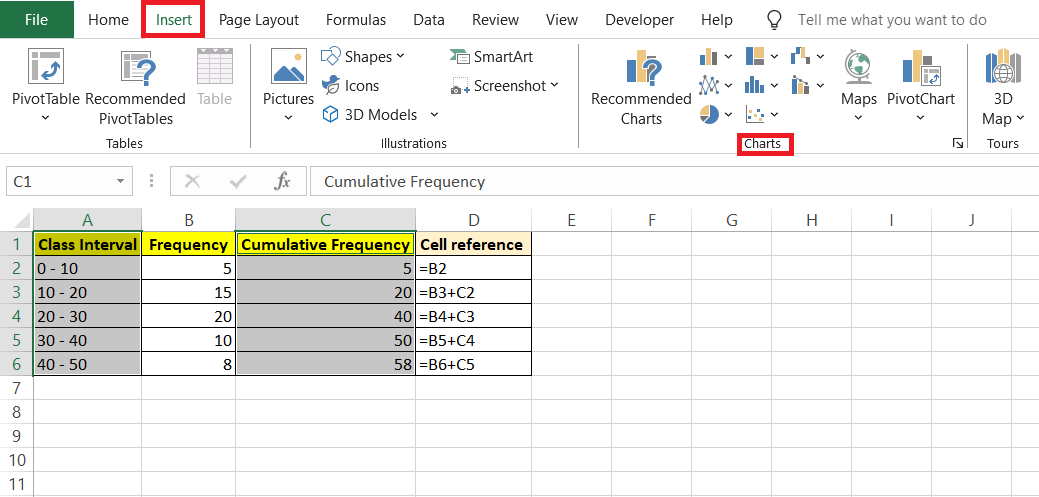
STEP 3: Choose “Line Chart” from the chart options. A line chart will plot the cumulative frequencies against the class intervals, effectively creating the ojive graph.
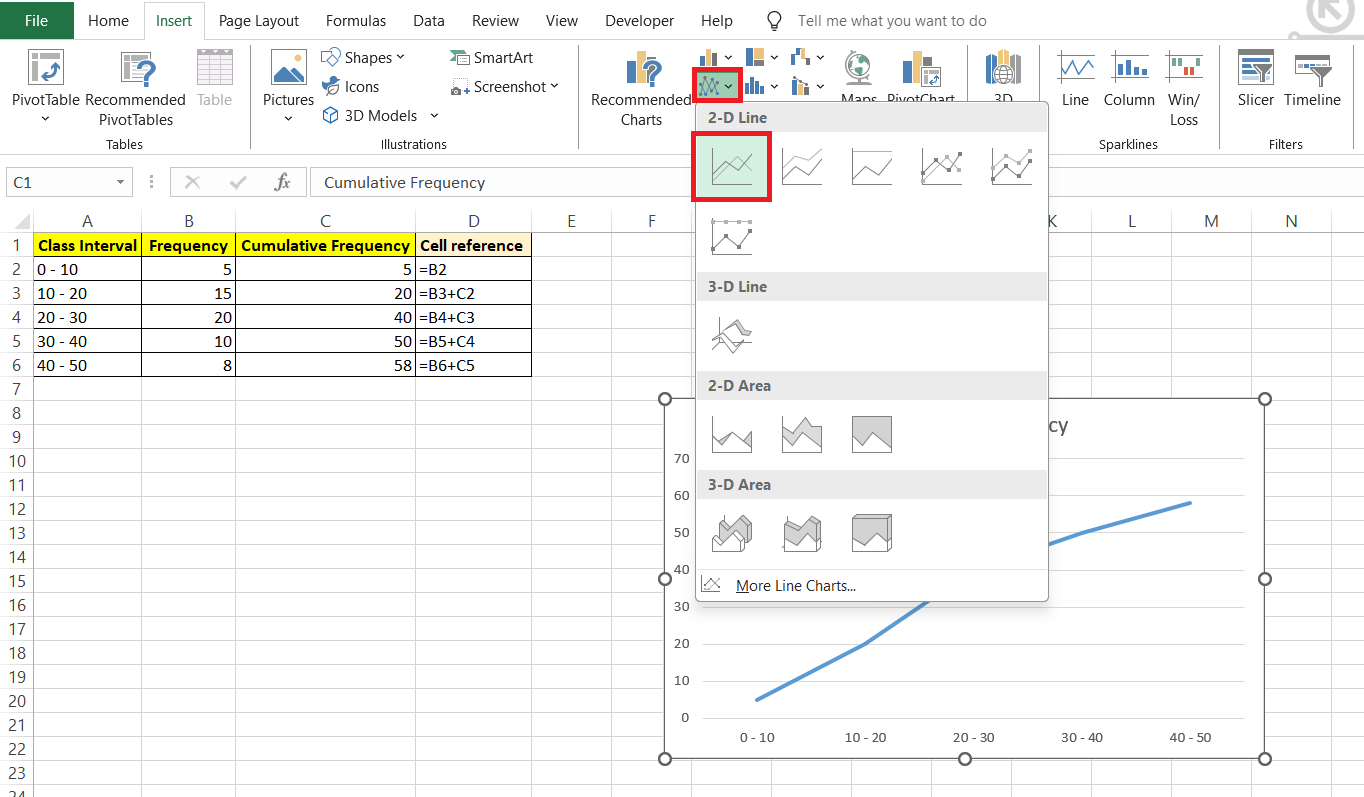
STEP 4: Format the chart as needed, adding titles and labels to make it clear. When you right-click on the horizontal axis and select “Format Axis,” you’ll be fine-tuning the graph’s readability.
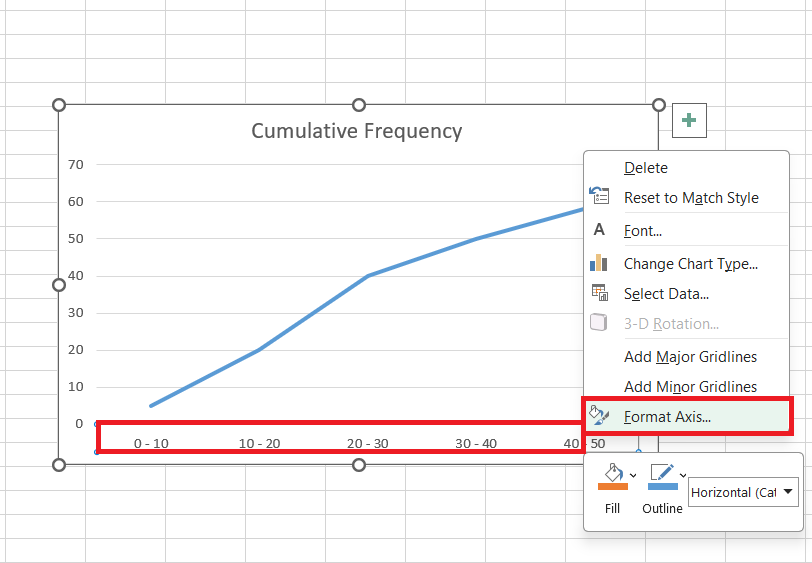
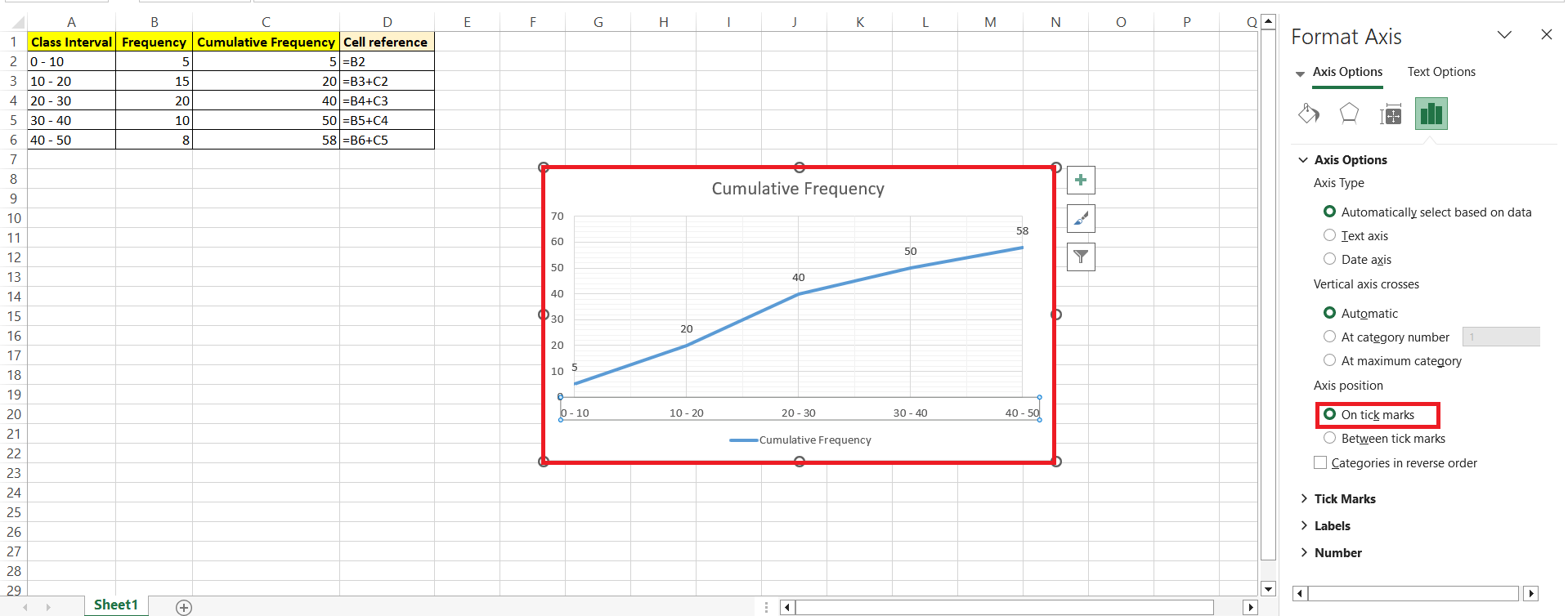
STEP 5: Here’s where you set the bounds — start with the minimum being your lowest class limit and cap it off at the highest class limit. The major unit value should align with your class width, so that the intervals on the graph match your data structure seamlessly.
Type of Ogive Graph
Less Than Ogive Graph
When creating a “less than” ogive graph, use the upper limits of the class intervals. This means plotting cumulative frequencies against the upper class limits to illustrate the cumulative distribution of data up to each interval’s maximum value.
Let’s have a look at the steps below to understand better:-
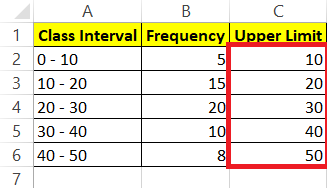
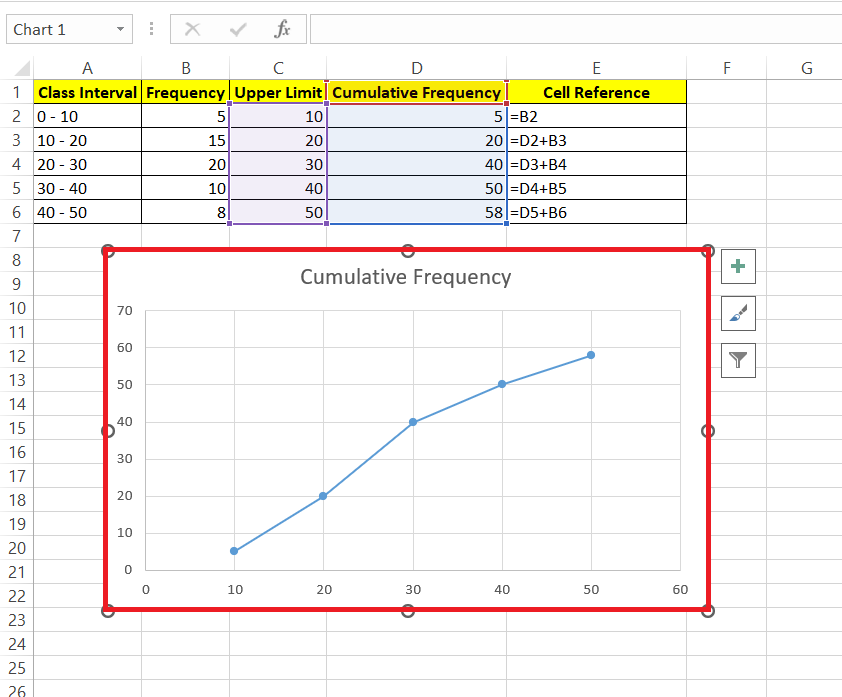
STEP 1: Add a new column labeled “Upper Limit.” In cells C2 to C6, enter the upper limit for each marks range. For instance, if cell B2 contains the range 0-10, enter 10 as the upper limit. Continue this process for the entire column.
STEP 2: Add a new column labeled “Cumulative Frequency.” In cell D1, enter the value of the first frequency, which is the value from cell B2.
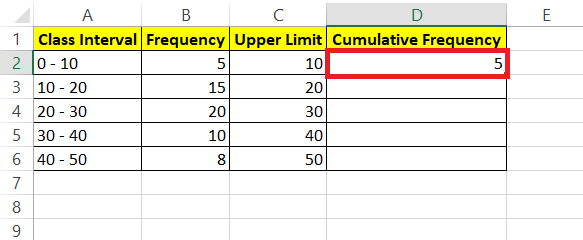
STEP 3: Now, you need to present a formula to fill D3:D6. Cell value D3 is the sum of D2 + B3. The formula is the sum of the current frequency plus the frequency added previously. Copy the formula for the rest of the cells D4:D6.
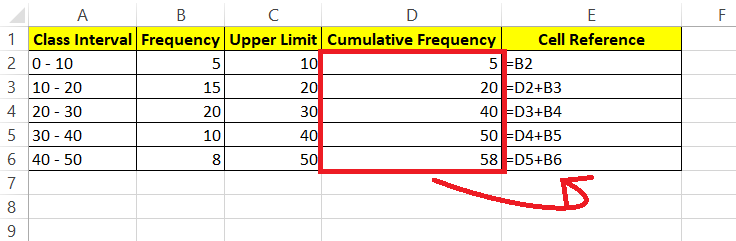
STEP 4: The final step is to create the table. Select range D1:E6.
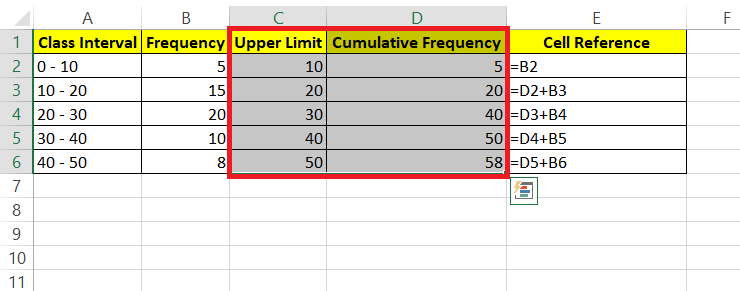
STEP 5: Navigate to the “Insert” tab, and in the “Charts” section, choose “Scatter with Straight Lines and Markers.”
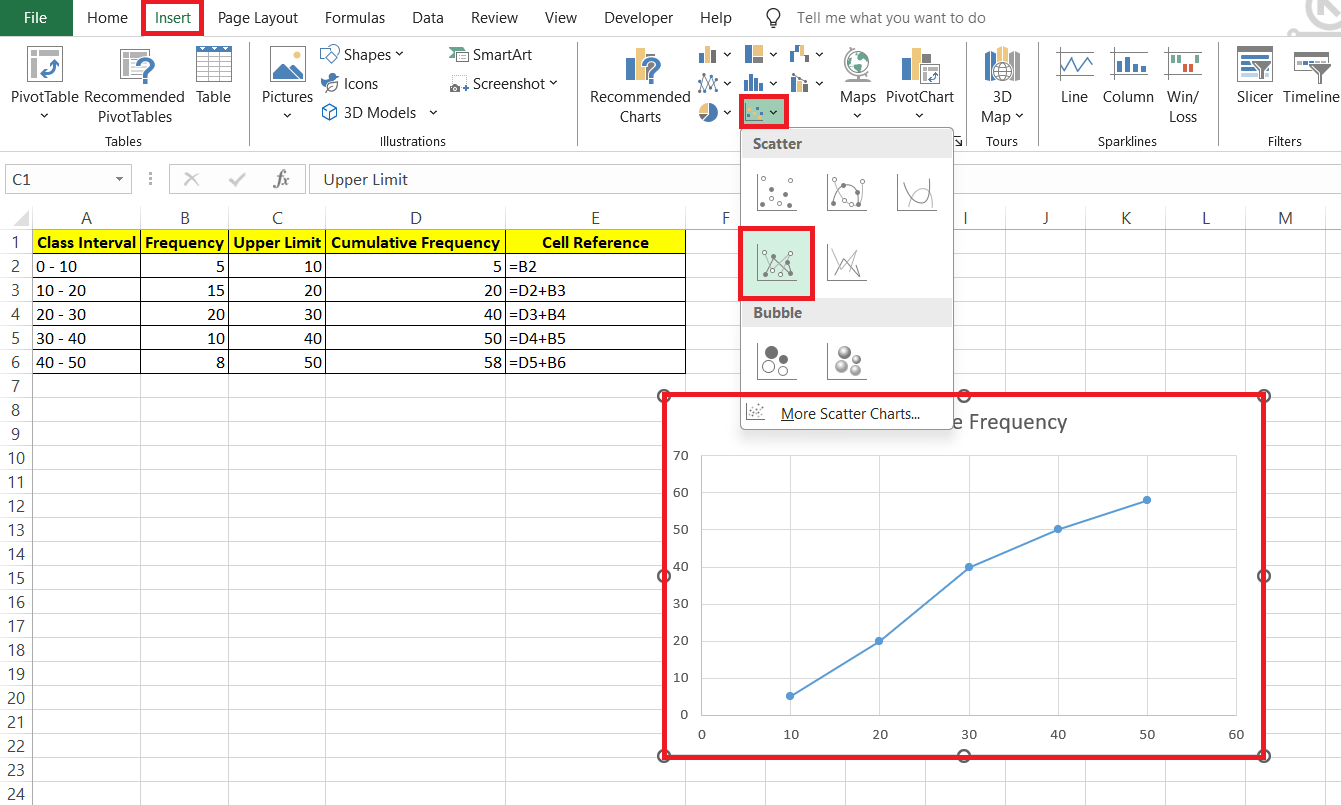
RESULT: Less-than ojive graph is made.
More Than Ogive Graph
When creating a “more than” ogive graph, you use the lower limits of the class intervals. This approach involves plotting cumulative frequencies against the lower class limits to illustrate the distribution of data greater than each specified value.
Let’s have a look at the steps below to understand better:-
STEP 1: Add a new column labeled “Lower Limit.” In cells C2 to C6, enter the upper limit for each marks range. For instance, if cell B2 contains the range 0-10, enter 0 as the lower limit. Continue this process for the entire column.
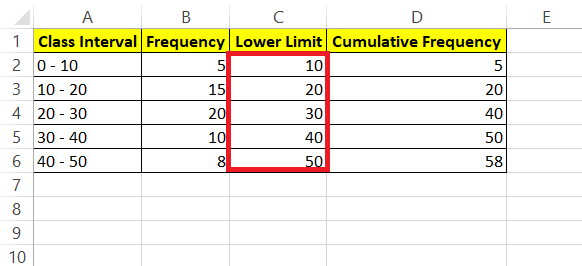
STEP 2: Add a new column, named Cumulative Frequency. This step is the opposite of the less than ogive graph. As the graph type is more than ogive graph, we will start filling the cumulative frequency from the last row. In Cell D6, fill the value of the last frequency i.e. the cell value of B6. Now, you need to present a formula to fill D2:D5. Cell value D5 is the sum of D6 + B5. The formula is the sum of the current frequency plus the frequency added previously. Copy the same formula to the rest of the upper cells.

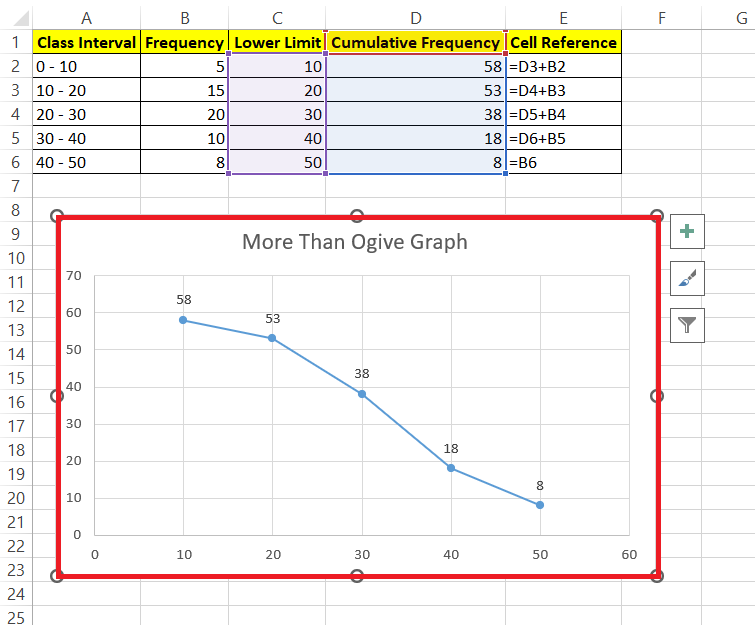
STEP 3: Now, the final step is to create the table. Select the range C1:D6, then go to the “Insert” tab. In the “Charts” section, choose “Scatter with Straight Lines and Markers.”
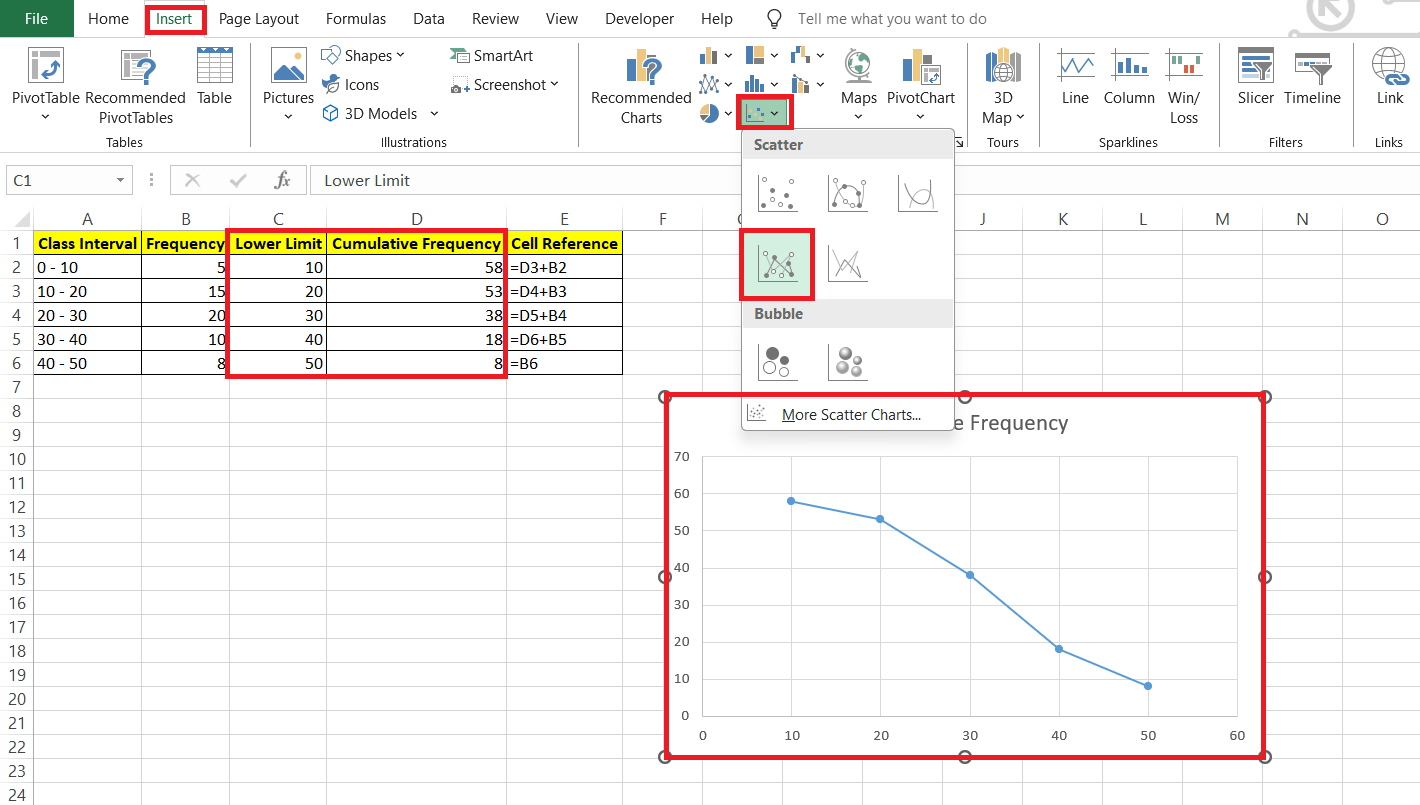
RESULT: More than ogive graph is created.
FAQs
What are the steps to create an ogive graph?
Follow the steps below to create an ogive graph in Excel:
- Enter the class interval and frequency in two columns.
- Add another column to calculate the cumulative frequency
- Highlight the data and insert a scatter plot.
- Change the axis and add data labels.
What is an ogive graph?
An ogive graph is a cumulative frequency graph. It shows how many values fall above or below a particular level. It is useful to understand the distribution of data and find measures like median, percentile, and quartile.
Can an ogive graph be created with non numeric data?
Creating an ogive for non-numeric data isn’t typically possible because ogives require numerical values for cumulative frequencies. You would need to convert the non-numeric data into numerical values or categories that can be tallied and cumulated for such a graph.
How to modify the class intervals on my ogive?
To modify class intervals on an ogive, adjust the range of values in your dataset’s class limits column. Make sure to update the cumulative frequency calculations accordingly, and then refresh your ogive graph to reflect these new intervals.
How to do a cumulative frequency graph in Excel?
To create a cumulative frequency graph in Excel, input your data, calculate cumulative frequencies for your class intervals, and then plot these values on a Scatter chart with smooth lines. Adjust your axes, add labels, and format your graph to complete the process.

John Michaloudis is a former accountant and finance analyst at General Electric, a Microsoft MVP since 2020, an Amazon #1 bestselling author of 4 Microsoft Excel books and teacher of Microsoft Excel & Office over at his flagship MyExcelOnline Academy Online Course.

 30 Days - Full Access









