 Free Practice Workbook
Timestamps in Microsoft Excel are indispensable tools for data analysis. They are digital markers that record when data was entered, modified, or updated. They help establish a timeline and sort or filter information by time. In this article, you will learn how to use both static and dynamic quick timestamps.
Key Takeaways:
- Static timestamps are fixed, and dynamic timestamps update automatically.
- Timestamps are used for tracking ongoing changes.
- Use Ctrl + ; for a static date and Ctrl + Shift + ; for a static time.
- The NOW function provides real-time updates of date and time.
- The TODAY function inserts only the current date.
Table of Contents
Introduction to Timestamps
Timestamps are important in data analysis. They are digital markers that help you track and record when data was entered, modified, or updated. They allow you to:
- Establish a timeline
- Sort information based on time criteria
- Pinpoint exact moments of data entry
There can be two types of timestamps: static and dynamic. Static timestamps are a fixed record of time that does not change once it is entered. Whereas, dynamic timestamps keeps updating automatically to show the current date and time.
How to Add Timestamps
Static Timestamps
A static date can be entered into Excel by pressing Ctrl + ;
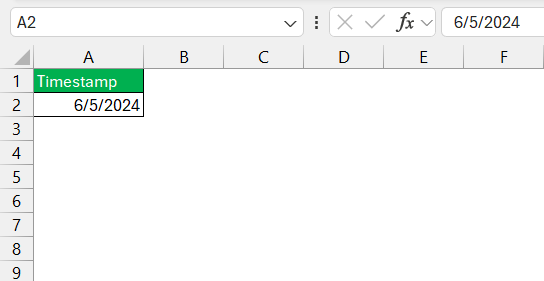
This date will remain unchanged no matter how many times you reopen the workbook. By using Ctrl + Shift + ;, the present time is displayed in your chosen cell.
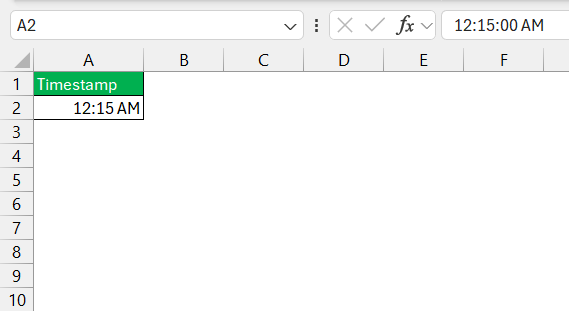
Insert Dynamic Timestamps
NOW Function
The NOW function is a useful tool for real-time data insertion in Excel. With a simple entry of =NOW() into any cell, you instantly get the current date and time.
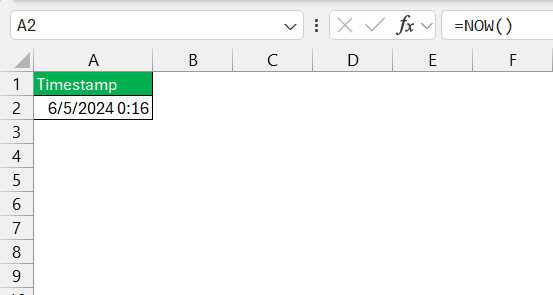
This function is dynamic and can update itself every time there are changes in the worksheet. Press Shift + F9 or F9 to update the workbook.
TODAY Function
If you need to insert the current date only, use the TODAY function. Just type =TODAY() into the desired cell and you’ll see today’s date appear.
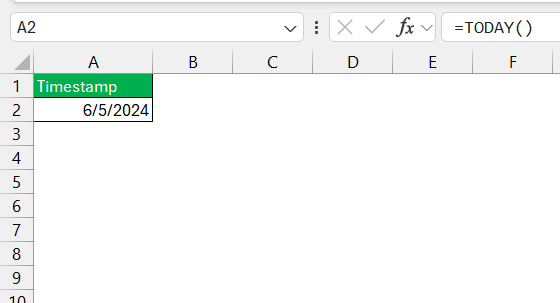
It’s dynamic, much like the NOW function. But it exclusively focuses on the date and leaves the time out of the equation.
Advanced Timestamp Techniques
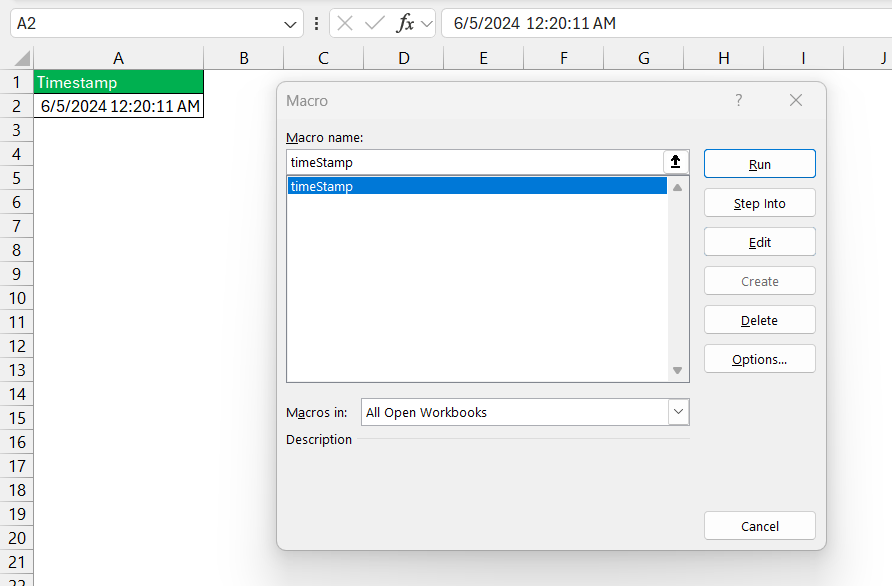
You can use VBA code to create your own timestamp format. The code will be:
Sub timeStamp()
Dim ts As Date
With Selection
.Value = Now
.NumberFormat = "m/d/yyyy h:mm:ss AM/PM"
End With
End Sub
Tips & Tricks
- Use a uniform date and time format throughout your dataset.
- Customize the color and font weight of the timestamps using built-in formatting options.
- Use a custom number format to include or exclude time.
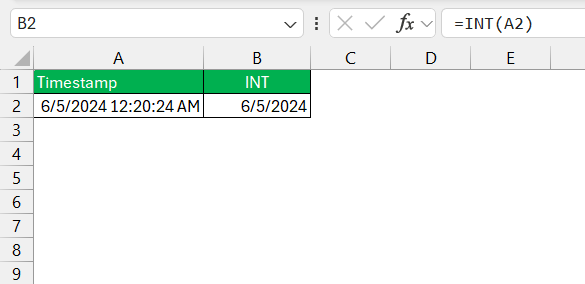
- Use the INT function to extract the date from the timestamp.
FAQs
What is the timestamp format in Excel?
The timestamp format in Excel shows the current date and time. It is represented as MM/DD/YYYY HH:MM:SS. However, you can customize it using the Format Cells dialog box.
What is NOW function?
The NOW function in Excel is used to insert the current date and time into a cell. It continuously updates to reflect the current date and time whenever the worksheet recalculates. This function requires no arguments and will present the information based on the computer’s regional settings.
How to Remove Time from an Excel Timestamp?
To remove time from a timestamp in Excel, you can use the INT function. This function will separate the date from the time.
=INT(cell_reference)
It will display only the date portion.
How to Insert a Timestamp Without Using VBA?
Without using VBA, you can insert a timestamp by using these shortcuts:
Ctrl + ;for the current dateCtrl + Shift + ;for the current time.

John Michaloudis is a former accountant and finance analyst at General Electric, a Microsoft MVP since 2020, an Amazon #1 bestselling author of 4 Microsoft Excel books and teacher of Microsoft Excel & Office over at his flagship MyExcelOnline Academy Online Course.

 30 Days - Full Access









