 Free Practice Workbook
When working in Excel, I often need a way to allow users to choose a single option from a list, and that’s where radio buttons come in handy. Radio buttons, also known as option buttons, make it easy to select one item from multiple choices. In this article, I’ll walk you through how to insert and use radio button in Excel to make your Excel sheets more interactive and user-friendly. Let’s dive into the details!
Key Takeaways:
- Radio buttons allow users to make a single selection from multiple options.
- These buttons transform static Excel sheets into dynamic forms.
- Accessing the Developer tab and inserting radio buttons is a straightforward process.
- Radio buttons can be customized in terms of appearance and function.
- Linking radio buttons to cells enables live data updates.
Table of Contents
Getting Started with Radio Button in Excel
Enable the Developer Tab
You can add radio buttons in Excel by accessing the Developer tab. This tab may not always be visible on the ribbon. You can enable this tab by following the steps below:
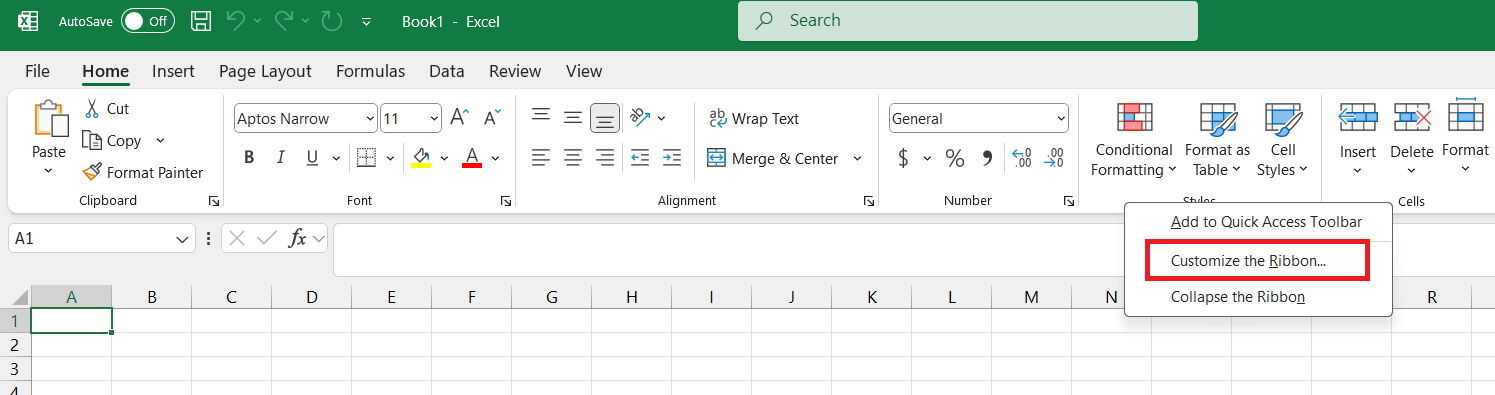
STEP 1: Right-click on the ribbon and select Customize the Ribbon.
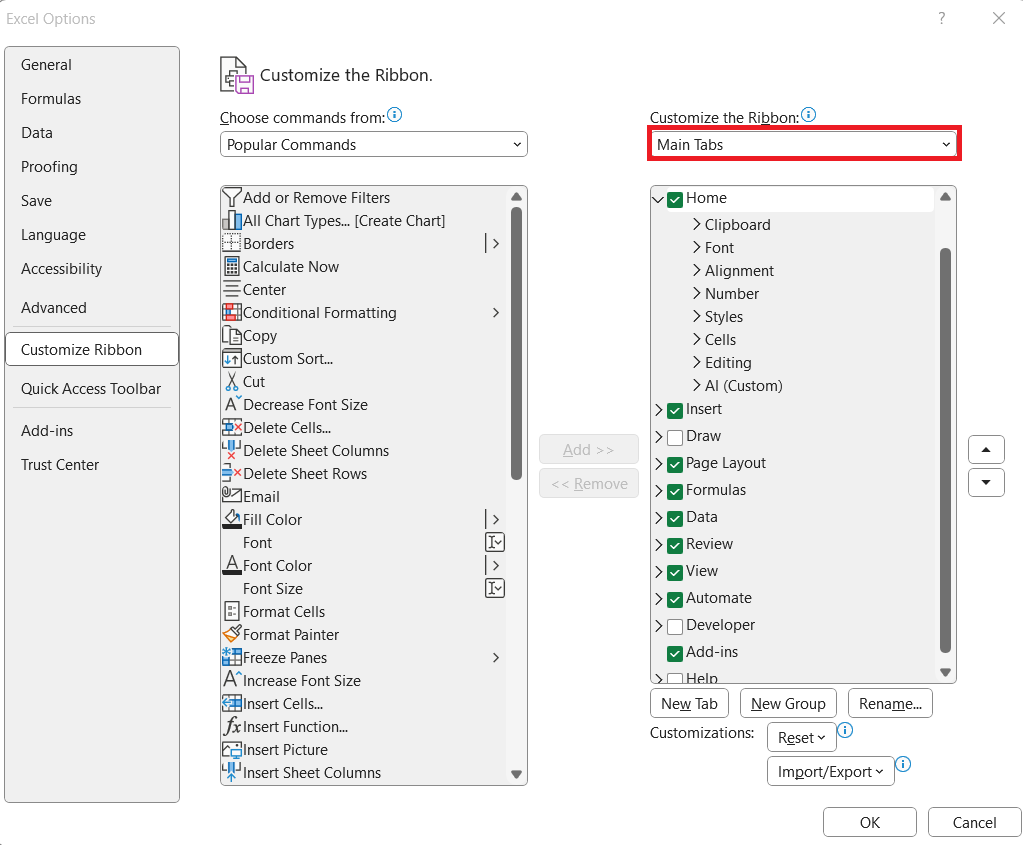
STEP 2: In the dialogue box, go to Main Tabs.
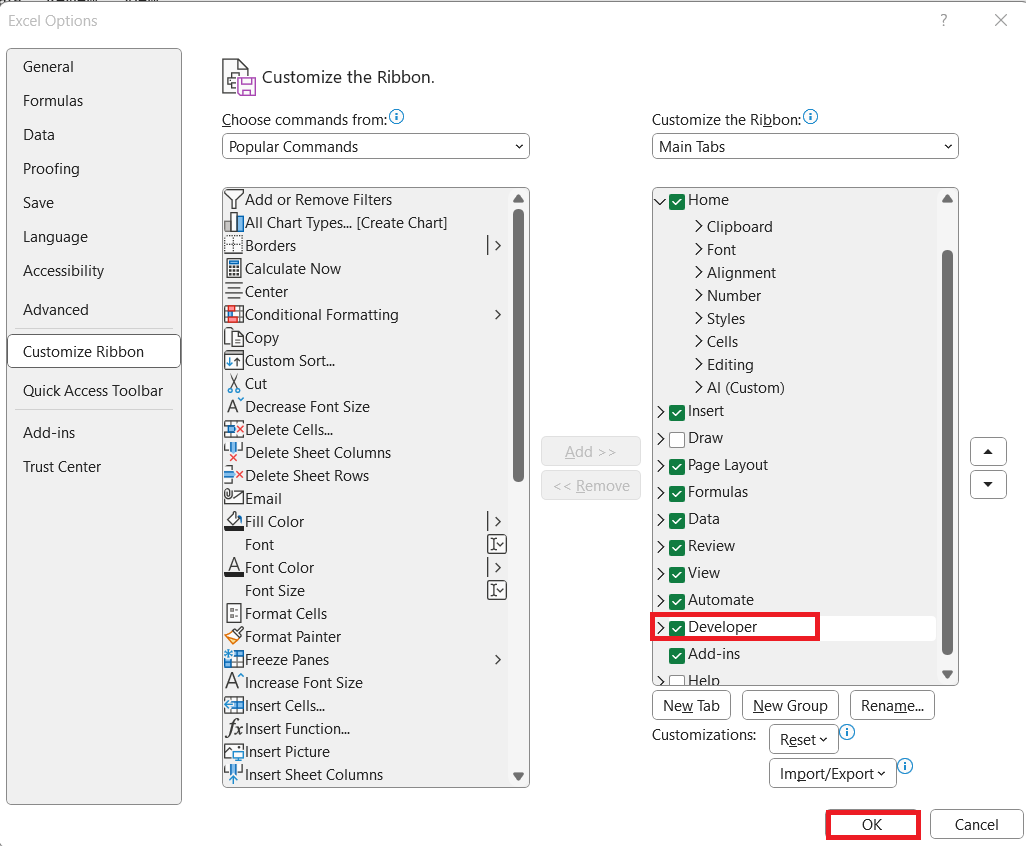
STEP 3: Here, we simply check the Developer option and click OK to apply changes. The Developer tab will then sit neatly alongside other tabs, ready for use.
The Developer tab will now be visible!

The Basics of Inserting a Radio Button
Once the Developer tab is at our fingertips, inserting a radio button into an Excel worksheet is pretty straightforward. To get started, to the following:
STEP 1: Click on the Developer tab and find the ‘Insert’ dropdown menu in the ‘Controls’ group.

STEP 2: From the dropdown, select the radio button.
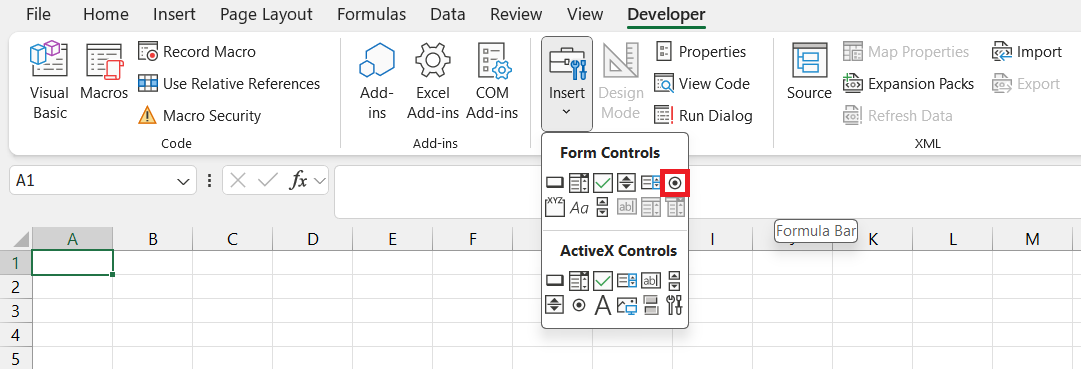
STEP 3: Click on the sheet and the radio button will appear. You can now move or resize it as per your requirement.
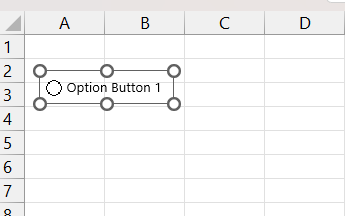
Customization and Management of Radio Buttons
Personalize Radio Button
You need to personalise the radio buttons in Excel to make them look aesthetic and improve their usage. Follow the steps below to modify a radio button:
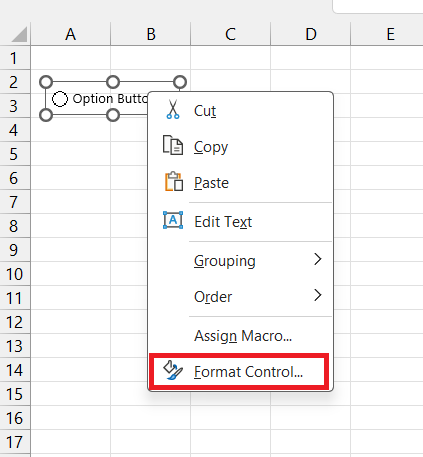
STEP 1: Right-click on the button and select Format Control.
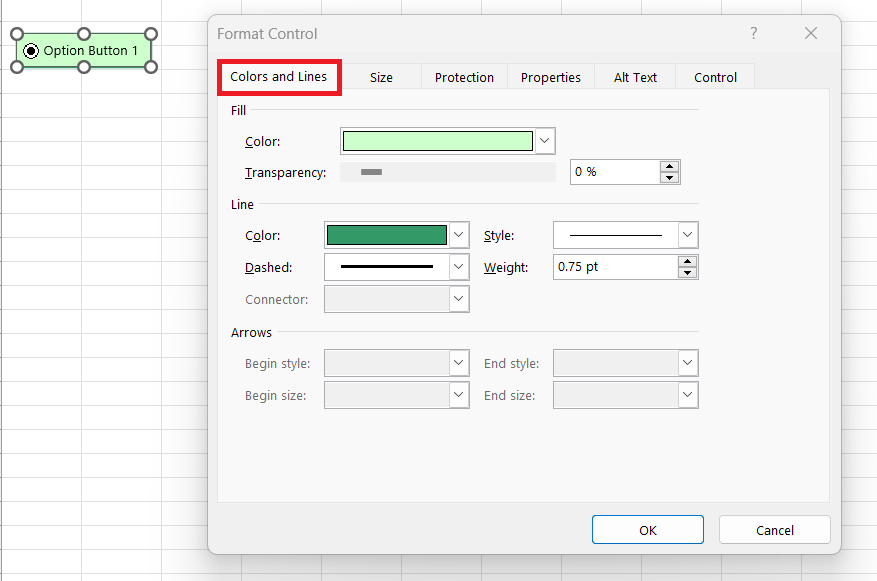
STEP 2: Go to Colors and Lines tab and change the appearance of the button.
For the radio icon itself, while we can’t change its original look, we can adjust its size to make it align properly with other sheet elements. Moreover, improving the label with descriptive text helps users better understand what they’re selecting. Labels should always reflect the choice they represent.
To further customize, right-click on the radio button to rename it.
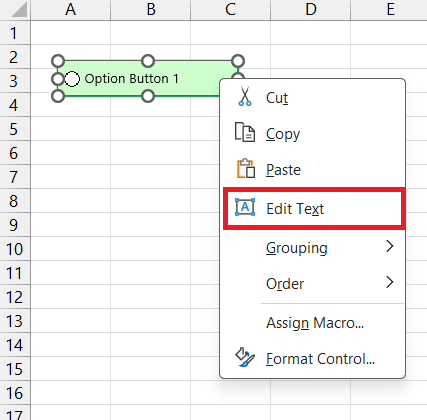
This will make writing macros and interacting with buttons easier.
Manage Multiple Radio Buttons
Follow the points below to manage multiple buttons efficiently:
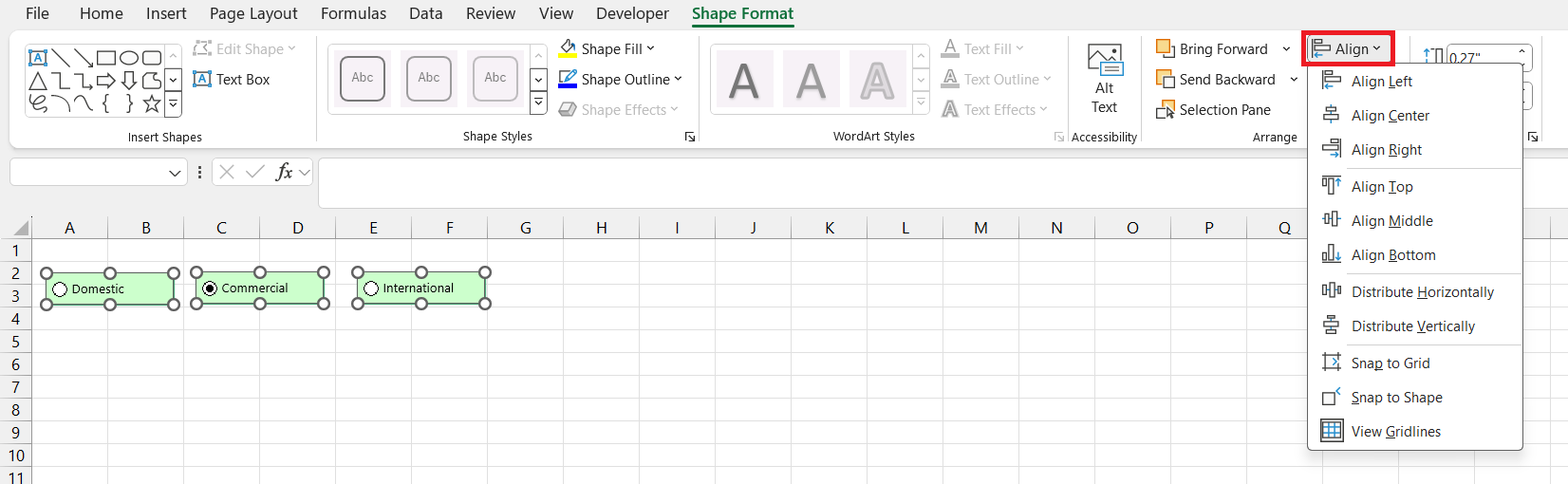
- Copy the first created button and paste it for multiple buttons. This will keep the size and style of the buttons consistent across the worksheet.
- Align the buttons properly.
- Group related buttons together.
- Rename each button clearly to avoid confusion.
- Test the buttons to check if they are working properly.
Dynamic Data with Radio Buttons
Linking Radio Buttons to Cells
You can make a worksheet dynamic by linking a radio button to a cell. This allows us to provide a live update of the data chosen. You can also apply the formula or logical condition based on the option selected. Follow the steps below to know how to link a radio button to a cell:
STEP 1: Right-click on the radio button. Select “Format Control” from the menu.
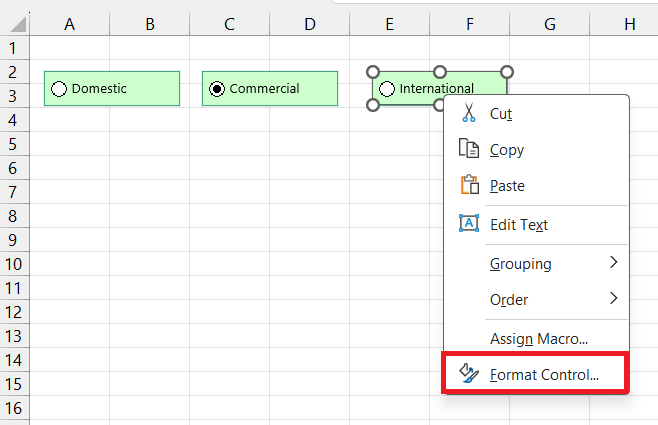
STEP 2: Click on the “Control” tab within the dialogue box. In the “Cell link” box, click the corresponding cell on the sheet that I want to use.
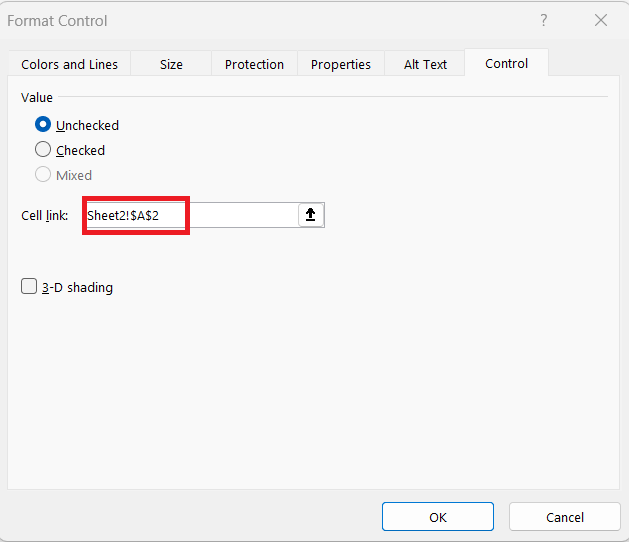
Once set up, I test the setup to check that selecting different radio buttons updates the linked cell with unique values in real-time. These values serve as triggers in Excel, capable of initiating changes across the workbook, such as recalculating formulas or adjusting conditional formatting to reflect the new data state.
FAQ
What is a radio button in Excel?
A radio button in Excel is a small selectable button that allows you to choose one option from a group. It looks like a small circle and changes to a dot when you click on it. It is commonly used in dashboards to allow users to select only one option from the list.
How to insert radio buttons in Excel?
- Go to the Developer tab and select Insert.
- Select Form controls and click on the radio button.
- Click anywhere on the worksheet to place the button.
Can a radio button be linked to a chart title?
You, the radio button, can be linked to a chart title. By doing so, the chart title will change dynamically based on the option selected from the radio button.
What if the radio buttons are not working as expected?
If your radio buttons in Excel aren’t working as expected, check that they’re correctly grouped and each button is linked to a unique cell. Also, look for conflicts with macros running in the background. As a last resort, delete and reinsert the radio buttons for a fresh start.
What if we have 10 questions in a survey and 4 options for each question?
For a survey with 10 questions, each having 4 options, create 10 separate groups of radio buttons, one group per question. Each group’s buttons should be linked to a distinct cell to record individual answers, so that there is clean data for easy analysis and interpretation.

John Michaloudis is a former accountant and finance analyst at General Electric, a Microsoft MVP since 2020, an Amazon #1 bestselling author of 4 Microsoft Excel books and teacher of Microsoft Excel & Office over at his flagship MyExcelOnline Academy Online Course.

 30 Days - Full Access









