 Free Practice Workbook
When you copy data from multiple sources, it is common to find duplicates in the data. Sometimes it takes valuable time to locate those duplicates and then delete them. Excel has a built-in Remove Duplicates feature that lets you clean your table in just a few clicks. In this article, I will show you how to remove duplicates in an Excel table.
Key Takeaways
- Excel has a built-in tool to quickly remove duplicates.
- You can find duplicates based on one or multiple columns.
- Conditional Formatting helps you highlight duplicate values.
- Advanced Filter lets you copy unique values to a new location.
- Excel keeps the first value and removes repeated entries.
Table of Contents
What Are Duplicates in an Excel Table?
Duplicates are rows that contain repeated information. For example, suppose you have a customer table with the same Customer ID appearing more than once. If each customer should only appear once, the repeated Customer ID is a duplicate.
However, what Excel considers a duplicate depends on the columns you select.
For example, you may have two customers named John Smith. If you check only the Name column, Excel may consider them duplicates. But if they have different Customer IDs or email addresses, they are actually separate customers.
This is why selecting the correct columns is important when removing duplicates.
Remove Duplicates
STEP 1: Click inside your Excel Table and select Table Tools > Design > Remove Duplicates
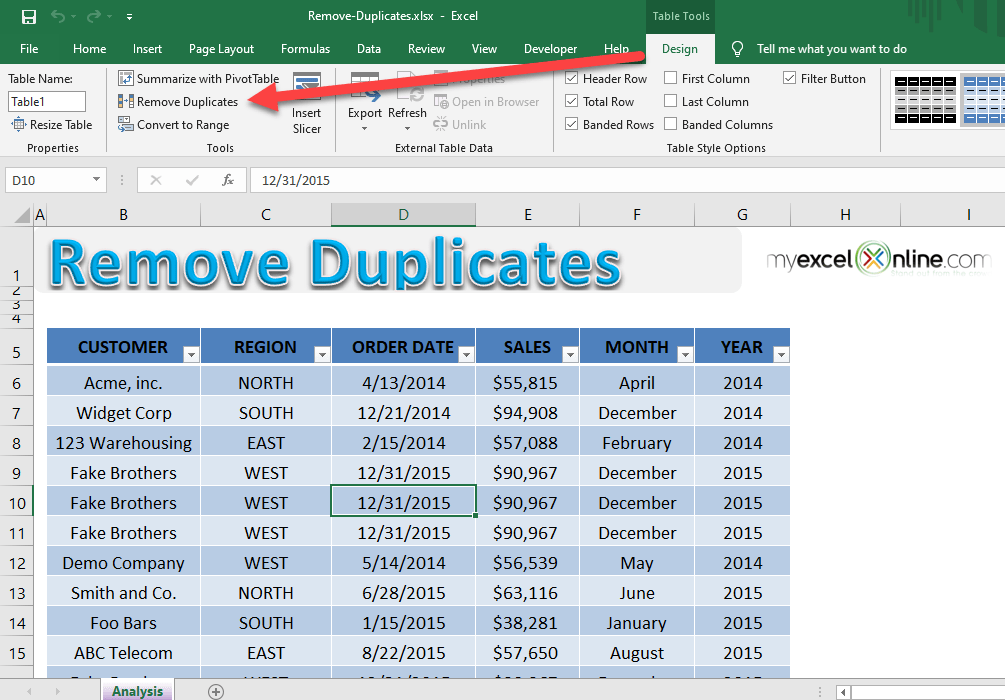
STEP 2: This will bring up the Remove Duplicates dialogue box. Select only the Column box that contains the duplicates that you want to remove and press OK
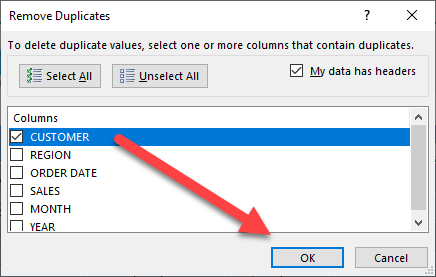
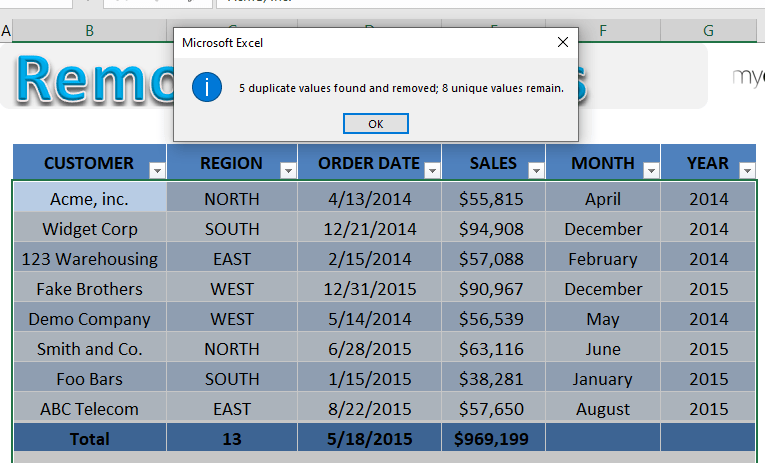
Your duplicates are now removed!
Highlight Duplicates using Conditional Formatting
Instead of simply removing duplicates from the list, you may sometimes require to highlight duplicate values from a range.
Let’s see how it can be done:
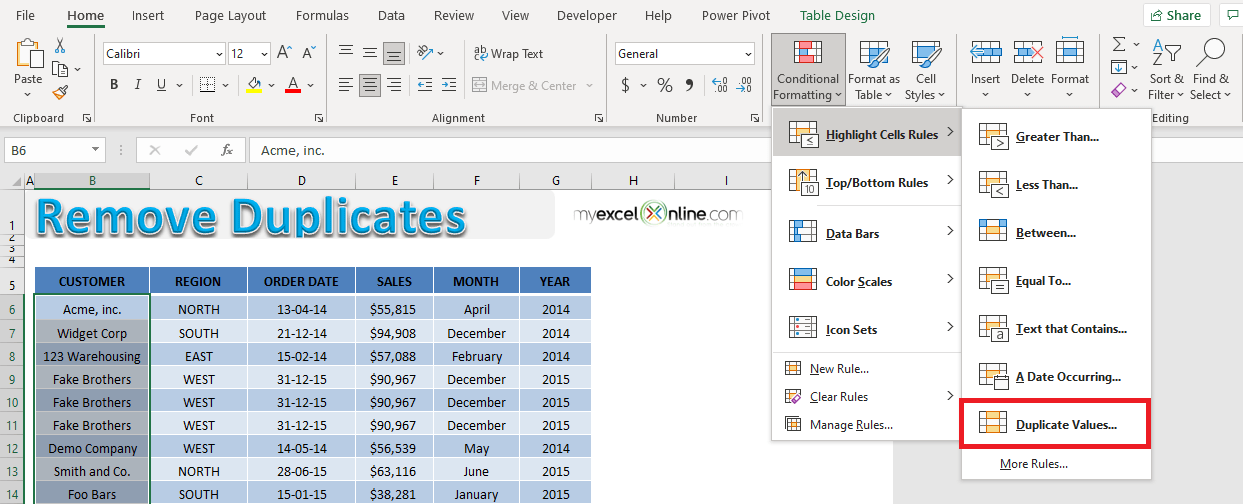
STEP 1: Select the column containing customer name.
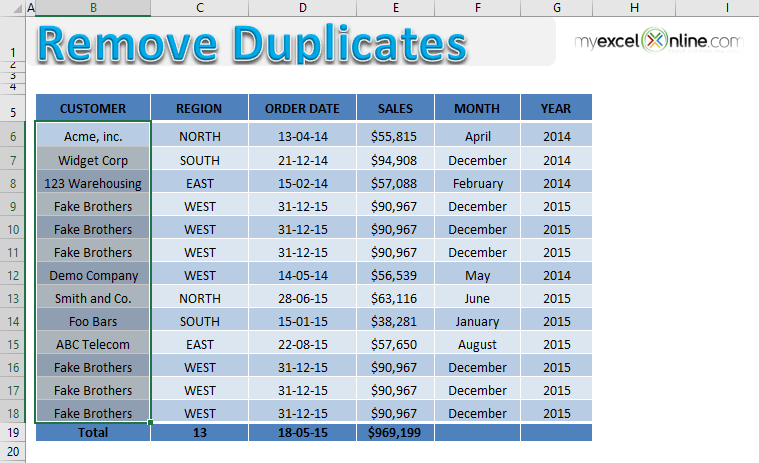
STEP 2: Go to Home > Conditional Formatting > Highlight Cell Rules > Duplicate Values.
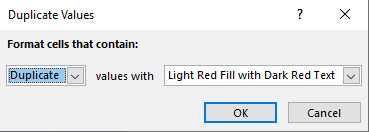
STEP 3: In the dialog box, click OK.
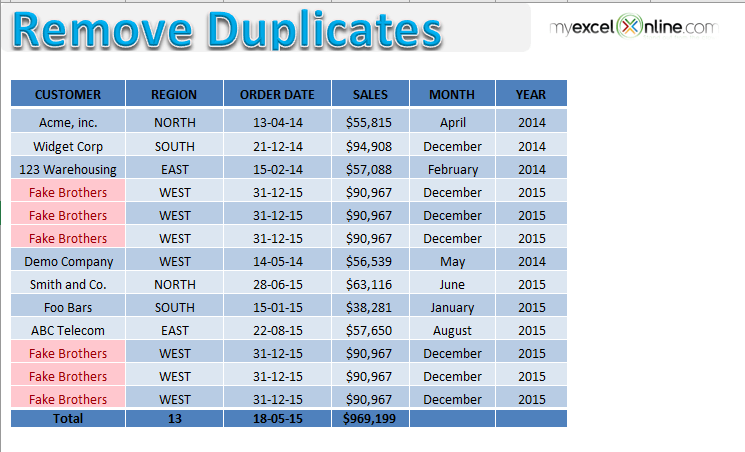
All the duplicate values in the customer column will be highlighted in red!
Copy Unique List to New Location
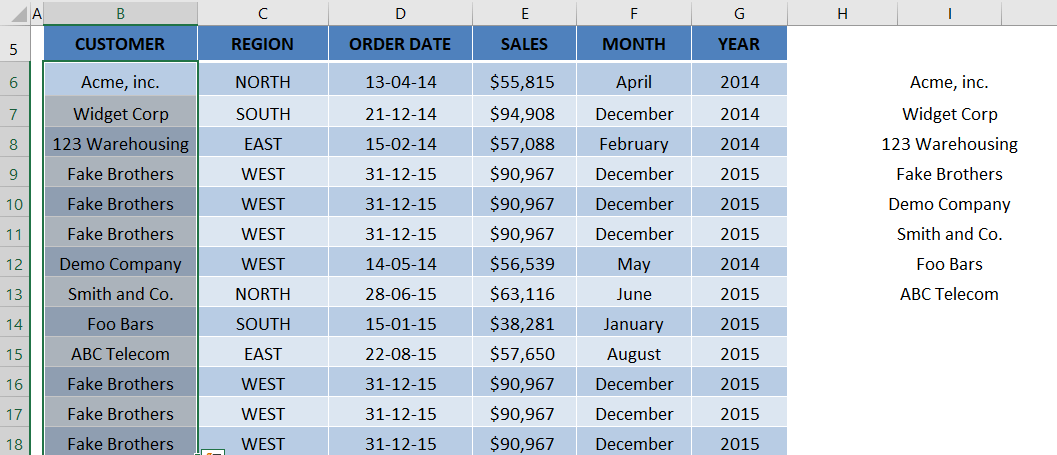
If you wish to remove duplicates and copy the list of unique values in a new location without making changes to the existing table, follow along.
STEP 1: Go to Data > Under Sort & Filter > Select Advanced.

STEP 2: In the Advanced Filter dialog box,
- Under Action, select Copy to another location
- Under List Range, select the customer column
- Under Copy to, select cell where you want to paste the unique customer list
- Check Unique records only
- Click OK
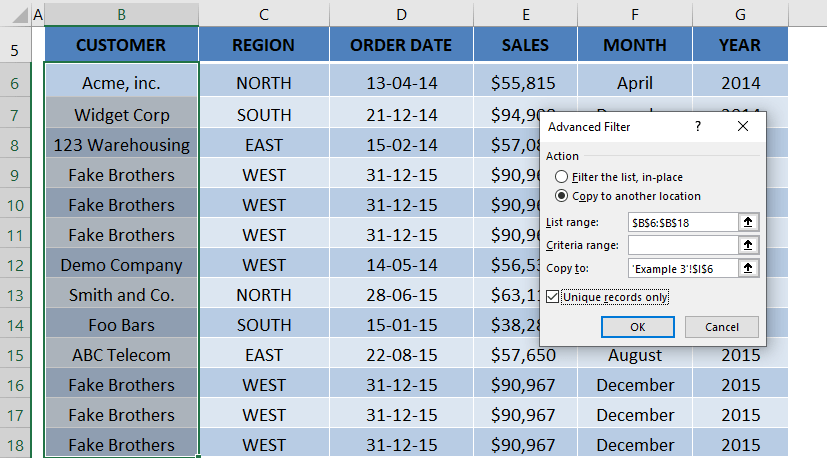
The unique list of customers will be copied to cell I6.
Tips & Tricks
- Check the selected columns: Make sure you select the correct columns to find duplicates.
- Review your data: Excel may remove valid records if you select the wrong columns.
- Check the first record: Excel keeps the first occurrence and removes the duplicates below it.
- Sort your data: Sort by date from newest to oldest if you want to keep the latest record.
- Create a backup: Make a copy of your worksheet before removing duplicates from a large dataset.
FAQs
How to remove duplicates from an Excel table?
To remove duplicates from an Excel table,
- Select your table
- Go to the Data tab
- Click Remove Duplicates
- Choose the columns to check for duplicates
- Press OK
Can I undo the removal of duplicates if I make a mistake?
Yes, you can press Ctrl + Z immediately after removing duplicates to restore your original data.
Does removing duplicates delete all instances of the duplicate data?
No, Excel keeps the first occurrence of the data and removes all subsequent duplicates. If you need all duplicates removed, consider using advanced filtering or Power Query.
Can I remove duplicates based on multiple columns?
Yes, the “Remove Duplicates” tool allows you to select multiple columns, and Excel will only remove rows where all selected columns have identical values.
How can I highlight duplicates before deleting them?
Use Conditional Formatting by selecting your data, going to “Home” > “Conditional Formatting” > “Highlight Cell Rules” > “Duplicate Values” to visually identify duplicates before removing them.

John Michaloudis is a former accountant and finance analyst at General Electric, a Microsoft MVP since 2020, an Amazon #1 bestselling author of 4 Microsoft Excel books and teacher of Microsoft Excel & Office over at his flagship MyExcelOnline Academy Online Course.

 30 Days - Full Access









