 Free Practice Workbook
Rounding numbers to N significant digits in Excel is important for accurate data analysis. Excel provides functions such as ROUND, ROUNDUP, and ROUNDDOWN that can be used to round numbers to n significant digits. In this article, you will learn how to round numbers to N significant digits in Excel.
Key Takeaways:
- Rounding numbers in Excel is important for accurate data analysis and reporting.
- The ROUND function is used to round a number to a specific number of digits.
- The ROUNDUP function always rounds numbers away from zero.
- The ROUNDDOWN function rounds closer to zero.
- The MROUND function rounds a number to its nearest specified multiple,
Table of Contents
Mastering the Round Function
Syntax
The ROUND function in Excel is straightforward but powerful. The syntax for the ROUND function is:
=ROUND(number, num_digits)
where, number is the value you want to round andnum_digits specifies the number of digits to which you want to round the number.
- If
num_digitsis greater than 0, the function rounds to the specified number of decimal places. - If
num_digitsis 0, the function rounds to the nearest whole number. - If
num_digitsis less than 0, the function rounds to the left of the decimal.
Practical Examples
Applying the ROUND function to achieve rounding to a specific number of significant digits can be slightly tricky because it’s not just about decimal places — it’s also about the scale of the number. Here’s how I like to tackle it:
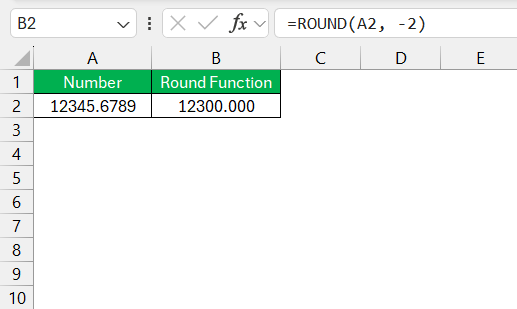
- To round a large number like 12345.6789 to three significant digits, you need to round to the nearest 100.
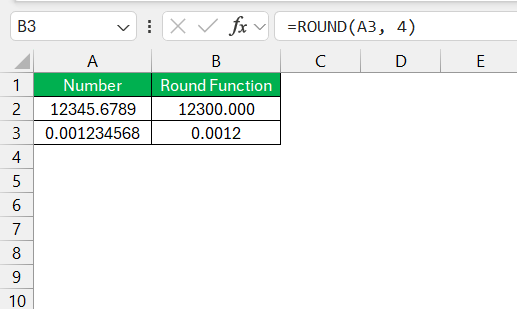
- To round a small number like 0.00123456789 to two significant digits, you need to round to 4 decimal points.
Other Rounding Functions
ROUNDUP, ROUNDDOWN, and MROUND Functions
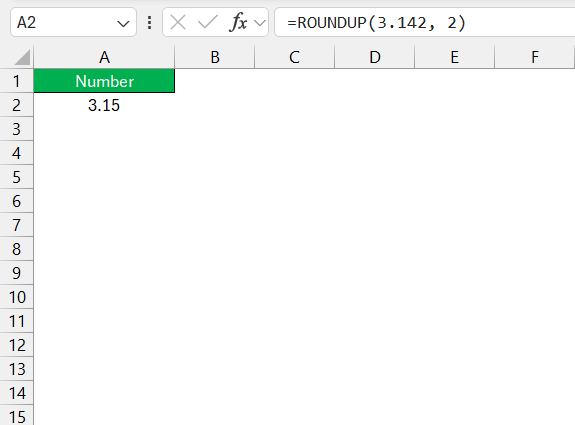
ROUNDUP function, as the name suggests, always rounds numbers away from zero, meaning 3.142 becomes 3.15 when rounded to two decimal places using =ROUNDUP(3.142, 2). It’s particularly useful when calculating maximum budgets or conservative estimates.
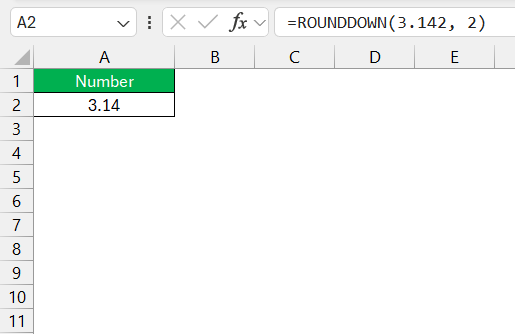
ROUNDDOWN does the opposite — it rounds numbers towards zero. So, =ROUNDDOWN(3.142, 2) will yield 3.14. This function comes in handy when we need to remain within certain limits, like avoiding overdrawing an account.
Lastly, the MROUND function rounds a number to its nearest specified multiple. Suppose I want to round a number to the nearest quarter, =MROUND(3.142, 0.25) converting 3.142 to 3.25. It’s quite beneficial in scenarios where quantities must adhere to standardized increments, such as packaging sizes or stock units.
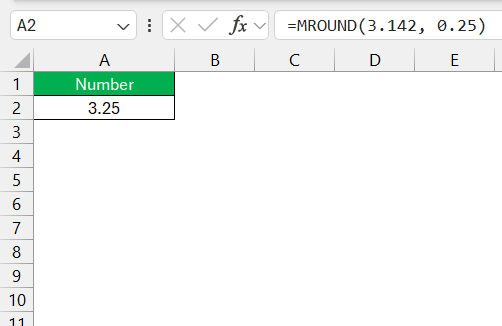
While ROUNDUP and ROUNDDOWN are about precision at decimal places, MROUND is about aligning numbers with practical usage or standards. Understanding when to utilize each of these greatly enhances my efficiency in financial modeling and inventory management.
ROUND with Other Excel Functions
You can use the ROUND function with other functions to improve your data analysis. Here are some of the examples:
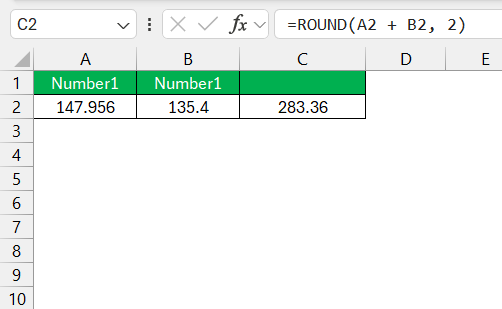
- Arithmetic Operations: To round the sum of two cells
A1andB1, you can use this formula:=ROUND(A1 + B1, 2). This ensures the final sum is rounded to two decimal places.
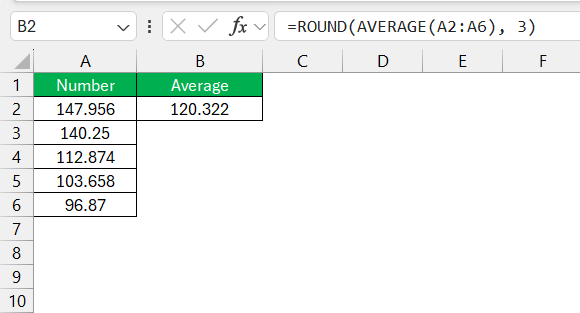
- Excel Formulas: I frequently incorporate the ROUND function within more complex formulas. For example, to round the average of a range of cells
A2:A6, I would use=ROUND(AVERAGE(A2:A6), 3)to get a result rounded to three decimal places.
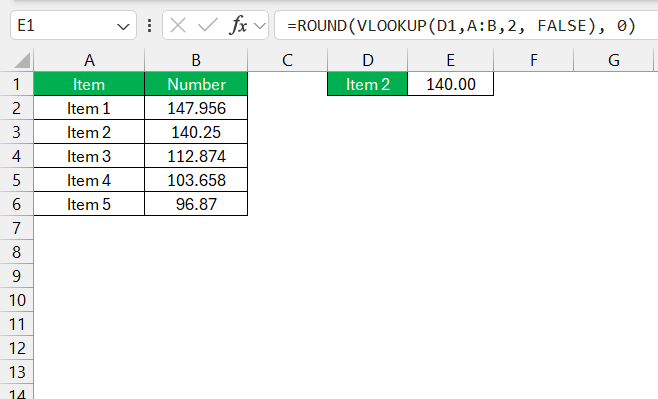
- Nested with Lookup Functions: When retrieving data with a VLOOKUP function, you can use the ROUND function to get the result rounded to the nearest whole number.
=ROUND(VLOOKUP(value, table, index_number, FALSE), 0).
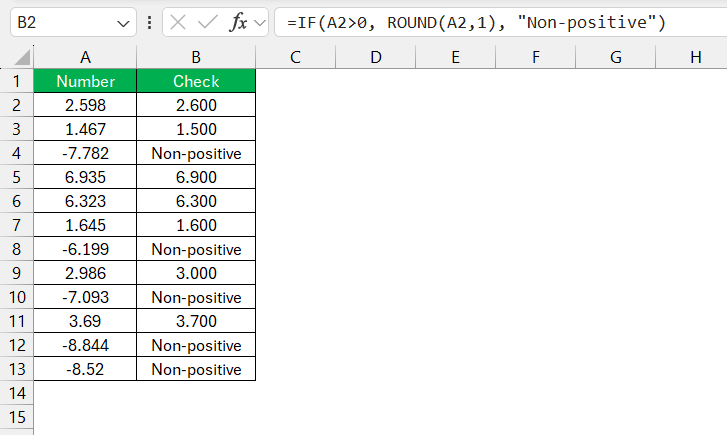
- Conditional Statements: In decision-making models, you can combine ROUND with IF statements. For example,
=IF(A1>0, ROUND(A1,1), "Non-positive")would round any positive number to one decimal place or return “Non-positive”.
FAQs
What is the formula of ROUNDUP function?
The formula for the ROUNDUP function in Excel is:
=ROUNDUP(number, num_digits)
numberis the value you want to round upnum_digitsspecifies the number of digits to which you wish to round
Use this function when you need to round a number up to a specific number of decimal places. If num_digits is 0, the function will round up to the nearest whole number.
How to Round to the Nearest Major Unit in Excel?
You can use the ROUND function to round to the nearest major unit, like thousands, hundreds, or tens. The argument for this function should be negative to round to major units. For example,
- =ROUND(A1, -2) rounds to the nearest hundred
- =ROUND(A1, -3) rounds to the nearest thousands.
- =ROUND(A1, -1) to the nearest ten.
How to Round All Numbers in a Column?
You can round all numbers in a column to a set number of significant digits by following the steps below:
- Enter the ROUND function in the first cell.’
- Locate a small triangle at the bottom right corner.
- Darg it down to the remaining cells.
What’s the Difference Between Rounding and Truncating Numbers?
Rounding in Excel adjusts a number to the nearest specified value, whereas truncating removes the digits after a specified value.
- 4.56 rounded to 1 decimal = 4.6
- 4.56 truncated to 1 decimal = 4.5

John Michaloudis is a former accountant and finance analyst at General Electric, a Microsoft MVP since 2020, an Amazon #1 bestselling author of 4 Microsoft Excel books and teacher of Microsoft Excel & Office over at his flagship MyExcelOnline Academy Online Course.

 30 Days - Full Access









