 Free Practice Workbook
When I need to work with a large set of data in Excel, being able to select all cells can save me a ton of time. In this guide, I will show you how to select all cells in Excel.
Key Takeaways:
- Click on the ” select all button to quickly select all cells in the tab.
- Press Ctrl + A to select all cells with data.
- Press Ctrl + Shift + Down Arrow to select all cells below the current cell.
- The Name Box helps select cells accurately.
- Hold Ctrl key and click on row headers to select non-contiguous rows.
Table of Contents
Introduction to Cell Selection
To be proficient in Excel, it is important to know how to select cells efficiently. Fast cell selection helps save time and makes working with spreadsheets much easier.
It is useful for simple tasks like data entry and also for advanced work like data analysis.
Basic Selection Techniques
Select an Entire Column or Row
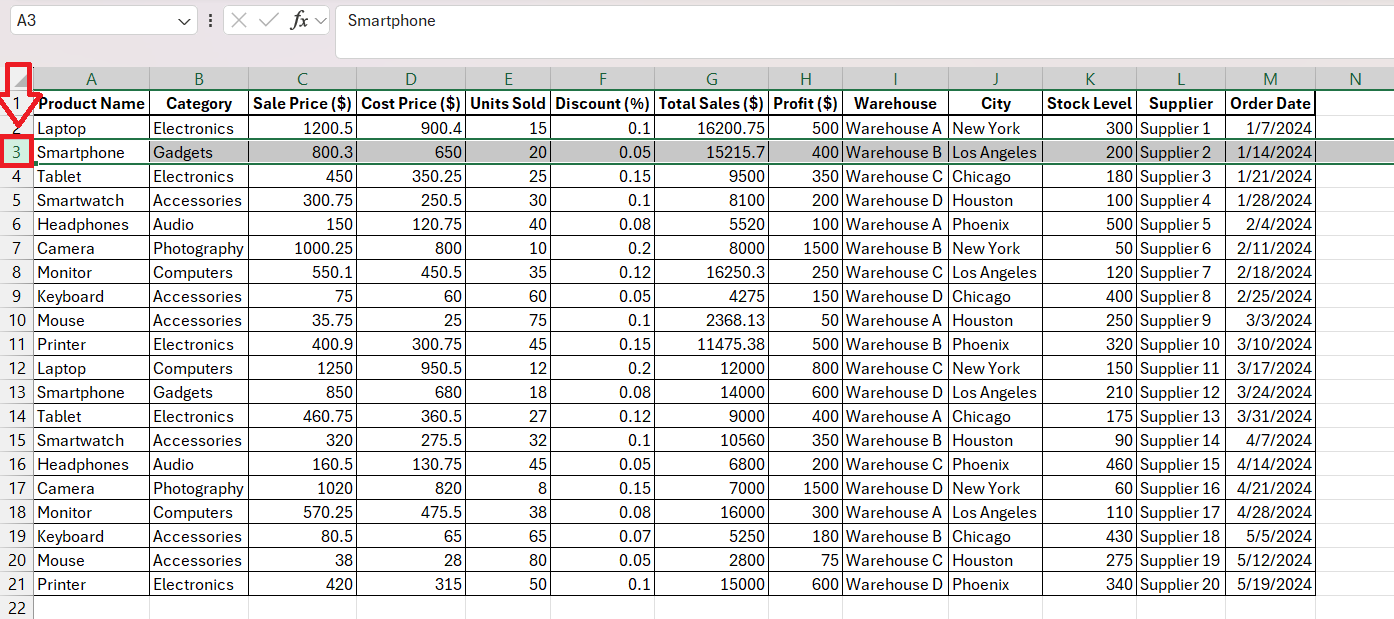
For those who find themselves repeating tasks in Excel, the simplest gestures can make a profound impact. Selecting an entire column or row is as intuitive as a single click. We hover the mouse over the row number or the column’s top edge and – like magic – a small black selection arrow appears.
A click and an entire row or column succumbs to our command, ready to be manipulated, formatted, or analyzed in an instant.
Select All Cells in a Table or Worksheet
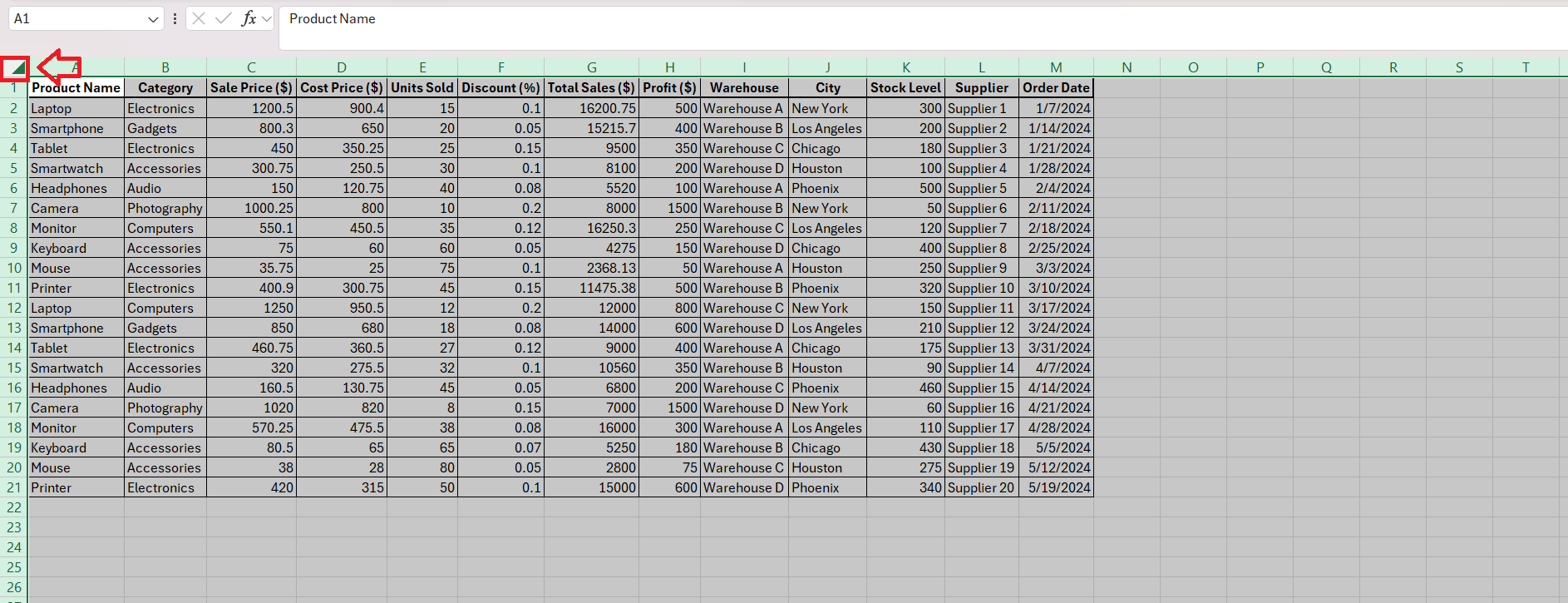
To handle data efficiently, I’ve got a couple of quick methods at my disposal that never let me down when I need to select all cells. For instance, the top-left corner of the Excel worksheet is home to a small inverted triangle—I call it the ‘Select All’ button. A swift click on this, and I’ve just captured every cell in a blink.
For those who prefer keyboard commands, Ctrl + A is an ally. If I activate a solitary cell first and then hit Ctrl + A, everything on the sheet falls into the selection. However, if I’m starting within a data region, two presses are needed – Ctrl + A followed by Ctrl + A again.

Occasionally, the dataset resides snugly within a table, noncompliant with the margins of the worksheet. In such cases, I can jump into the data and deploy the keyboard shortcut: I hold down Ctrl, press A, and all cells of my dataset are selected, halting at any blank rows or columns Excel deems the end of the data’s territory.
Advanced Cell Selection
Keyboard Shortcuts
Keyboard shortcuts in Excel can make us work much faster. They help us move and select data quickly without using the mouse.
- Use Ctrl + Arrow Key to jump to the last filled cell in any direction.
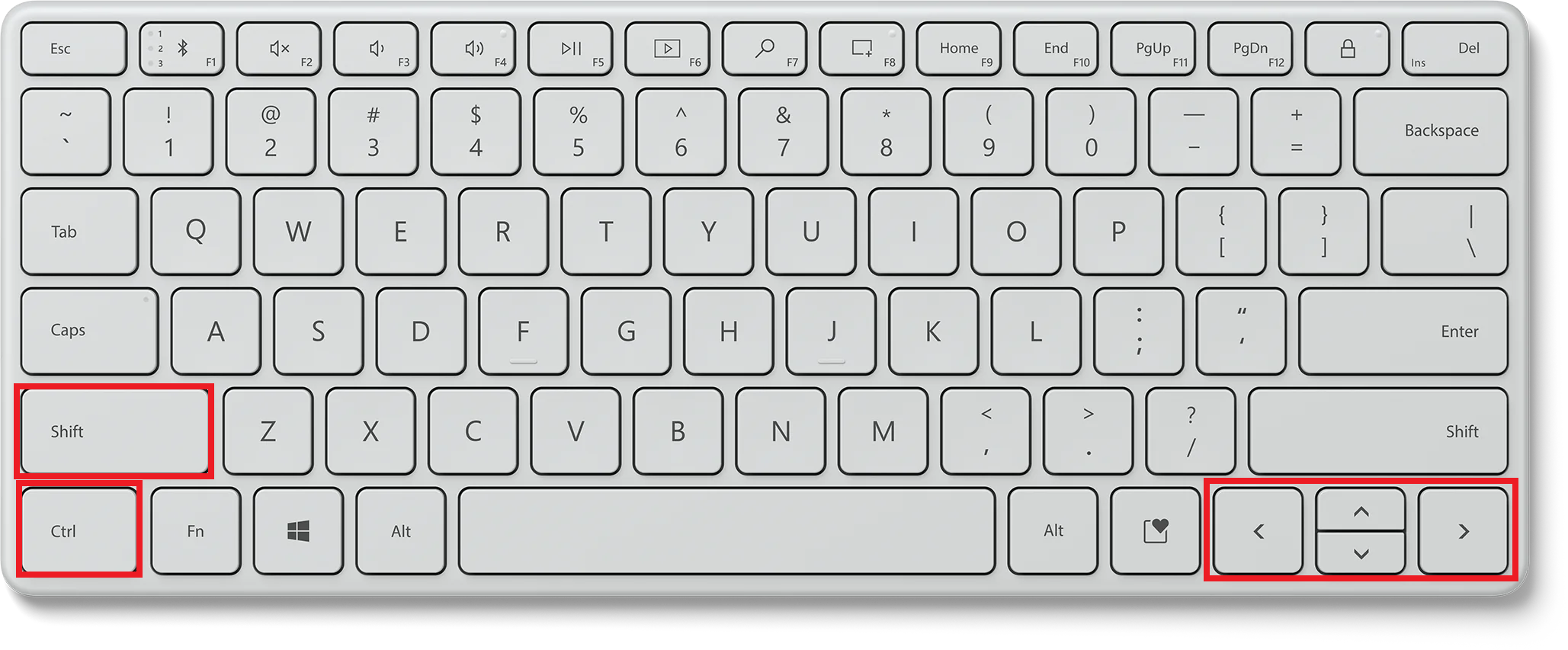
- Use Ctrl + Shift + Arrow Key to select a block of data.
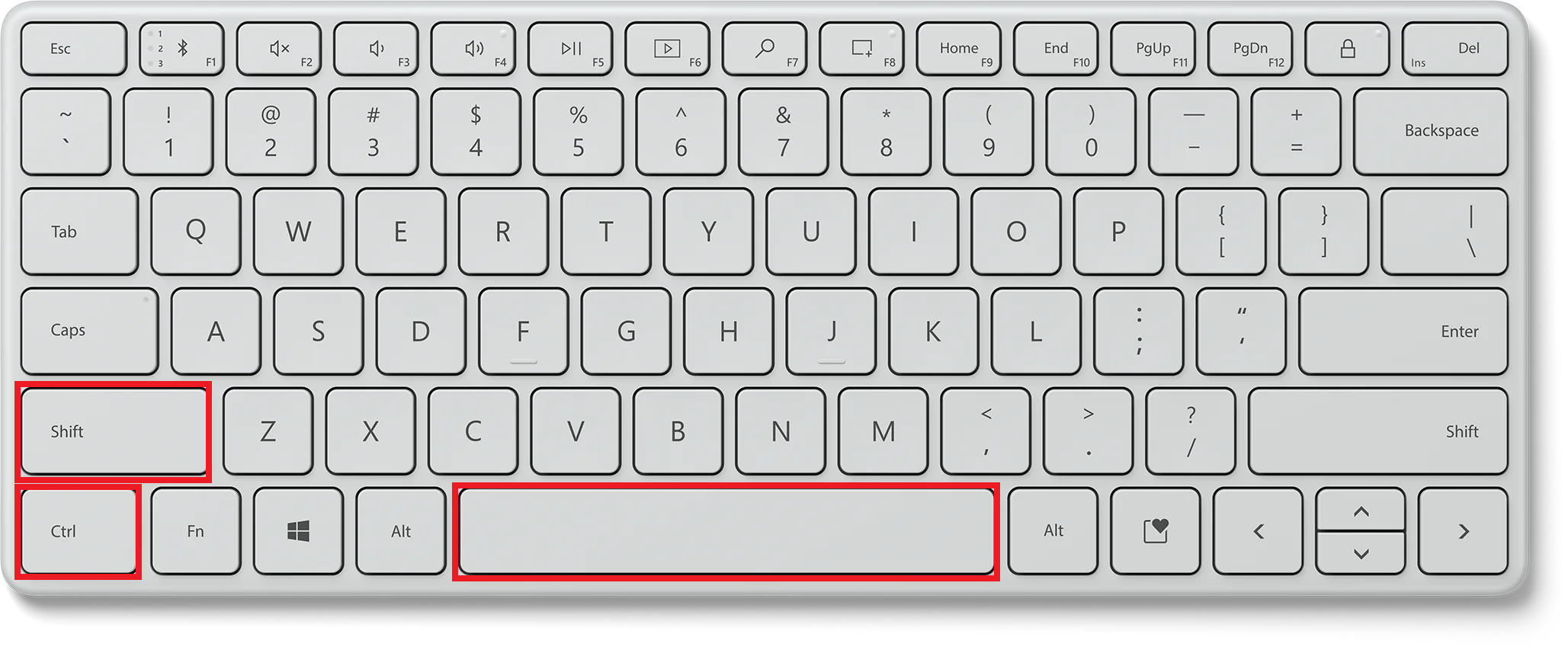
- Press Ctrl + Space to select a full column.
- Press Shift + Space to select a full row.
Use the Name Box
I can use the Name box to select cells quickly without scrolling or dragging.
To use the name box in Excel,
- Click the Name Box
- Type the cell reference
The cell reference can be a single cell, an entire row, or an entire column. For example, typing H:H selects the entire H column instantly.
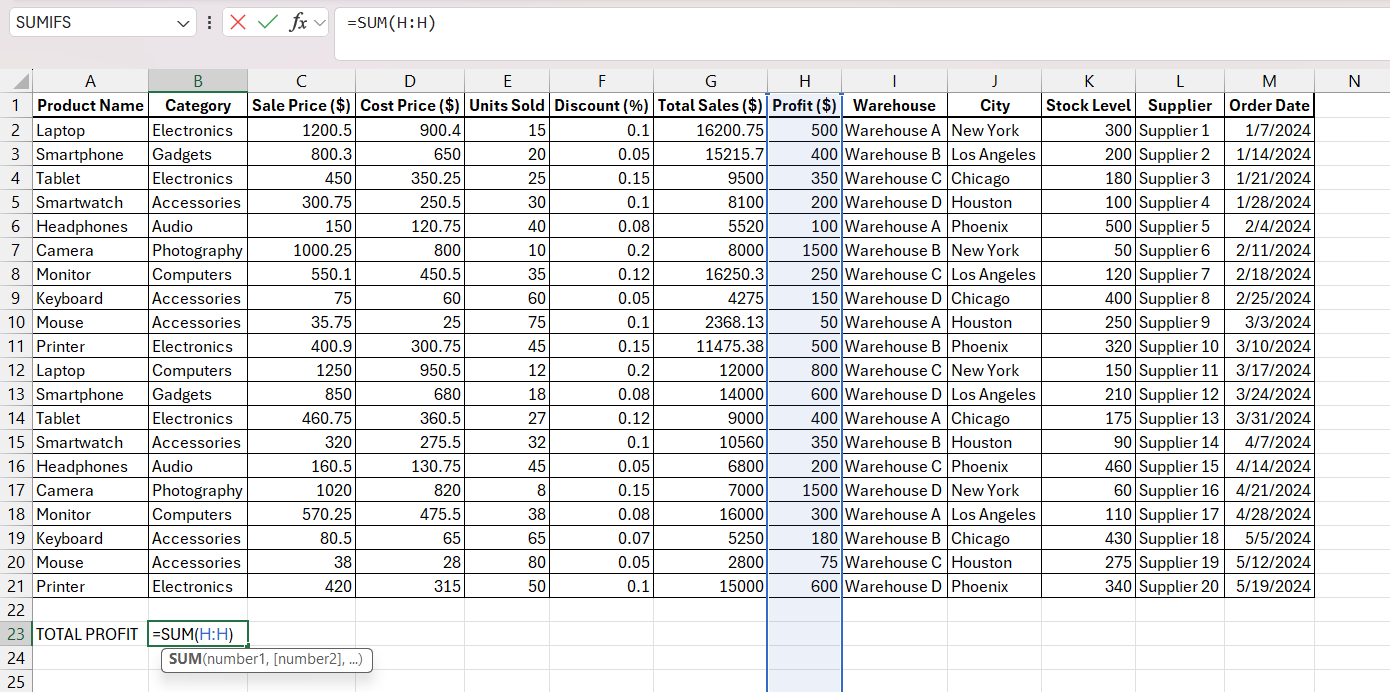
I can also select multiple non-adjacent columns at the same time. Just type D:D,H:H,I:I in the Name Box, and Excel will select all those columns together.
FAQs
How to Select All Cells in Excel?
To select all cells with data, press ‘Ctrl + A’. A single press captures the cells with data in the current range. It will stop at blank rows or columns.
What is the shortcut to select all cells below in Excel?
The shortcut to select all cells below a specific point in Excel is to press ‘Ctrl + Shift + Down Arrow’.
How to quickly select non-contiguous rows?
To quickly select non-contiguous rows, hold down the ‘Ctrl’ key while clicking on the row headers for each row you want to include in your selection.

John Michaloudis is a former accountant and finance analyst at General Electric, a Microsoft MVP since 2020, an Amazon #1 bestselling author of 4 Microsoft Excel books and teacher of Microsoft Excel & Office over at his flagship MyExcelOnline Academy Online Course.

 30 Days - Full Access









