 Free Practice Workbook
Table of Contents
What is Sigma Symbol?
The Sigma symbol (Σ) is a Greek letter used in mathematics and statistics. It is used to represent summation. It denotes the sum of a sequence of numbers. For example, in mathematical notation:
Σ=xi
means adding all values of xi from i=1 to n.
How to Insert the Sigma Symbol in Excel
Using the Symbol Dialog Box
STEP 1: Click on the cell where you want to insert the symbol.
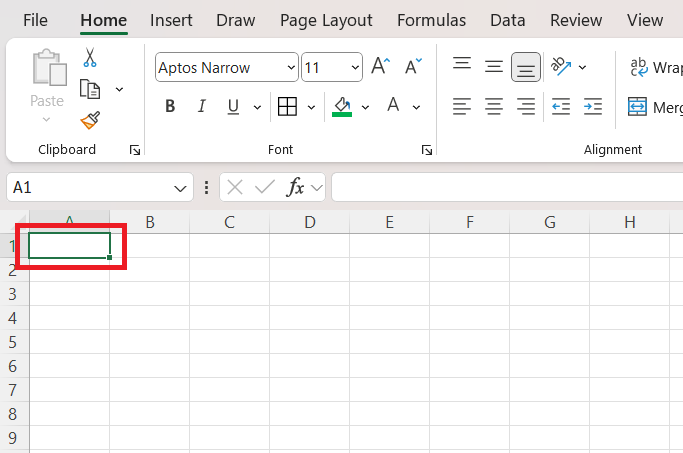
STEP 2: Go to the Insert tab on the Ribbon. Click on Symbol in the Text group.

STEP 3: In the Symbol dialog box, set the font to (normal text) or Arial. Scroll down or type “03A3” in the Character code box.
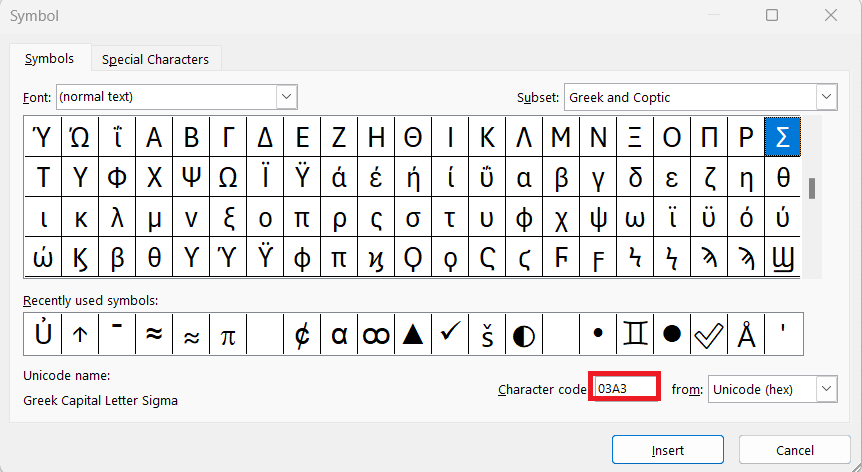
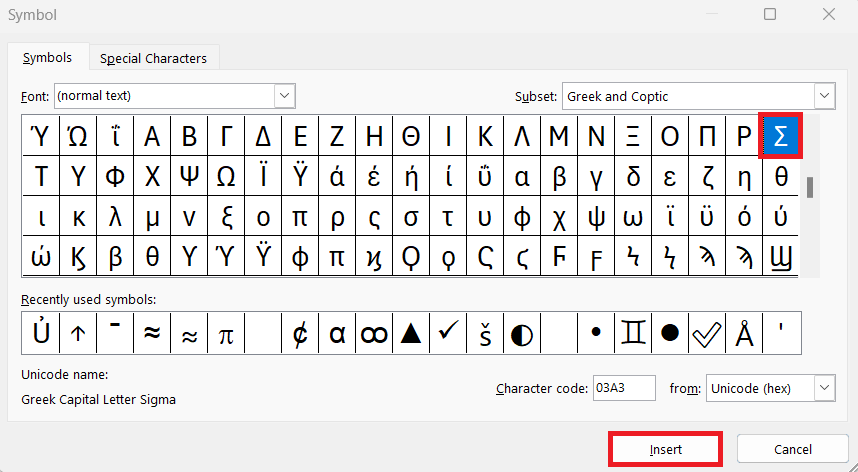
STEP 4: Click Insert, then close the dialog box.
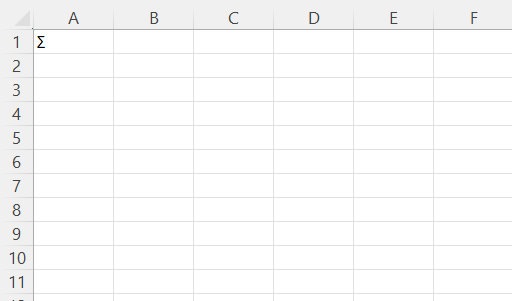
The sigma symbol will be inserted into the sheet.
Keyboard Shortcuts
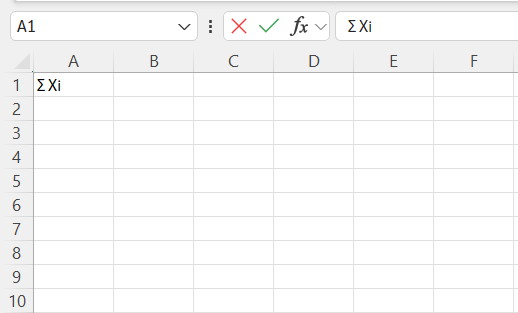
- Select a cell
- Enter Edit mode by pressing F2
- Hold down the Alt key
- Type 228 on the numeric keypad
Using the UNICHAR Function
The UNICHAR function in Excel returns a character based on its Unicode value. It is useful for adding symbols and special characters with formulas.
=UNICHAR(931)
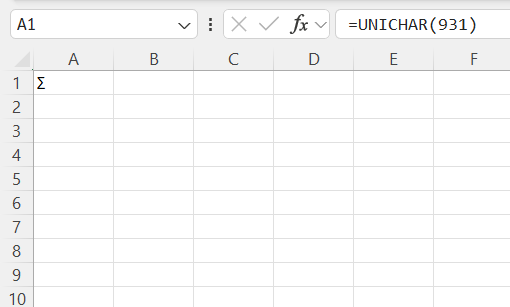
This formula returns the Greek capital letter Sigma (Σ).
Copy and Paste
One of the quickest ways to insert the Sigma symbol is to copy and paste it from another source.
STEP 1: Find the Sigma symbol (Σ) on a webpage or document.
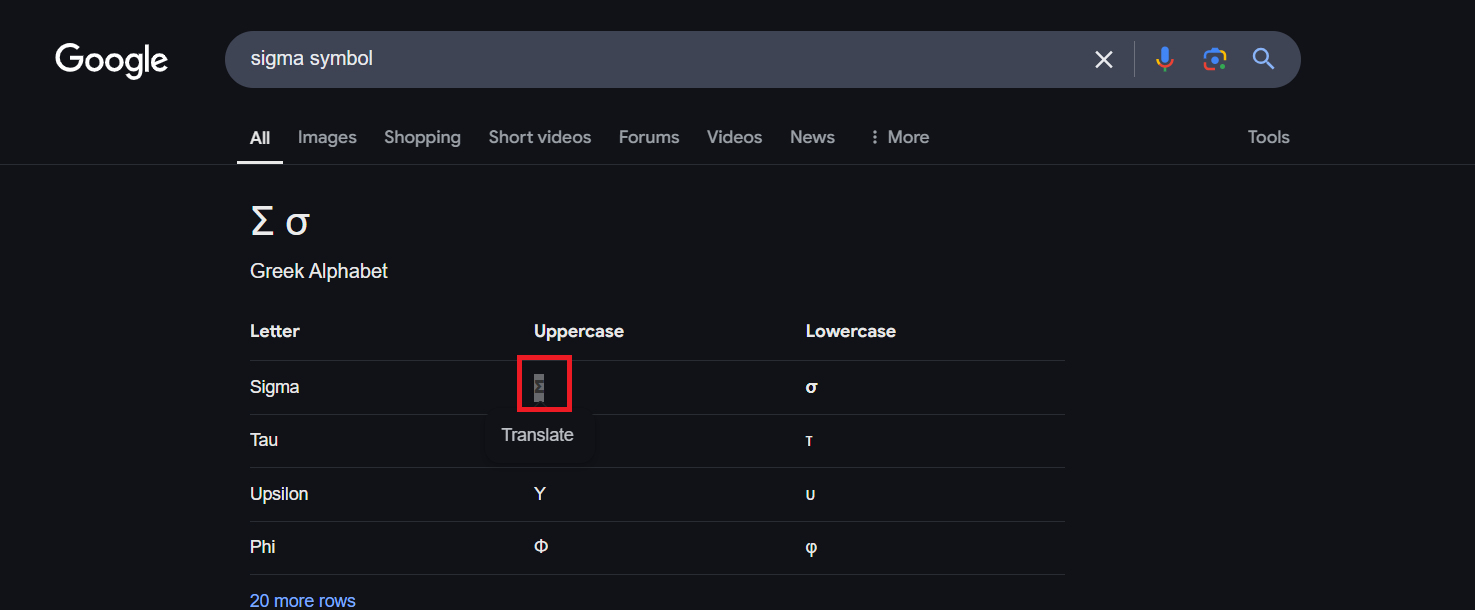
STEP 2: Copy it (Ctrl + C or Cmd + C on Mac).
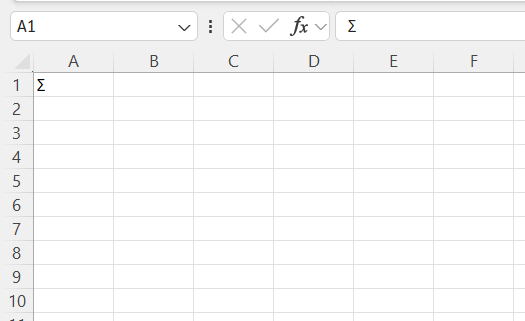
STEP 3: Click on the desired cell in Excel and paste it (Ctrl + V or Cmd + V on Mac).
Beyond Shortcuts: Creative Sigma Solutions
Implementing the AutoSum Function Effectively
The AutoSum function in Excel is a powerhouse that I utilize to swiftly calculate totals. With a keen sense of where I want my sums displayed, selecting the range of cells above or to the left of the intended location and hitting the AutoSum button (or Alt + =) provides an instant sum.
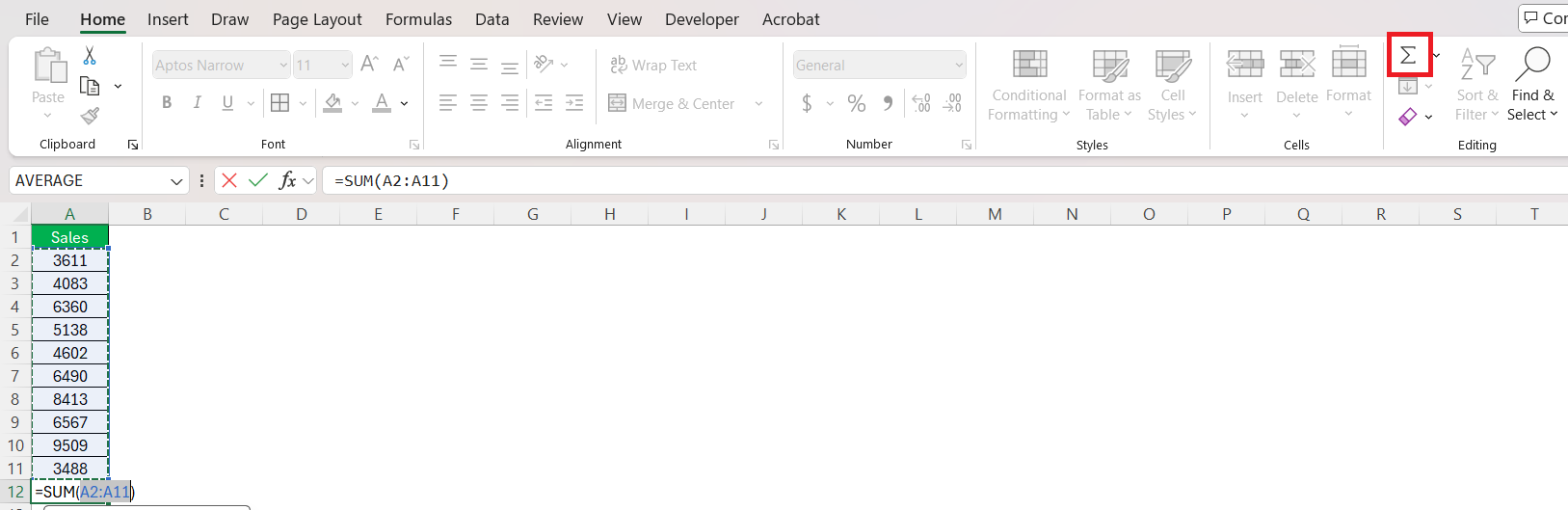
This feature does more than just add numbers; it understands context, automatically sniffing out the numbers to be totaled, making it a smart and time-saving ally. Not only does it keep the spreadsheet crisp and uncluttered, but it also prevents potential errors in range selection – a guardian of both aesthetics and accuracy.
Troubleshooting Common Sigma Symbol Challenges
Ensuring Your Keyboard Supports Sigma Shortcuts
Securing that my keyboard is primed for Sigma shortcuts is an essential step in streamlining my workflow in Excel. The presence of a numeric keypad is critical for the Alt code method, ensuring that numbers can be entered without disruption.
For those of us with smaller laptops or without the luxury of a full-size keyboard, it’s crucial to adjust our methods accordingly—perhaps by toggling the function (Fn) key to access a hidden numeric keypad or exploring software-based virtual keypads. Verification that Num Lock is active is a simple but vital measure to sidestep unnecessary frustration.
What to Do When Shortcuts Don’t Work
When shortcuts falter, troubleshooting becomes my immediate recourse. First, I verify that Num Lock is activated, for without it, ALT codes are rendered useless. If custom shortcuts or AutoCorrect fail, I delve into Excel options to double-check if my shortcuts are intact and properly configured.
Alternatively, I may resort to the symbol insertion menu or opt for copy-pasting from a reliable source. And when all else fails, seeking updates for Excel or consulting online forums and guides are pragmatic steps to resolve these shortcut conundrums.
FAQs
How to quickly insert a sigma symbol in Excel?
To quickly insert a Sigma symbol in Excel,
- Activate Num Lock
- Hold down the Alt key
- Type 228 on the numeric keypad.
- Release the Alt key
Can I use the Sigma symbol for calculation?
While the Sigma symbol is primarily for display purposes, you cannot use it in actual Excel formulas. Instead, use the SUM function to perform summations.
Is there a way to make Excel automatically replace text with the Sigma symbol?
Yes! You can use AutoCorrect to automatically replace a specific text with Σ.
- Go to File > Options
- Select Proofing > AutoCorrect Options
- Enter a shortcut like \sigma
- Set it to be replaced with Σ
Can I use the Sigma symbol in charts and headings in Excel?
Yes, you can insert the Sigma symbol in chart titles, headings, text boxes, and cells.
What is the UNICHAR function?
The UNICHAR function in Excel returns a character based on its Unicode value.

John Michaloudis is a former accountant and finance analyst at General Electric, a Microsoft MVP since 2020, an Amazon #1 bestselling author of 4 Microsoft Excel books and teacher of Microsoft Excel & Office over at his flagship MyExcelOnline Academy Online Course.

 30 Days - Full Access









