 Free Practice Workbook
Excel is a useful tool with many functions that can simplify data analysis tasks. Among these functions, the slope formula can be used to calculate the steepness of a data set. In this article, you will learn how to use the slope formula in Excel.
Key Takeaways:
- The SLOPE function in Excel is used to calculate the steepness of the data.
- It can help analyze relationships between variables.
- It is used to predict trends in the data set.
- The two data ranges in the SLOPE formula should be of equal length.
- A positive slope indicates an upward trend.
Table of Contents
What is the Slope?
The SLOPE function in Excel is a statistical function that calculates the slope of the linear regression line. This line is the best fit for a given set of data points. It is designed to quantify the rate of change between dependent and independent variables. By doing so, it offers insight into the relationship dynamics between the two variables. It provides information on data trend analysis and predictive modeling.
Getting Started with the Slope Formula
Syntax
SLOPE(known_y's, known_x's)
- known_y’s: This array or range contains the dependent data points. It represents the values on the Y-axis in a graph.
- known_x’s: This array or range consists of the independent data points, corresponding to values along the X-axis.
Ensure both arrays or ranges have equal data points. Mismatched entries will result in errors.
How to Use the Slope Formula
Follow the steps below to know how to use the slope formula:
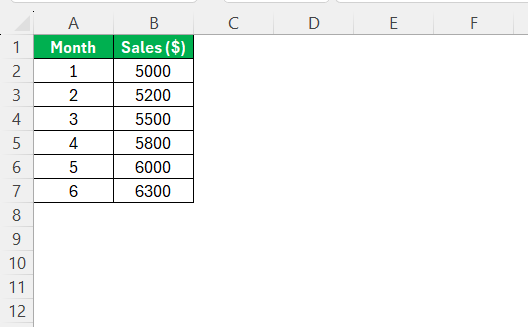
STEP 1: Arrange data in a table with the x-values and the y-values in two different columns.
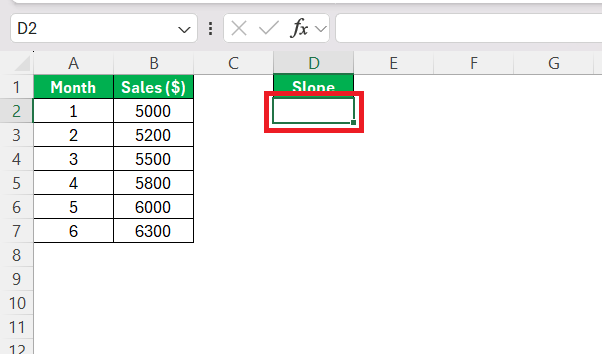
STEP 2: Click on the cell where you want the result.
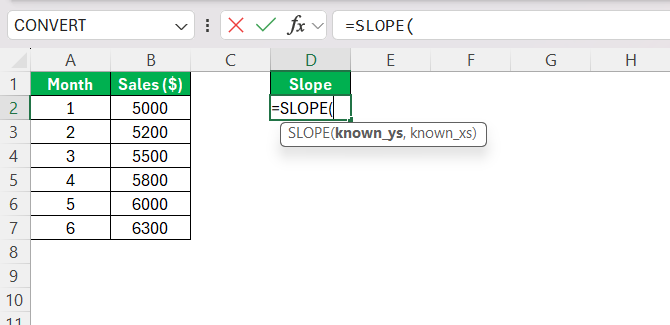
STEP 3: Type the SLOPE function.
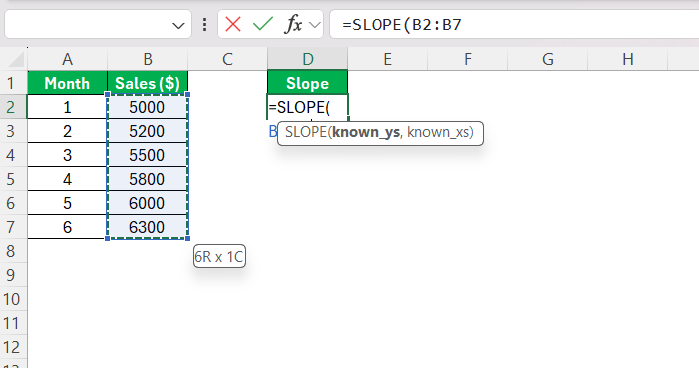
STEP 4: Select the range of cells containing the dependent y-values.
STEP 5: Type a comma and then select the range of cells containing the independent x-values.
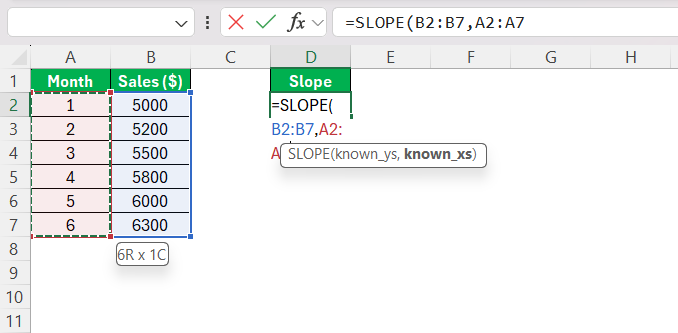
STEP 6: Type a closing parenthesis )
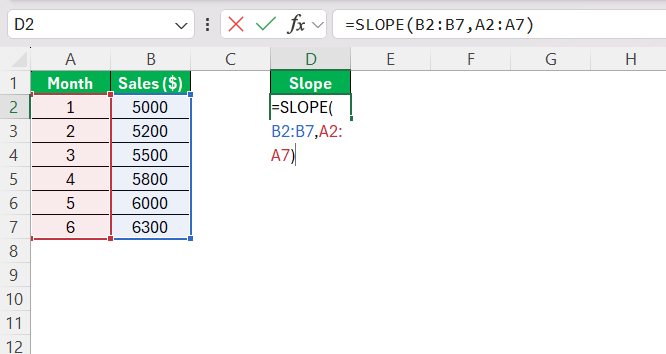
STEP 7: Press Enter.
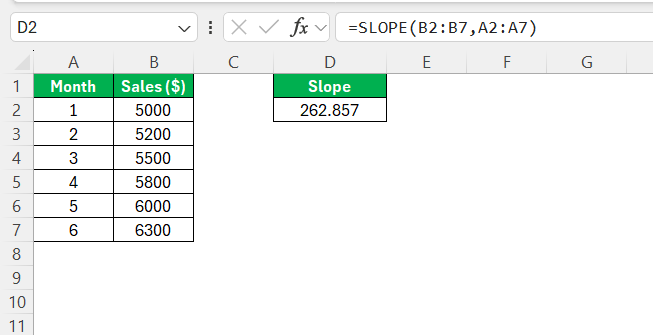
Common Errors
Here are some common errors and how to fix them:
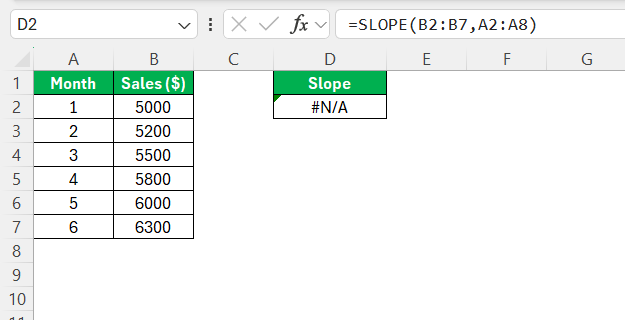
- #N/A Error: This occurs when the x and y ranges are not of equal length.
- #DIV/0! Error: This happens when the x-values are the same.
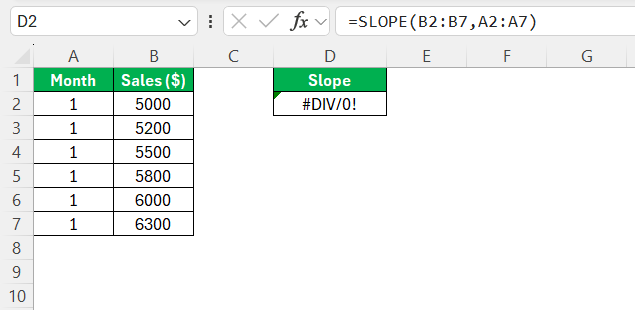
- Incorrect Data Format: If my data contains text values or empty cells, it will return an error.
FAQs
What is a slope?
A slope calculates the steepness of a line between two data sets. It shows the rate at which y-values change with respect to x-values.
What is the syntax of the SLOPE function?
The syntax of the SLOPE function is:
=SLOPE(known_y’s, known_x’s)
What is the formula for the slope function?
The formula for the slope function in Excel is =SLOPE(known_y's, known_x's). This function requires two arguments:
- Range of dependent data points, or y-values,
- Range of independent data points, or x-values.
What is the y-intercept function in Excel?
The y-intercept function calculates the point where a line crosses the y-axis. The syntax is:
=INTERCEPT(known_y's, known_x's)
- known_y’s – The range containing Y values.
- known_x’s – The range containing X values.

John Michaloudis is a former accountant and finance analyst at General Electric, a Microsoft MVP since 2020, an Amazon #1 bestselling author of 4 Microsoft Excel books and teacher of Microsoft Excel & Office over at his flagship MyExcelOnline Academy Online Course.

 30 Days - Full Access









