 Free Practice Workbook
Standard Deviation is used to measure variability in the dataset. Excel offers two functions to calculate the standard deviation in the data – STDEV.S and STDEV.P. In this guide, you will learn how to use STDEV.P and STDEV.S functions in Excel.
Key Takeaways:
- Standard Deviation is used to measure variability.
- STDEV.P calculates the standard deviation of a population.
- STDEV.S calculates the standard deviation of a sample.
- The standard deviation functions are useful in surveys or quality control.
- Know the sample or population before choosing the function.
Table of Contents
Understanding the Basics
What is Standard Deviation?
Standard deviation is a statistical measure that shows how spread out the values are in a dataset. It quantifies the amount of variation.
- Low standard deviation means that the data points are closer to the mean.
- High standard deviation means the data points are far from the mean.
STDEV.P and STDEV.S Functions
Excel has two functions:
- STDEV.P – Measures the standard deviation of a population.
- STDEV.S -Measures the standard deviation for sample datasets.
STDEV P vs STDEV S
STDEV.P
The STDEV.P function is used to calculate the standard deviation of a population. It can provide an exact measure of variability.
=STDEV.P(number1, [number2], …)
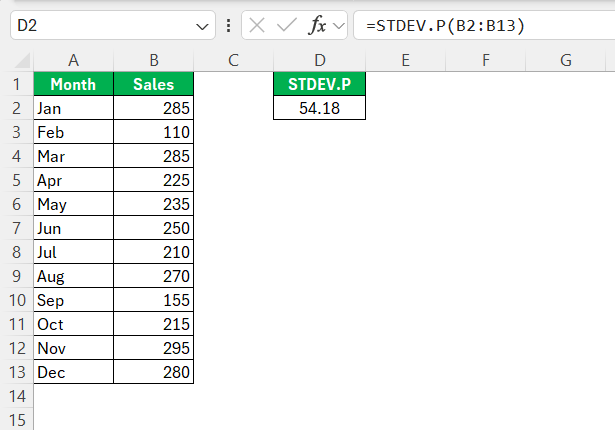
This function is used when the entire dataset is available.
STDEV.S
STDEV.S is a function used to estimate the standard deviation of a sample rather than an entire population. It applies Bessel’s correction to compensate for potential bias in estimating the population standard deviation from a sample.
=STDEV.S(number1, [number2], …)
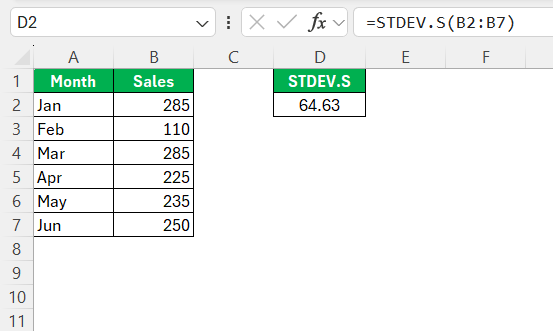
When to Use Each Function
Choosing between STDEV.P and STDEV.S depends on the nature of your data set. Use STDEV.P when you’re dealing with an entire population. This function calculates the precise standard deviation of all data points. It is used in situations where the complete dataset is available.
In contrast, STDEV.S is ideal when you’re working with a sample from a larger population. It is commonly used in research or surveys where only a subset of data is collected. STDEV.S provides an adjusted measure that accounts for sampling biases.
Common Mistakes to Avoid
Misinterpreting Data Sets
Misinterpreting data sets is a common pitfall in statistical analysis. A frequent mistake is using STDEV.P for a sample. This may result in underestimating variability because it doesn’t apply Bessel’s correction. Conversely, using STDEV.S for full population data can distort results.
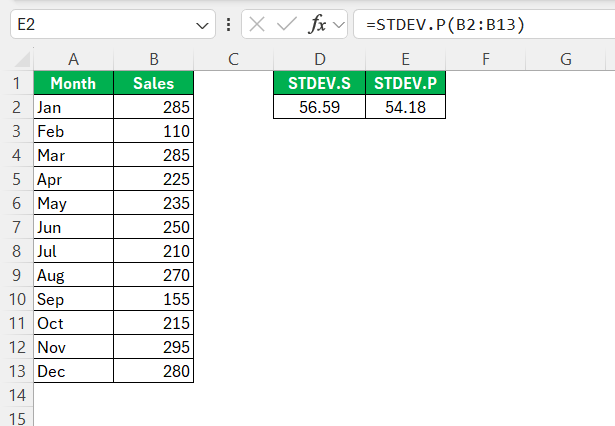
To avoid these errors, it is important to clearly understand whether you’re working with a sample or an entire population.
Incorrect Syntax Usage
Incorrect syntax usage in Excel functions can lead to errors. When using STDEV.P and STDEV.S, it’s important to make sure that the correct syntax is used.
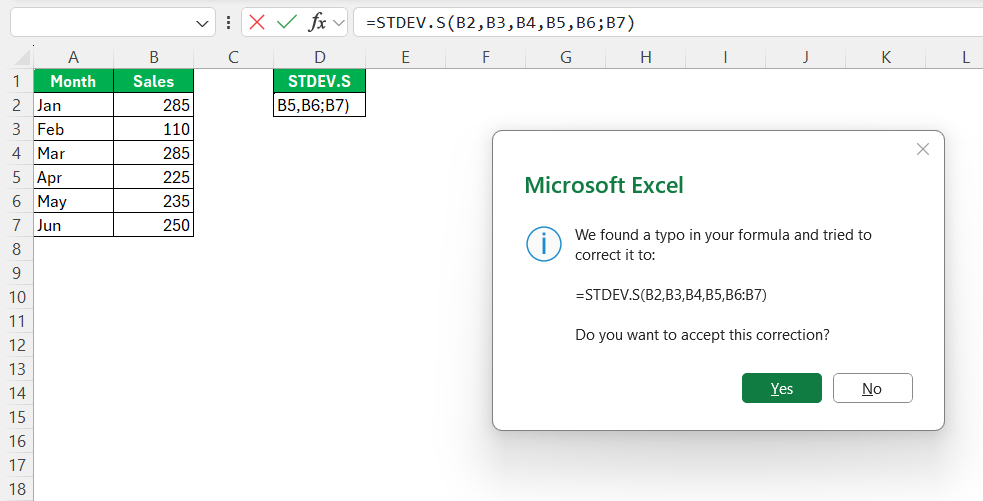
FAQs
What is the difference between STDEV.P and STDEV.S in Excel?
STDEV.P calculates the standard deviation for the entire population. Whereas STDEV.S is used when dealing with a sample.
When should I use STDEV.S over STDEV.P?
Use STDEV.S when analyzing a sample from a larger population. It accounts for potential bias and is ideal in surveys where only partial data is available.
Can STDEV functions be used in data analysis for business forecasting?
STDEV functions can be used in business forecasting to assess data variability. It can be used to spot trends or outliers. It can also provide information about historical data consistency that can help with decision-making.
How to troubleshoot errors when using these functions?
To troubleshoot errors with STDEV functions:
- Check for incorrect syntax or missing arguments.
- Use STDEV.S for sample data and STDEV.P for population.
- Data should not contain any non-numeric values.
- Check the cell references and formats.

John Michaloudis is a former accountant and finance analyst at General Electric, a Microsoft MVP since 2020, an Amazon #1 bestselling author of 4 Microsoft Excel books and teacher of Microsoft Excel & Office over at his flagship MyExcelOnline Academy Online Course.

 30 Days - Full Access









