 Free Practice Workbook
Microsoft Excel is a great tool for working with data and performing calculations and analysis. The SUMIF function can be used to add values based on specific conditions. In this guide, you will learn how to use SUMIF with multiple criteria in Excel.
Key Takeaways:
- SUMIF is used to sum values based on one condition.
- SUMIFS is used when you have multiple conditions.
- You can use text, numbers, and operators in conditions.
- Wildcards help match similar text values easily.
- Clean and correctly formatted data is important for accurate results.
Table of Contents
Introduction to Conditional Summing in Excel
What is SUMIF?
The SUMIF function can be used to sum the values in a range that meet a criteria that you specify. It helps you focus only on the data that matches your requirement instead of summing everything. The syntax of the SUMIF function is:
=SUMIF(range, criteria, [sum_range])
- Range – The range that is tested using the criteria. Required.
- Criteria – The criteria that define which cells in the range will be added. Required.
- [Sum_Range] – The range of cells to sum. Optional.
If sum_range is not provided, Excel will sum the cells in the range itself.
Limitations of SUMIF
The biggest limitation of the SUMIF function is that it can handle only one condition. If you need to apply multiple conditions, it won’t work properly. In such cases, you can use SUMIFS instead.
SUMIF with Multiple Criteria
SUMIFS Function
The SUMIFS function allows you to sum values in a range that satisfies multiple conditions. It can take into account multiple criteria, unlike the SUMIF function.
The syntax of this function is:
=SUMIFS(sum_range, criteria_range1, criteria1, criteria_range2, criteria2, …)
Using Text Criteria
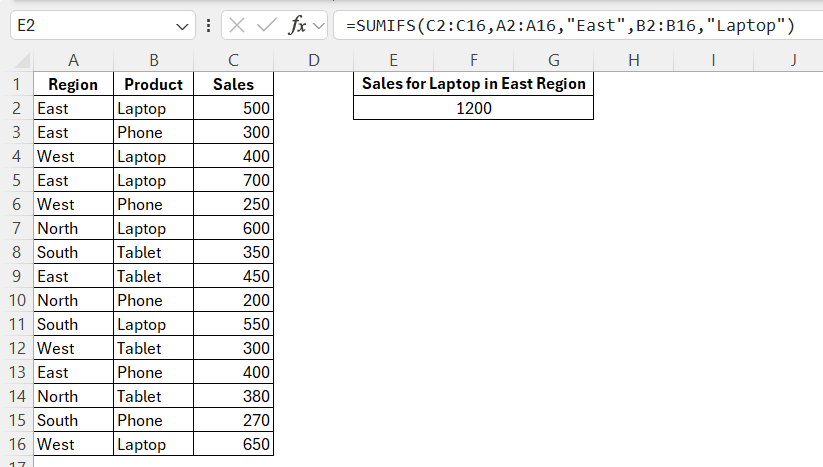
For example, if you have sales data with region and product mentioned, you can use the SUMIFS function to get the total sales amount for laptops in the eastern region.
Using Logical Operators
You can use operators like >, <, >=, and <= to filter numeric values. You can use the SUMIFS function to sum sales greater than 400, and the product should be Laptop.
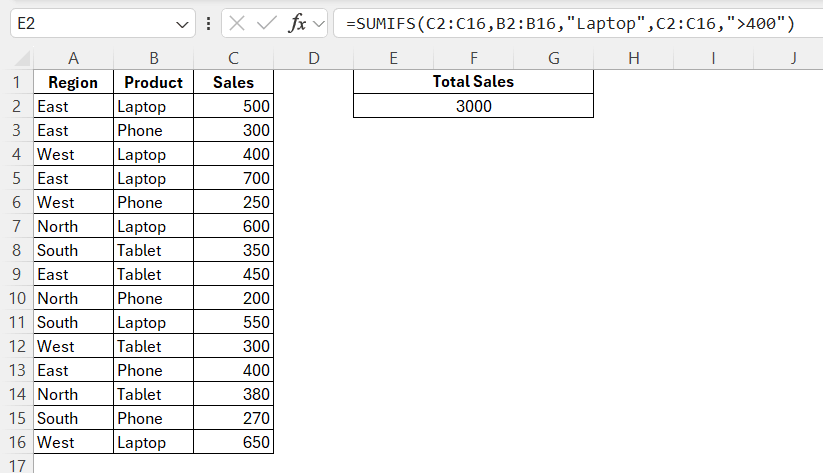
This will add the sales values for laptops with sales greater than 400.
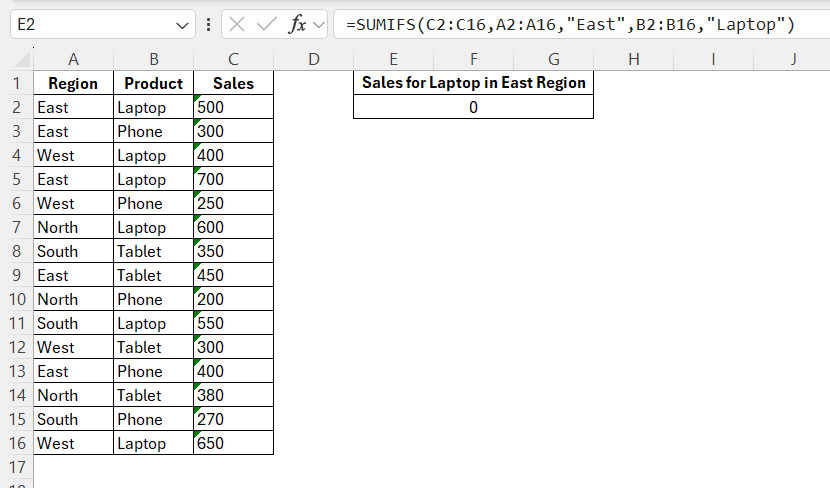
Numbers stored as text will not be included in calculations. This usually happens when data is imported or copied
Using Wildcards
Wildcards are used to match text patterns instead of exact values. They are helpful when your data contains similar or partial text.
* – represents multiple characters
? – represents a single character
You can use the SUMIFS function to add sales value for both products – Laptop and Lapdesk in the eastern region. The text “Lap*” will consider both Laptop and Lapdesk.
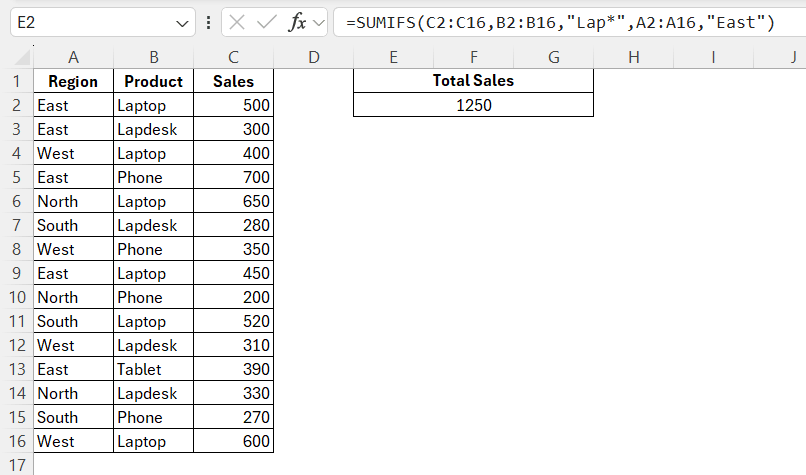
Wildcards make SUMIFS flexible by allowing you to match patterns instead of exact text.
Advanced Techniques
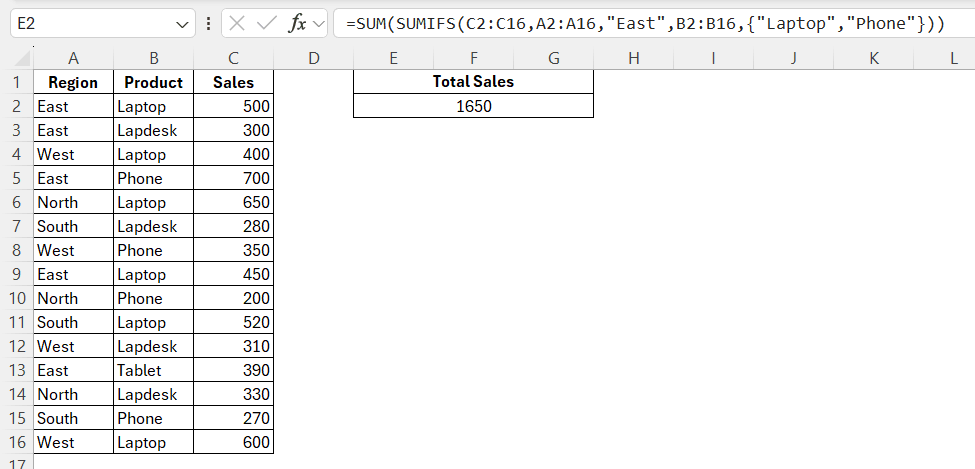
Use SUMIFS with OR
The SUMIFS function works with AND conditions by default, but you can apply OR logic by combining multiple SUMIFS formulas. This is useful when you want to sum values that match one condition or another within the same column.
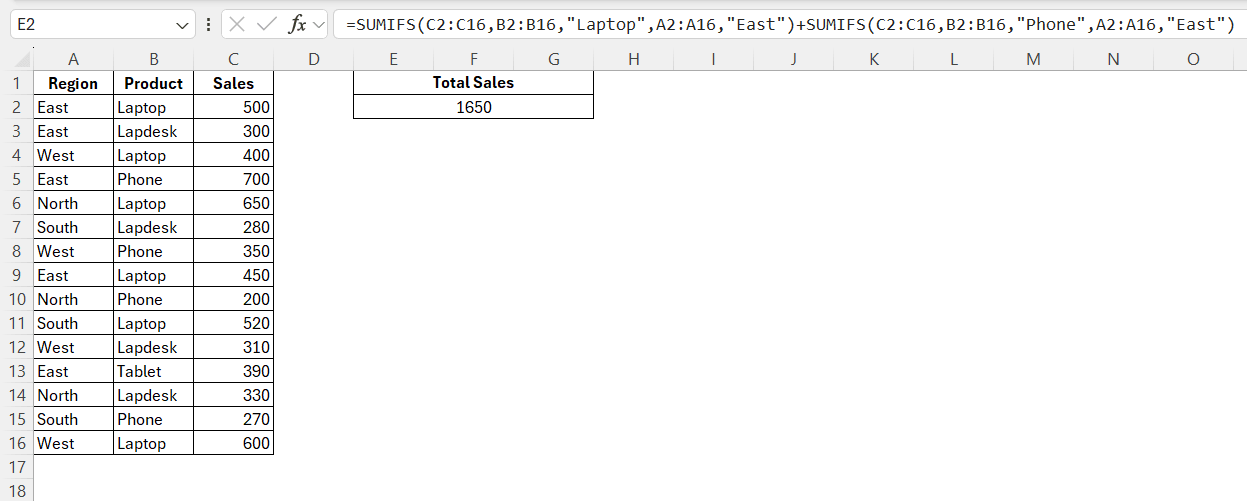
This function will return the total sales values for both products – Laptop and Phone in the eastern region.
Using Array Function
You can simplify OR conditions by using an array inside the SUMIFS function. This reduces repetition and keeps the formula more compact.
Common Errors
- All ranges used in the SUMIFS function must be of the same size. If they are not aligned properly, the formula may return incorrect results.
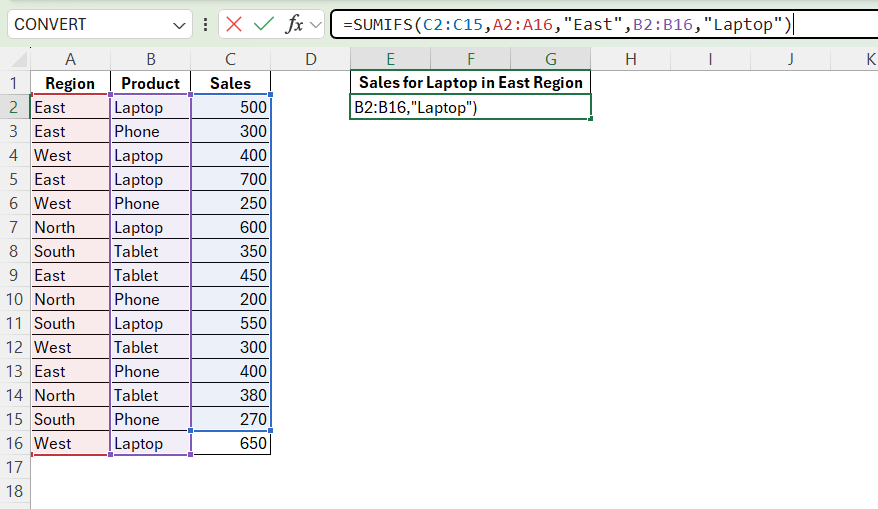
- If the sum_range argument in the formula is stored as text, it will return an incorrect result. This usually happens when data is imported or copied.
- Extra spaces in text can prevent proper matching. You can use the TRIM function to remove extra spaces.
- The logical operators must be written inside quotation marks. If not, the formula will not work correctly.
FAQs
What is the difference between SUMIF and SUMIFS?
The SUMIF function works with one condition, while the SUMIFS function works with multiple conditions.
Why is the SUMIFS formula not working?
The SUMIFS function may be due to mismatched ranges or incorrect data format.
Can I use text in SUMIFS?
Yes, SUMIFS supports text conditions. You can also use wildcards for partial matches.
Do ranges need to be the same size?
Yes, all ranges must be equal in size for correct results.
Can SUMIFS handle OR conditions?
Not directly, as it uses AND logic by default. You can combine formulas or use arrays for OR conditions.
Risk-Based Quality Management Software by Qlarix

Aditi Lundia

 30 Days - Full Access









