 Free Practice Workbook
In Excel VBA, the Target.Address property identifies the specific cell or range that triggered an event, such as a change or selection. It returns the address in A1 notation, enabling precise control and responses to user interactions.
Key Takeaways:
- Target.Address identifies the specific cell or range that triggered an event in Excel VBA.
- The property returns the cell address in A1 notation, facilitating precise targeting in VBA scripts.
- Utilizing Target.Address allows for creating dynamic and responsive VBA macros that react to user interactions.
- Target.Address is invaluable for automating tasks, performing data validation, and creating interactive dashboards in Excel.
Table of Contents
Usage of Target.Address
Worksheet_Change Event Example
Here’s a simple example that shows how to use the Worksheet_Change event to display a message box when cell A1 is changed:
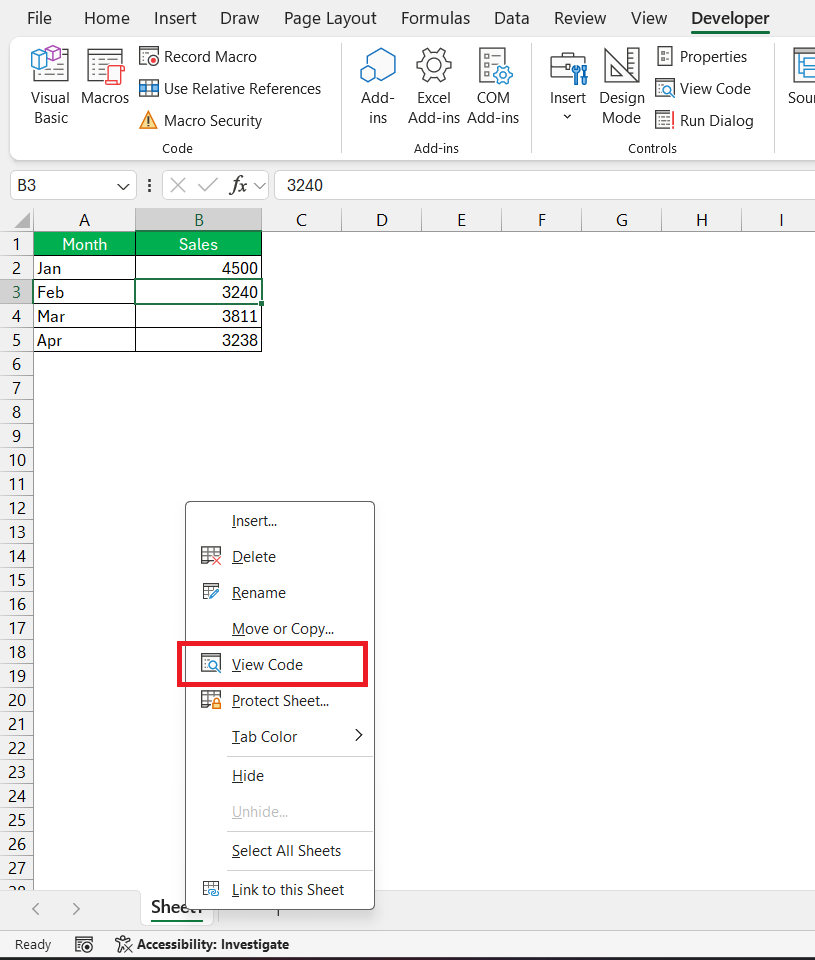
STEP 1: Right-click on the sheet tab and click View Code.
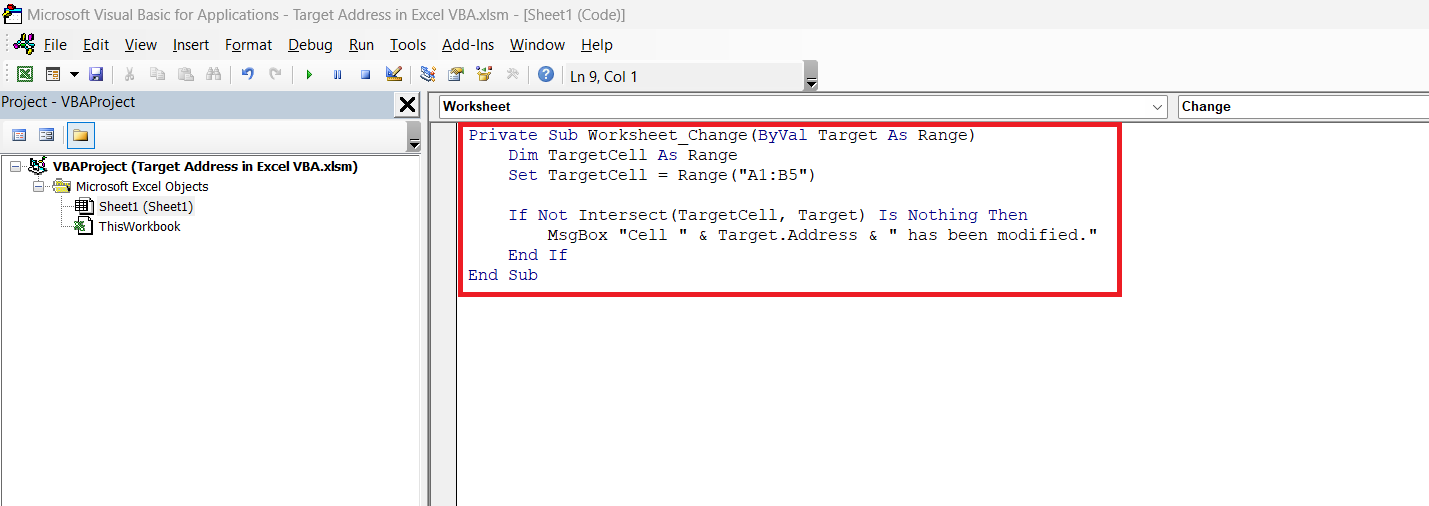
STEP 2: Write the code mentioned below –
Private Sub Worksheet_Change(ByVal Target As Range)
Dim TargetCell As Range
Set TargetCell = Range("A1:B5")
If Not Intersect(TargetCell, Target) Is Nothing Then
MsgBox "Cell " & Target.Address & " has been modified."
End If
End Sub
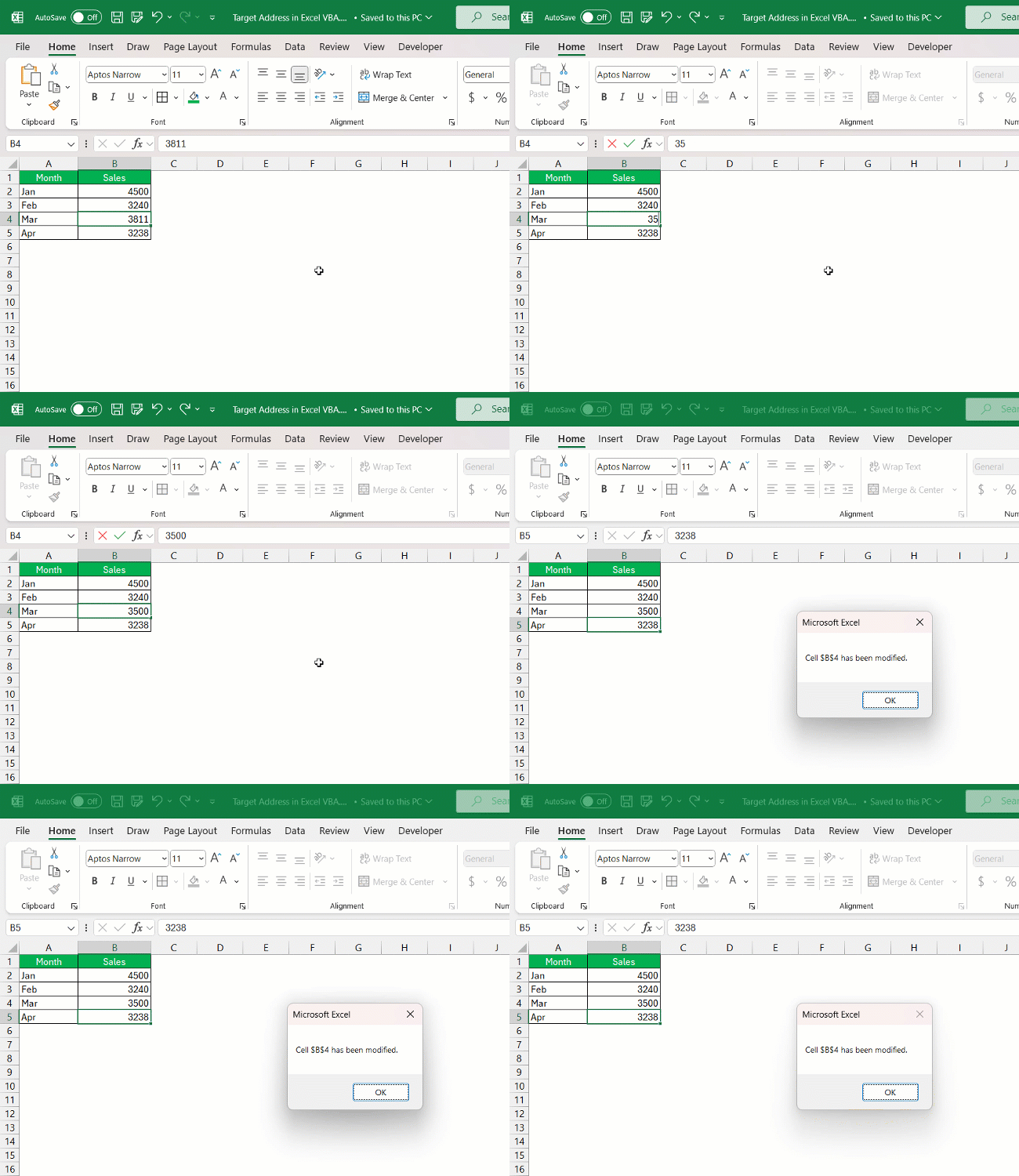
STEP 3: Try to change the value of a cell and you will see that a message will be displayed.
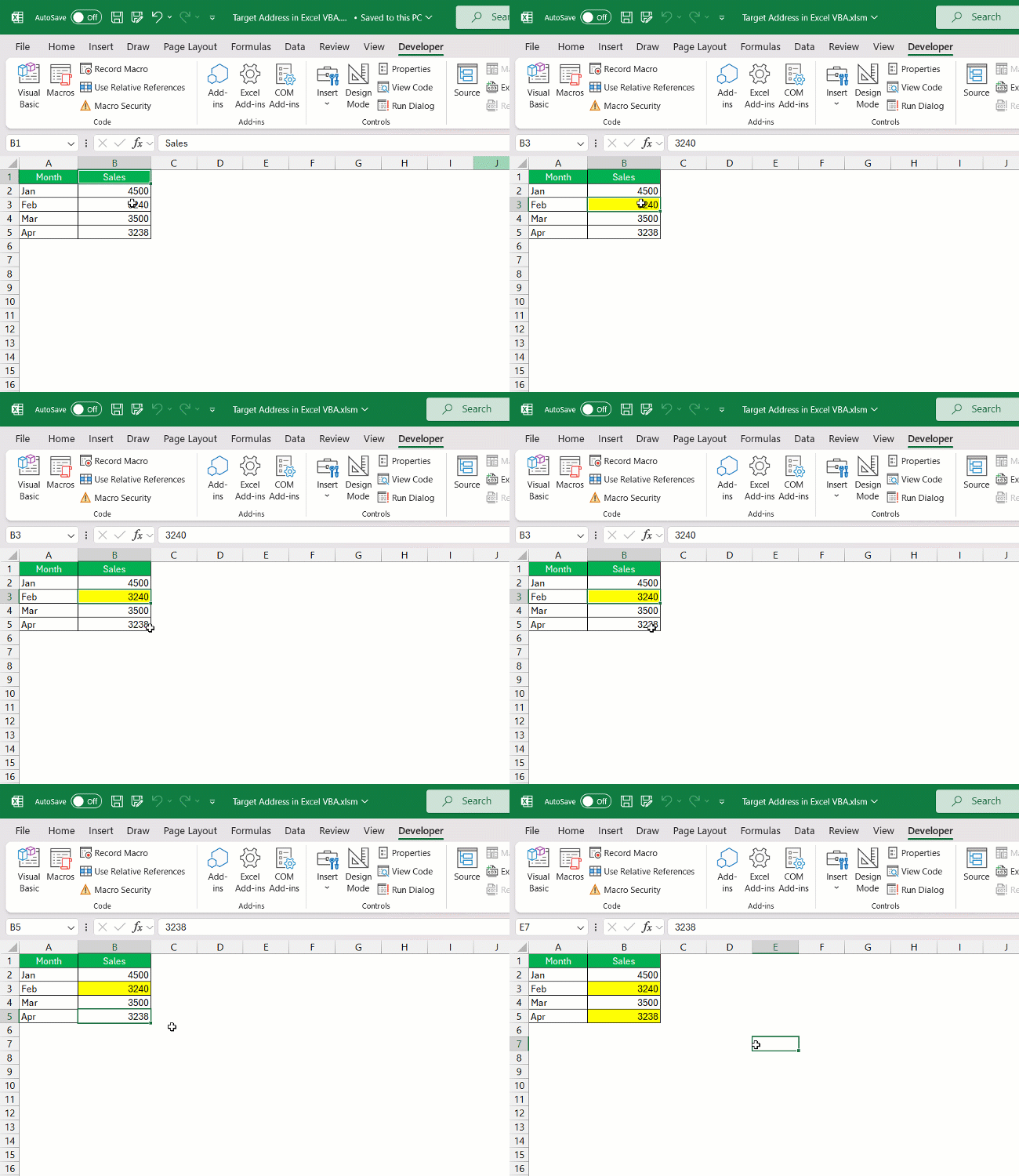
Worksheet_SelectionChange Event Example
Now, let’s consider an example using the Worksheet_SelectionChange event. This code changes the background color of the selected cell to yellow:
Advanced Usage
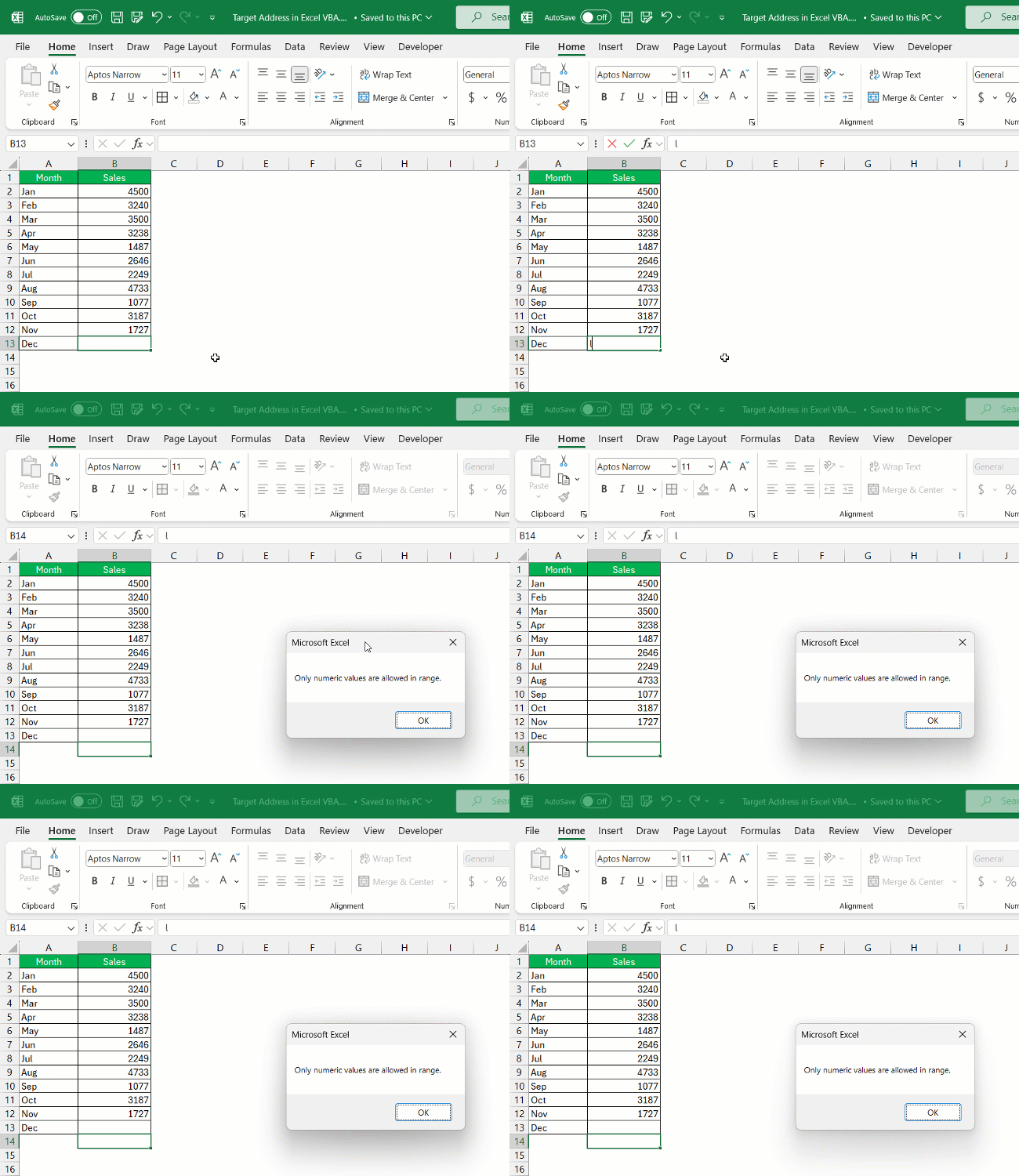
For more advanced scenarios, you can use the target address to perform complex checks and actions. For example, suppose you want to restrict input to numeric values in a specific range:
FAQs on Mastering Target.Address in Excel VMA
What is the target address in VBA?
In VBA, the target address refers to the address of the cell that triggered an event, such as a change or selection within a worksheet. It’s denoted using the Range object’s Address property, which returns the cell’s location in the standard A1 notation, like “$A$1”. This identification mechanism is key for writing event-driven macros that react to specific actions within a workbook.
Can Target.Address be used for multiple selections in drop-down menus?
Yes, Target.Address can be used for multiple selections in drop-down menus in Excel VBA, particularly when dealing with combo boxes or data validation lists. You would add code within the Worksheet_Change event to check if the Target.Address corresponds to cells with the drop-down menus. If multiple selections are made that change these cells, Target.Address helps determine exactly which cells have been changed, allowing you to execute specific actions based on the selections.
What is the address function in Excel VBA?
The Address function in Excel VBA is a property of the Range object that returns the address of a specific cell or a range of cells in A1-style notation. It can provide absolute (like “$A$1”), relative (“A1”), or mixed references (“A$1” or “$A1”) depending on the arguments passed to the function. The function is useful for creating dynamic formulas and for programmatic navigation within an Excel workbook in your VBA scripts.
How do you set the range address in VBA?
To set the range address in VBA, you can assign the address to a variable or directly use it to reference a Range object. For example:
If you’re responding to an event and want to set a range starting at Target, you can use Target.Address as shown here:
These examples show you how to programmatically set the range address in your VBA macros to interact with specific parts of your spreadsheet.

John Michaloudis is a former accountant and finance analyst at General Electric, a Microsoft MVP since 2020, an Amazon #1 bestselling author of 4 Microsoft Excel books and teacher of Microsoft Excel & Office over at his flagship MyExcelOnline Academy Online Course.

 30 Days - Full Access









