 Free Practice Workbook
Table of Contents
Understanding Excel Cell References
What is a Cell Reference?
A cell reference in Excel is an address that identifies a location of a specific cell within a worksheet. It consists of a column letter and a row number, such as A1 or B5. It allows Excel to retrieve the data contained in that cell. By using cell references, you can manipulate data, perform calculations, and create powerful analytical tools that update automatically as the data changes.
Purpose and Importance
Cell references serve a key purpose to link data points across the worksheet. It allow users to create formulas that automatically update when the source data changes. It reduces redundancy by avoiding manual data entry.
Types of Cell References in Excel
Relative Cell References
Relative cell references in Excel are references that adjust automatically when copied from one cell to another. They are denoted by the column letter and row number, such as A1. When you copy a formula containing relative cell references, Excel recalculates the formula for each new cell position.
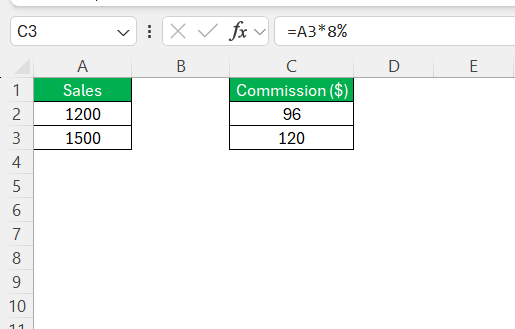
For example, if you have a formula in cell C2 that references A2, and you copy it to C3, the reference will adjust to A3.
Absolute Cell References
Absolute cell references in Excel remain constant, regardless of where they are copied in the worksheet. They are indicated by placing a dollar sign ($) before the column letter and row number, such as $A$1. This makes sure that the reference points to the same specific cell, even when the formula is copied to other cells.
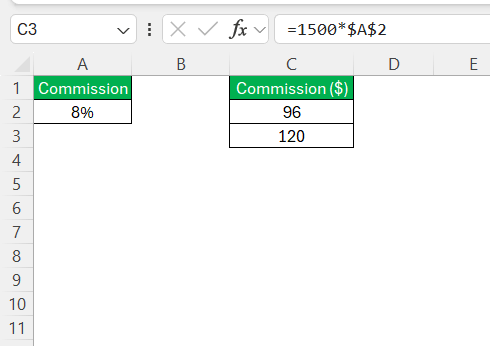
Absolute references are useful when you need to apply a consistent value across a range of calculations. For example, to multiply values by a fixed tax rate in cell A2, the formula would look like this:
Mixed Cell References
Mixed cell references combine elements of both relative and absolute references. It allows either the column or the row to remain constant while the other component varies. This type of reference is denoted by a dollar sign ($) placed before either the column letter or the row number, such as $A1 or A$1.
They are useful when working with data arrays where either the column or the row needs to remain fixed.
Mastering Reference Styles
A1 and R1C1 Reference Styles
Excel offers two primary reference styles: A1 and R1C1.
- The A1 reference style is the default format. In this format, columns are labeled with letters and rows with numbers. For example, C3 means column C and row 3.
- R1C1 uses numbers for both rows and columns. R stands for row, and C stands for column. For example, R3C3 means row 3 and column 3.
Using 3D References Across Multiple Worksheets
3D references let you use the same cell or range from multiple sheets. This is useful for consolidating data from similar sheets, such as monthly sales reports. To create a 3D reference,
- Type your formula
- Select the first sheet you want to include
- Hold the Shift key
- Click the last sheet tab you want to reference
- Select the cell or range on the last sheet
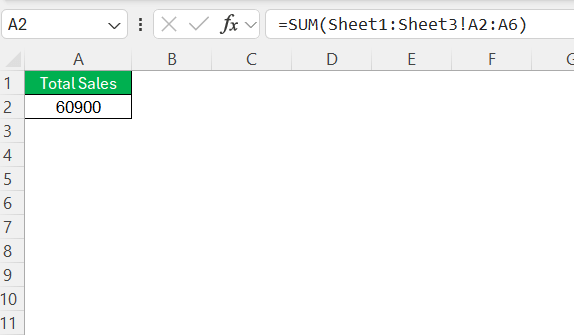
This will add up all the values from cells A2 to A6 across Sheet1, Sheet2, and Sheet3.
Advanced Techniques
Create References to Other Sheets and Workbooks
Creating references to cells in other sheets or workbooks allows you to pull data from various sources. The format looks like this:
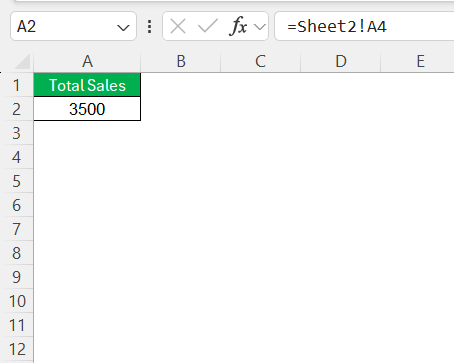
If you want to refer to another workbook, it would be:
=[Finance.xlsx]Sheet1!A1
Convert References to Named Ranges
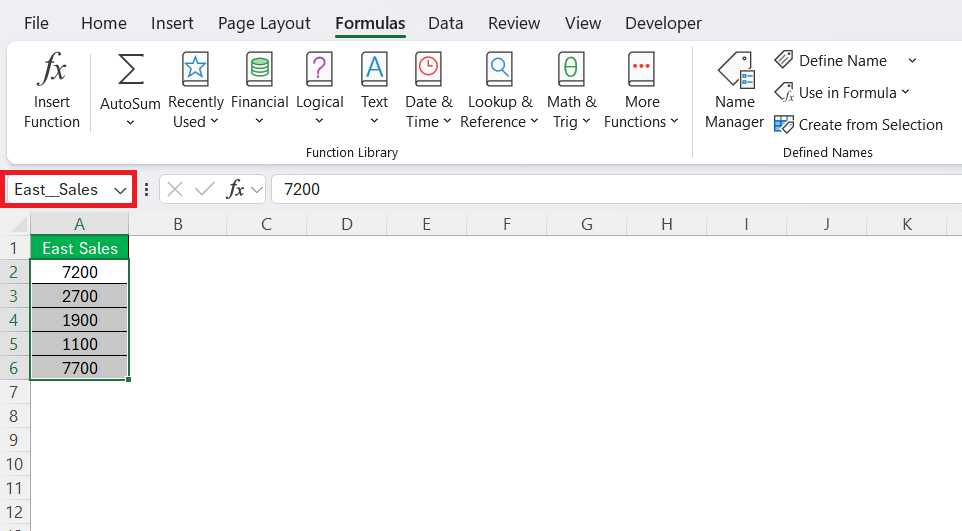
Converting cell references to named ranges in Excel improves the readability. Named ranges allow you to assign meaningful labels to individual cells or ranges. To convert references,
- Select the cell or range you wish to name
- Enter a name in the Name Box
- Press Enter
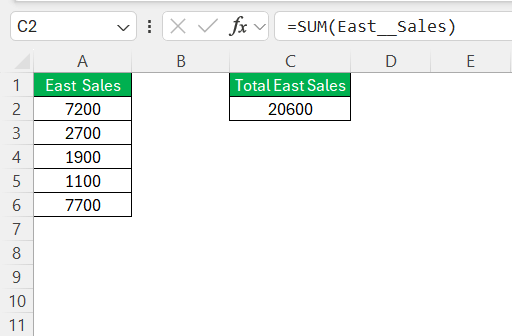
You can apply named range in the formula.
Troubleshoot Common Issues
F4 Not Working
- Press Fn + F4
- Check if any existing shortcut configurations are assigned to F4
- Check if you’re in formula edit mode
Circular References
Circular references occur when a formula directly or indirectly refers back to its own cell. This can cause errors or infinite loops. You can locate the cells causing circular reference error:
- Go to Formulas.
- Click on the Error Checking button.
- Select Circular References.
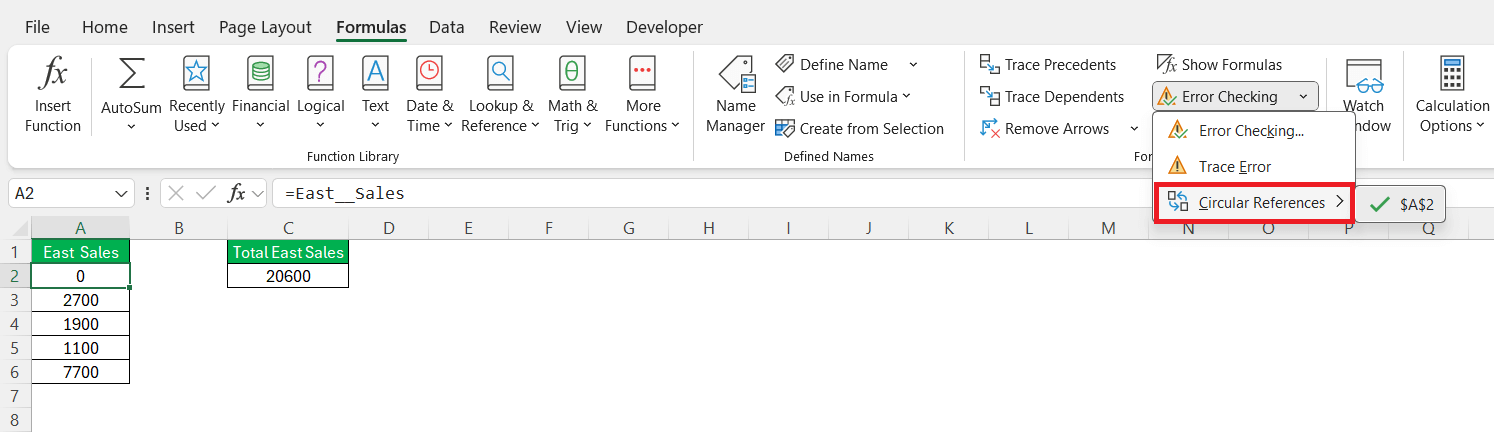
Recheck the formula in those cells to resolve the issue.
FAQs
What is a reference?
A reference is a specific cell or range of cells within a worksheet.
What are relative and absolute references?
When you copy a formula,
- Relative references change according to the new position
- Absolute references remain the same.
How to use cell references across multiple workbooks?
To use cell references across multiple workbooks, include the workbook name in brackets, followed by the sheet name and cell address
E.g., =[WorkbookName.xlsx]Sheet1!A1)
What does the $ sign mean in Excel references?
In Excel, the $ sign in a cell reference designates that part of the reference as absolute.
What is a cell address in Excel?
A cell address in Excel refers to the specific location of a cell in a worksheet. It is denoted by the combination of its column letter and row number, like A1 or B2.

John Michaloudis is a former accountant and finance analyst at General Electric, a Microsoft MVP since 2020, an Amazon #1 bestselling author of 4 Microsoft Excel books and teacher of Microsoft Excel & Office over at his flagship MyExcelOnline Academy Online Course.

 30 Days - Full Access









