 Free Practice Workbook
Sometimes, you may need to find the average of a dataset when working with statistical data. A common notation for this mean value is the X-bar symbol. Excel does not have any built-in method to add this symbol but there are multiple ways that can be used to add the x-bar symbol in Excel. Let us go through the article to explore those methods.
Key Takeaways:
- X bar represents the average of a dataset.
- Excel does not have a direct X-bar symbol shortcut.
- You can insert x bar symbol by using the copy past method.
- Type X and then press Alt + 0773 to insert a bar above X.
- X-bar helps summarize data and make the analysis clearer.
Table of Contents
How to Use X Bar Symbol
In Excel, there are several ways to add the x-bar symbol (̄), a commonly used statistical notation for the mean. Let me show you step by step how you can do it using different methods.
Using Copy-Paste
This is probably the quickest and simplest method.
STEP 1: Copy the x-bar symbol from here: ̄
STEP 2: Go to your Excel worksheet and click the cell where you want to add the symbol.
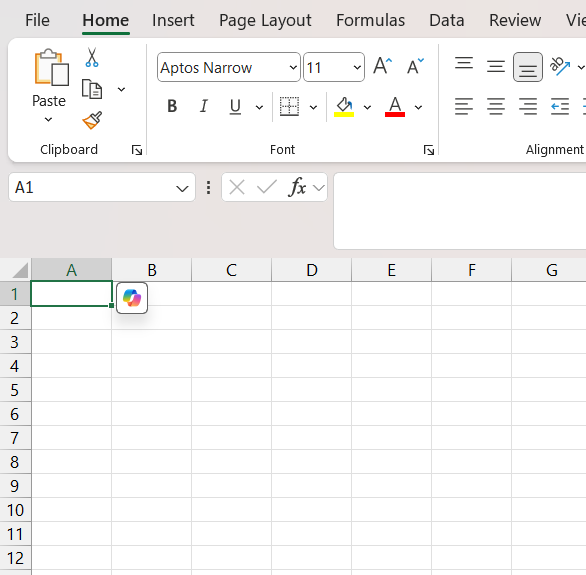
STEP 3: Paste it by pressing Ctrl + V (Windows) or Command + V (Mac).
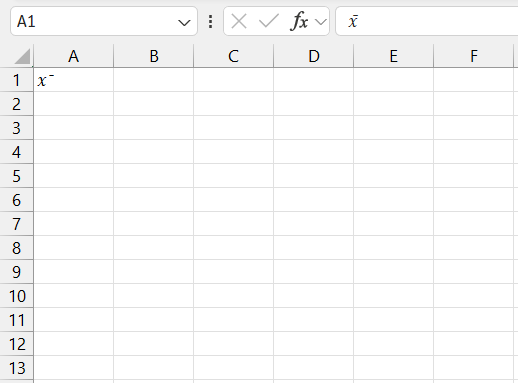
That’s it! You’ve added the x-bar symbol without much effort.
Using a Keyboard Shortcut
Excel does not have a direct shortcut to insert a x bar symbol. But you can use the following combination to create it manually:
- On Windows, press Alt + 0773 after the letter x.
- On Mac, press Option + Shift + M.
This will insert a macron (¯) above the x.
CHAR Function
If you need the x-bar symbol in multiple places, a formula can save you time. Here is how you can use the UNICHAR function:
STEP 1: In a cell, type the following formula:
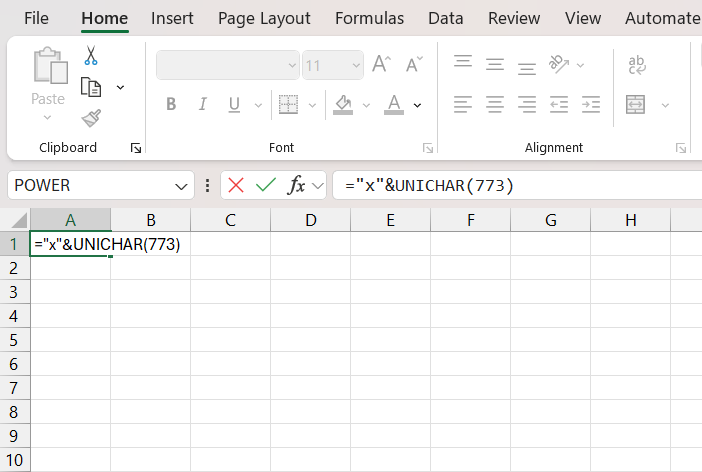
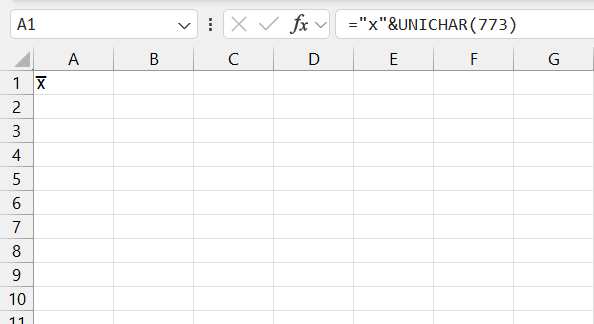
STEP 2: Press Enter. The result will be displayed as x̄.
Using the Symbol Dialog Box
Excel’s Symbol dialog box provides access to a wide range of characters, including the combining macron:
STEP 1: Go to Insert> Symbol.

STEP 2: Select Arial.
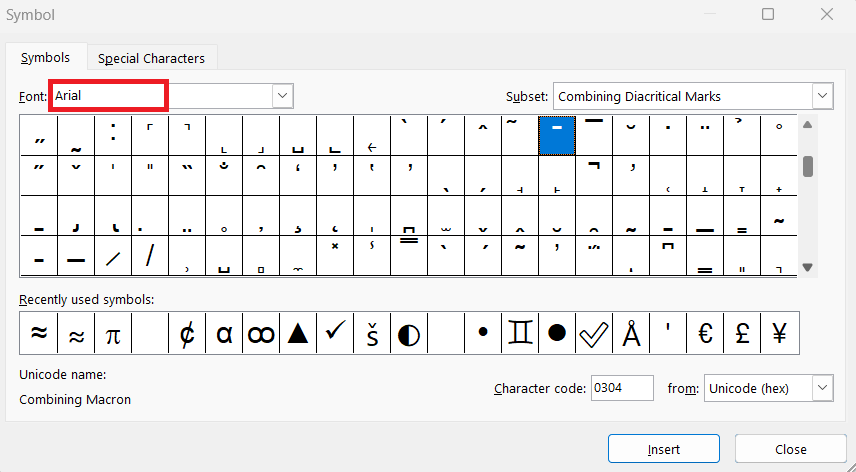
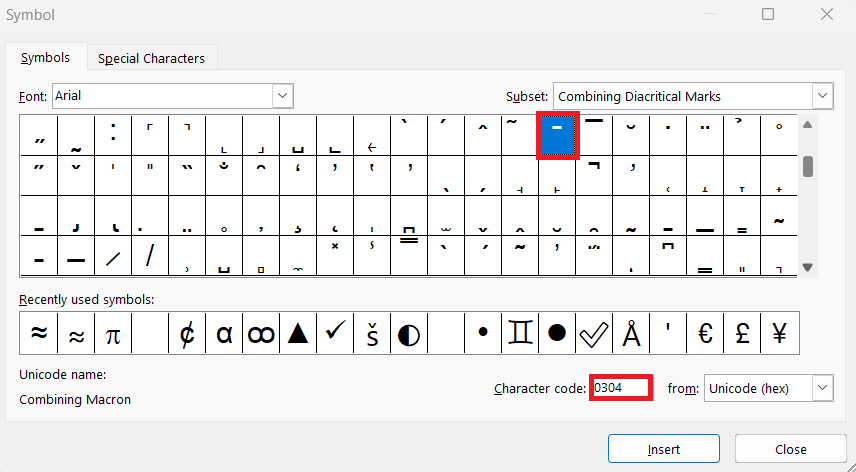
STEP 3: Select the macron symbol in the list. If you can’t find it, type 0304 in the character code box.
Using the Equation Editor
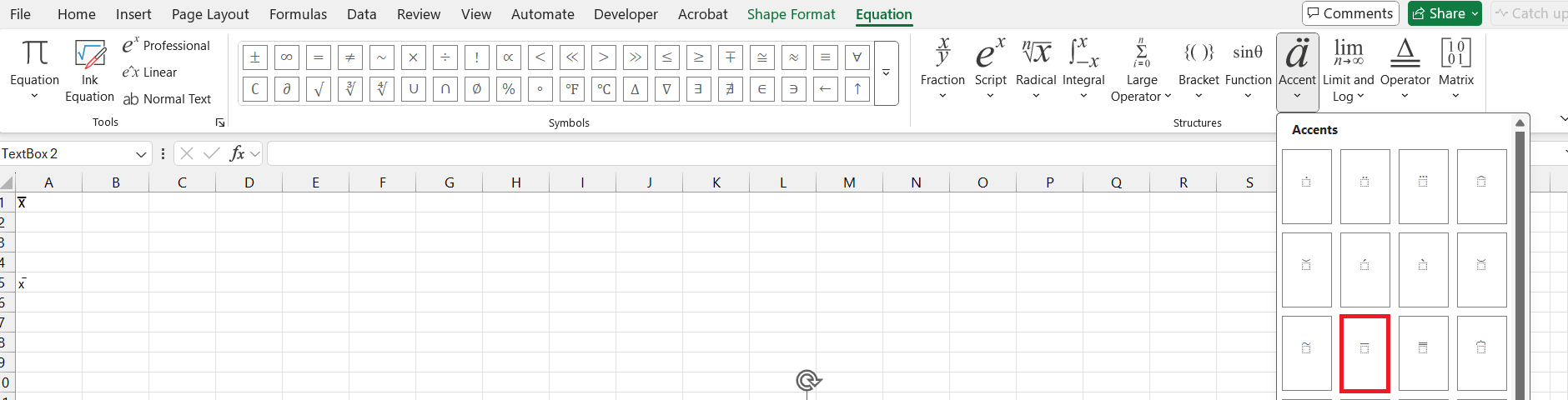
STEP 1: Go to the Insert > Equation.

STEP 2: In the equation toolbar, select accent. Choose the overbar option.
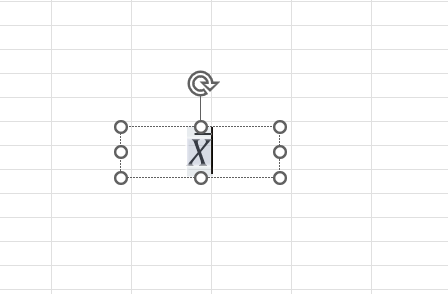
STEP 3: Click on the small box and type X.
Using the Character Map
STEP 1: Type Character Map in the search bar.
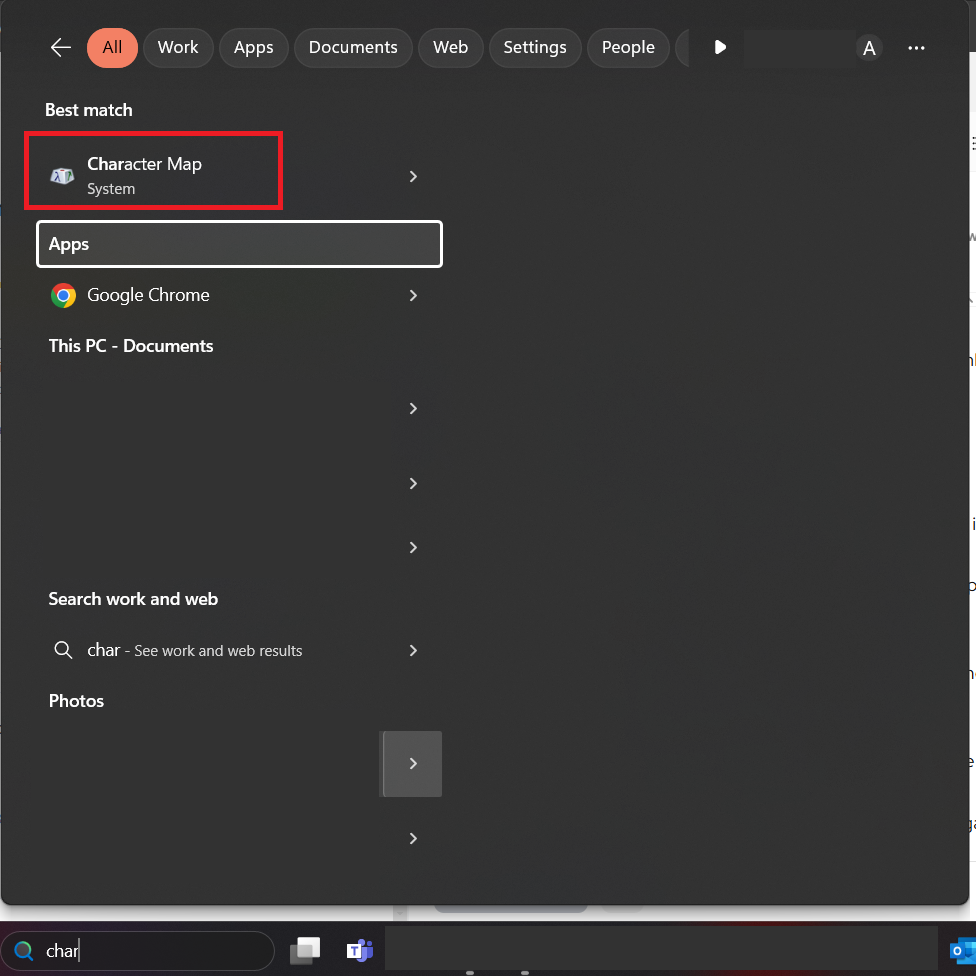
STEP 2: Select Arial as the font. Select a macron from the list of characters.
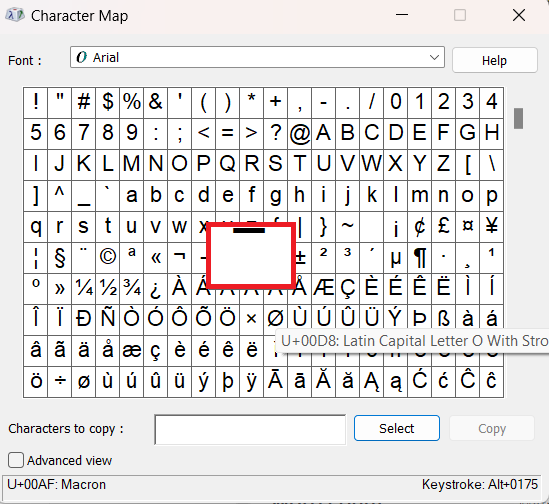
STEP 3: Select the macron and click Copy.
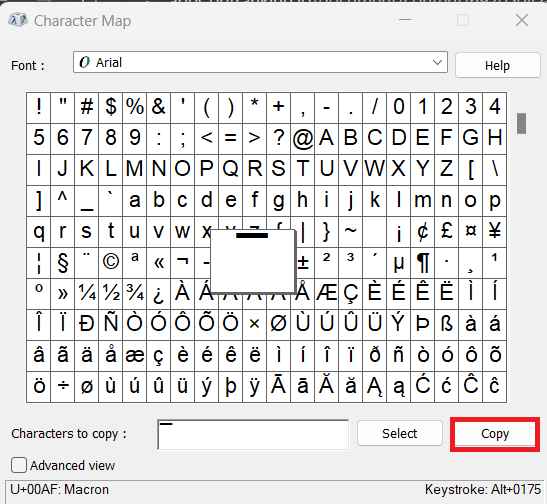
STEP 4: Paste it into your Excel worksheet, then type x before it.
FAQs
What is this symbol x̅?
X bar is statistcial symbol that represents the average of a dataset. It is calculated by adding all the values in the data and then dividing it by the number of observations.
How to insert x bar symbol?
You can insert x bar symbol in Excel by using any of these methods:
- Copy x bar from another source and paste it.
- Type X and then the keyboard shortcut, i.e., Alt followed by the numbers 0773
- Go to Insert > Equation > Accent > Overbar. Type X.
How to make an X bar symbol in Excel without the equations function?
If you do not want to use the equation editor, you can use a keyboard shortcut too. To insert a x bar, you can type X and then use the combination of Alt with 0733.
Can Excel calculate X bar automatically?
Yes, you can use the average function in Excel to get the value of x bar.
=AVERAGE(A1, A2, A3, ….)
X bar symbol can then be added manually.
Why X bar symbol not getting displayed correctly?
If X bar is not getting displayed correctly, it may be because the font used is incorrect. The font does not align with the overline and make its distorted, shifted or missing.

John Michaloudis is a former accountant and finance analyst at General Electric, a Microsoft MVP since 2020, an Amazon #1 bestselling author of 4 Microsoft Excel books and teacher of Microsoft Excel & Office over at his flagship MyExcelOnline Academy Online Course.

 30 Days - Full Access









