 Free Practice Workbook
It is important to understand the concept of the Z critical value in the world of statistical analysis. This value helps you analyze your data correctly using the normal distribution. In this article, you will learn how to use the Z critical value calculator in Excel.
Key Takeaways:
- The Z critical value is an important concept in the world of statistics.
- It indicates whether the result of your analysis is statistically significant or not.
- You can calculate the z critical value using the NORM.S.INV function.
- If your Z score is greater than the Z critical value, the result is significant.
- Higher confidence levels lead to larger Z critical values.
Table of Contents
Introduction to Z Critical Value
Z critical value is a common term in the world of statistics. It is a number that indicates whether the result of the statistical analysis is significant or if it occurred by chance. The z critical value is a cutoff point in the normal distribution curve. If the value of your analysis goes below that cutoff point, it means that the result is significant.
Common Z critical values are:
- 1.645 for 90% confidence
- 1.96 for 95% confidence
- 2.576 for 99% confidence
It is important to note that the higher the confidence interval, the higher the z critical value.
Getting Started with Z Critical Value
Requirements for Z Critical Value
The prerequisites for calculating the Z critical value are:
- Use a version of Excel that supports statistical functions.
- Understand what a Z critical value is.
- Input data in a clean and organized manner.
- Make sure that there are no missing values.
Access the Function
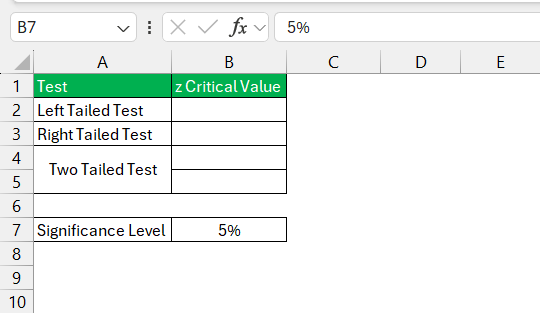
STEP 1: Click on the cell.
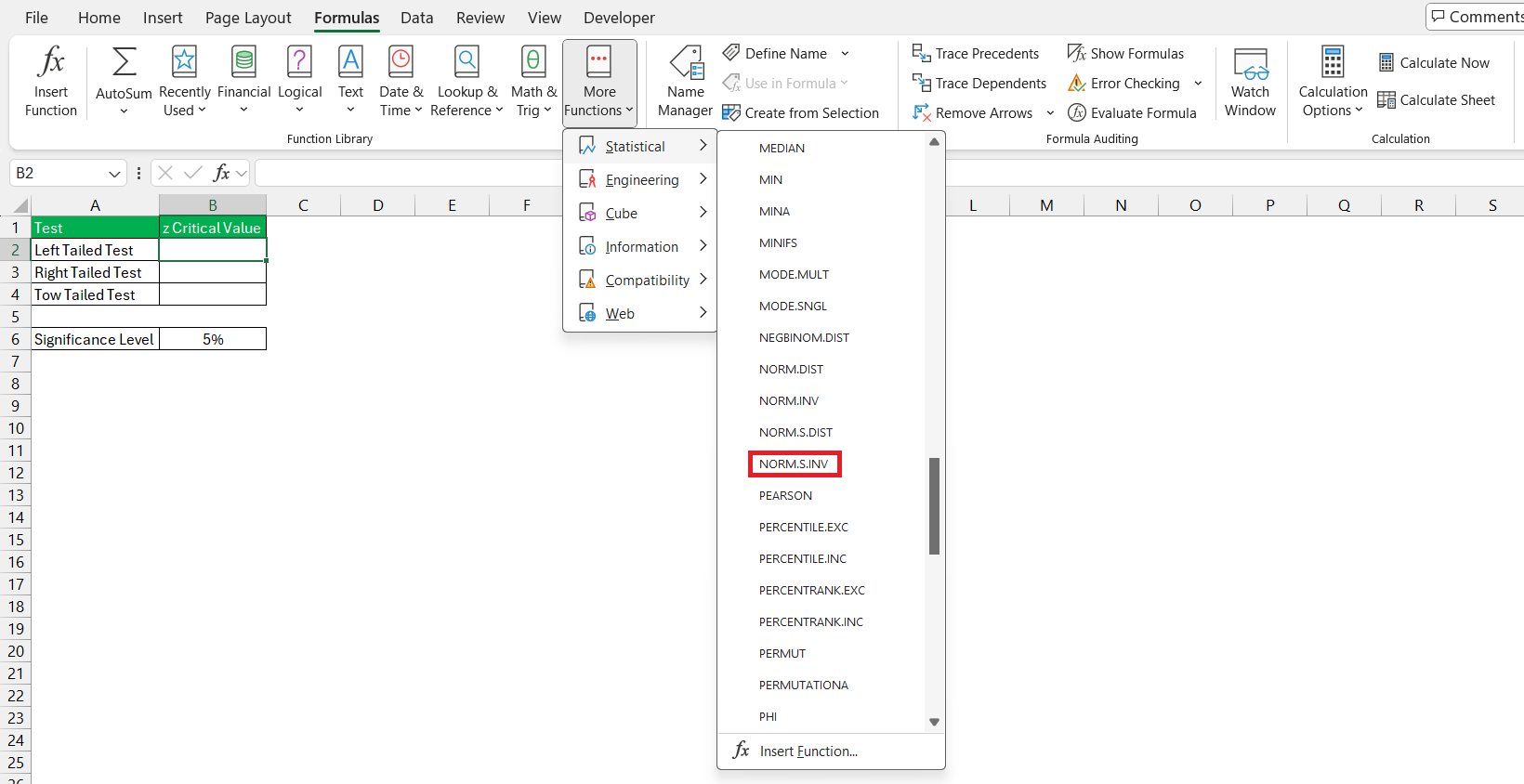
STEP 2: Go to the Formulas tab.

STEP 3: In the dropdown, select Statistical.

STEP 4: From the list, you will choose the function that corresponds to the Z critical value calculation.
Calculating Z Critical Value: A Step-by-Step Process
Follow the steps below to calculate the Z critical value:
STEP 1: Arrange your data in a table.
STEP 2: Enter the level of alpha.
STEP 3: Click on an empty cell where you want the Z critical value.
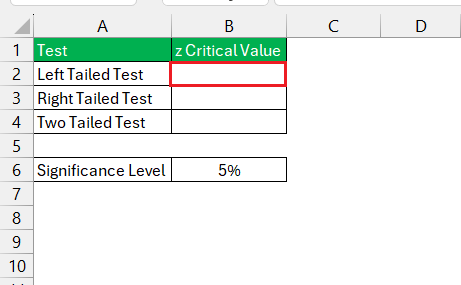
STEP 4: Enter the NORM.S.INV function.
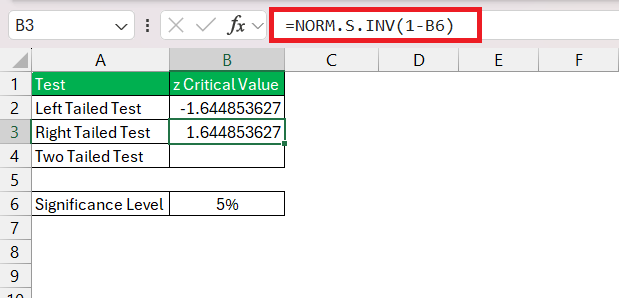
STEP 5: Enter the argument. For a left-tailed test, it is the alpha level. It is mentioned in cell B6.
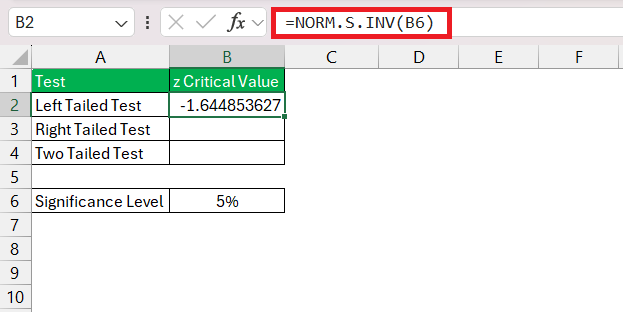
For a right-tailed test, it is 1 – Alpha.
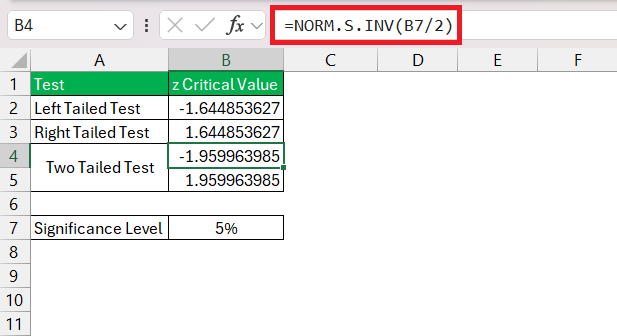
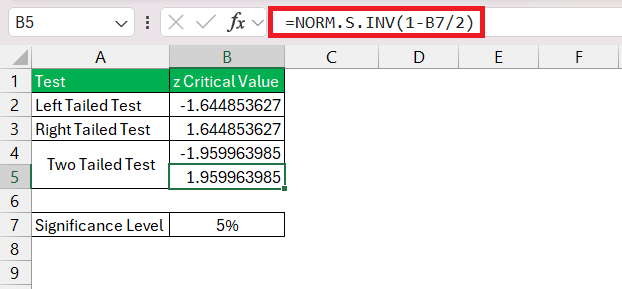
For a two-tailed test, it will be Alpha/2 and 1 – Alpha/2
How to Interpret Results
Once you’ve calculated the Z critical values in Excel, it is important to interpret them correctly.
- If the Z test statistic is greater than the Z critical value, it would indicate that the test result is statistically significant. It is unlikely to have occurred by mistake.
- For a one-tailed test, you have to compare the test statistic with one of the critical values. This decision depends on the hypothesis you are using.
- For a two-tailed test, you have to check if the test statistic falls outside of the two Z critical values.
Common Mistakes to Avoid
When using the Z critical value calculator in Excel, these are the common mistakes that you must avoid:
- Using any function other than the NORM.S.INV function.
- Entering 95 instead of 95% or 0.95.
- Inputting the alpha level instead of the confidence level.
- Choosing the wrong tail type.
- Not including the entire data range when performing calculations.
- Rounding a number in the middle of calculations.
Practical Applications
- Market Research – Z critical value can be used to test whether the customer satisfaction score improves after a product update.
- Healthcare – Z critical value can be used to test the effectiveness of new treatments. It compares the recovery rate to know if the new treatments are better than the standard care.
- Finance – Z critical value is used to check if the investment’s return is different from the market’s average.
By applying Z critical values to these real-world situations, professionals can make data-driven decisions with greater confidence, mitigating risk and identifying true signals amid the noise.
FAQs
How to calculate Zscore in Excel?
To calculate a Z score in Excel:
- Input your data in one column.
- Calculate the mean of your data using the formula: =AVERAGE(range).
- Calculate the standard deviation with: =STDEV.S(range) for a sample or =STDEV.P(range) for a population.
- Use the Z score formula: =(X-μ)/σ, replace ‘X’ with the cell of the data point, ‘μ’ with the mean, and ‘σ’ with the standard deviation.
What does a Z critical value indicate?
The Z critical value is a cutoff point in the normal distribution graph. If your observed value is beyond that cutoff point, it means that the data is statistically significant.
How to use Z Critical Values for One-Tailed Tests?
Z critical values are used in one-tailed tests to determine the significance threshold. You use NORM.S.INV(1-α) for right-tailed tests and NORM.S.INV(α) for left-tailed tests, where ‘α’ is your significance level.
What is the Z critical value for a 95% confidence level?
The z critical value for a 95% confidence level for a one-tailed and two-tailed test is ±1.645. and ±1.96, respectively.

John Michaloudis is a former accountant and finance analyst at General Electric, a Microsoft MVP since 2020, an Amazon #1 bestselling author of 4 Microsoft Excel books and teacher of Microsoft Excel & Office over at his flagship MyExcelOnline Academy Online Course.

 30 Days - Full Access









