 Free Practice Workbook
When analyzing data, percentile calculations are used to get valuable information. The most commonly used percentile is the 75th percentile. It is also known as the third quartile. In this article, you will learn how to calculate the 75th percentile in Excel.
Key Takeaways:
- The 75th percentile shows the top 25% of a dataset.
- It helps you identify top performers and outliers in the data.
- You can use PERCENTILE.INC or QUARTILE.INC to calculate the 75th percentile.
- The PERCENTILE.EXC function excludes the lowest and highest values.
Table of Contents
Introduction to Percentile
A percentile tells you the percentage of values that are equal to or below a specific number. The PERCENTILE function can be used to get the value. The syntax is:
=PERCENTILE.INC(array, k)
- array – It is the data range.
- k – It is a percentile in decimal form.
For example, the 75th percentile will return a value below which 75% of the data falls.
=PERCENTILE.INC(array, 0.75)
Prepare your Spreadsheet
Organise Data
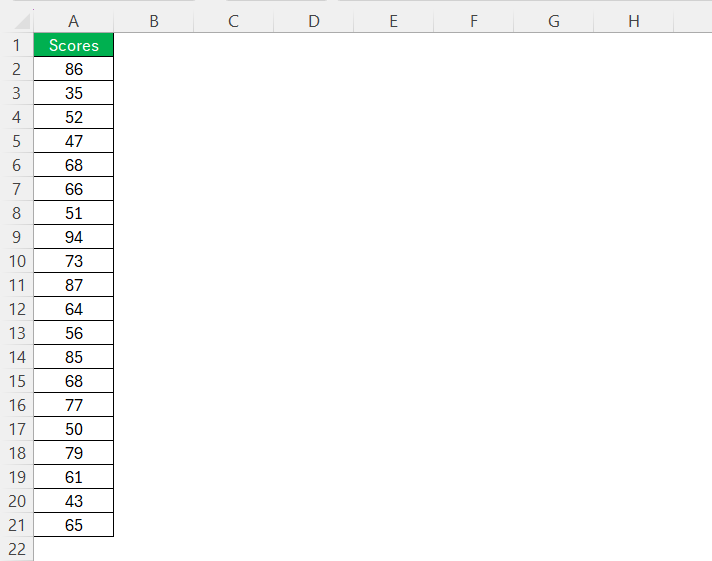
- List the data in a single column. Make sure there are no gaps or blank cells.
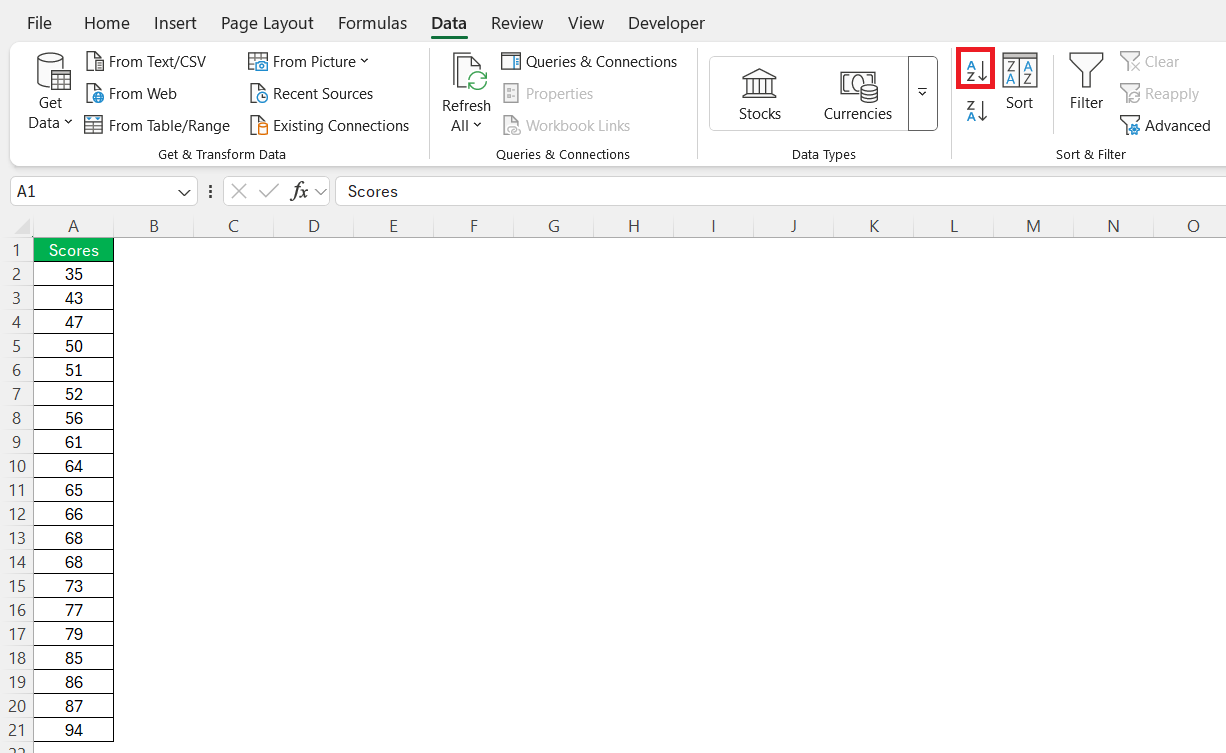
- Go to the Data tab. Select A to Z button to sort your data.
- Make sure that all data points are in the same measurement unit.
- Combine data from multiple sheets into one sheet.
Data Accuracy
- Go to the Data tab and select Remove Duplicate to clean your data.

- There should be no missing data points. You can either enter an estimated value or remove the incomplete record.
- Make sure that outliers are not present in the dataset.
- Use the Data Validation tool to provide users with expected parameters to use for data entry

How to Calculate 75th Percentile
PERCENTILE and PERCENTILE.INC Functions
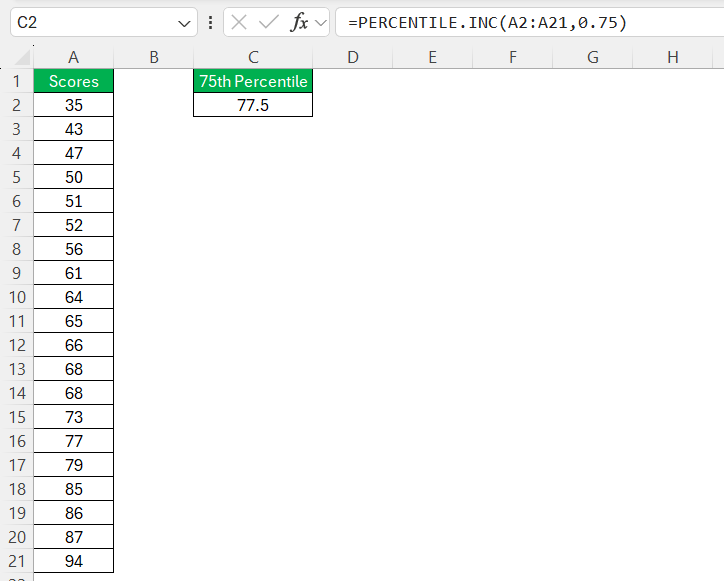
- PERCENTILE.INC Function: The PERCENTILE.INC function is used to find the 75th percentile of the data.
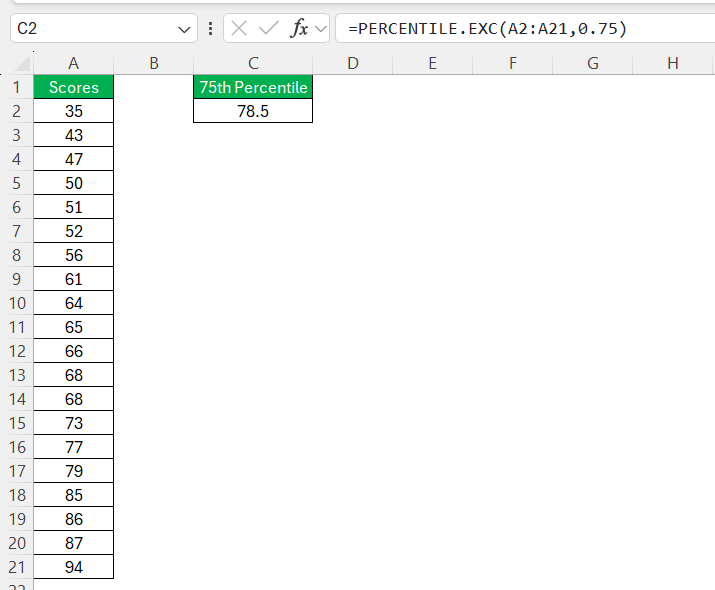
- PERCENTILE.EXC Function: If you do not want to include first and last data points, you can use the PERCENTILE.EXC function.
QUARTILE Function
The QUARTILE function is focused on quartiles. Quartiles divide data into four equal parts, and can compte 75th percentile i.e., Q3.
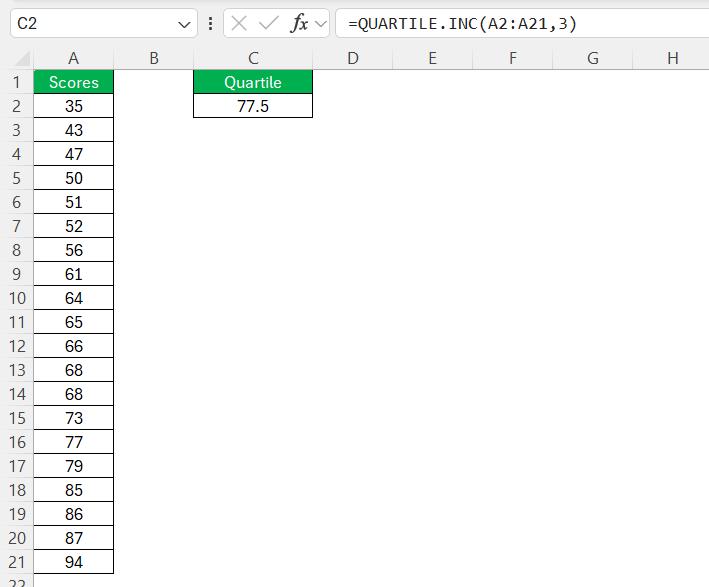
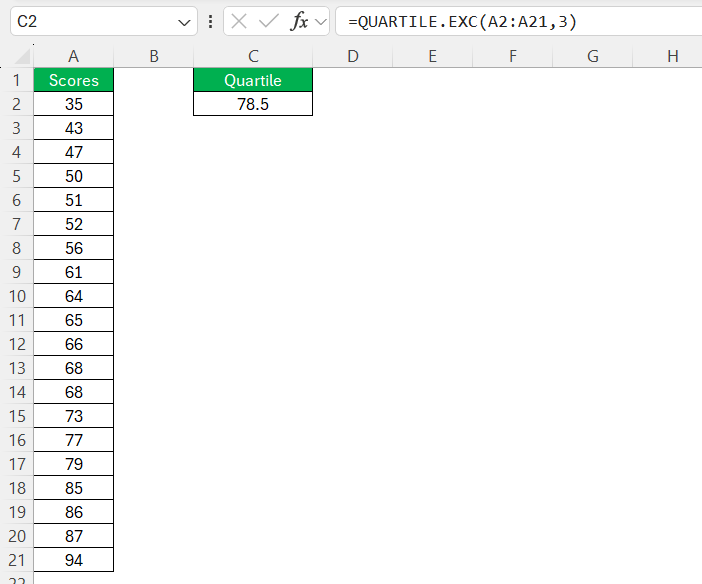
If you are using Excel 2010 or a later version, you can use QUARTILE.INC or QUARTILE.EXC. QUARTILE.INC accounts for the smallest and largest values or QUARTILE.EXC, which excludes them.
Tips & Tricks
- Selecting the wrong range of cells for the data argument.
- Double-check that the range you have selected.
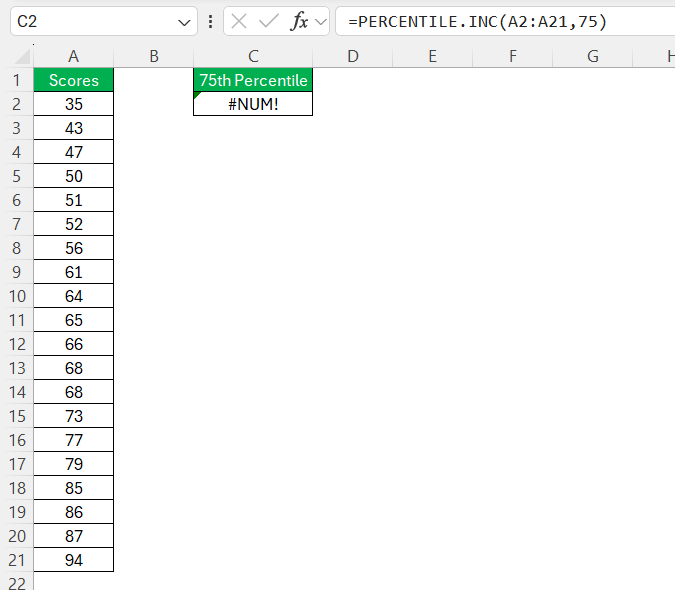
- Using an incorrect percentile value itself. Inputting 75 instead of 0.75.
FAQs
How to find the 75th percentile in Excel?
To find the 75th percentile in Excel, use the PERCENTILE.INC function with your range of data.
=PERCENTILE.INC(A1:A100, 0.75)
This formula calculates the value below which 75% of the data in the range falls.
What is the Difference Between PERCENTILE.INC and PERCENTILE.EXC?
The difference between PERCENTILE.INC and PERCENTILE.EXC is:
- PERCENTILE.INC – It includes the first and last values in the calculation.
- PERCENTILE.EXC – It excludes the first and last values in the calculation.
How to Interpret the Results of a 75th Percentile?
The result of the 75th percentile is the value that represents a point below which 75% of the data falls. It shows the top performers of the dataset.
What is the percentile function in Excel?
The PERCENTILE function in Excel tells you the percentage of values that are above or below a specific value. The syntax is:
=PERCENTILE(array, k(
where, array is the range of data and k is the percentile value in decimal.

John Michaloudis is a former accountant and finance analyst at General Electric, a Microsoft MVP since 2020, an Amazon #1 bestselling author of 4 Microsoft Excel books and teacher of Microsoft Excel & Office over at his flagship MyExcelOnline Academy Online Course.

 30 Days - Full Access









